Our API 1.18 and SDK were developed to ease the use of the custom and import connectors.
Create and set up the custom connector
The custom connector has to be created from the Main dashboard > Channels > Channels’ marketplace > Custom connector
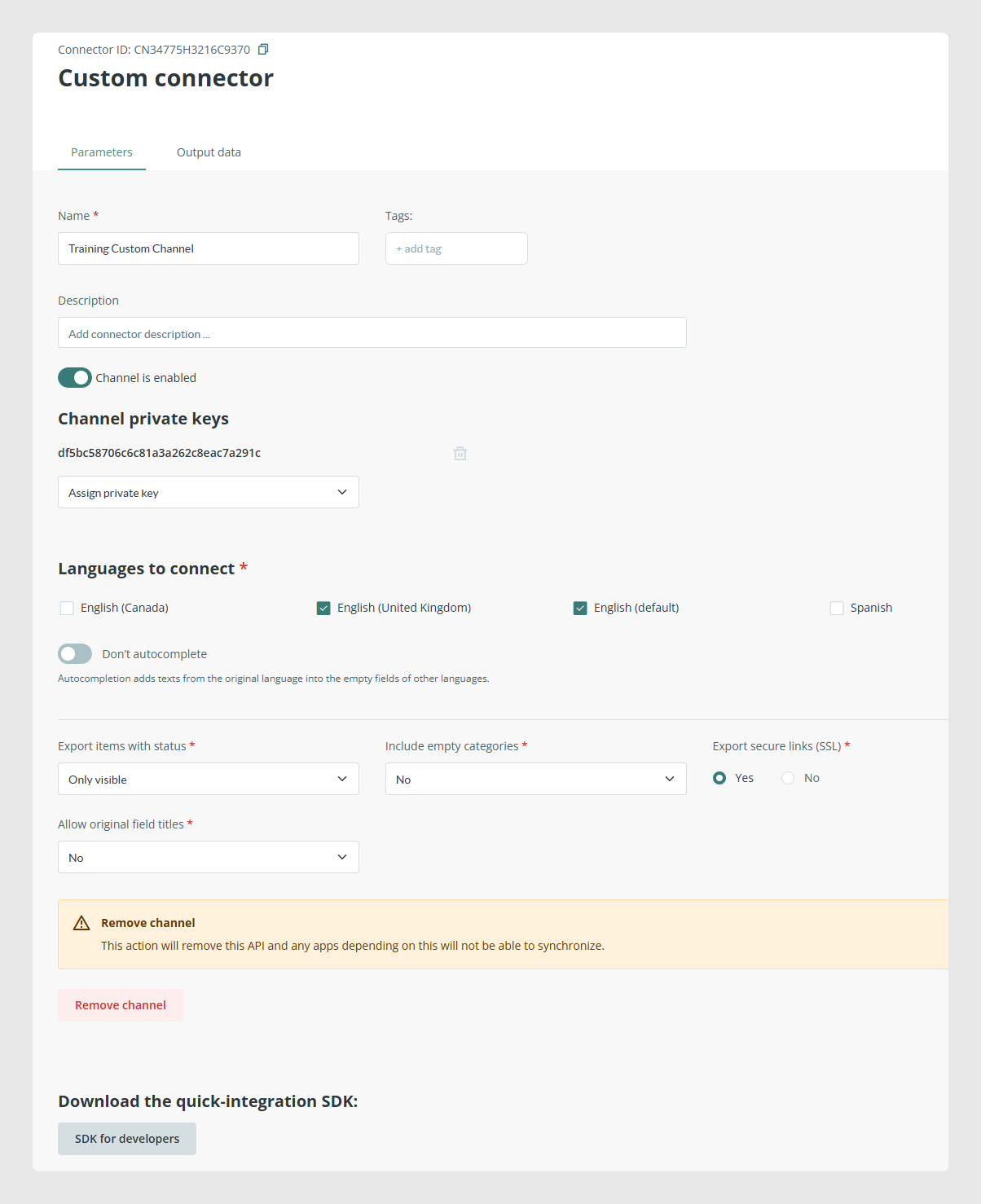
1. Parameters tab
Here the main generic parameters are set, from the top to the bottom:
- Connector ID - used to identify the channel in the call construction
- Name - the title to identify the channel that will be shown before opening in the Channels section
- Enable toggle button- activates/deactivates the channel
- if deactivated won’t be able to retrieve any data
- Private key - used to identify the channel in the call construction
- Languages to connect- multiselection checkboxes showing the languages available in the account
- If more than one language is selected the “Don’t autocomplete” toggle button will appear. When activated, any data that is missing translations will be autofilled with the content on the main default language
- Export items with status- dropdown with the available status choices
- This is the primary filter that will pick only the items with the chosen status and discard the others
- In Custom channel and other API channels, the top to bottom filtering hierarchy works as follows: categories>products>variants. I.e. when one category is excluded, all of the products in it and their corresponding variants won’t be exported either
- Include empty categories - when set to “no” the categories with no products won’t be exported
- Export secure links - any URL exported will include the “https” prefix
- Allow original field titles
- If set to “yes”: fields titles will be exported as set in any forms (Products, Variants, Custom entities)
- If set to “no” the titles will be exported as set in the “Output data” tab
- Remove channel - eliminates the channel
- SDK for developers - link to our GitHubrepository with the SDK and scripts required to use it properly
- This will be used and explained in the following sections of this document
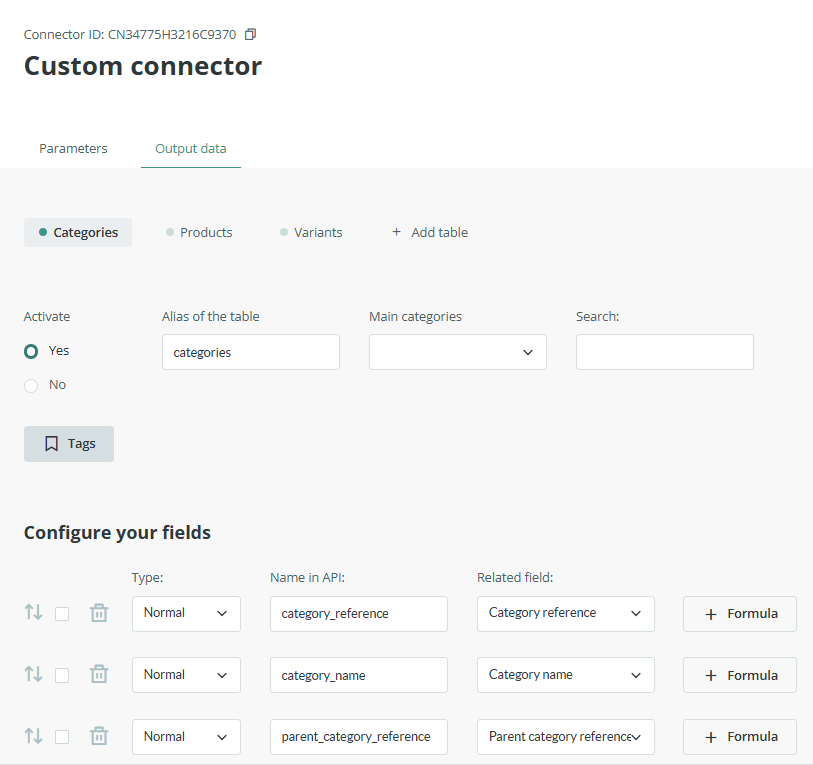
2. Output data tab
Categories table:
Here the table specific filtering and fields’ mapping are set. From the top to the bottom the following parameters are presented:
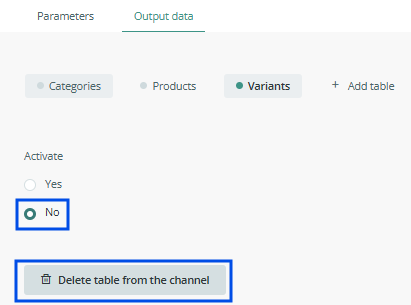
- Activate
- If set to “yes”: eventually exports the contents according to the following configuration
- If set to “no”: the whole table is excluded from the export.
- When deactivated the Delete table button is shown
- Alias of the table - the name given to the table exported, usually left with the default name
- Main categories - dropdown field with all the category tree branches. The category chosen will be taken as the root and only those belonging to it, will be exported excluding the chosen one itself.
- Search - field to perform searches- same functioning as the one in every table. The advanced search formulae can be applied here
- Tags- the categories with the chosen tag will be exported
- When more than one tag is chosen the OR logic is applied i.e. categories with one or several of the chosen tags will be exported
- Configure your fields- here the exported fields mapping is made.
- First column features the type of field
- Normal - this includes all of the fields besides the image type
- Image - this adapts the mapping for the image type field
- Template - similar to Normal but with some extra configuration features
- First column features the type of field
- Name in API - the name assignation for the field that will be reflected in the output file
- Related field - the field in Sales Layer from which the content will be exported
- Formula - extra feature that allows data modification for the export i.e. set of possible modifications that can be applied to the data before the export
The tables that come after Categories work the exact same way with the exception of some nuances in the filtering.
- Products table: similar to Categories Main categories filter this table features the “Attribute sets” which allows choosing several attribute sets to export
- Variants table on the other hand only includes the “Search” field and “Tags” filters
Was this article helpful?
That’s Great!
Thank you for your feedback
Sorry! We couldn't be helpful
Thank you for your feedback
Feedback sent
We appreciate your effort and will try to fix the article