Sales Layer allows you to import information into different areas of your catalog. Depending on what you are setting up, you can import:
- Products
- Variants
- Categories
- Custom Entities and other additional tables
- Images
- Files
Most customers begin by importing categories, products, and variants if they use them. After that, they usually import images and files, then move on to automatic imports if they need ongoing updates from another system.
Main ways to import data
Manual bulk import
Manual bulk import is the most common option when you are loading data for the first time or when you want to update many items at once in a controlled way.
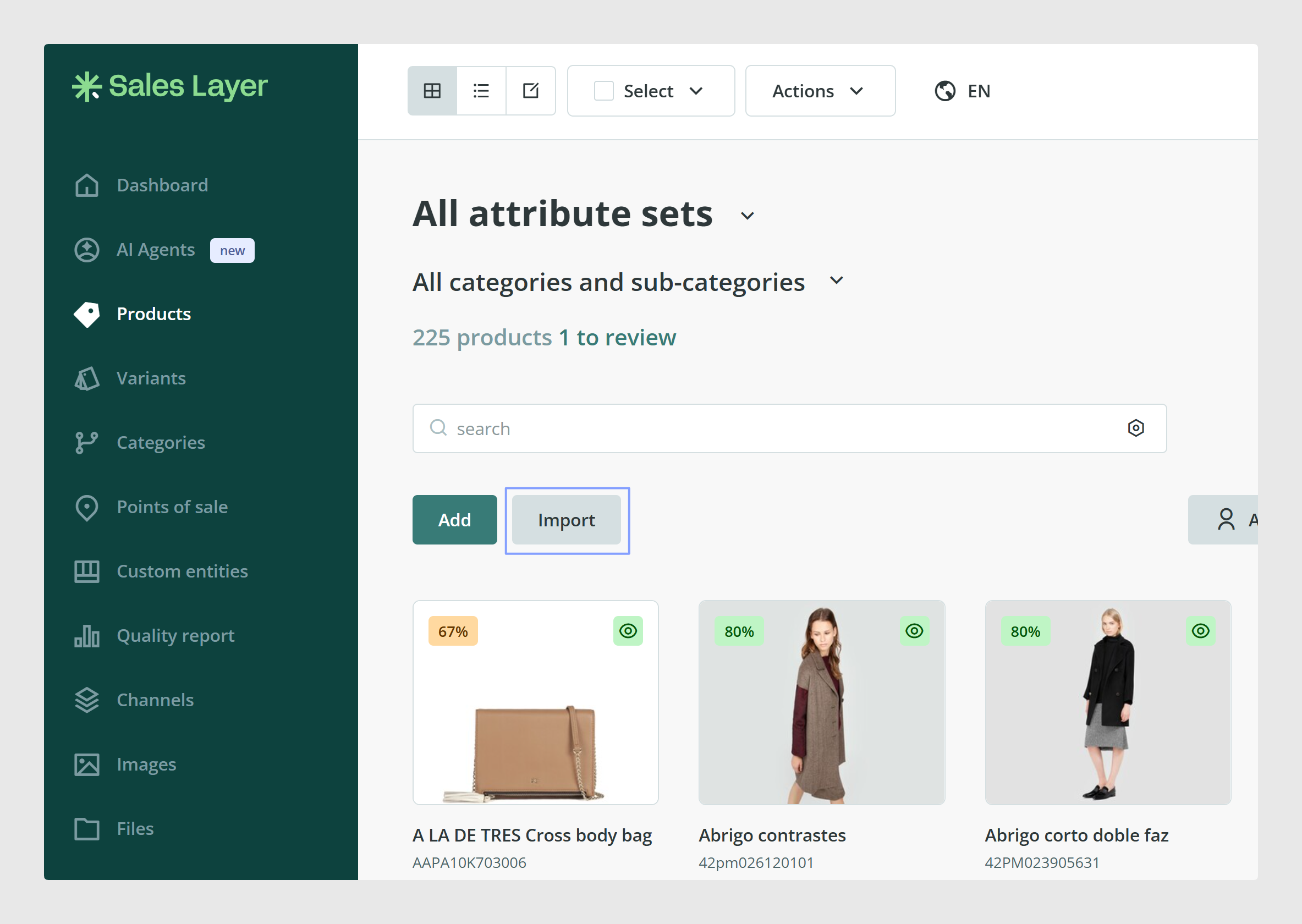
To start a bulk import, go to the table you want to update, such as Products, Categories, or Variants, and click Import. You can also open the Actions menu and choose the import option there.
Sales Layer supports these manual import formats:
- Excel
- CSV
- XML
The same import action is used across the main Sales Layer tables, including categories, products, variants, and custom entities.
Automatic import
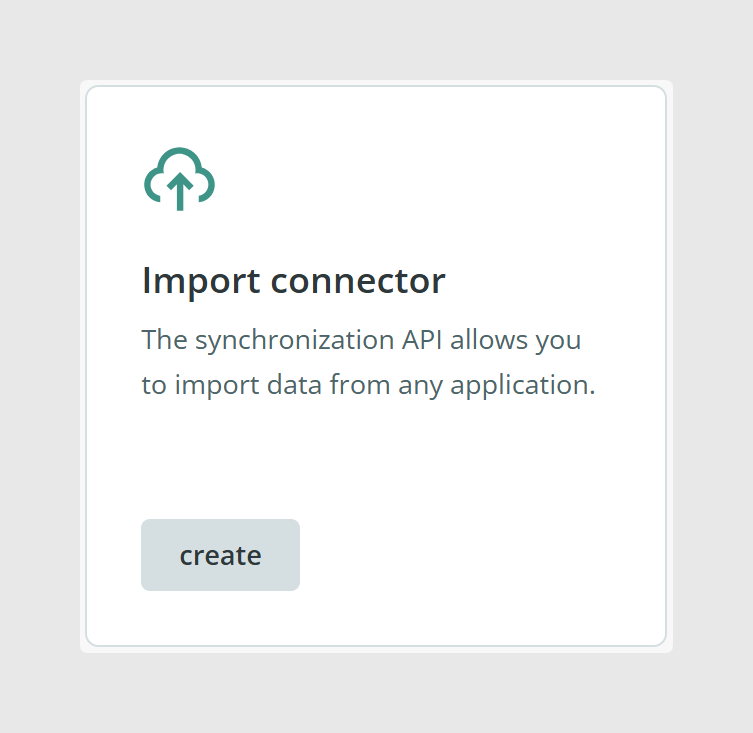
If your data is updated regularly outside Sales Layer, you can automate imports using the import connector. This option is useful when data comes from an ERP, a server-hosted CSV file, or another external source that needs to sync on a schedule.
Automatic imports are a good option when:
- you receive updated CSV files regularly
- you want to reduce manual work
- you need to insert or update content periodically
Sales Layer can connect directly to a CSV file on a server through the import connector. Depending on your setup, imports can also be handled throught the API.
See: Import Connector.
Manual creation one item at a time
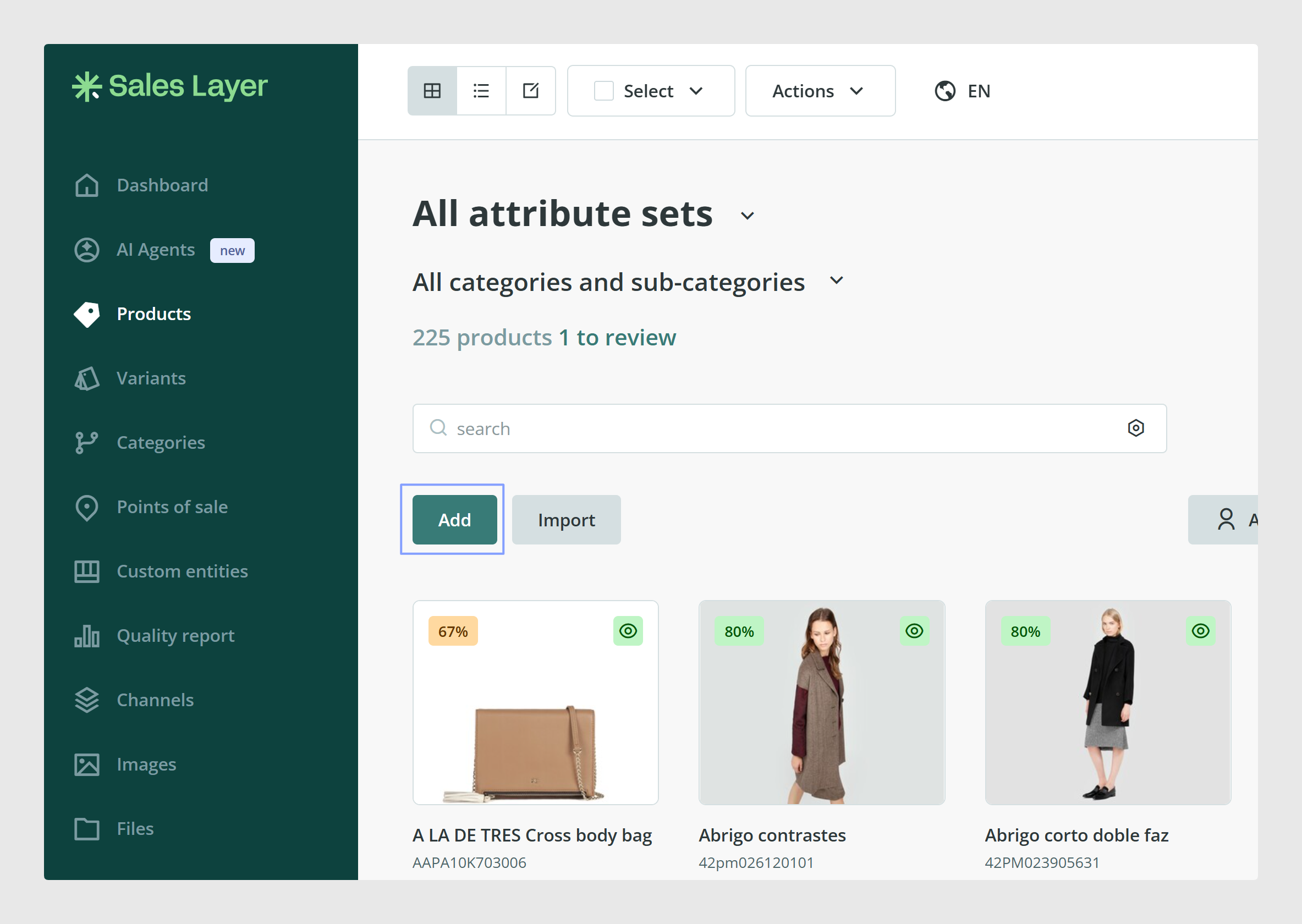
If you only need to create a few items, you do not need to prepare a file. You can click Add and complete the form manually.
This is useful for testing, for adding a small number of records, or for completing setup after your main imports are finished.
When to use each import format
Excel
Excel import is one of the fastest ways to load structured data into Sales Layer. Instead of uploading the spreadsheet file itself, you copy the rows from your spreadsheet and paste them directly into the import window in the PIM.
Use Excel when:
- you are preparing data manually in a spreadsheet
- you want a quick copy and paste workflow
- you are importing products, categories, or variants from a spreadsheet
The limit for Excel import is 25,000 items. You can also import a maximum of 750 columns at a time from an Excel or CSV file.
CSV
CSV import is useful when your information already comes from another system as a flat file.
Use CSV when:
- your ERP or source system exports CSV files
- you want to upload a file directly from your computer
- you want to prepare for automated imports later
The limit for CSV import is 20 MB or 25,000 items.
XML
XML import is useful when your source data is already structured in XML format. Sales Layer uses an internal algorithm to interpret the XML and convert it into items.
Use XML when:
- your source system delivers XML files
- you need to import structured data in bulk
- your field names or language values are already included in the XML structure
The limit for XML import is 40 MB or 25,000 items.
XML import is intended for bulk loading. It is not possible to update just one item at a time through XML import.
How your file should be prepared
For Excel and CSV imports, your data must already be separated into columns before importing. If your catalog uses more than one language, each language version of a field should be placed in its own column using the corresponding ISO code.
For example, if the same field exists in Spanish and English, each language should be imported in a separate column. Sales Layer can identify these columns as part of the same multilingual field when they follow the expected naming format.
How Sales Layer reads imported fields
After you select a file, or paste data in the case of Excel, Sales Layer automatically maps the imported columns to fields already available in the platform.
During this step, you can review the mapping and make changes before finishing the import. For example, you can:
- assign a column to a different existing field
- create a new field
- change the field title
- discard a column you do not want to import
Sales Layer remembers the configuration you choose, which makes future imports easier when you use a similar structure again.
Required information to keep in mind
The item reference field is required when importing items. Sales Layer uses the reference to identify whether a row should create a new item or update an existing one.
This means the reference must always be included when importing products, categories, variants, or other item-based records.
It is also important to keep your references consistent, because Sales Layer treats text as case-sensitive. If the reference changes in uppercase or lowercase, the system can treat it as a different value.
Common use cases
- Use Excel when you are copying and pasting catalog data from a spreadsheet.
- Use CSV when another platform already exports your data in CSV format.
- Use XML when your source system provides structured XML files.
- Use the import connector when you want Sales Layer to pull updates automatically from an external source.
- Use manual creation when you only need to add a few items and do not want to prepare an import file.
Best practices
Start by importing your core catalog structure first, usually categories, products, and variants if needed. Once that structure is stable, add images and files. After that, move to automatic imports only when your references, field mapping, and data structure are already consistent. This makes setup easier to control and helps avoid import errors later.
Was this article helpful?
That’s Great!
Thank you for your feedback
Sorry! We couldn't be helpful
Thank you for your feedback
Feedback sent
We appreciate your effort and will try to fix the article