General layout
This section shows general information about the synchronization process.
- An informative icon explains that changes are stored in a queue and processed incrementally.
- It includes a link to the Item Synchronization Status tab, where you can review item-level details.
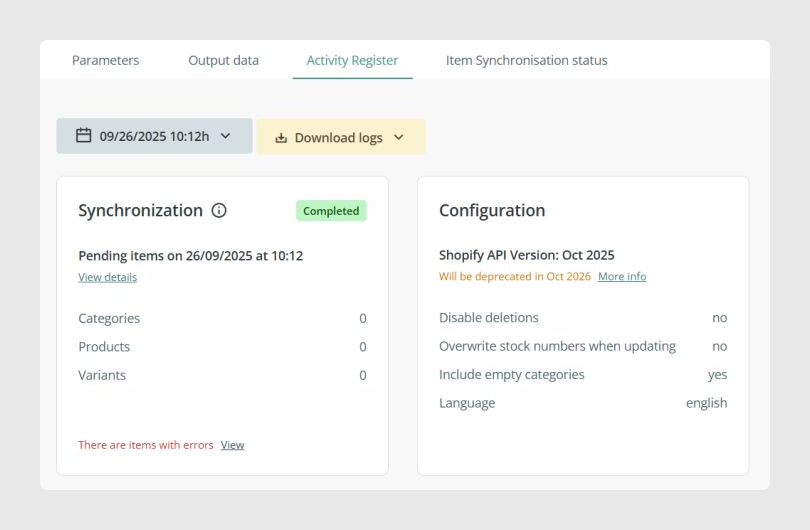
Synchronization section
The Synchronization section includes:
- Status
- Timestamp showing when the synchronization started
- Link to the Item Synchronization Status tab
- Pending items, including categories, products, and variants
- A warning message if any errors occurred
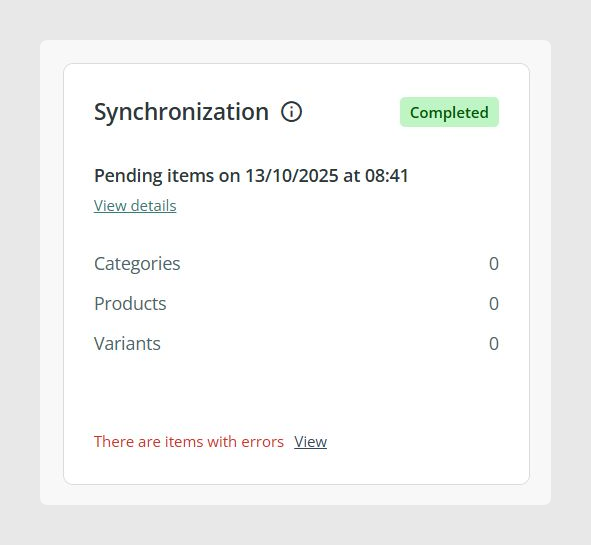
Each synchronization event can show one of these statuses.
Completed
This status appears when the synchronization finishes, even if general errors or item-level errors were found.
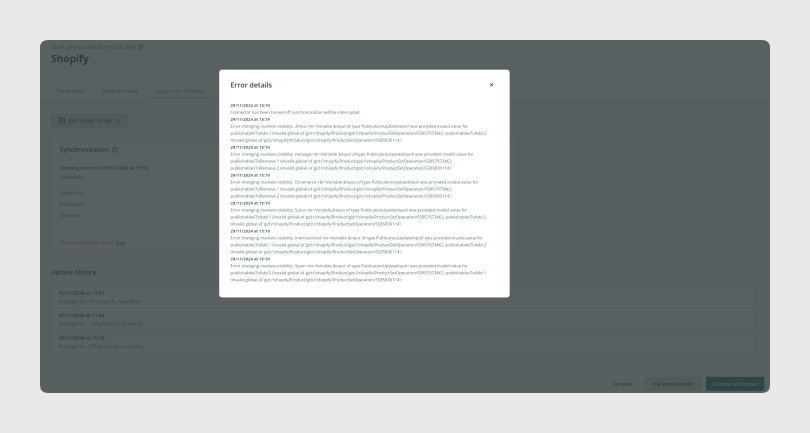
- A red exclamation icon appears next to the status if general synchronization errors were detected.
- Clicking that icon opens a modal that shows only the general synchronization errors.
- Errors affecting specific items are displayed separately in the Item Synchronization Status tab.
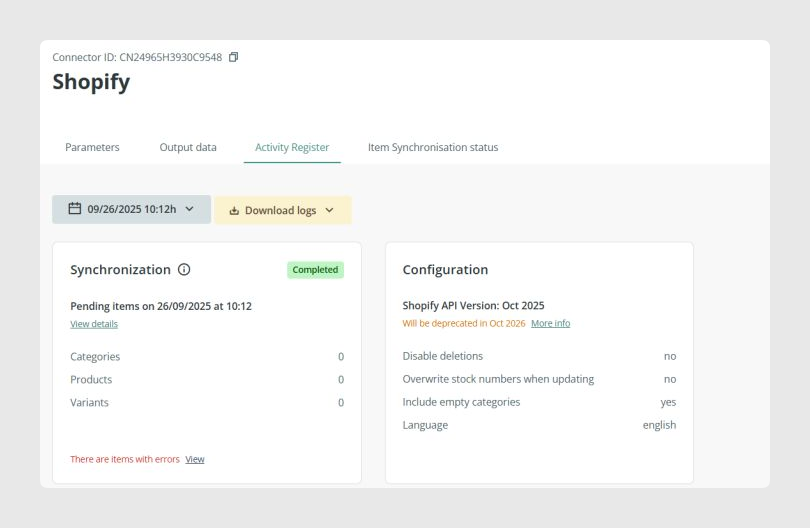
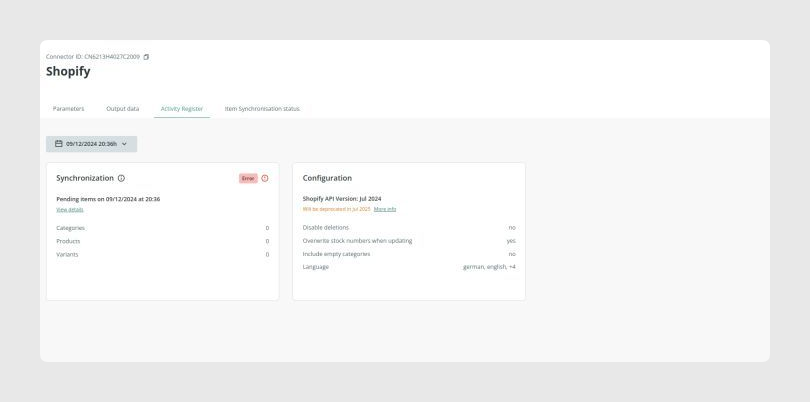
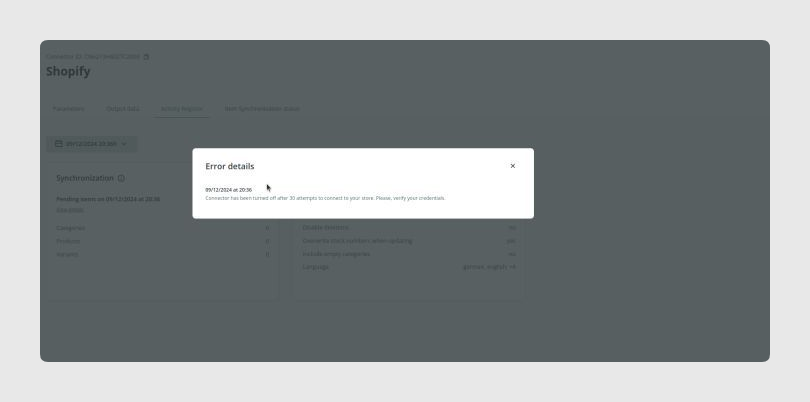
Error
The status is Error when the connector fails to start the synchronization.
A common cause is invalid API credentials or a connection problem with the Shopify store.
In Progress
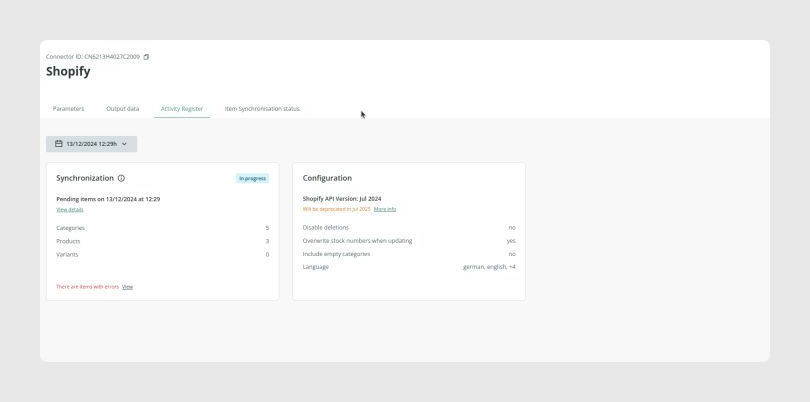
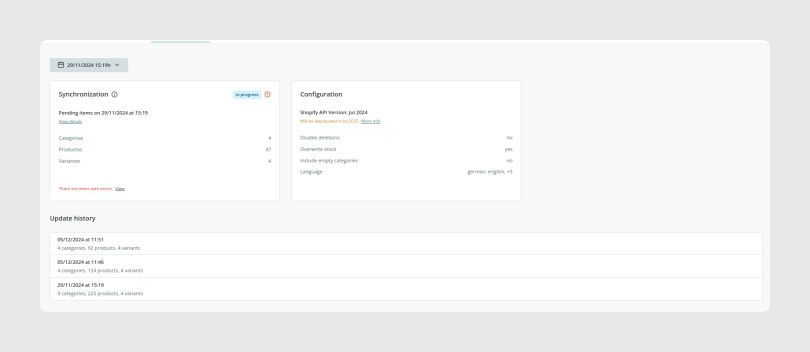
This status is displayed while the synchronization is running.
The interface updates in real time:
- The pending item counter decreases.
- Iteration history blocks appear progressively.
- Download links for logs become available when the conditions are met.
- Even if general errors occur, the process may continue partially.
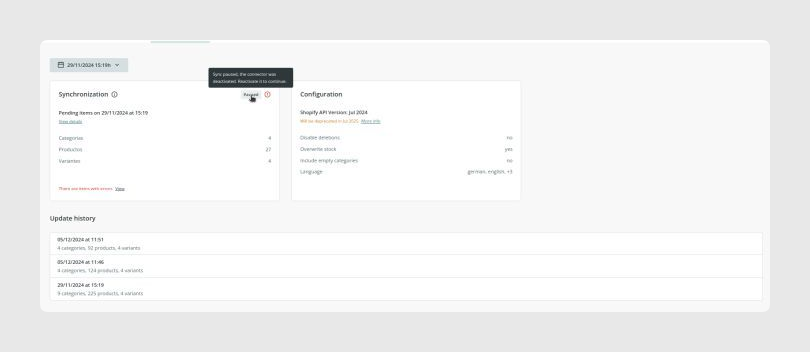
Paused
This is a special case of Completed. It happens when the connector becomes inactive during synchronization, for example if the connector is disabled while the process is running.
When this happens:
- The synchronization is paused and the interface reflects that state.
- Once the connector is enabled again, the synchronization resumes automatically.
- The Activity Register shows the status as In Progress again when the process resumes.
Configuration section
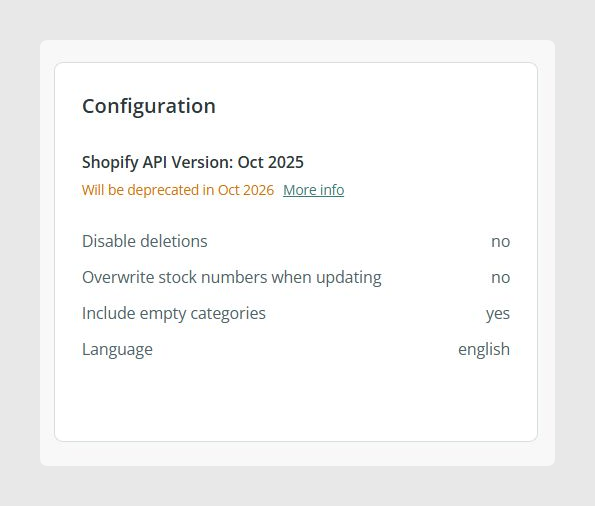
The Configuration section shows the connector parameters used during that synchronization event.
- Shopify API version: shows the API version currently in use. If it is deprecated, a warning indicates that the connector must be updated.
- Applied parameters: these values reflect the exact connector configuration at the time of the synchronization event.
The parameters shown are:
- Disable deletions
- Overwrite stock
- Include empty categories
- Language
History section
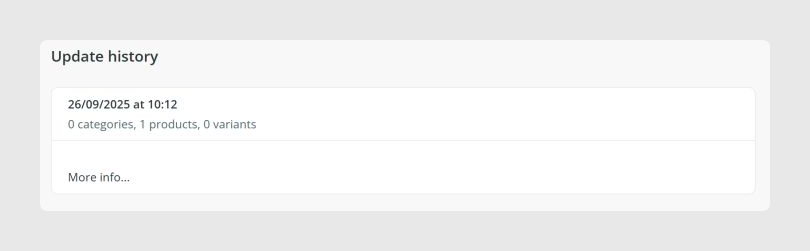
The History section shows a detailed breakdown of each completed iteration inside the synchronization process.
- Timestamp of each iteration
- Several sub-processes, or iterations, inside the same synchronization event
- The number of categories, products, and variants synchronized in each iteration
Best practices
- Use the Item Synchronization Status tab to review item-level errors instead of relying only on the main synchronization status.
- If the status is Completed but a red warning icon appears, open the modal to review the general synchronization errors.
- If the status is Error, first check the Shopify API credentials and the store connection.
- Review the Configuration section to confirm which connector settings were actually used for that synchronization.
- If the Shopify API version is marked as deprecated, plan the connector update before the deprecation date.
- Use the History section to understand how the synchronization progressed and how many categories, products, and variants were processed in each iteration.
- If a synchronization is paused because the connector was disabled, enable the connector again so the process can resume automatically.
Was this article helpful?
That’s Great!
Thank you for your feedback
Sorry! We couldn't be helpful
Thank you for your feedback
Feedback sent
We appreciate your effort and will try to fix the article