Access requirements
This tab becomes available in the channel once at least one synchronization has been performed.
To use this functionality, you need to have a configured and working channel.
Review item synchronization
Once the Activity Register shows that a synchronization has started or finished, you can open the Item Synchronization Status tab.
This tab lets you review more detail about the latest synchronization of each item.
Filters
The top part of the screen includes a group of filters that help you review specific items.
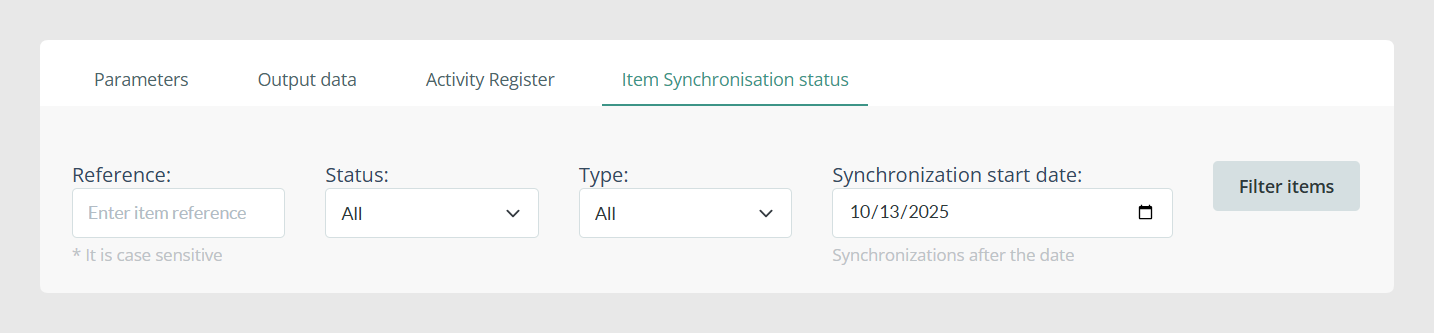
- Reference: lets you search for a specific synchronized item. It can be a category, product, or variant. You can enter part of the reference text, and all matching items will be displayed. This search is case-sensitive, so uppercase, lowercase, and all characters must match the reference exactly.
- Status: filters items by synchronization result.
- All: shows items with any status.
- Error: shows only items that returned an error.
- Pending: shows items waiting to be synchronized. During an active synchronization, these items are included but not yet processed. When the synchronization finishes, they will move to either Error or Complete.
- Complete: shows items that were synchronized successfully.
- Type: filters by Categories, Products, or Variants.
- Synchronization start date: lets you display items that participated in one or more synchronizations from the selected date onward. For example, if you synchronize daily and select a date from one week ago, you will see information from the last seven days.
After selecting the filters you need, click Filter items to apply them.
Summary
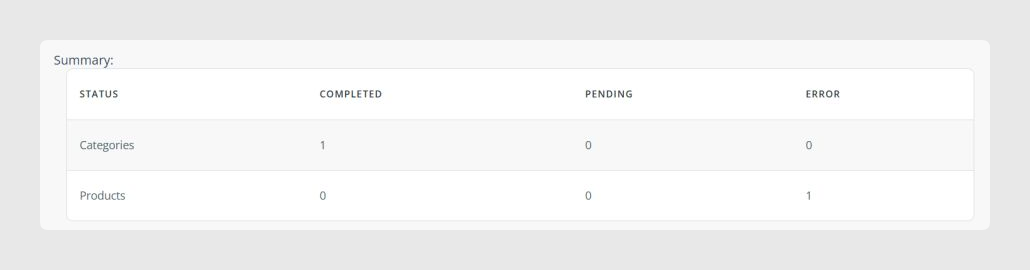
The Summary section shows the number of synchronized items by type and by status.
Item synchronization list
Below the Summary section, you will see the full list of items, or only the filtered items if you applied filters.
This table helps you review the latest synchronization result for each item.
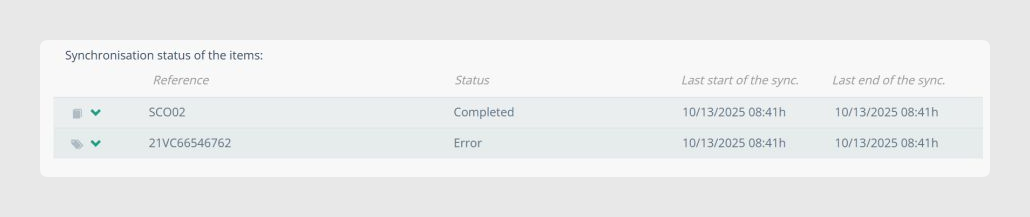
- Start of last synchronization: shows when synchronization started for the item, even if its status is still Pending.
- End of last synchronization: shows when the last synchronization ended for that specific item.
- These dates refer only to the latest synchronization in which that item participated. If the item was synchronized in earlier runs, those previous dates are not shown here.
- Type icon: identifies whether the item is a Product, Variant, or Category.
- Arrows: let you open or close the message with relevant synchronization information for that item.

If the table contains many items, a See more button appears as you scroll down. You can use it to load more results until the end of the list is reached.
Best practices
- Run at least one synchronization before trying to use this tab.
- When searching by reference, make sure the text matches the item reference exactly, including uppercase and lowercase characters.
- Use the Pending status during active synchronizations to identify items that are still waiting to be processed.
- Use the synchronization start date filter when you need to review items included across several synchronization runs.
- Use the arrows in each row to review the synchronization message for that item without leaving the list.
- If you are reviewing a large number of results, use See more to load the list progressively.
Was this article helpful?
That’s Great!
Thank you for your feedback
Sorry! We couldn't be helpful
Thank you for your feedback
Feedback sent
We appreciate your effort and will try to fix the article