If you need your categories to be displayed in a specific order in the catalog. In that case, you will need to add numbers in the category tree that you are sending to the Instant Catalog as shown in the screenshot below. The categories will appear in the order indicated, but the number won’t be displayed.
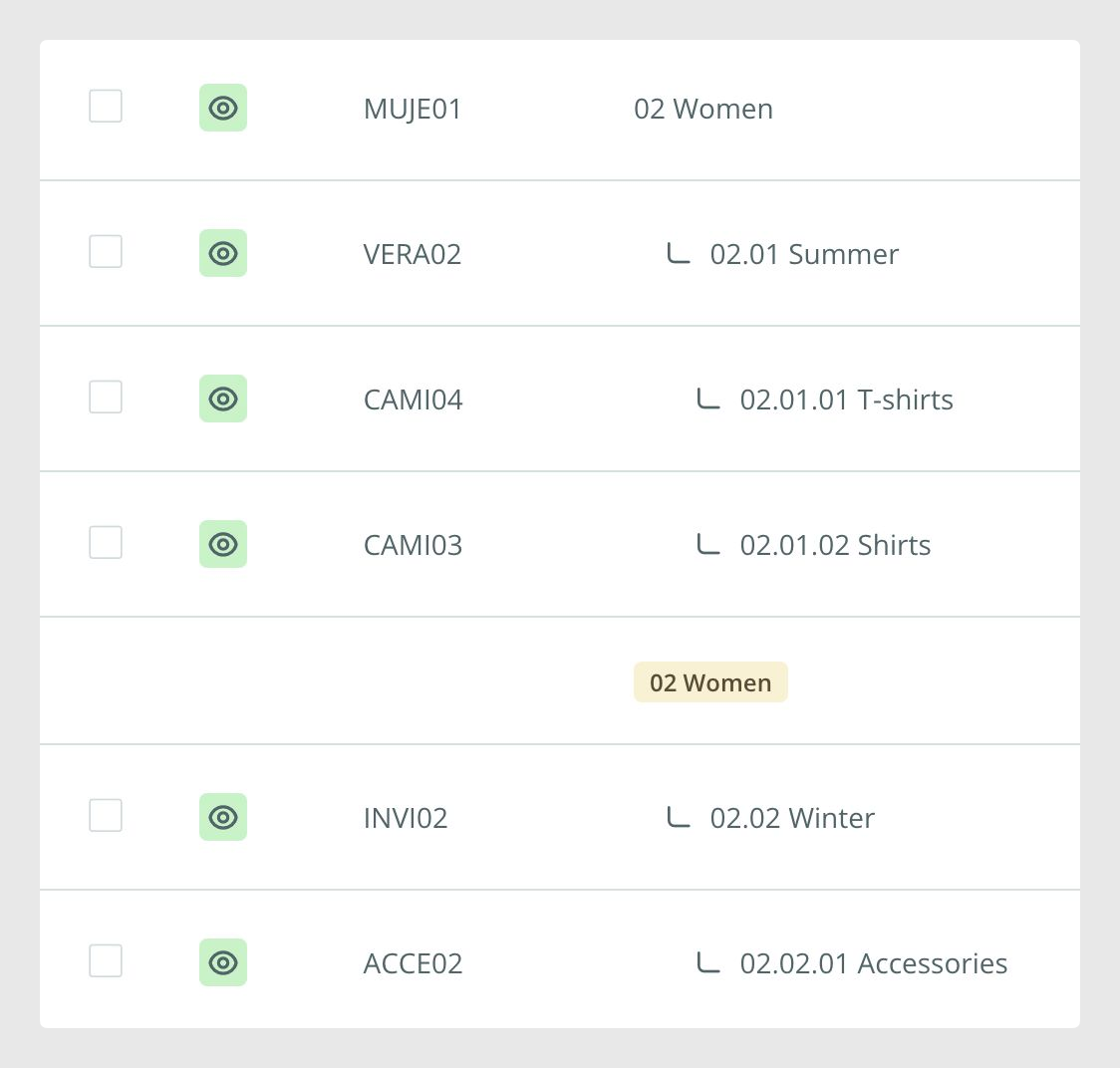
You can use any of the following numerical nomenclatures:
2 Women, 02 Women, 2- Women, 2. Women, 2.1 Summer, 02.1 Summer, 2.1- Summer…
Note: If you need to use the same category tree for other connectors and don’t want to add the number to the name, you could add a field with the numbers and relate it to the category name with a CONCAT formula.
It is also possible to show a different order depending on the language. By default, the connector sorts the categories alphabetically. In the example above, you can see that the category 'Women' shows the subcategory 'Summer' first and then the subcategory 'Winter'. However, in Spanish, these would be displayed in reverse as these words start with a different letter (verano=summer, invierno=winter).
Was this article helpful?
That’s Great!
Thank you for your feedback
Sorry! We couldn't be helpful
Thank you for your feedback
Feedback sent
We appreciate your effort and will try to fix the article