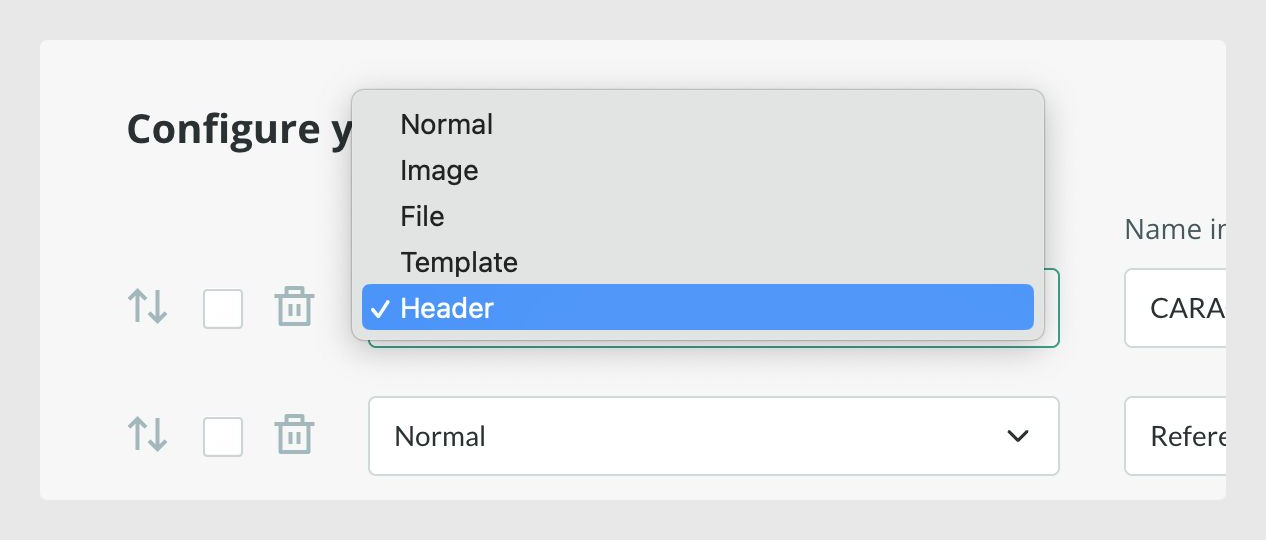
You can arrange the fields in a certain order and add headers if desired.
To create a header, you just need to add a header-type field to the table and give it a title.
Adding page breaks
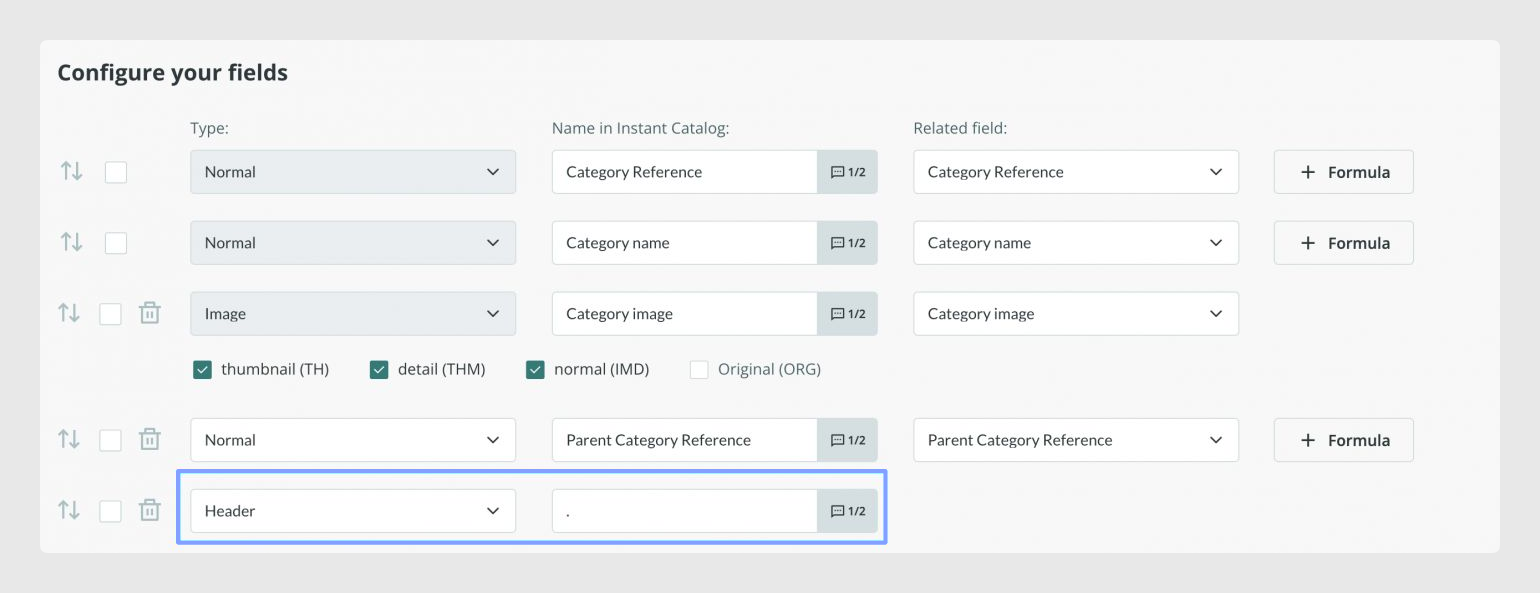
You can also add page breaks by using a header field and typing a dot as the name of the header "." but, keep in mind that as the layout is standardized, these page breaks may not fit in the same way in all the product sheets.
Choosing fields to publish
As mentioned before, you can use formulas to modify the information directly in the output, such as applying a discount in a price field or a concatenation of different fields in the description field, for example.
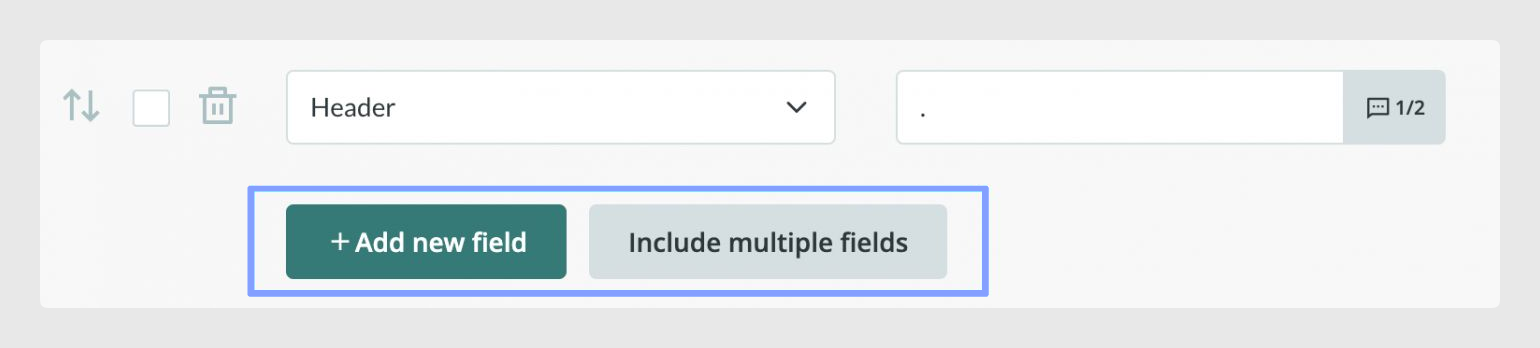
By default, each table in the Output Data tab will show all the fields you have created in all the attribute sets of your catalog at that time. You can add a new field or several fields from your forms using one of the two options at the bottom of the page:
Sorting fields
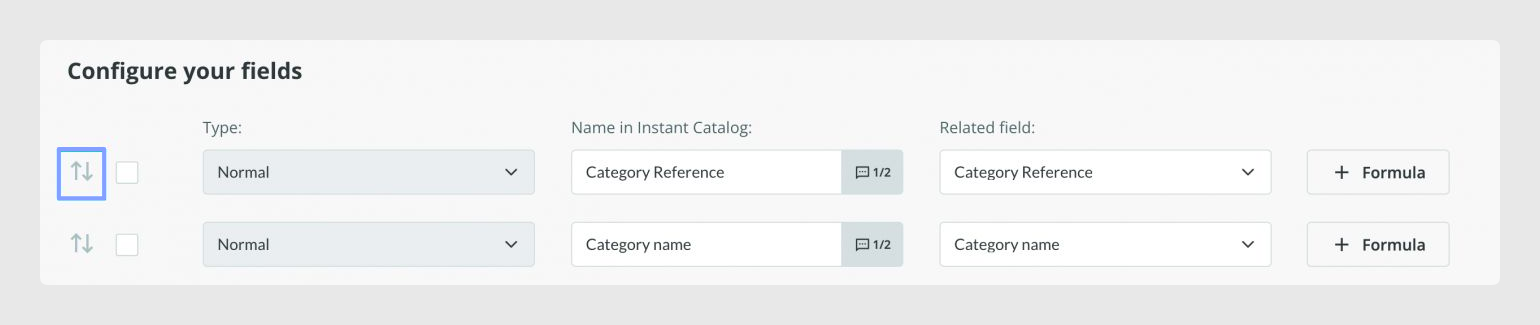
Once you know which tables and elements you want to send, you can sort the fields. Keep in mind that the fields will be displayed in the catalog as they are sorted in the output data table.
To move a field, you can use the arrows and drag it to the right position:
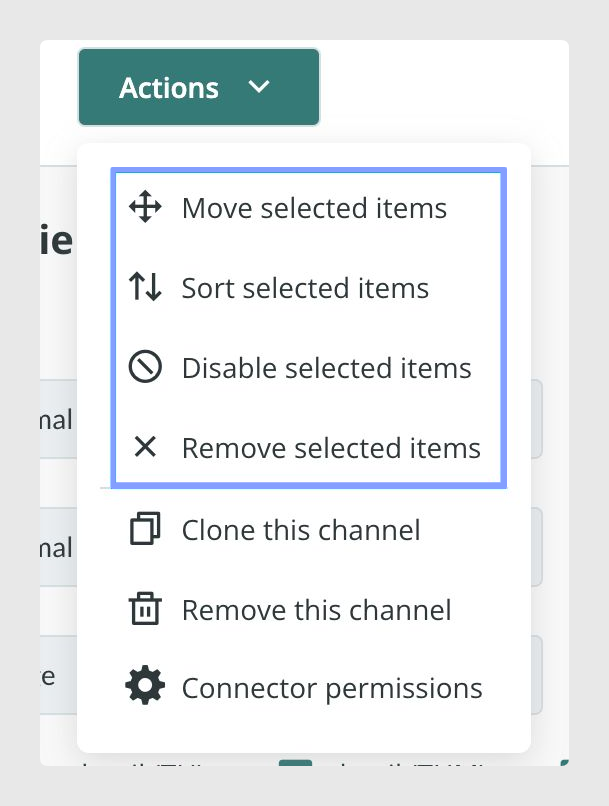
Alternatively, you can also use the options available in the Actions menu to move, sort, disable, or even remove the selected items.
Deleting fields
You can also delete a field completely by clicking on the bin icon next to each field.

Importing table configuration
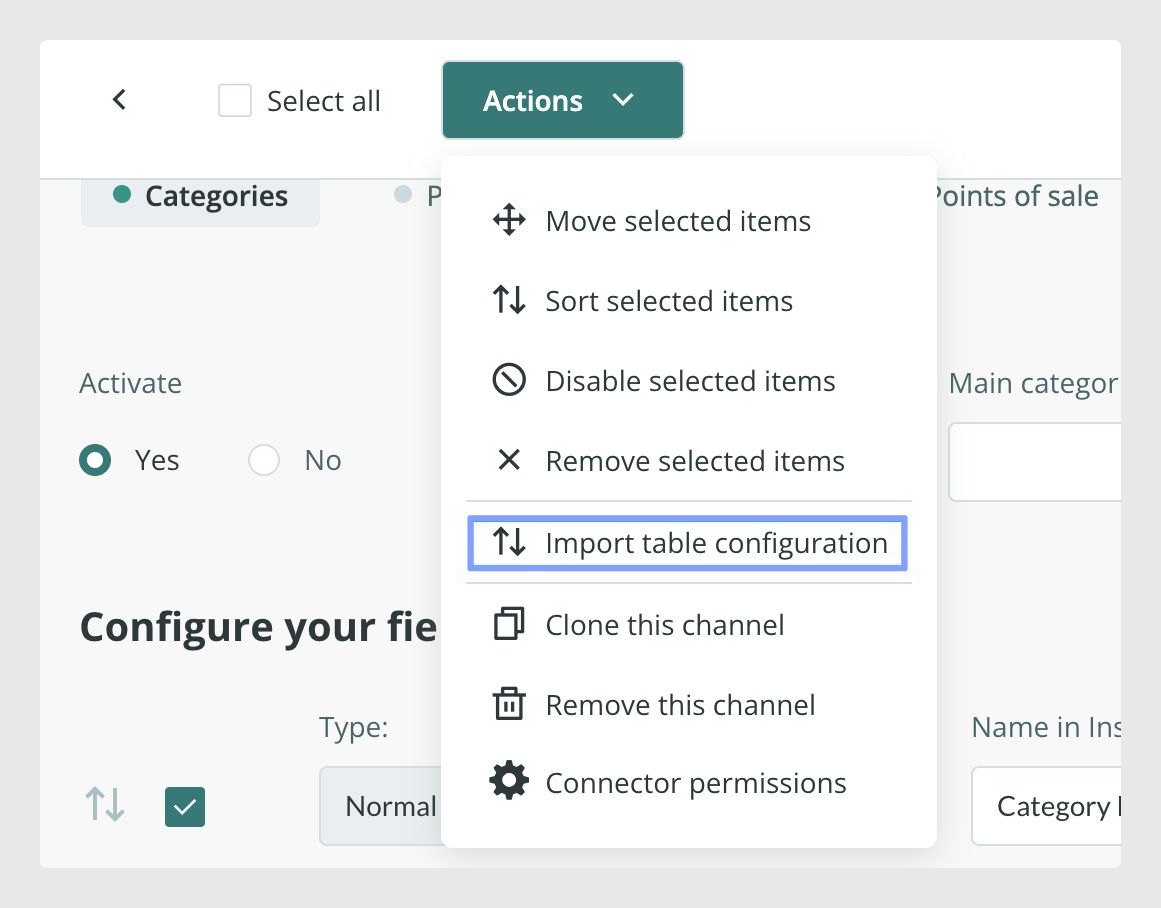
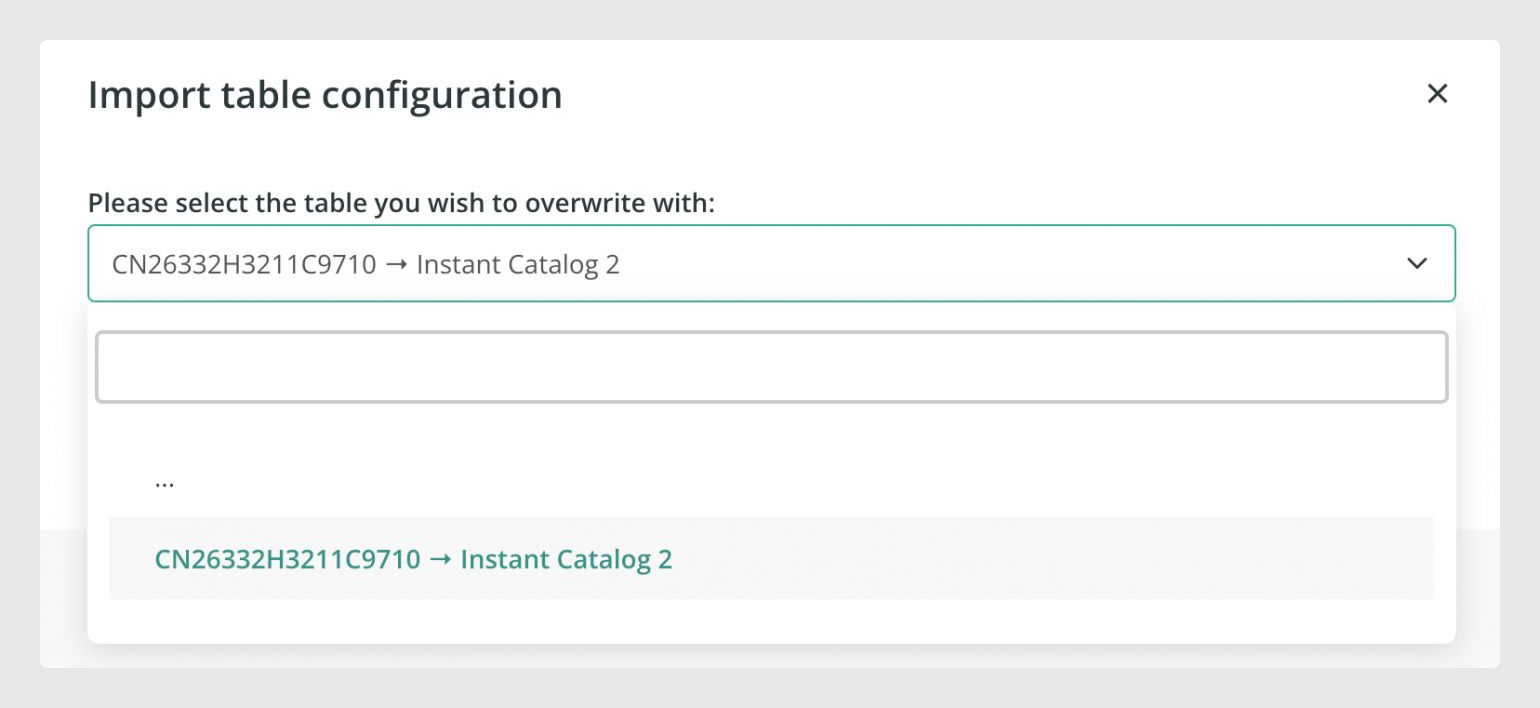
If you want to import the configuration from another connector of your account, do so with the option Import table configuration that you will find in the Actions menu.
Was this article helpful?
That’s Great!
Thank you for your feedback
Sorry! We couldn't be helpful
Thank you for your feedback
Feedback sent
We appreciate your effort and will try to fix the article