Configure the connector settings
Use the Parameters tab to define the connection details and connector behavior before mapping fields.
Credential settings
- Enter the API Key and API Access Token.
- Enter the store name using the Shopify store format, for example storename.myshopify.com.
- Click Connect with Shopify.
If the credentials are incorrect, the connector will show an error:
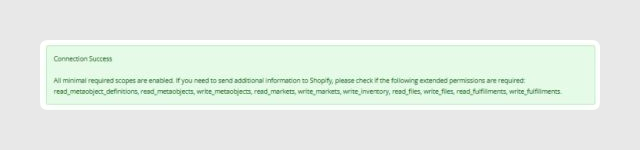
 If the connection is successful, you will see a confirmation window:
Location
Select the Shopify location you want to use. If you need to synchronize more than one location, create a separate channel for each location.
Overwrite stock on update
This setting controls whether stock quantities are overwritten during updates. If it is set to Yes, stock is updated in the selected location every time a product is edited in Sales Layer.
Disable deletions
No is the default and recommended option. It allows the connector to deactivate the corresponding items and delete the corresponding variants.
Yes prevents deletions and archiving in the store. This option requires the Status field in Variants and does not work when Export items with status is set to All.
This is useful when you want to update or filter only a subset of items without affecting the rest of the catalog.
Export items with status
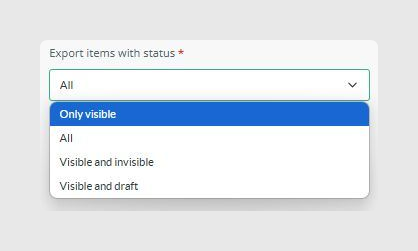
- Visible only: if an item changes from visible to another status, Shopify archives the product, removes collection visibility, and deletes variants.
- All: creates or updates all items. Products are synchronized as active, collections as visible, and variants are included regardless of their Sales Layer status.
- Visible and invisible: if an item changes from visible or invisible to draft, Shopify archives or removes it as needed.
- Visible and draft: if an item changes from visible or draft to invisible, Shopify archives or removes it as needed.
Include empty categories
If this is set to Yes, the connector includes categories with no products, or categories whose products are all excluded by the current status filter.
Language to connect
The connector can synchronize more than one language per store. Languages configured in the PIM appear automatically so you can choose which ones to send to Shopify.
Force refresh
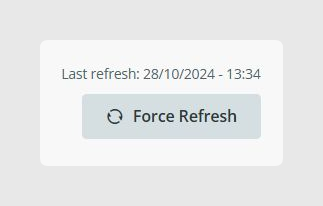
Force refresh resends the full catalog. Use it only in specific cases when you need to restore the catalog. It is not intended to speed up synchronization.
A forced refresh sends all items again, including already synchronized items, new items, all fields, formulas, and images, so synchronization will take longer than a normal incremental update.
After configuring all parameters, click Continue to move to field mapping. The first synchronization starts automatically after all tabs are saved.
Was this article helpful?
That’s Great!
Thank you for your feedback
Sorry! We couldn't be helpful
Thank you for your feedback
Feedback sent
We appreciate your effort and will try to fix the article