This feature allows you to decide in which Markets each product is sold, making it available to specific customers. If a product should not be sold in all Markets, you can unpublish it in specific Markets.
For more information about Markets, check Shopify’s official documentation.
Configuring Markets in Shopify
The following permissions are required in the development configuration of the Shopify app:
- write_markets
- read_markets
- read_metaobject_definitions
- write_metaobjects
- read_metaobjects
- write_fulfillments
- read_files
- read_fulfillments
Before synchronizing from Sales Layer, the corresponding Markets must already be created in Shopify from Markets > Create Market.
For the connector to work correctly, at least one catalog must also be created in the Shopify admin.
- In the Shopify admin, go to Markets > Catalog.
- Click Create Catalog and assign the currencies and Markets, such as countries or regions, where the catalog will be sold.
- Save the catalog.
Configuring Markets in Sales Layer
Markets are defined only in the Products table as a table-type field. You need to create a table with two columns: one for the Market name exactly as it appears in Shopify, and another to indicate whether that Market is enabled.
- market: name of the Market in Shopify
- enabled: yes or no value for that Market
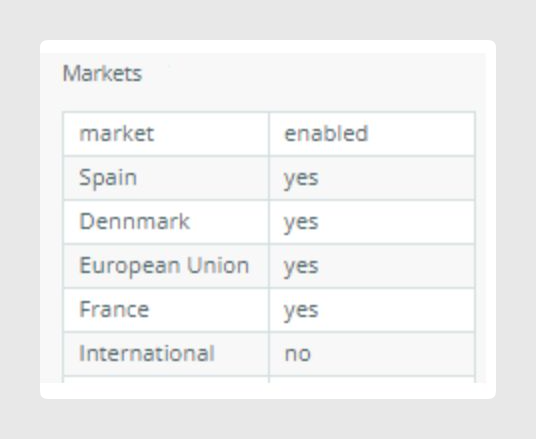
This field must be mapped in the Shopify connector by adding the Markets field under the Products tab.

Prices and currencies are defined in Products or Variants through presentment_prices, also using a table-type field.
- currency_code (required): use one of Shopify’s supported currency codes based on ISO 4217.
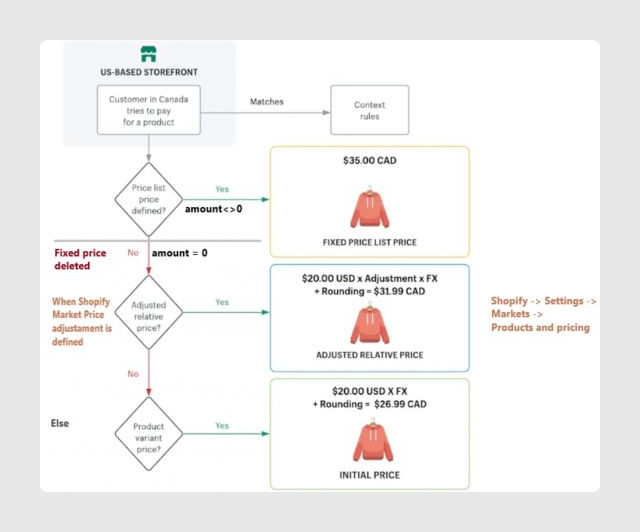
- amount(optional): the price is required unless you do not want to modify it.
- If you do not want to modify the price in a Shopify Market, leave the value empty.
- To remove a fixed price for a Market, send the value 0.
- compare_at_price (optional): previous price. It must be higher than the current price specified in amount.
- market (optional): the Market to which that price applies. It must already exist in Shopify and be associated with the product. If it is not filled in, it will apply to all currencies of Markets without an assigned currency.
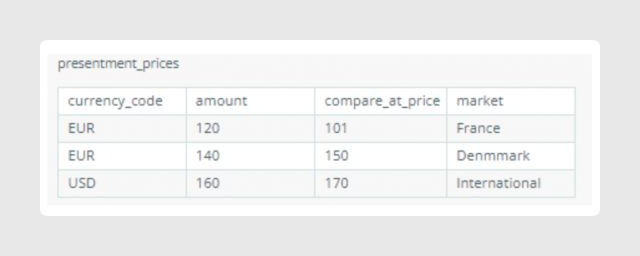
This field must be mapped in the Shopify connector by adding the presentment_prices field under Products or Variants.

Currency fields and sorting rules
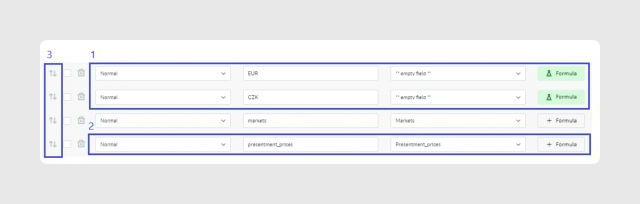
It is also possible to set prices for products or variants by adding rows to presentment_prices using a currency field name in the connector output data.
- Create a field with the currency code name.
- Apply a formula. You can assign a fixed value or use a formula such as convert_currency().
- Sort the currency fields before or after presentment_prices if both are used:
- Before presentment_prices: currencies with a Market defined in presentment_prices will take the price defined in that Market inside presentment_prices.
- After presentment_prices: currencies with a Market defined in presentment_prices will take the price defined in the currency field, using the same price for all Markets.
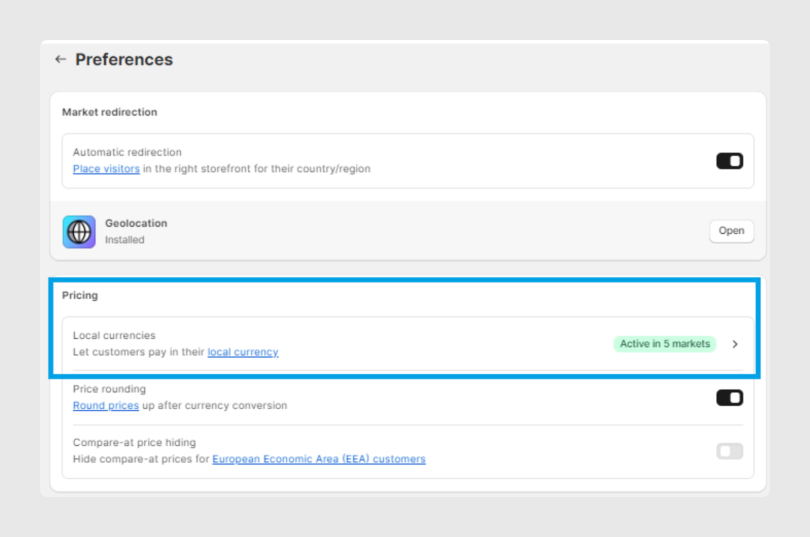
You can review Shopify’s local currency settings to configure how local pricing is displayed in the store.
The article also includes a pricing logic diagram that shows how fixed prices, relative price adjustments, and initial prices interact in Shopify Markets.
Shopify Market testing
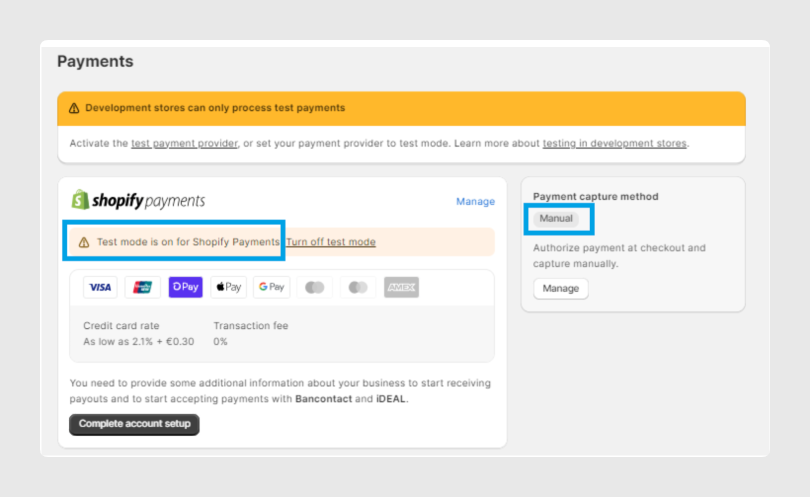
This section is relevant for developers who want to perform tests without using any available payment methods.
In that case, Shopify recommends using test payment settings in the development store.
Best practices
- Use the field names exactly as documented in the connector, including capitalization and underscores, to avoid synchronization issues.
- For currency management, create price adjustment rules for each Market. By default, Shopify uses 0%, and it only applies when no price exists in that Market.
- If you sell in local currency, add a country selector so customers can choose their country or region and see the correct local currency in the storefront.
Was this article helpful?
That’s Great!
Thank you for your feedback
Sorry! We couldn't be helpful
Thank you for your feedback
Feedback sent
We appreciate your effort and will try to fix the article
