Before you start
Use this article when you need to convert a Sales Layer WooCommerce setup so it can synchronize a multilingual catalog with WooCommerce. The recommended setup uses Polylang to manage languages in WordPress, while the Sales Layer WooCommerce plugin assigns the correct language to synchronized products, categories, tags, brands, and other supported WooCommerce content.
This configuration can be used in a single WordPress installation or together with WordPress Multisite. In a Multisite setup, Polylang must be configured for each subsite that needs multilingual content.
Requirements
Before starting, check that the environment meets these requirements:
- WordPress: 6.0 or later.
- WooCommerce: 7.0 or later.
- PHP: 8.0 or later.
- Sales Layer WooCommerce plugin: 2.6.1 or later. Native multilanguage support is included from this version.
- Polylang: 3.7.8 or later.
- Access to the WordPress admin with permissions to install and configure plugins.
- Server or WP-CLI access if the setup will be completed from the command line.
How multilanguage synchronization works
When Sales Layer WooCommerce synchronizes multilingual data, each product or category arrives with language information. The plugin creates or updates the WooCommerce item, stores the language assignment, and Polylang uses that language information to show the item in the correct language in the WordPress admin and on the storefront.
From version 2.6.1, items are processed per language. This means each language version can have its own title, description, attributes, categories, and tags, according to the data sent from Sales Layer.
Install Polylang
You can install Polylang from the WordPress admin or by using WP-CLI.
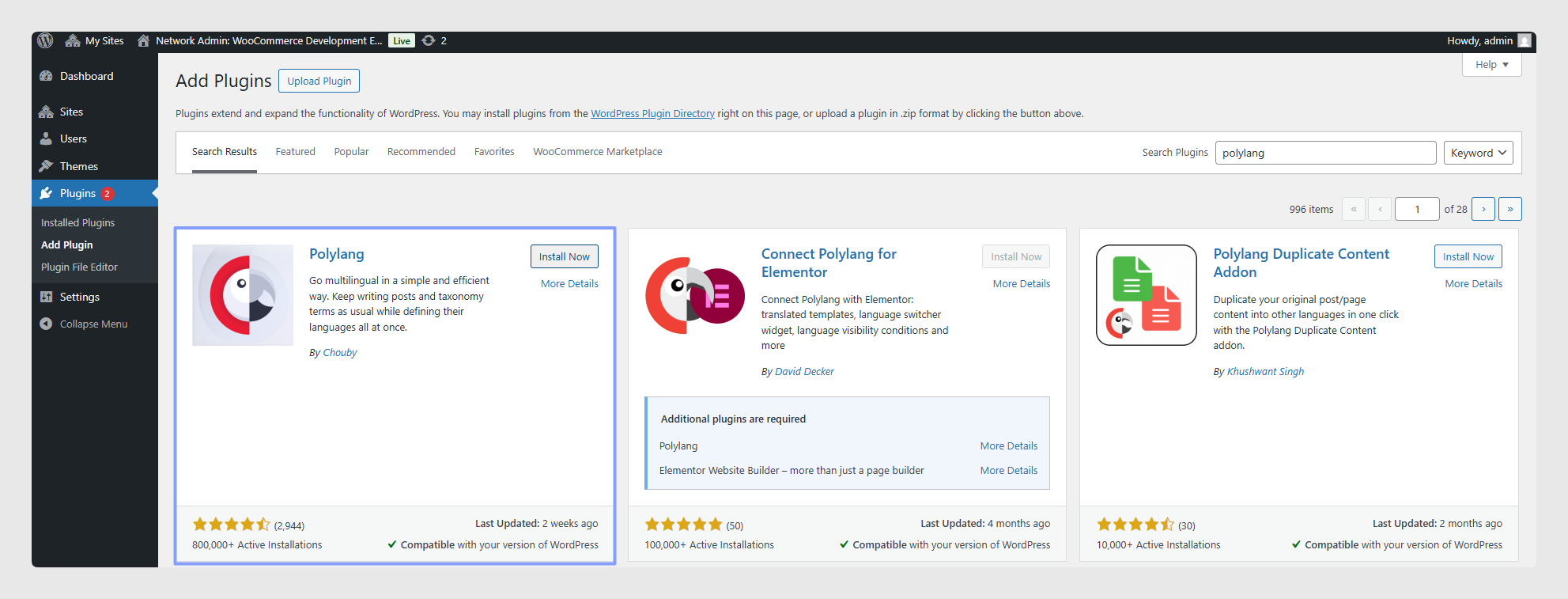
To install it from WordPress:
- Go to Plugins → Add New.
- Search for Polylang.
- Click Install Now.
- Click Activate.
- Follow the setup wizard that appears after activation.
To install it with WP-CLI, use:
wp plugin install polylang --activate
Complete the Polylang setup wizard
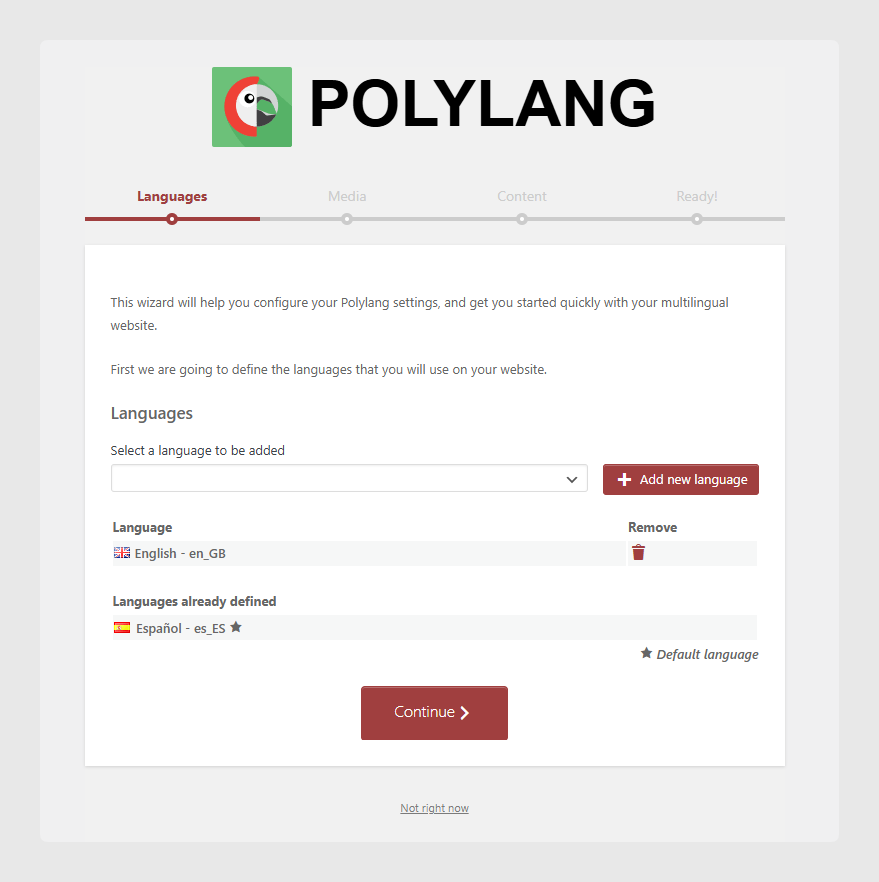
After activating Polylang, complete the setup wizard using these settings:
| Wizard step | Recommended setting |
|---|---|
| Licenses | Skip this step. The free version is enough for Sales Layer catalog synchronization. |
| Languages | Add all languages used in your catalog, such as Spanish, English, or Italian. |
| Media | Disable media translation. Sales Layer manages media centrally. |
| Content without language | Set this to the primary language of the store. |
| Ready | Click Go to the Dashboard. |
Configure WooCommerce content for translation
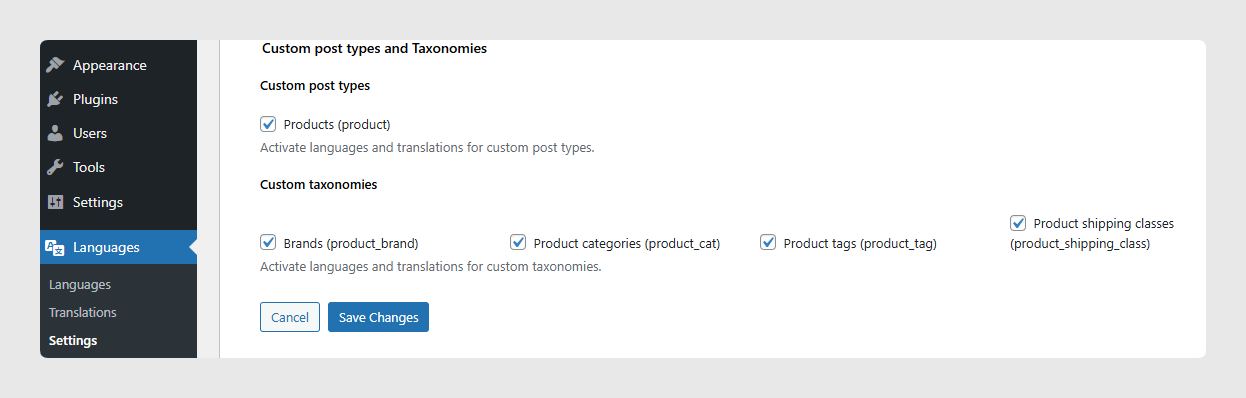
After the wizard, go to Languages → Settings → Custom post types and taxonomies. Enable translation for the WooCommerce content used by the Sales Layer synchronization:
- Products: product
- Product Brands: product_brand, if this taxonomy is active in the store.
- Product Categories: product_cat
- Product Tags: product_tag
- Shipping Classes: product_shipping_class
Save the settings after enabling the required items.
Keep media translation disabled
Media translation must stay disabled in Polylang. Sales Layer synchronizes product images and attachments centrally, not per language.
If media translation is enabled in Polylang, the store can create duplicate attachment entries for each language. This can increase the database size and may cause conflicts when media is synchronized again.
Migrate existing synchronized items
If the store already had products or categories synchronized by Sales Layer before upgrading to Sales Layer WooCommerce 2.6.1, those existing items may not have a language assigned. Polylang may show them as content without language, which can prevent them from appearing correctly on the storefront.
Use the migration tool to assign a default language to existing Sales Layer items that do not already have one:
- Go to Sales Layer → Tools in the WordPress admin.
- Use the Migrate Legacy Items option.
- Wait until the operation finishes.
- After migration, start a new Sales Layer synchronization.
The migration checks products and categories that were previously synchronized by Sales Layer, assigns the selected default language only where the language is missing, and processes items in batches to help avoid performance issues on large catalogs.
Synchronize the catalog
After Polylang is configured and legacy items have been migrated, synchronize the Sales Layer connector again. The plugin will create or update each product, category, tag, brand, or shipping class, and will assign the language received from Sales Layer.
If you use WordPress Multisite, configure Polylang on each subsite that will receive multilingual content. Each subsite has its own Polylang language configuration.
Developer setup with Docker
In Docker-based development environments, multilanguage setup can be automated with environment variables.
Add the following variables to the .env file:
WORDPRESS_MULTILANGUAGE=true
POLYLANG_VERSION=3.7.8
When these values are set, the environment setup installs and activates Polylang, creates the language set, sets Spanish as the default language, enables the WooCommerce post types and taxonomies required for translation, disables media translation, and dismisses the Polylang setup wizard banner.
To run this setup after the environment is already running, use:
make setup-multilanguage
For a Multisite development environment, also include:
WORDPRESS_MULTISITE=true
When both Multisite and multilanguage are enabled, the setup runs per site, so each subsite gets its own Polylang configuration.
Useful WP-CLI checks
Use these commands when you need to verify the setup from the command line.
Check that Polylang is active:
wp plugin is-active polylang
Check the Polylang configuration:
wp option get polylang --format=json
Check that media translation is disabled. The expected output is 0:
wp eval "echo get_option('polylang')['media_support'];"Check the language assigned to a product:
wp post meta get 123 _slyr_wc_lang
Check the language assigned to a term, such as a category or tag:
wp term meta get 456 slyr_wc_lang
Common errors and fixes
- The Polylang wizard banner still appears: In a Docker setup, run make setup-multilanguage again. If needed, dismiss the wizard notice with wp eval 'PLL_Admin_Notices::dismiss("wizard");'.
- Products are missing a language after synchronization: Items synchronized before Sales Layer WooCommerce 2.6.1 may not have language metadata. Run Sales Layer → Tools → Migrate Legacy Items.
- Categories are not marked as translatable: The required post types or taxonomies may not be enabled in Polylang. Go to Languages → Settings → Custom post types and taxonomies and enable them, or rerun the automated setup in a development environment.
- Synchronization cron fails with Call to undefined function PLL(): Polylang may have been activated as a must-use plugin. Deactivate it from mu-plugins/ and activate it from the standard WordPress plugins screen or with WP-CLI.
- In Multisite, setup only configures the main site: In a Docker setup, check that both WORDPRESS_MULTILANGUAGE=true and WORDPRESS_MULTISITE=true are set before rebuilding.
Best practices
- Create and verify a full backup before converting an existing WooCommerce store to multilanguage.
- Install and activate Polylang from the standard WordPress plugins screen or with WP-CLI. Do not activate it as a must-use plugin.
- Configure all catalog languages in Polylang before running the first multilingual synchronization.
- Keep media translation disabled because Sales Layer manages product images and attachments centrally.
- For existing catalogs synchronized before Sales Layer WooCommerce 2.6.1, run the legacy migration tool immediately after activating Polylang and before starting a new synchronization.
- Use Polylang Free unless the project needs extra features such as advanced SEO integration, REST API language awareness, or manual attribute translation tools. Sales Layer synchronization does not require those paid extensions.
- In Multisite projects, configure and test the language setup on each target subsite before synchronizing the full catalog.
- Manage multilingual product content in Sales Layer so WooCommerce receives each language version from the same source of truth.
Was this article helpful?
That’s Great!
Thank you for your feedback
Sorry! We couldn't be helpful
Thank you for your feedback
Feedback sent
We appreciate your effort and will try to fix the article