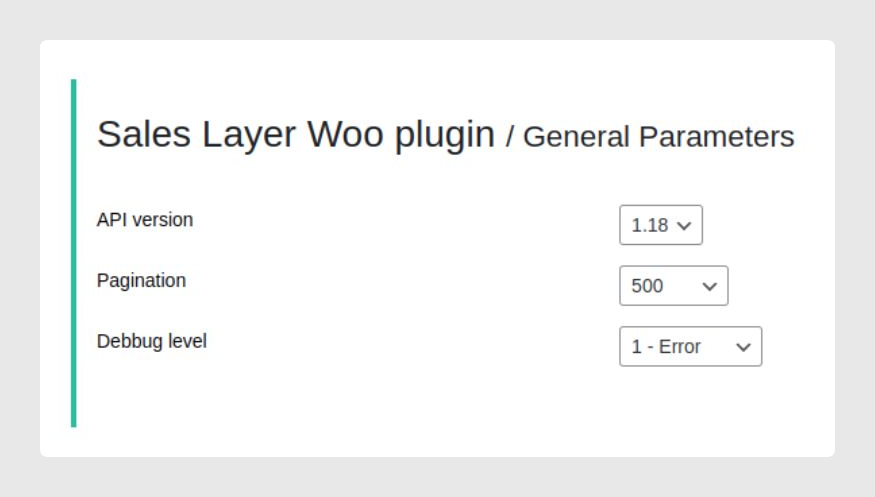
In the General Parameters section, the following options are configurable:
- API version: Version of the Sales Layer API that will be used in synchronizations. Pagination can only be used with the 1.18 version.
- Number of pagination items: When calling the Sales Layer API, batches of items with the number set will be provided and, after data analysis, stored in internal tables to be processed.
- Debug level logging: The higher the level you set, the more information the process writes. This will affect process performance while synchronizing.
The channel receives the information and stores it temporarily in the database to be progressively processed. To track if there is still information to be processed, enter the Connectors section.
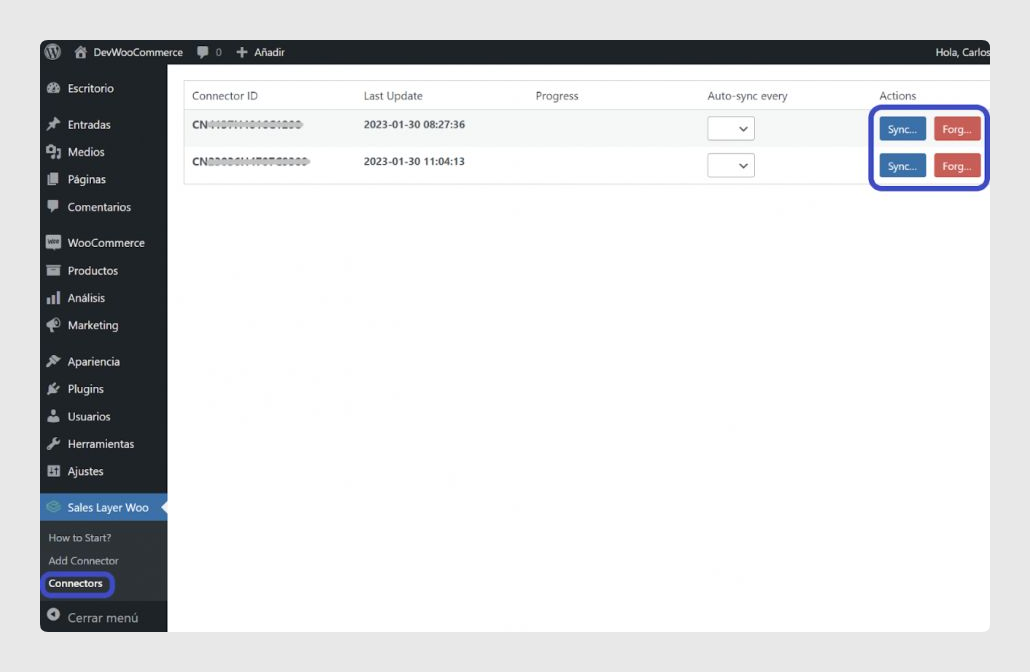
When you press the Synchronize button over your connector, if there are registers to be processed, you will find a progress bar with the pending items and total quantity:

If an error has occurred during the synchronization process, the system will try two times more. The errors will be saved in a document inside the plugin folder, under the subfolder logs, and once the synchronization is over it will show a warning message.
- The first time a new item is synchronized, it will look among the existing items that have no Sales Layer credentials, such as company ID, product ID, and format ID if applicable for variants. If it does not find any, it will be created.
- If it is a category, it will look for it by its name.
- If it is a product, it will look for the SKU first, and if it does not find it, it will look for the name.
- Finally, variants will be searched by attributes that are equal to the variant to be synchronized.
Multilanguage synchronization
Multilanguage items are synchronized per language. During synchronization, each product, category, tag, brand, or shipping class is created or updated and assigned the language received from Sales Layer.
In case that they don't have a language assigned, go to Sales Layer → Tools in WordPress and run Migrate Legacy Items.
Multisite synchronization
In WordPress Multisite, the connector downloads and queues data globally, then distributes the items only to the selected target subsites. Each target subsite keeps its own WooCommerce configuration, but the connector configuration is stored globally.
How to synchronize by cron
To activate auto synchronization mode and synchronize data, it is necessary to activate the cron jobs in the server.
You can add or create cron jobs from the following commands in your console, replacing the domain or path:
* * * * * wget -q -O - https://yourdomain.com/wp-cron.php
* * * * * php -q -f /path/to/your/woocommerce/root/directory/wp-cron.php
Best practices and considerations
- From version 2.5, Sales Layer WooCommerce plugin synchronizations work with pagination to improve performance. It is strongly recommended to update this plugin.
- Item SKUs are unique and cannot be repeated. If there are different items with the same SKU, it will show an error message in the log.
- You can see how to activate logs in the Feedback after synchronization > Managing errors section.
- Remember to replace yourdomain.com with your current domain, or /path/to/your/WooCommerce/root/directory with your WooCommerce path.
Was this article helpful?
That’s Great!
Thank you for your feedback
Sorry! We couldn't be helpful
Thank you for your feedback
Feedback sent
We appreciate your effort and will try to fix the article