Categories in Sales Layer help you organize products in a tree structure. This makes it easier to group products into main categories and subcategories and keep the catalog easier to navigate and maintain.
You can create categories in two main ways. You can create them manually inside Sales Layer one by one, or you can create them by import if you already have the structure prepared in a file.
Create categories manually
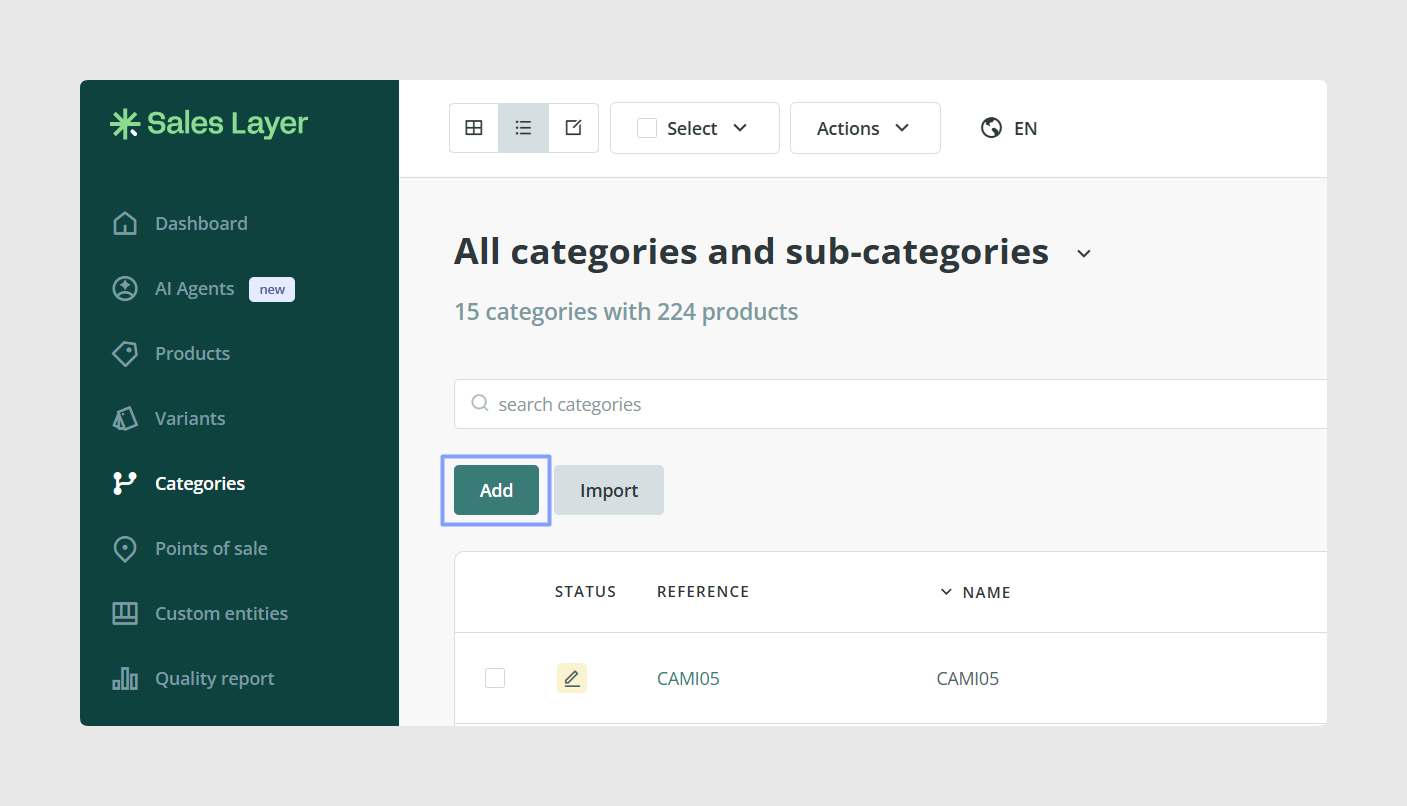
If you only need to create a small category structure, manual creation is usually the simplest option. From the Categories section, you can work directly with the category tree and create categories inside the platform.
This approach is useful when:
- you are starting with a small catalog
- you want to test the structure before a larger import
- you only need to add a few missing categories
When creating categories manually, think first about which ones should be main categories and which ones should sit underneath them as subcategories.
Plan the hierarchy before creating it
The most important part of category creation is the hierarchy. In Sales Layer, categories are not just a flat list. They are structured as a parent and child tree.
This means you should decide in advance:
- which categories will be root categories
- which categories will be subcategories
- how deep the structure really needs to be
A simpler tree is usually easier to maintain than a very deep one, especially when many products need to be assigned later.
Create categories by import
If you already have your category structure in a spreadsheet, importing is usually the fastest way to create it in bulk.
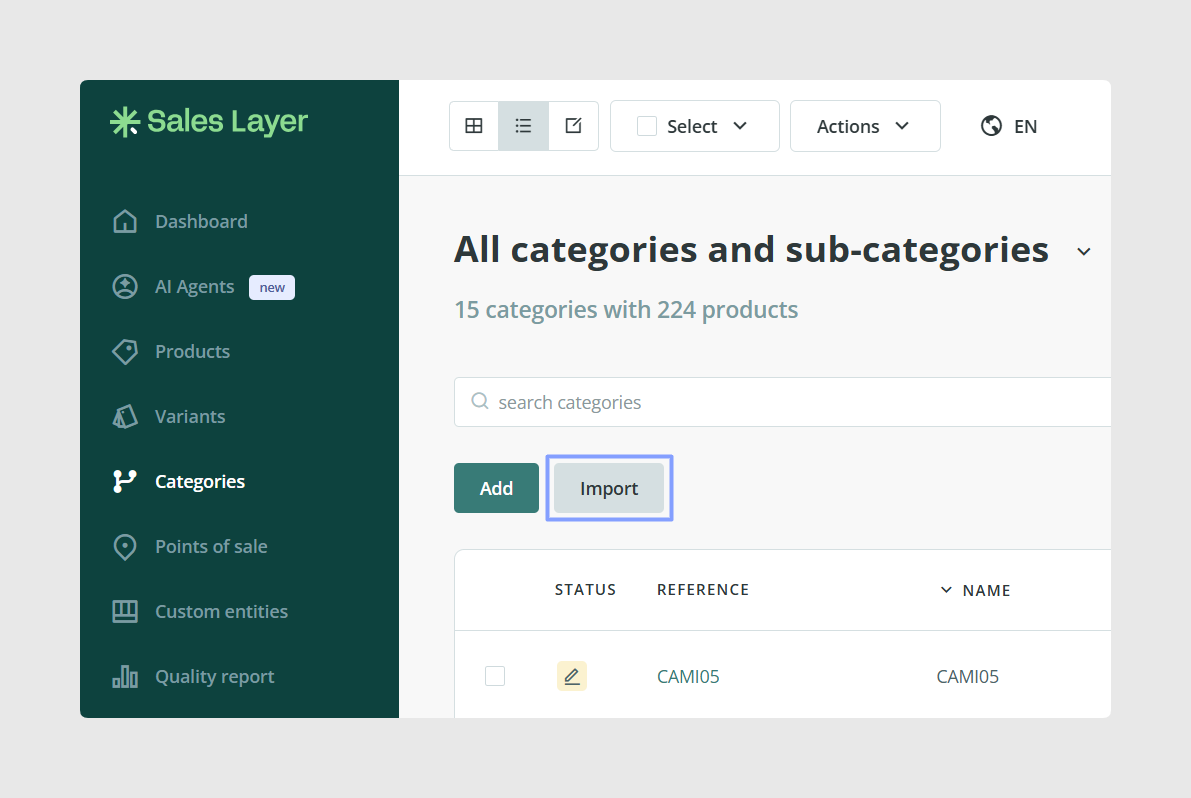
To do this, go to Categories, click Import, and choose the import method. For Excel imports, copy the rows from your spreadsheet and paste them into the import window.
This process is useful when:
- you already have a category list prepared
- you want to create many categories at once
- you want to define the hierarchy in a controlled way before loading it
Prepare the main category fields
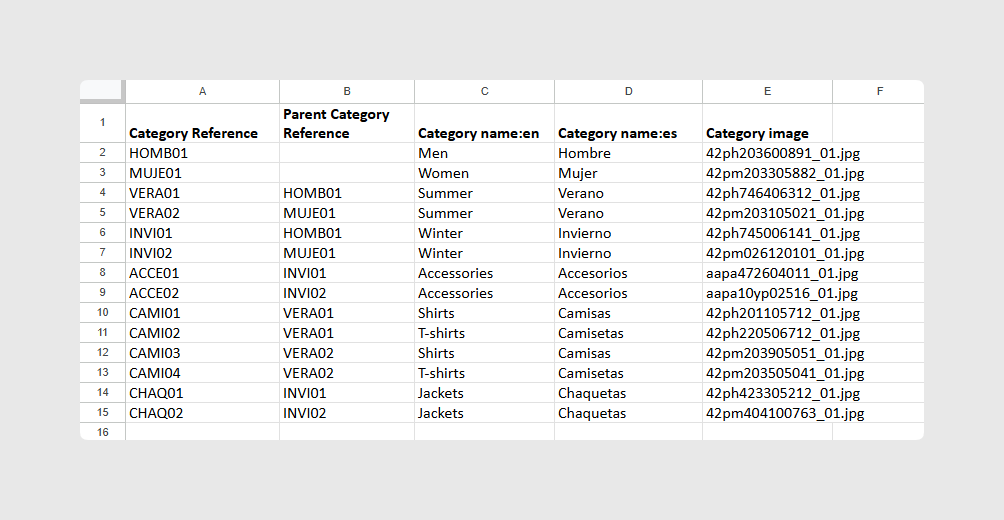
When importing categories, the main fields to prepare are:
- Category Reference
- Parent Category Reference
- Category Name
- Category Image, if needed
- Category Description, if needed
The most important field is Category Reference, because Sales Layer uses it to identify each category. The Parent Category Reference field is what defines the hierarchy.
Parent Category Reference importance
The Parent Category Reference field determines whether a category is a subcategory and, if it is, which category it belongs to.
If a category has no value in Parent Category Reference, Sales Layer treats it as a main or root category.
For example, if one row contains a main category and another row contains a child category that points to it through the parent reference, Sales Layer will build that relationship automatically when you import.
Field mapping
After you paste the data, Sales Layer shows the detected columns so you can review how they will be imported.
Recognized fields appear with a green background, while new fields appear with a white background. At this stage, you can still:
- match a column to an existing field
- create a new field
- change the field title
- change the field type
- discard a column you do not want to import
Sales Layer remembers the mapping you confirm, which makes later imports easier when the file structure stays similar.
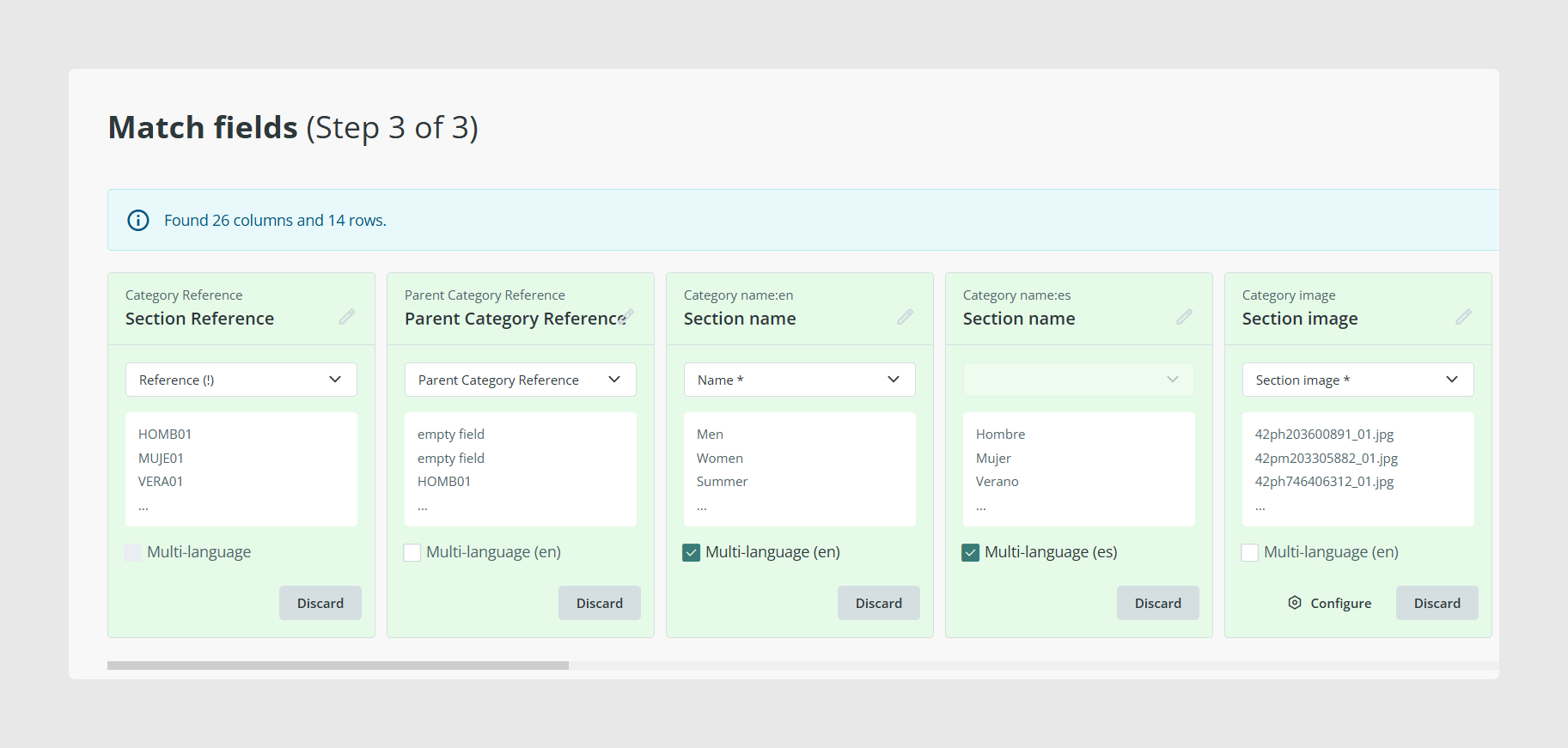
Once you have reviewed the references, hierarchy, and field mapping, click Import to create the categories in Sales Layer.
After the import, you can review the result from the Categories section and check that the tree has been created in the way you expected.
Create category structure through product import
Sales Layer also allows you to create the category tree from a product import by writing the structure directly in a category column.
For example, you can use a structure such as:
category > subcategory > subsubcategory
This is useful when you want to create products and category structure at the same time instead of importing them separately.
Manual creation vs Import
Both methods are useful, but they fit different situations.
- Use manual creation when you only need a few categories or want to build the tree slowly
- Use import when you already have the structure prepared and want to create many categories quickly
- Use a product import with category paths when you want to create products and categories in one process
Common use cases
- Create a category tree from scratch for a new catalog
- Load an existing hierarchy from a spreadsheet
- Build parent and child category relationships in bulk
- Create products and categories together in the same import workflow
- Add a few categories manually after the main structure already exists
Best practices
Before creating categories, decide on a clear naming and reference system and keep it consistent from the start. If you are importing, check the parent category references carefully, because that field controls the whole hierarchy. For larger catalogs, it is usually better to create the structure in bulk first and then review it in the category tree before assigning products massively.
Was this article helpful?
That’s Great!
Thank you for your feedback
Sorry! We couldn't be helpful
Thank you for your feedback
Feedback sent
We appreciate your effort and will try to fix the article