The BigCommerce connector contains a list of existing fields by default. These fields are generally very intuitive to map. However, others need some mapping rules:
- Retail Price: This refers to the MSRP, located in the Pricing > Advanced Pricing section. This does not need to be added as an additional field in the connector.
- Sale Price: To match this field, send a value in the Sale Price field in the connector. Once a value has been sent, to delete it, the value 0 will have to be sent for this field. If you send the field to Sales Layer with no content, the connector will not review that field and will not remove the initial value.
- Tax Class: It must be mapped with the corresponding Tax Class ID in your BigCommerce store.
- Type: Corresponds to the Product Type field. Send the words Digital or Physical.
- Tracking Method: Corresponds to the Track Inventory field. In the product area, send product. At variant level, send variant.
- Brand: If filled with a numerical value, the brand field must be the ID of the brand in BigCommerce. In the case of a text field, it will be generated if it is new, or associated if it already exists.
- Availability: To map this field, send the product status as available, disabled, or preorder.
- Gift Wrapping: Send any, none, or list. In the case of list, it is necessary to map the Gift Wrapping Options List field with the Gift Wrapping IDs previously created in BigCommerce, separated by commas.
- Condition: This field is mapped with New, Used, or Refurbished.
- Object Type: Existing options can be sent exactly as they appear in the list in BigCommerce.
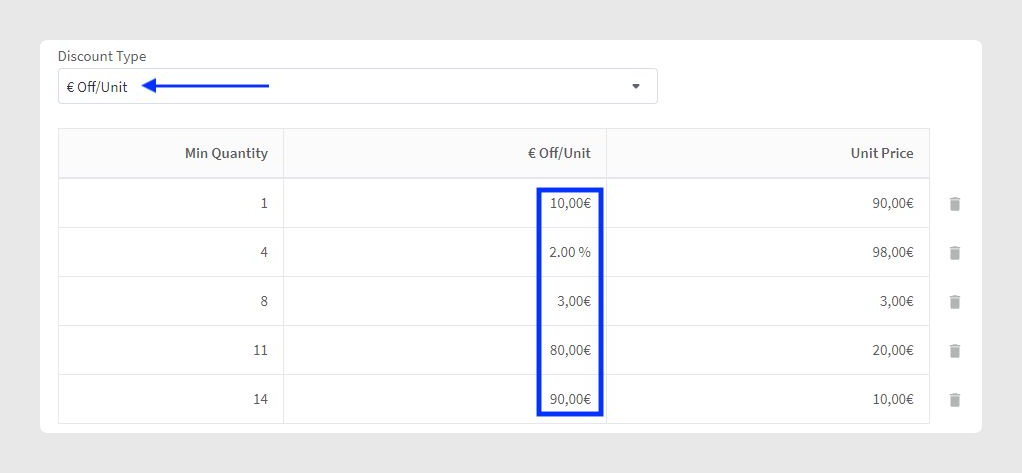
- Bulk Pricing: Bulk price rules will be generated following four required fields where {n} must be the same number in the four fields of a rule: bulk_pricing_rule_qty_min_{n}, bulk_pricing_rule_qty_max_{n}, bulk_pricing_rule_type_{n}, and bulk_pricing_rule_amount_{n}.
- Free Shipping/Visible/Featured Product: These fields belong to the boolean type and can be mapped with the Yes/No field type.
- Additional fields: In the Products tab, the additional fields will be associated and generated in the custom fields within BigCommerce. The additional fields within the Variants tab will define the product options in BigCommerce. Within the variants of the same product, the options must be unique.
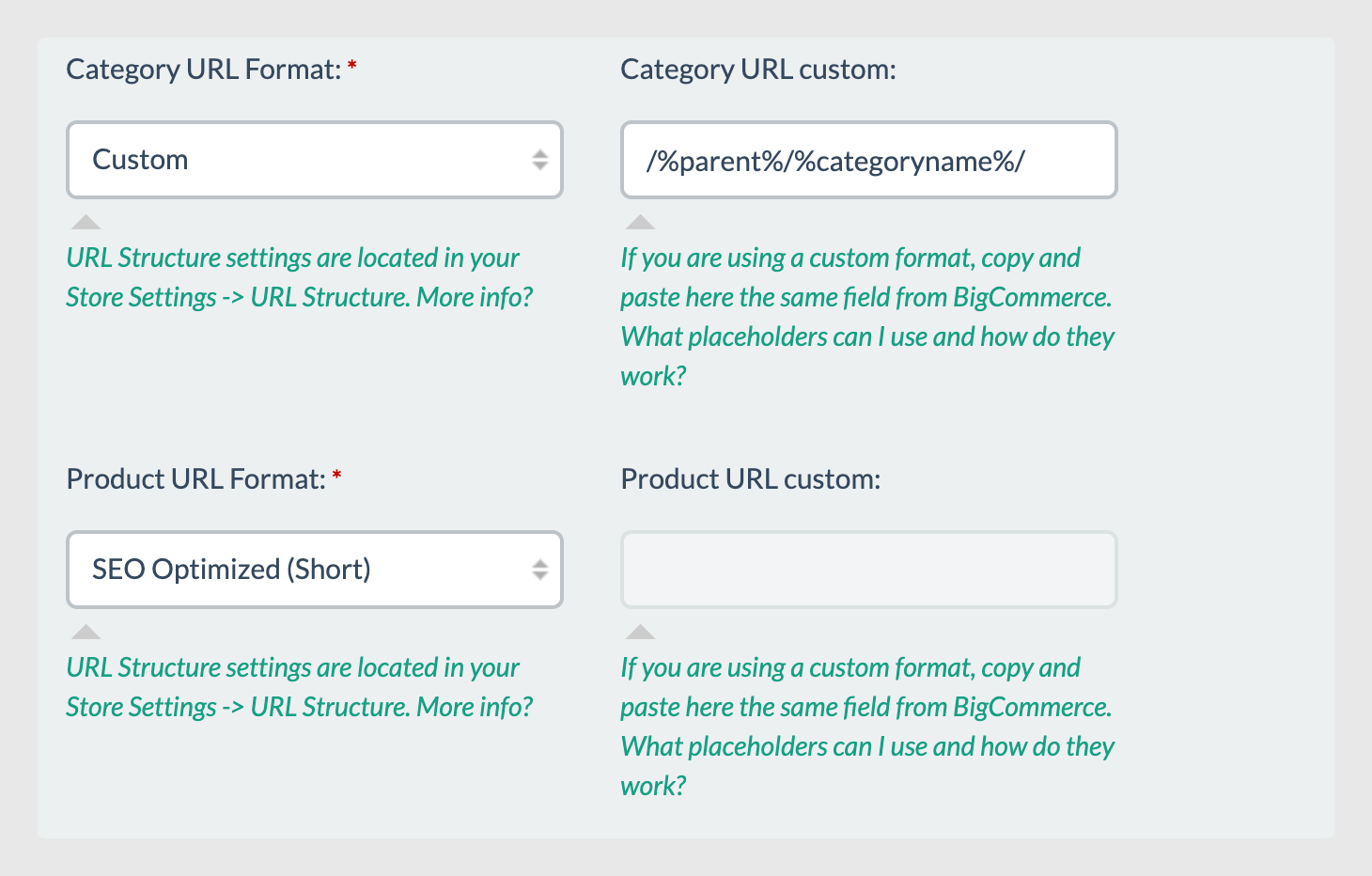
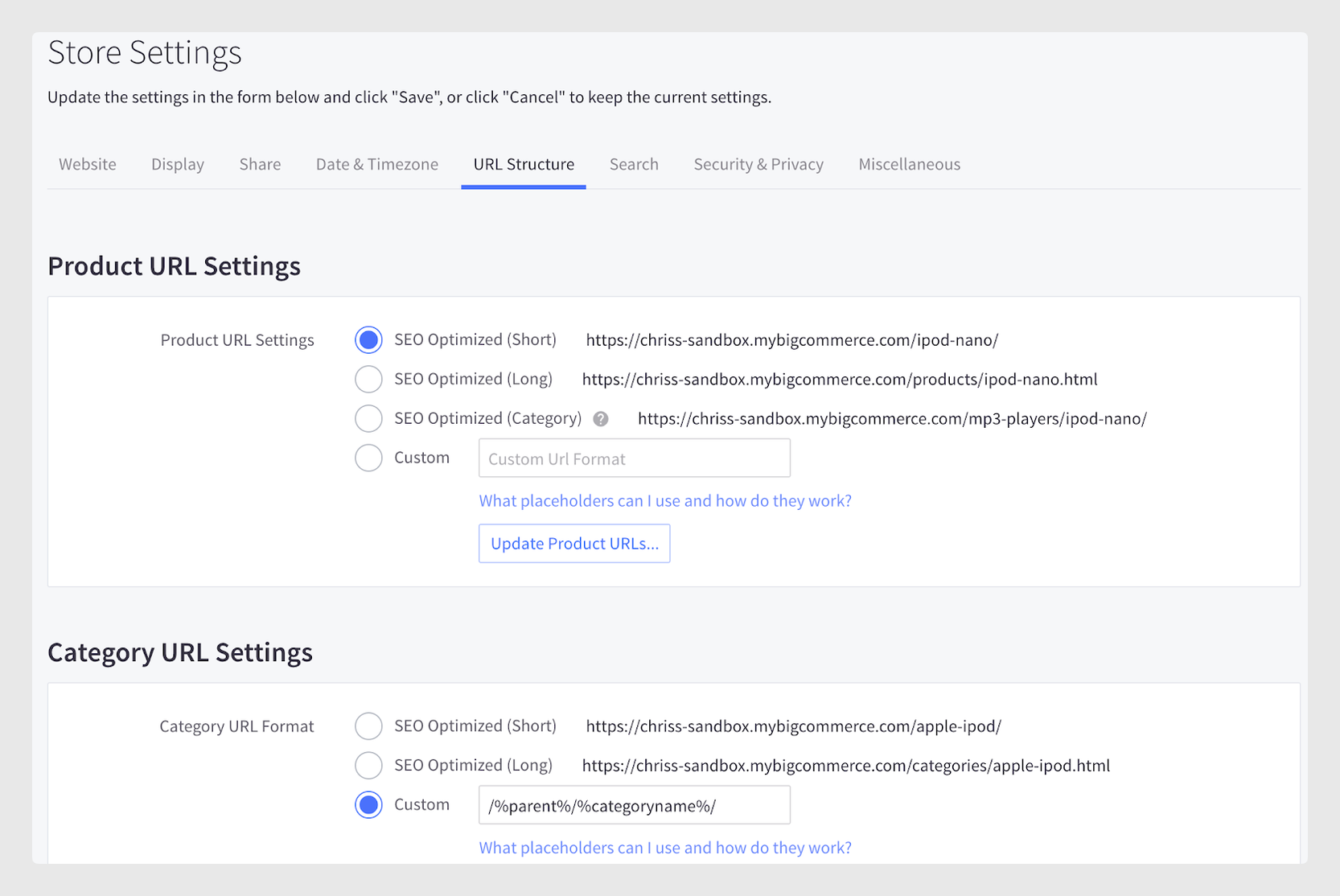
- URL: There are two ways to manage the URL field in the BigCommerce connector. The first one is the definition of the URL format in the Parameters tab of the connector, depending on the structure chosen in the URL Structure tab within BigCommerce > Store Settings.
In Sales Layer
In BigCommerce
The second way consists of mapping the URL field that you find in the Category and Product tables of the BigCommerce connector in Sales Layer.
- Product images sort order: Starting with version 1.1, product image order will automatically sort in the same order they appear in the main image field, followed by additional image fields in the order they are configured in the connector.
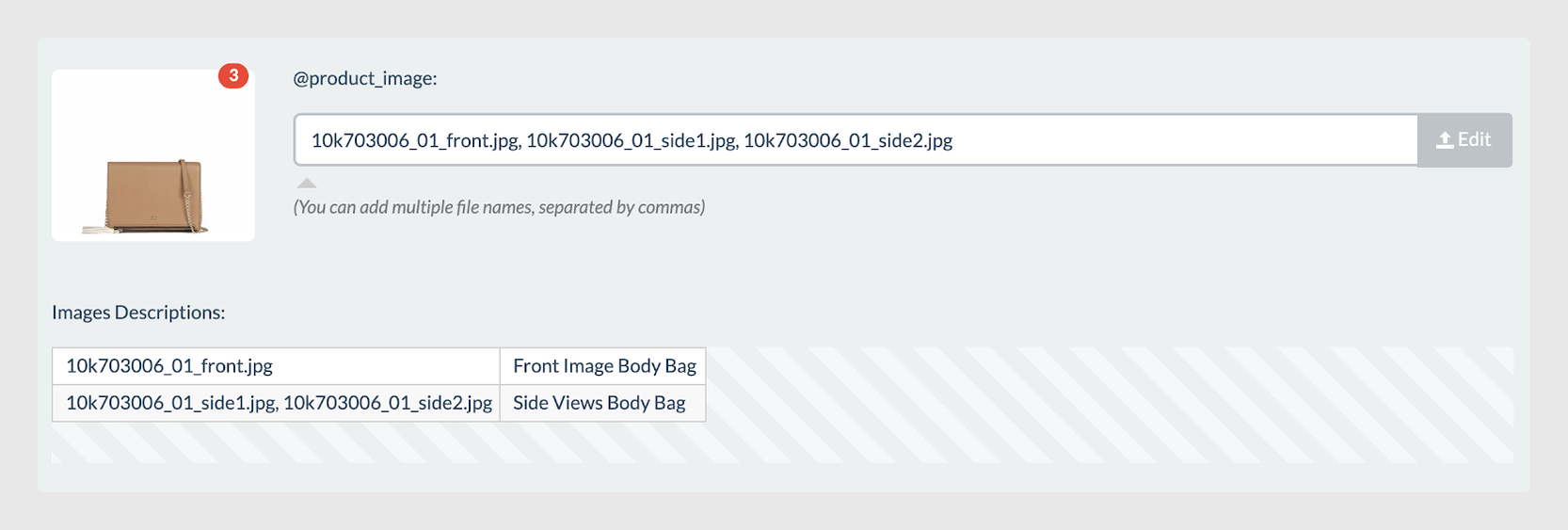
- Product image descriptions: This field is used to map the BigCommerce image description field and can be mapped with a table-type field. The table contains the name of the images in the first column and the corresponding description in the second column.
Starting with Sales Layer version 105, October 2021, if the Availability field is a preorder type, it can be combined with the following fields:
- Pre-order Message: to send a text with the pre-order message.
- Pre-order Release Date: to send a date type field.
- Remove pre-order status on this date: to send a true/false value type.
- Minimum Purchase Quantity: to send a number type field.
Considerations
- In some cases, the Availability field is called Purchasability in BigCommerce.
- If the Gift Wrapping ID does not exist in BigCommerce, it will return an error and the listing will not be added.
- If you select the discount type directly on the BigCommerce platform, you will see that you cannot select more than one type. Through the API, it is possible to send more than one type, even though you see only one type selected.
- The mapping of the URL field in the tables has priority over the structure chosen in the Parameters of the connector. Therefore, if in any of the tables in the connector the URL field is empty or not mapped, the URL will have the structure that was chosen initially.
- For product image descriptions, to remove a BigCommerce description from a specific image, send the name of the image in the first column and leave the second column empty. If you send two different descriptions for the same image, only the first description will be considered. If any of the images are not in the table, their description will be omitted.
Was this article helpful?
That’s Great!
Thank you for your feedback
Sorry! We couldn't be helpful
Thank you for your feedback
Feedback sent
We appreciate your effort and will try to fix the article