This feature lets you create custom product data sheets in PDF format using a selected group of products and the language you choose. It is useful for quickly preparing polished materials such as catalogs, sales presentations, or technical documentation with a professional finish.
Feature Activation
This functionality is an advanced feature, so if you do not see this option, your account or user may not have permission to use it. In some cases, the feature is only available for Enterprise accounts, and you also need more than one user in the account before you can create a team. If you wish to have this feature enabled, contact us through the usual support ways.
Steps to follow:
1. Select the products
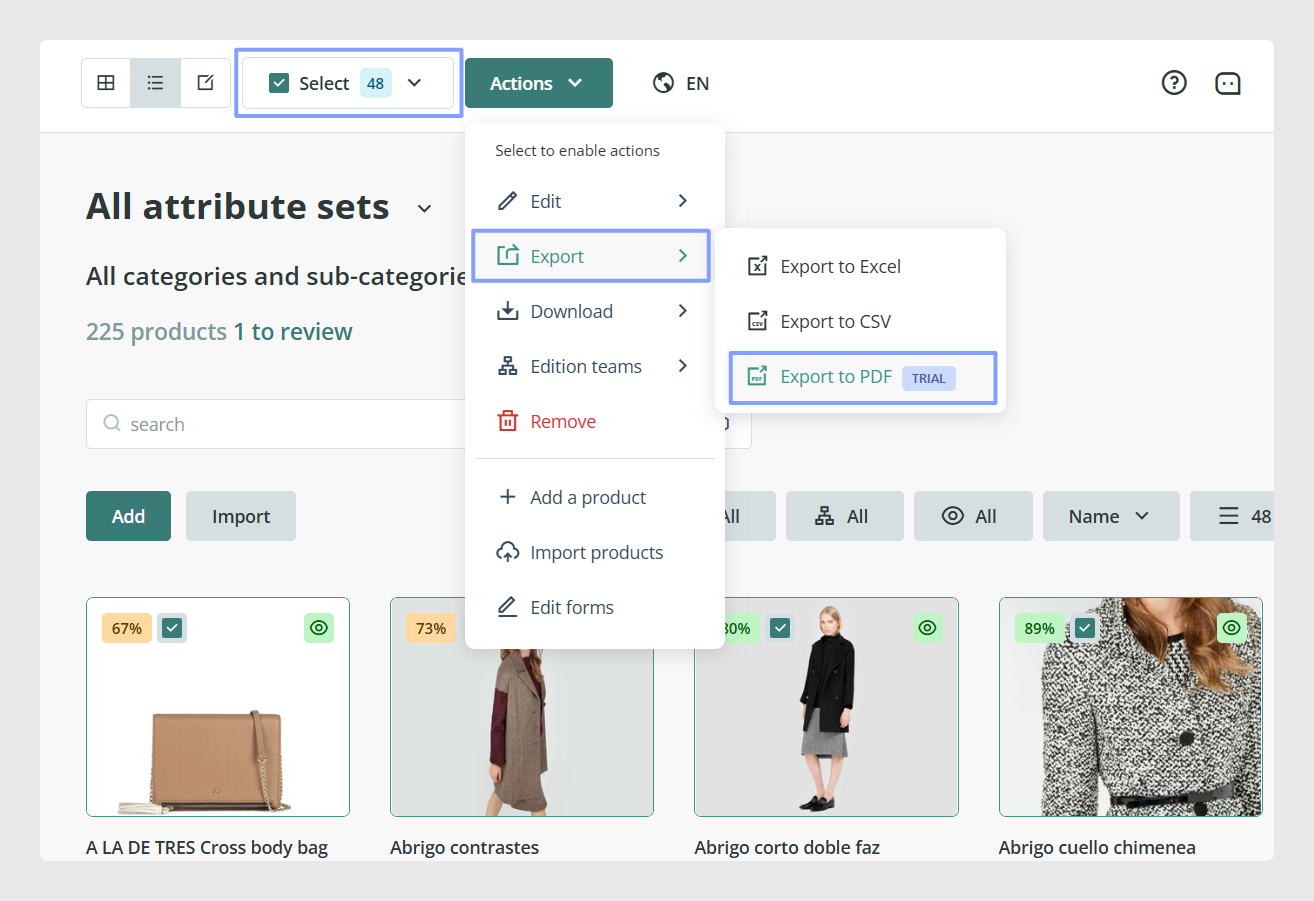
From the product interface, select the products you want to include in the PDF. Click on Actions > Export > Export to PDF
2. Define the PDF settings
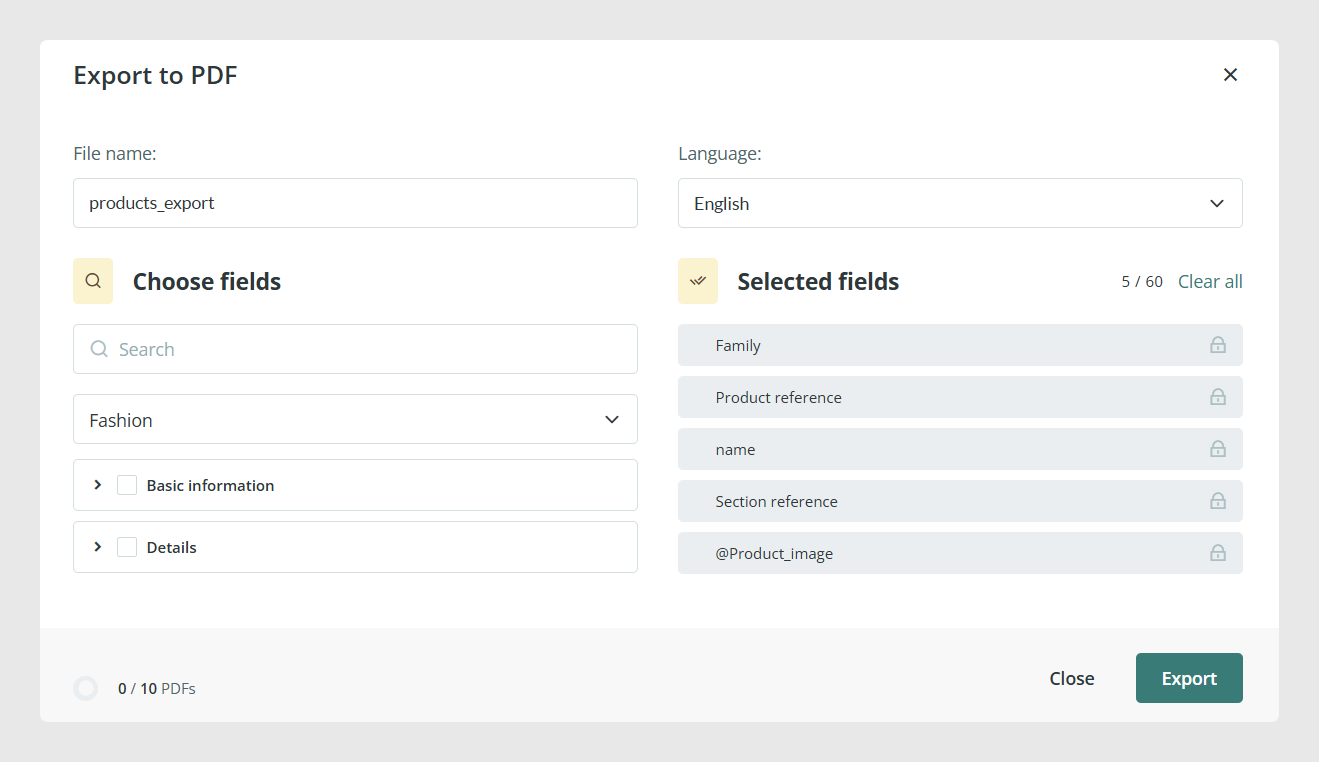
File Name: enter the name you want to give to the PDF in the File Name field.
Document Language: choose the language for the generated document if your product data includes multilingual content, such as English or Spanish.
3. Choose the information to display
Product information is organized into different tabs, and you can decide which fields to include in the PDF.
Some fields are always included by default:
Product Image
Category
Name
Product Reference
Attribute Set
You can include up to 60 fields in each PDF.
You can also reorder the selected fields. Keep in mind that the main fields are shown by default at the top of each product sheet.
A field search tool is available in the same tab to help you find the information you want to include.
If the company logo is saved in the company profile, it will appear automatically on the product sheets.
4. Generate the PDF
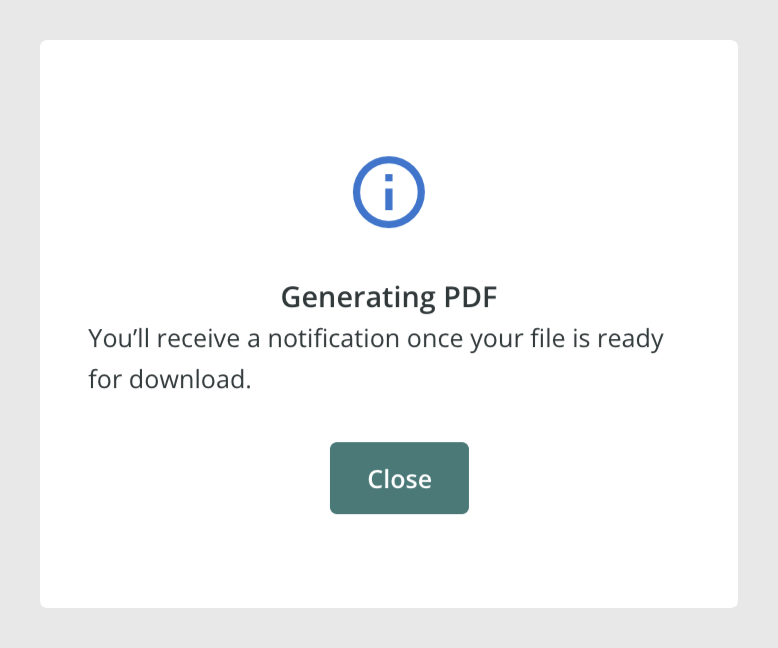
Once the PDF is configured, Sales Layer will automatically collect the selected settings, generate the PDF in the background, and save the file to the cloud. You do not need to stay on that screen while the file is being created.
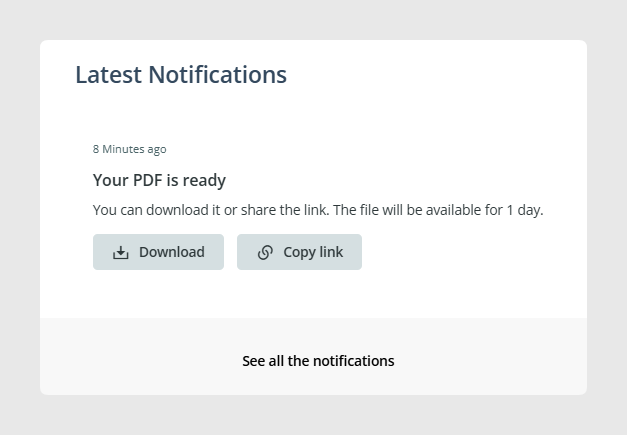
When the PDF is ready, you will receive an automatic notification from the bell icon inside the platform. That notification includes the download link.
The download link remains available for 24 hours.
Limits and additional information
You can include up to 250 products in a single PDF.
Each account has an annual PDF generation limit.
During the trial period, each account can generate up to 10 free PDFs.
Common Use Cases
This feature is useful when you need to prepare product documentation quickly for internal teams, customers, distributors, or sales meetings. It is especially helpful when you want the document to include only a selected set of products and only the fields that matter for that specific use case.
Best practices
Before generating the PDF, review the selected language, the field order, and the product selection carefully so the final document matches its purpose. If the PDF will be shared externally, it is also a good idea to confirm that the company logo is updated in the company profile and that only the fields relevant to the audience are included.
Was this article helpful?
That’s Great!
Thank you for your feedback
Sorry! We couldn't be helpful
Thank you for your feedback
Feedback sent
We appreciate your effort and will try to fix the article