If you need to update the same information across several products, you can use Bulk Actions in Sales Layer. This option helps you apply changes to multiple products at the same time, which is useful when you want to standardize values, replace repeated text, or make advanced updates with formulas.
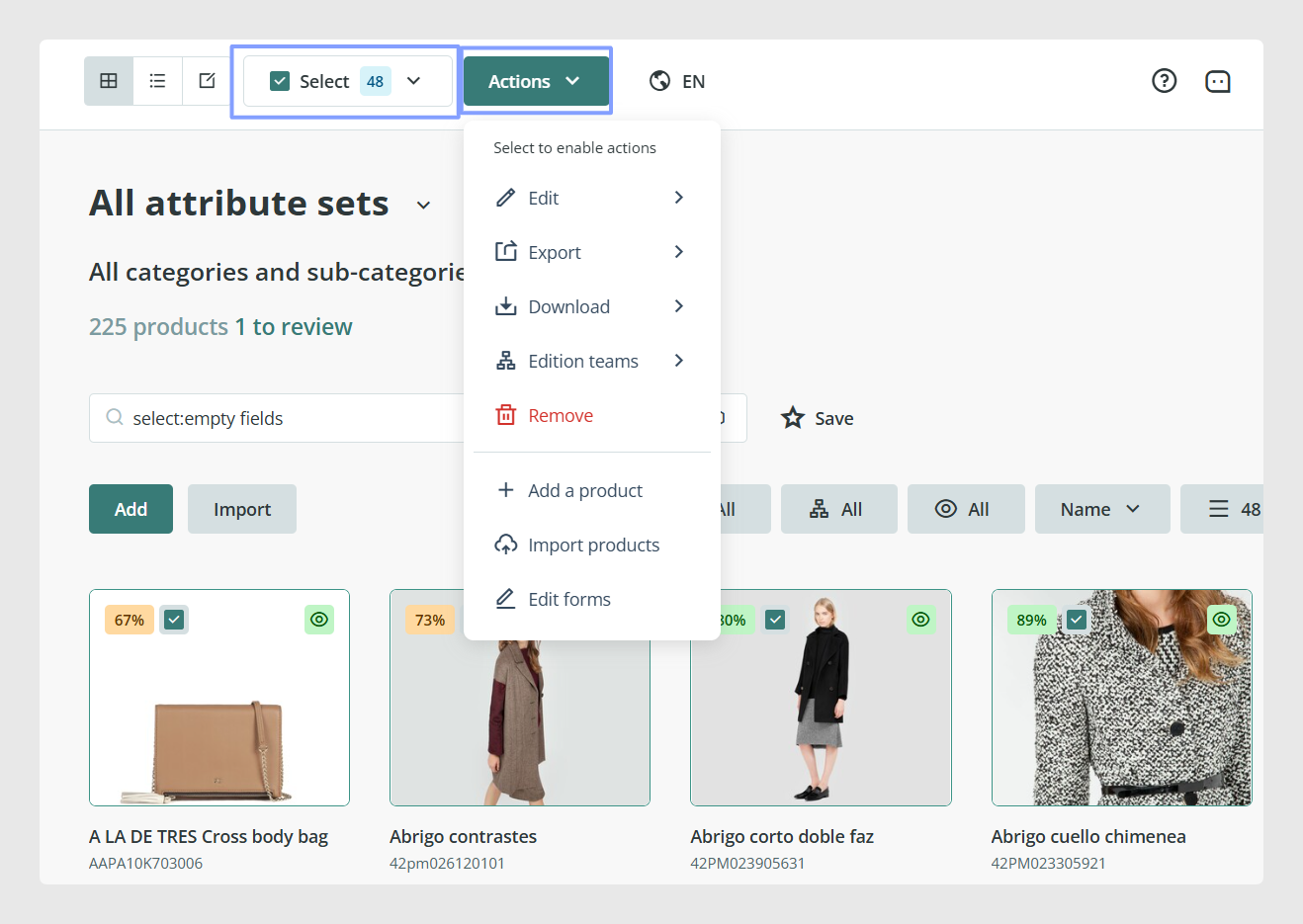
Before you start, narrow down the products you want to update by using the Search Bar, applying tags, or selecting products manually with the green checkboxes.
Select the products you want to update
Go to the Products table and decide which products should be included in the update. You can do this in different ways:
Use the Search Bar to filter the list.
Apply tags to show a specific group of products.
Tick the green checkboxes to select products manually.
Bulk Actions will run on the products currently selected or filtered in your list.
Open Bulk Actions
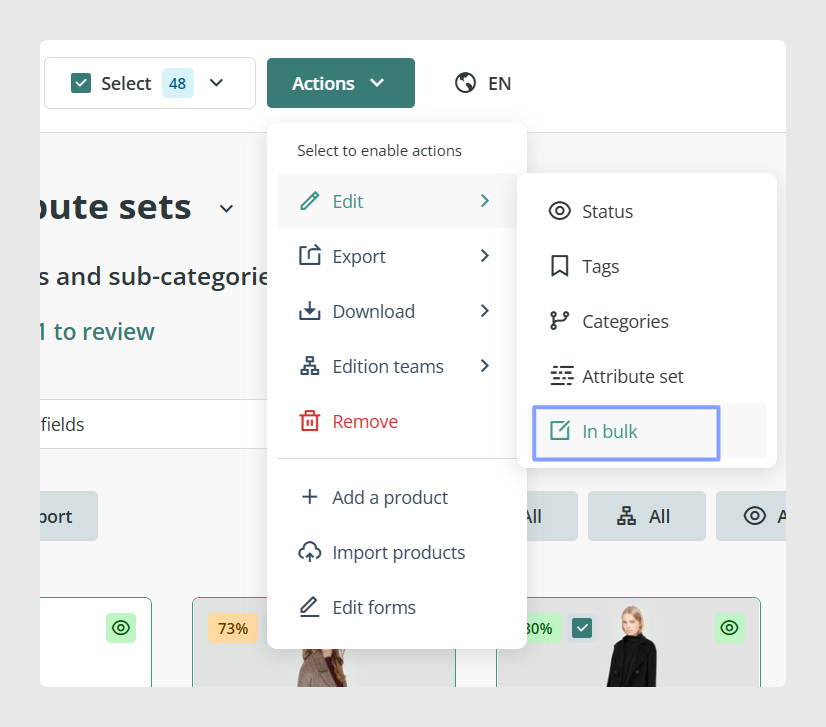
Once your list is ready, click Actions and then select Modify in bulk. This opens the bulk editing options for the products in your current selection.
Choose the type of update
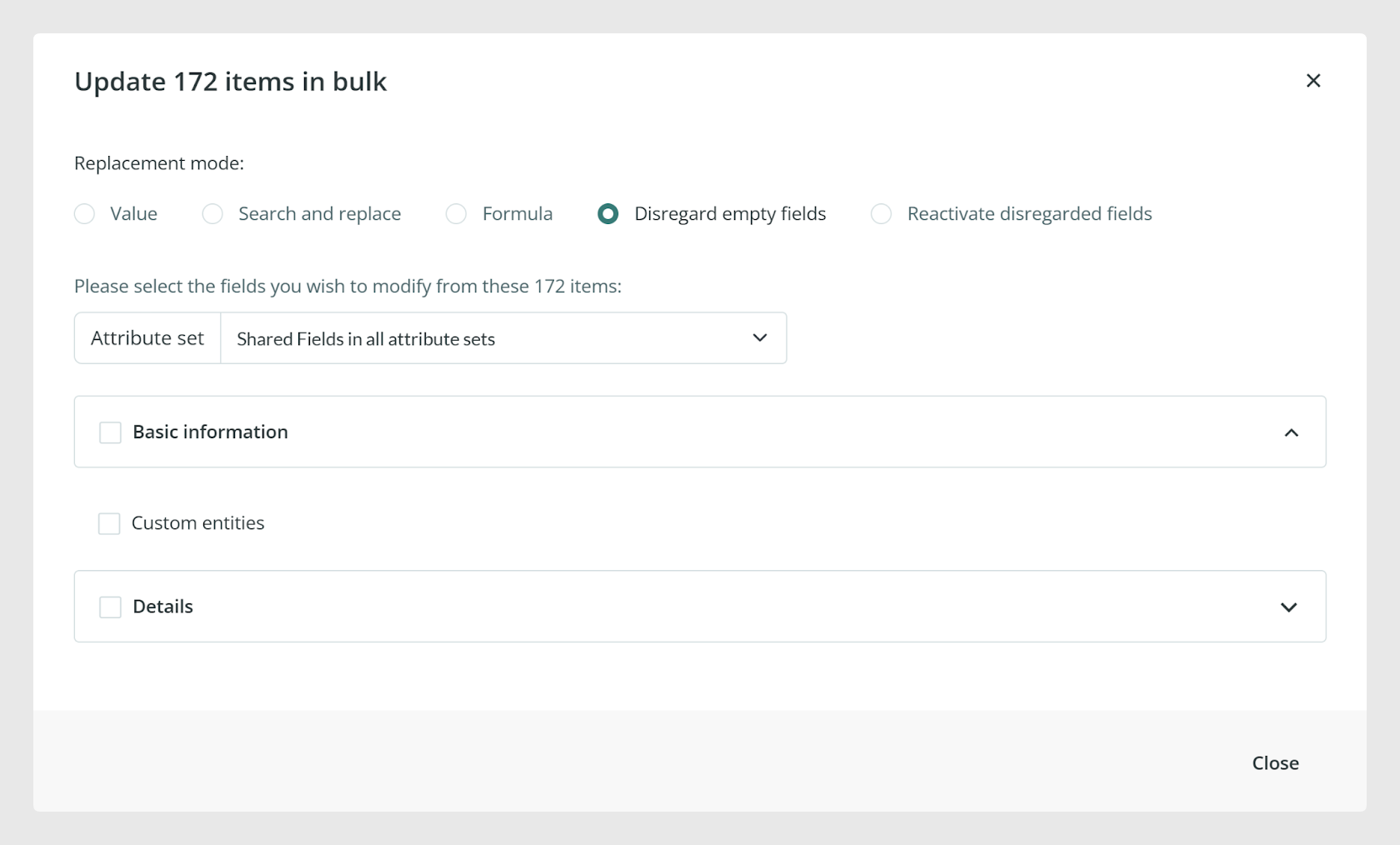
After opening Modify in bulk, you can choose the type of change you want to apply to the selected products.
Value modifications
Use this option when you want to assign the same value to a field across all selected products.
Search and replace
Use this option to quickly replace one text value with another across multiple products.
Apply a formula
Use this option for more advanced changes. For example, you can apply a formula to increase the value in the Price field for several products at once.
Use Ask AI Expert for formulas
When you work with formulas, you can also use the Ask AI Expert button to get guidance from the ChatGPT Macros Expert tool. This can help you understand how to use formulas and how to get the best results from them.
Disregard empty fields or activate disregarded fields
Use this option to mark fields as not needed for now, or to activate them again later. This is useful when some fields do not need to be completed at the moment for the selected products.
Common Use Cases
Assign the same value to a field across many products.
Replace outdated wording in product content.
Apply a repeated calculation to a numeric field.
Mark a group of fields as disregarded for selected products.
Important note
If you use Bulk Actions without applying a filter, tag, search, or manual selection first, the action will be applied to the entire contents of the product table.
Best practices
Before running a bulk update, review the list of selected products carefully. For larger edits, it is a good idea to test the change on a smaller group first, especially when using formulas or search and replace. This makes it easier to confirm the result before applying the update more broadly.
Was this article helpful?
That’s Great!
Thank you for your feedback
Sorry! We couldn't be helpful
Thank you for your feedback
Feedback sent
We appreciate your effort and will try to fix the article