Variants let you manage products that share most of the same information but differ in a few specific values, such as size, colour, fit, or price.
This helps you avoid repeating the same product data again and again. For example, if several T-shirt sizes share the same name, description, and main information, you only need to maintain that shared data once at product level and keep the changing values at variant level.
How variants are linked to products
Variants are linked to products through the Product Reference field. This means the parent product must already exist before you create its variants.
Each variant also needs its own Variant Reference so Sales Layer can identify it individually.
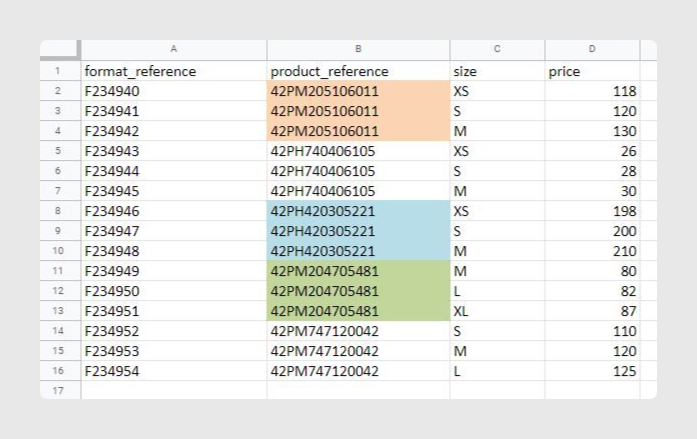
Create variants by import
Importing is the standard way to create variants in bulk. Once you are in the Variants area, click Import and choose the import method you want to use.
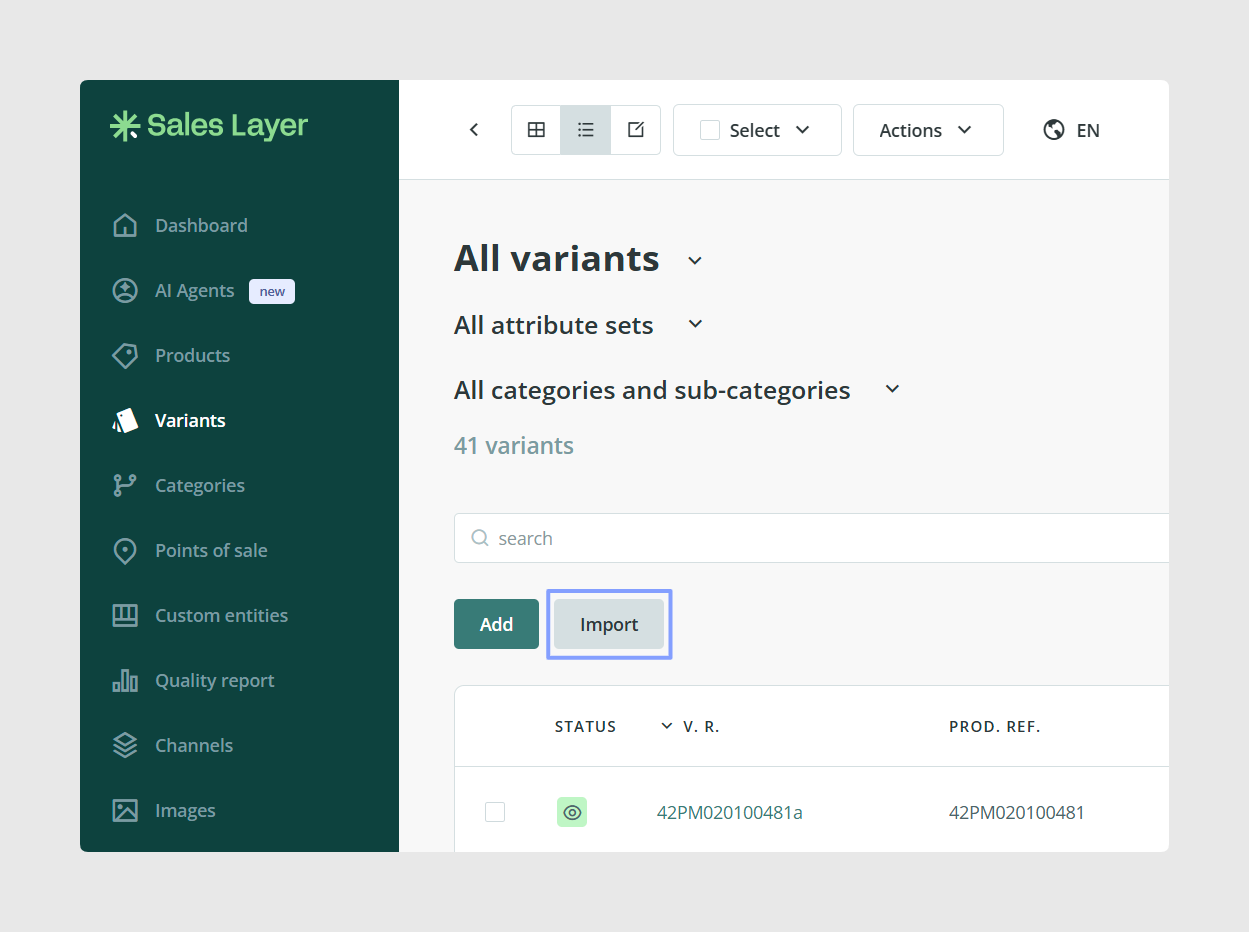
For Excel imports, copy the rows from your spreadsheet and paste them directly into the import window.
This is useful when:
- you already have variant data prepared in a spreadsheet
- you need to create many variants at once
- you want to create the variant structure in a controlled way
Key fields to create Variants
When creating variants by import, the two key fields are:
- Product Reference, to link the variant to its parent product
- Variant Reference, to identify each variant individually
After those two fields, you can add the variant-specific values that make one variant different from another.
For example, if one product is available in several sizes, you can create one row per size, all linked to the same product reference, while the size value changes in each row.
Field mapping
After you paste or upload the file, Sales Layer shows the detected columns so you can review how they will be imported.
Recognized fields appear with a green background. In a variant import, Sales Layer usually recognizes the Product Reference field and the Variant Reference field automatically. New fields appear with a white background.
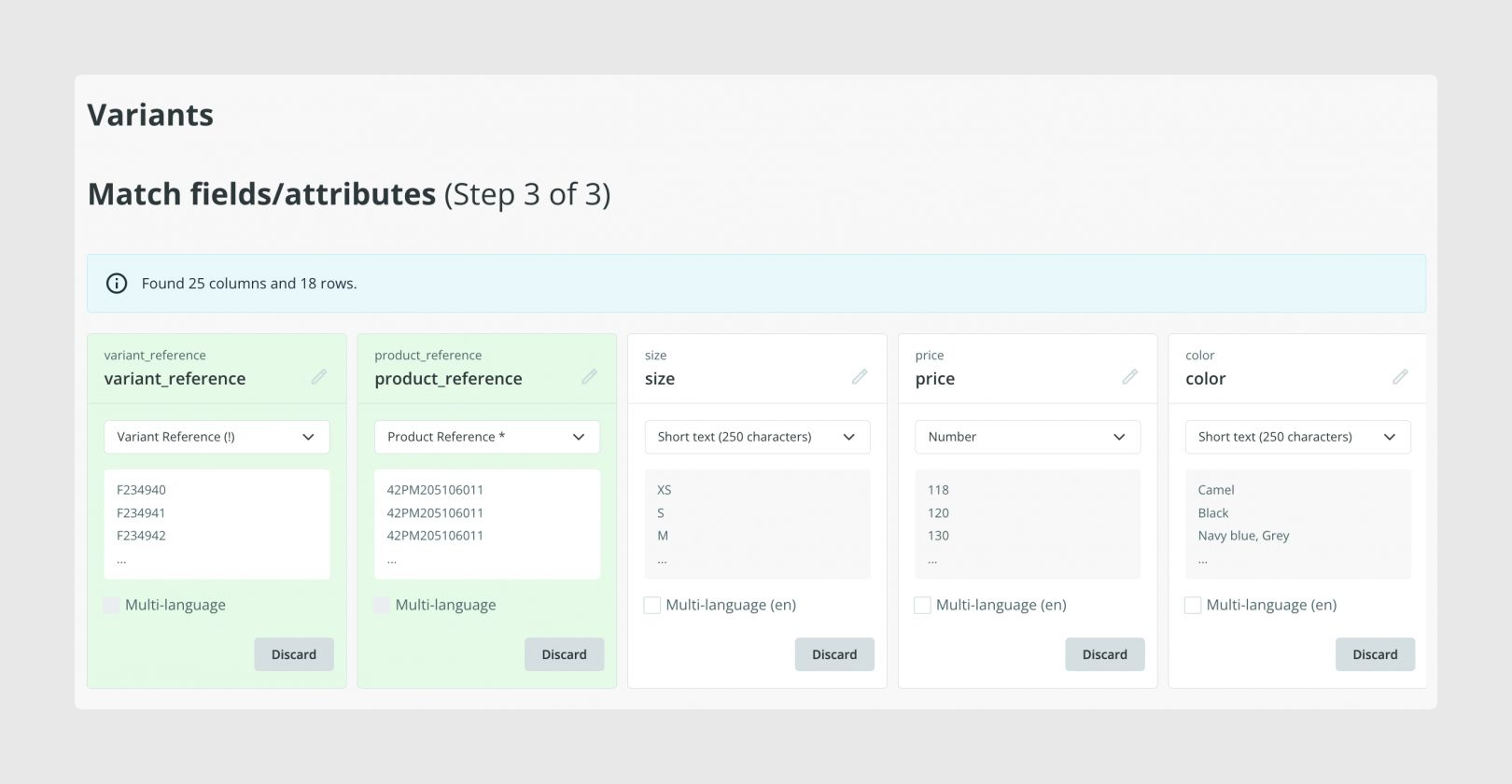
At this stage, you can still:
- match a column to an existing field
- create a new field
- change the field title
- change the field type
- discard a column you do not want to import
Sales Layer remembers the mapping you confirm, which makes future imports easier when the file structure stays similar.
When a new field is detected, make sure the selected field type matches the kind of data you are importing.
For example, if a field stores values such as sizes, a List of attributes field can be a good option. If each variant should only have one value, such as one size per row, you can configure that field so multi-selection is not allowed.
Using the right field type from the start makes variant data more consistent and easier to maintain later.
Once you have reviewed the references, fields, and mapping, click Import to create the variants.
After importing, open a product and review its variants to make sure the parent product link and the variant values have been created as expected.
Create variants manually
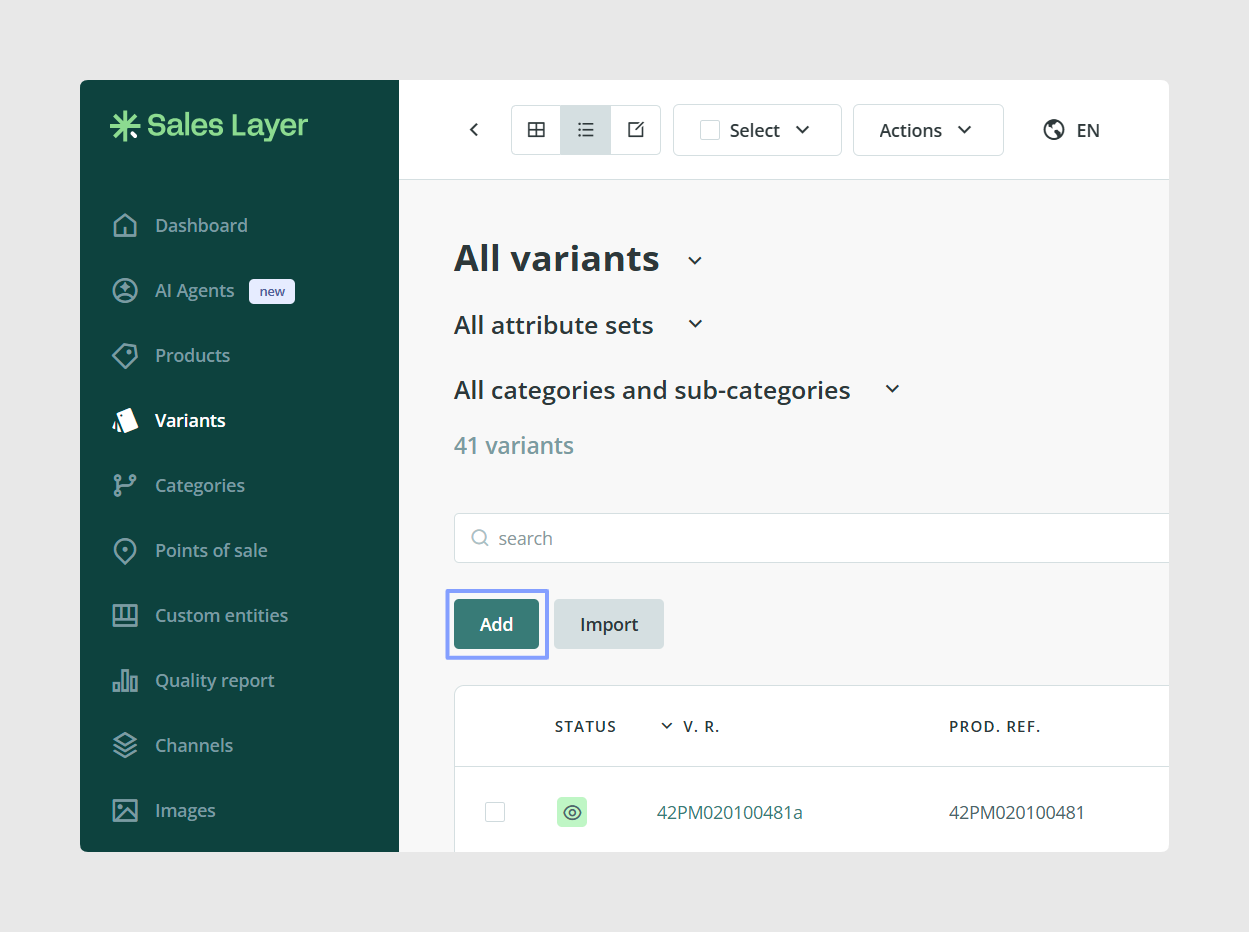
Because variants depend on both a product reference and a variant reference, creating them through import is usually the most controlled method. However, you do also have the option of creating Variants manually using the Add button next to Import.
How variants work with Attribute Sets
Variants inherit the Attribute Set of their parent product. This means they use the field structure defined for that product, which helps keep product and variant information aligned.
Because of this, it is a good idea to check the parent product structure before creating a large number of variants.
Common use cases
- Create sizes or colours for one parent product without duplicating the whole product information
- Load a full set of variants from an existing spreadsheet
- Separate shared product data from variant-specific values
- Standardize option values using structured field types such as list fields
Best practices
Before creating variants, make sure the parent products already exist and that your product references are correct and consistent. Give each variant its own unique variant reference, review the field mapping carefully on the first import, and choose field types that fit the kind of option data you want to manage. This will make future maintenance much easier.
Was this article helpful?
That’s Great!
Thank you for your feedback
Sorry! We couldn't be helpful
Thank you for your feedback
Feedback sent
We appreciate your effort and will try to fix the article