Import images through product or category data
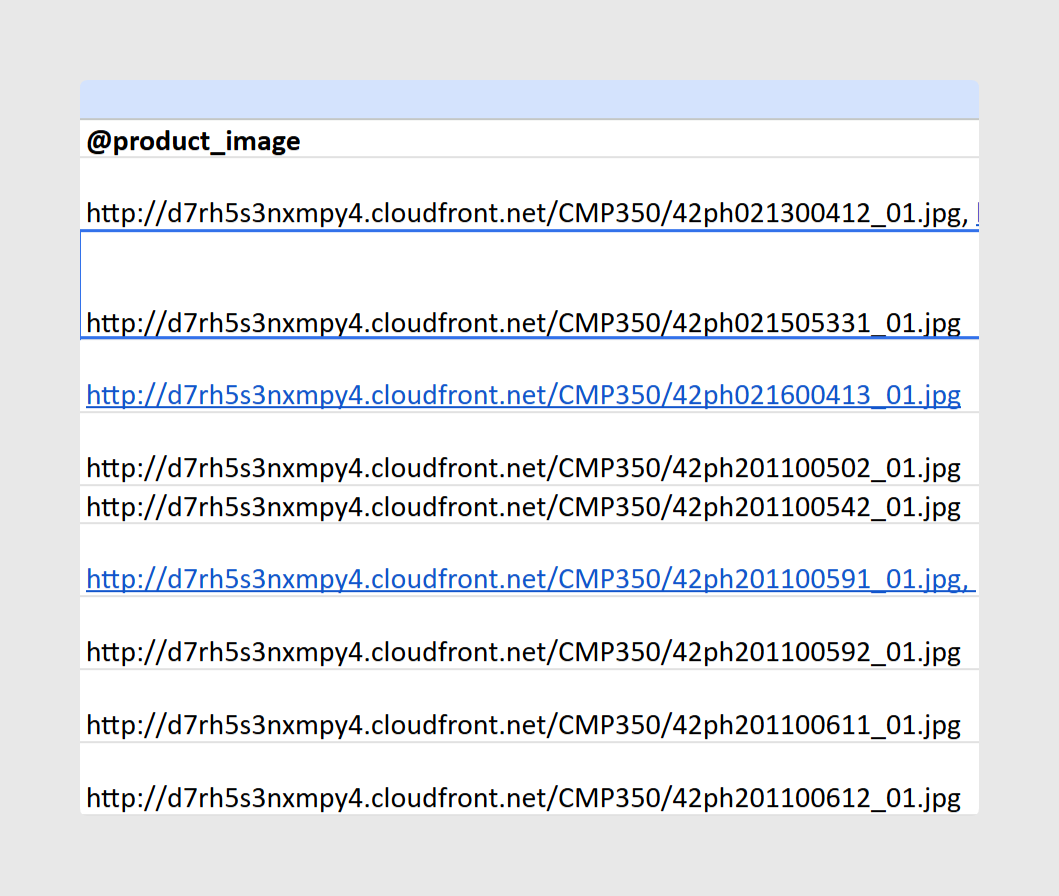
One of the most common ways to bring images into Sales Layer is during a product or category import. If you place an image URL in an image field, Sales Layer can download that image and store it internally in the platform.
This is useful when your spreadsheet already includes image links and you want to load product data and image associations at the same time.
For this to work correctly, the image URL must allow Sales Layer to identify the file name and access it to be downloaded. URLs that use structures such as &id=, &path=, or &file=, or URLs without a visible image extension such as .jpg or .png, are not supported.
The rules to follow are:
Use a public URL so Sales Layer can access and download the file.
Use a URL structure that ends with the image name and its extension.
Remember that image names, including the extension, are case-sensitive
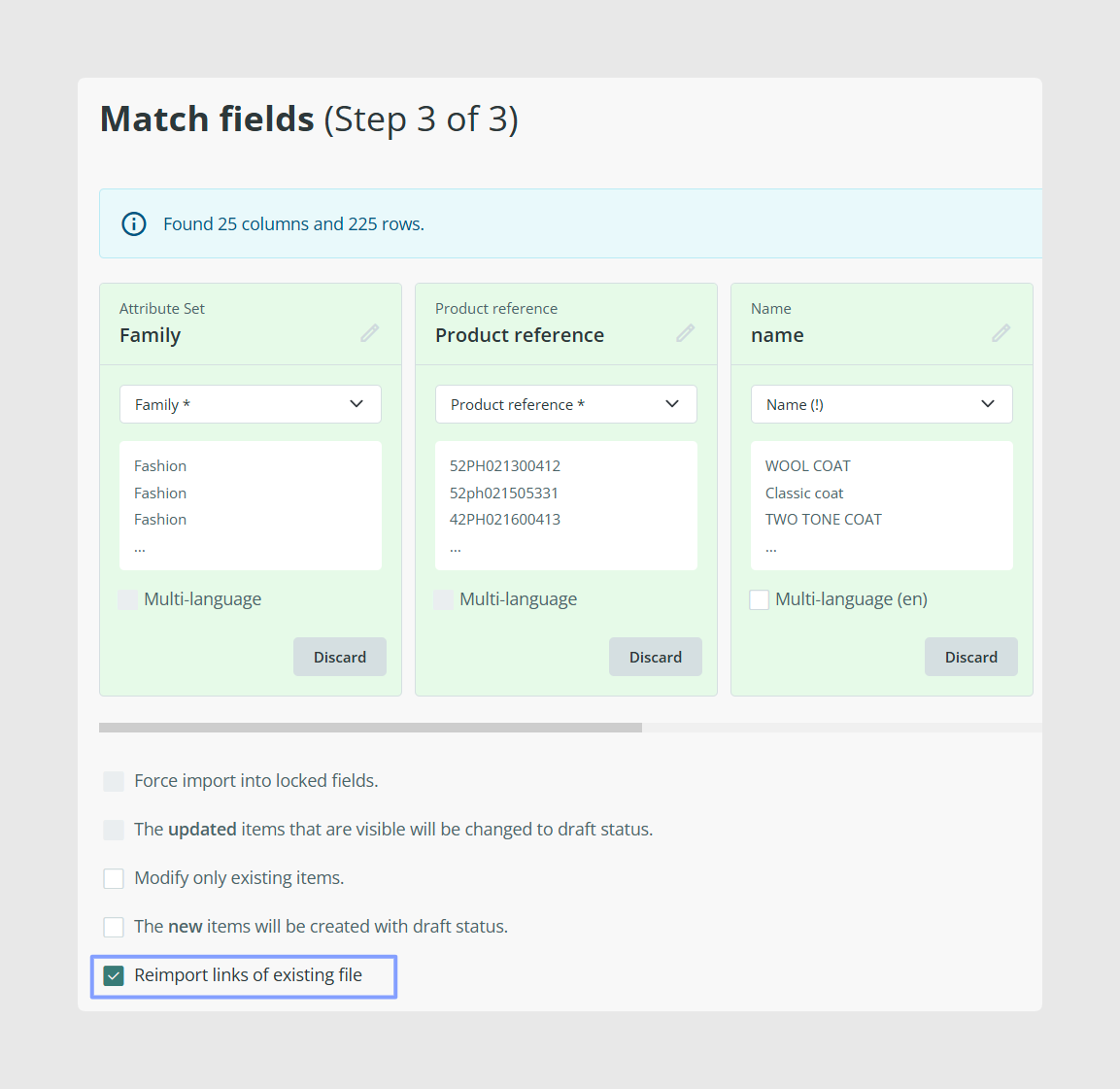
If the items included in the import already have linked images or files, the import process returns a checkbox for reimporting them. The option Reimport links of existing file processes URLs from the import as if they were new.
Link more than one image or file to the same item
Image and file fields can contain more than one asset. To link several images or files to the same field, separate the file names or URLs with commas.
This allows you to import multiple assets in one step instead of loading them one by one.

Add new assets without overwriting existing ones
If an image or file field already contains content and you want to add more without replacing what is already there, use the ++ operator before the new value.
This works for image and file fields in the same way it does for other multi-value fields. It is useful when you are updating existing records and only want to append new assets.

Import images from the Images library
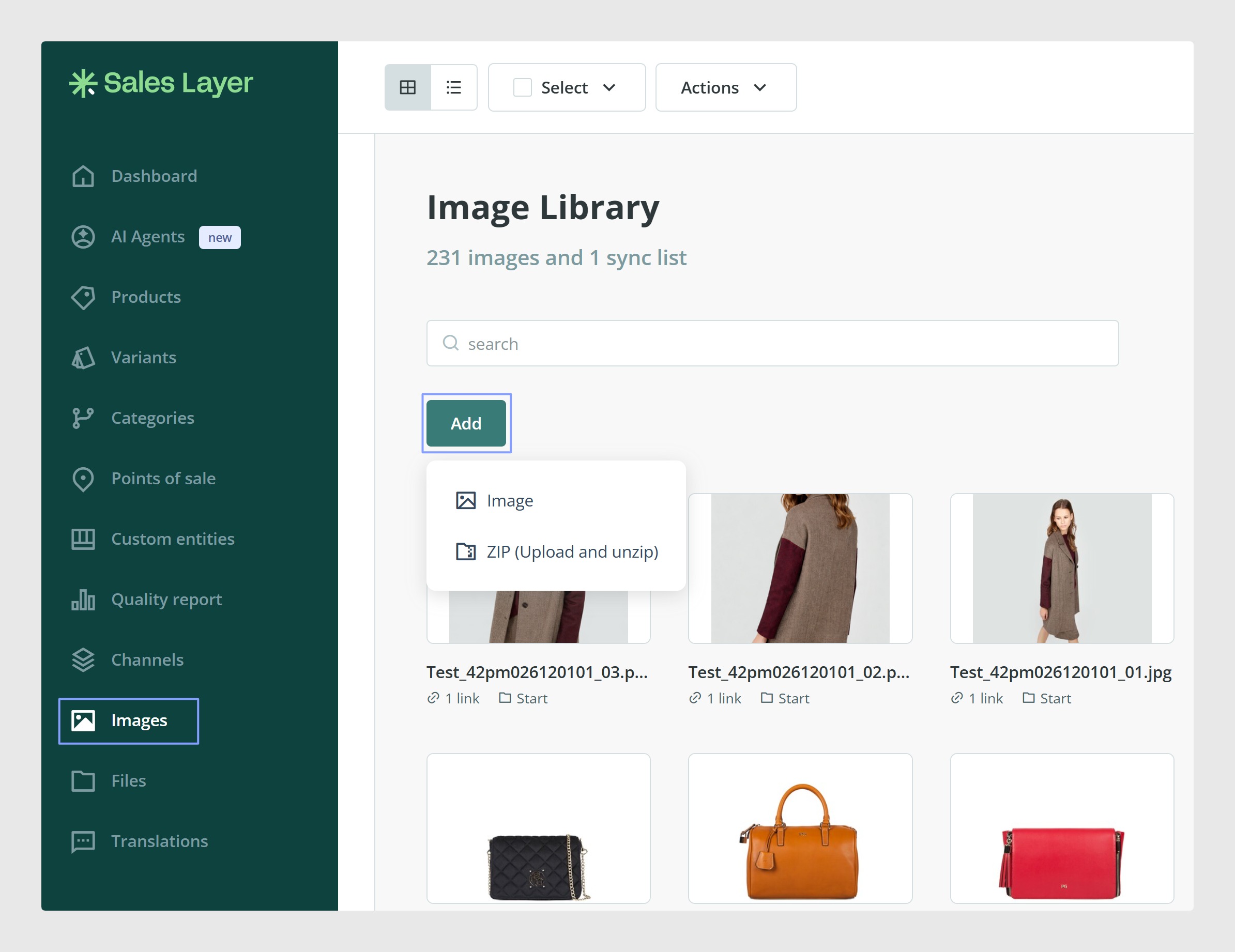
You can also upload images directly from the Images section in the main menu. This is useful when you want to build your image library first and link assets to products later.
Sales Layer allows you to import images individually or in bulk using a ZIP file.
When importing images through a ZIP file:
The maximum ZIP size is 250 MB.
Sales Layer automatically unzips the file.
The images are uploaded into your library inside the PIM.
Image resolution also has a limit. The maximum supported resolution is 30,000 x 30,000.
Import files from the Files library
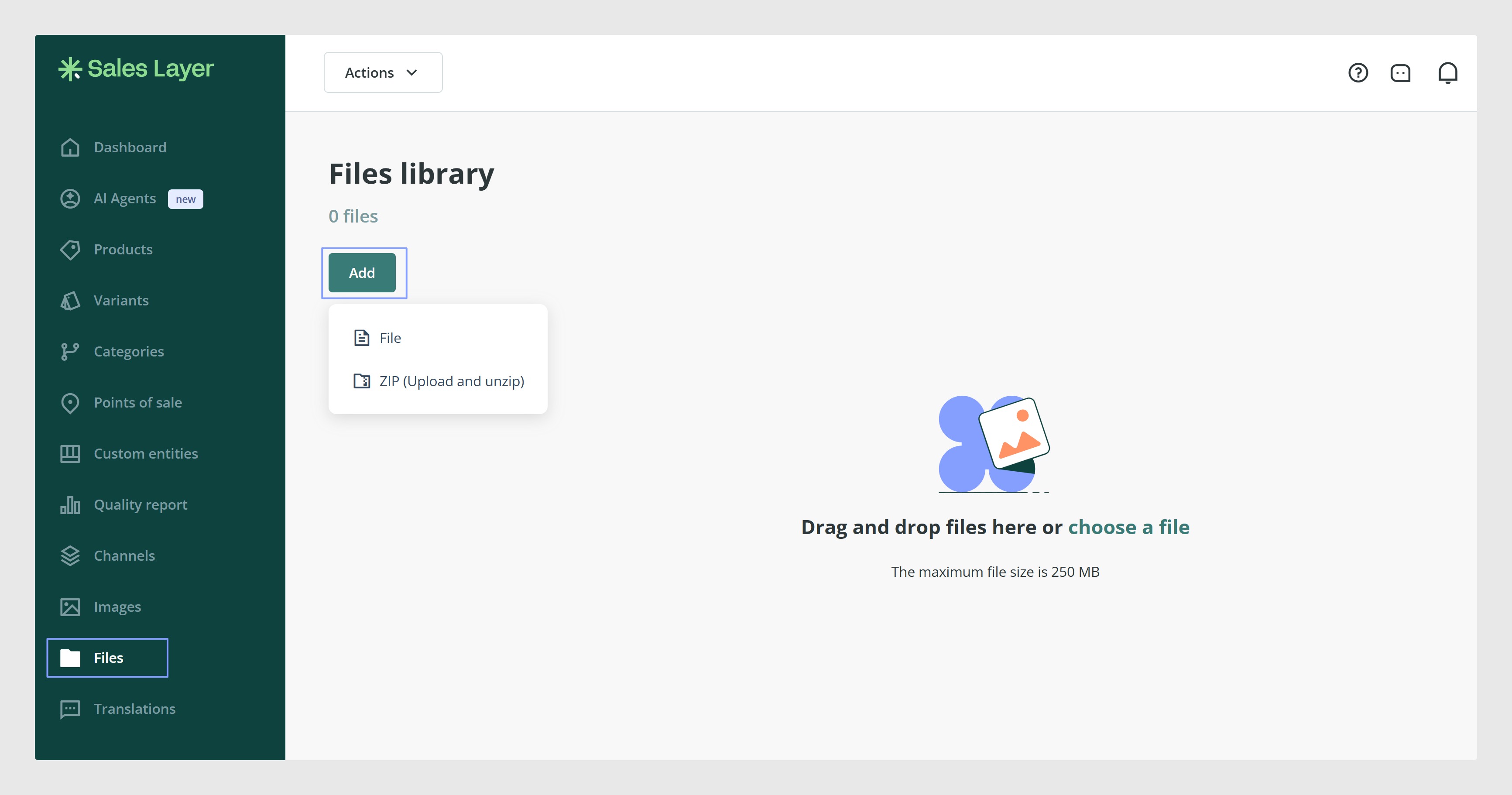
You can upload files from the Files section in the main menu. This library is designed for documents and other file types such as PDF, CSV, ZIP, or video files.
There is one important difference compared with image ZIP imports. If you drag and drop a ZIP file into the file library, the ZIP file is uploaded and stored without being unzipped.
This means ZIP files behave differently in the Images and Files sections, so it is worth checking that you are uploading them in the right place.
Use drag and drop for quick uploads
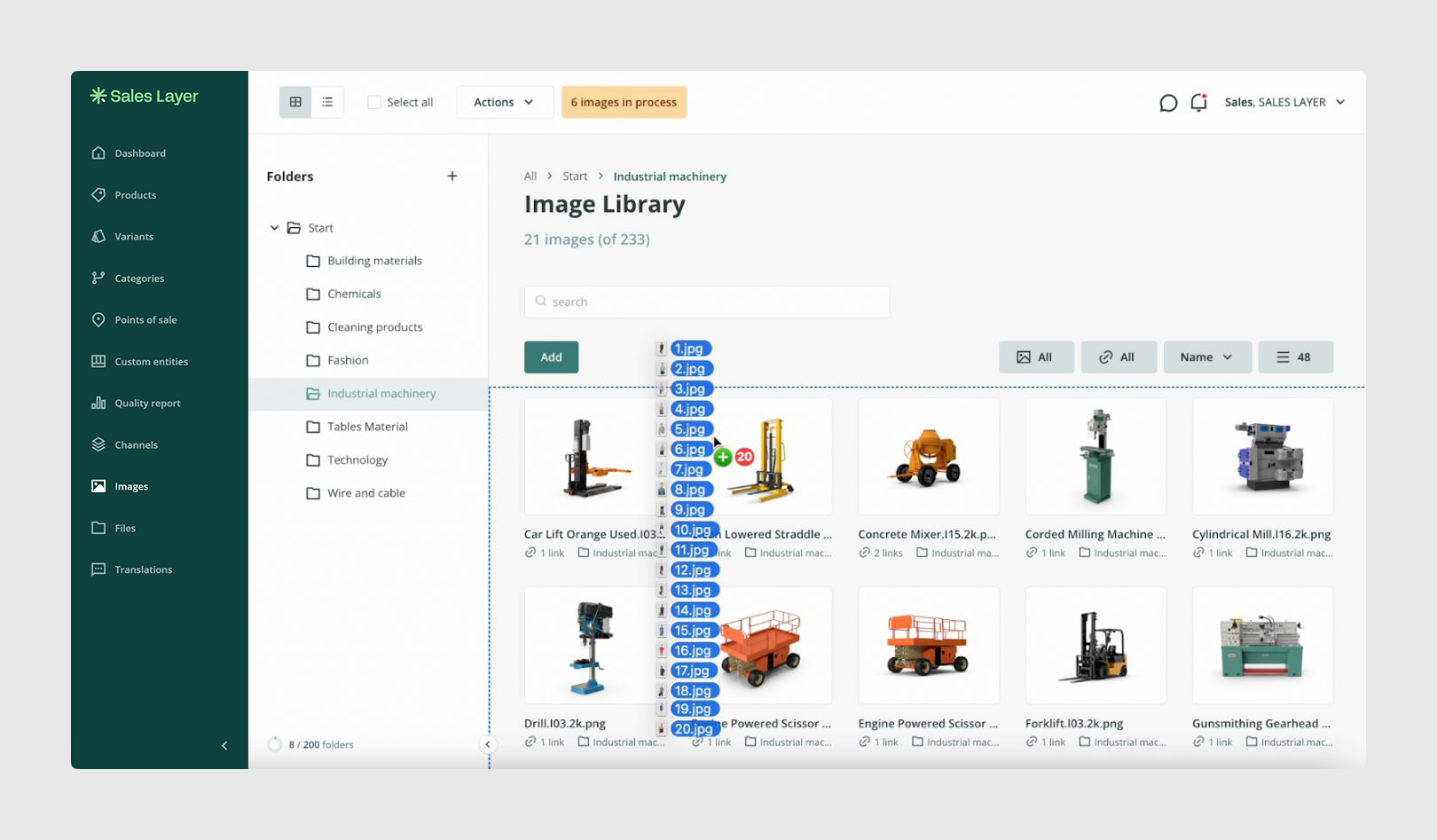
For a faster workflow, you can drag and drop files directly from your computer into the image or file library, or into the destination folder if you use extended DAM.
This option supports up to 20 files at a time without using extra import options.
Use external sync for larger image uploads
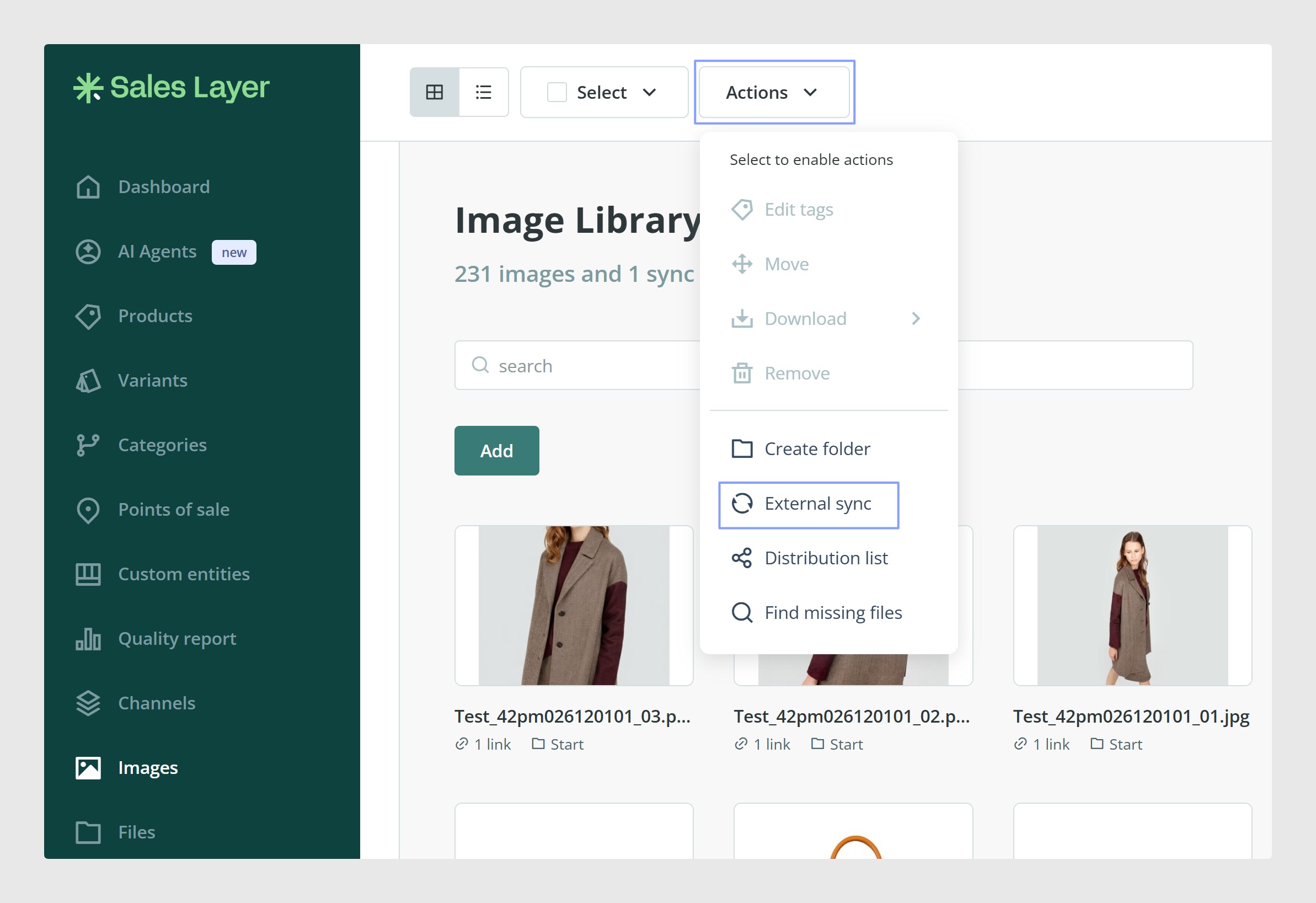
For large image volumes, Sales Layer also supports external synchronization using a CSV or text file that contains image URLs or image names and images themselves.
This external sync can work with:
HTTP paths
FTP paths
Dropbox
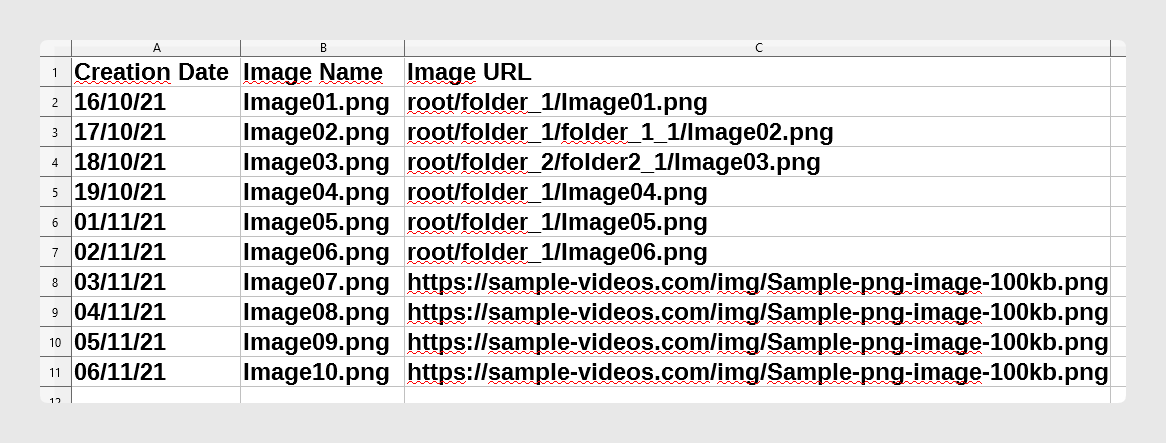
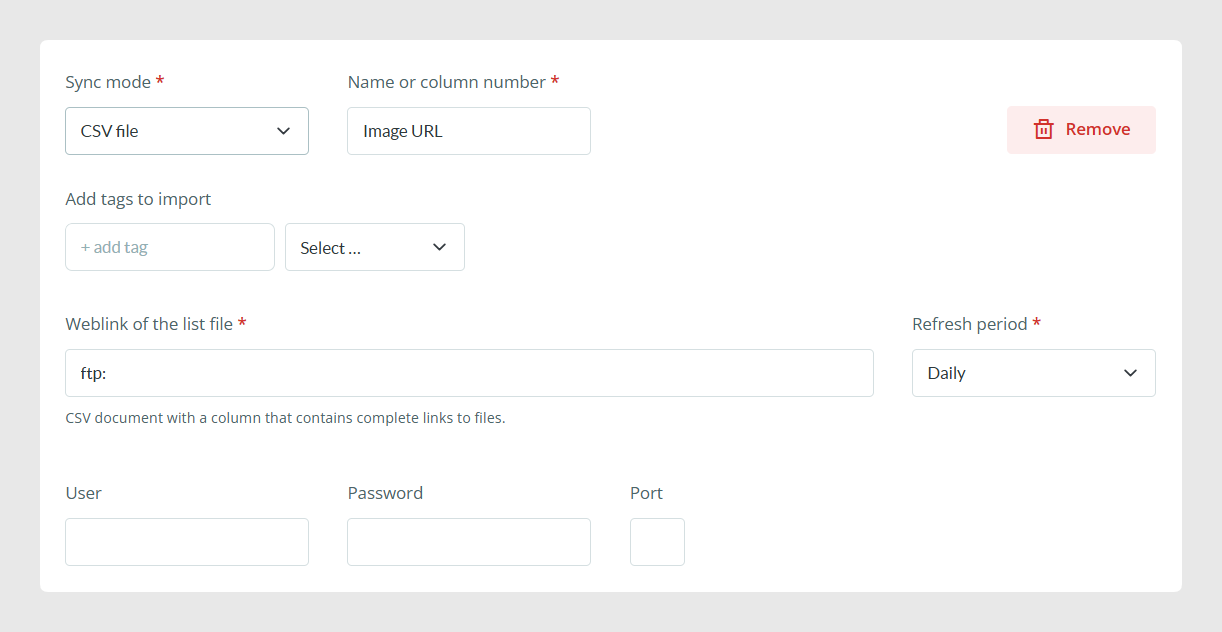
When using a CSV or text file for synchronization, you need to specify which column contains the image information and choose the synchronization frequency.
If your ZIP file is larger than 250 MB, Sales Layer recommends using an external sync list instead. This also helps if you want to automate future image imports.
There are a few technical details to keep in mind:
If you use FTP and want folders inside the path, the image path cannot start with a slash.
Sales Layer uses as root the directory where the CSV is located.
Image file names in the sync file should not be enclosed in inverted commas.
If your server blocks large downloads, you may need to whitelist the Sales Layer IPs:
52.16.19.36
34.252.100.48
52.16.132.188
When importing images from a public webpage URL, the URL must be open access and must not block external access or hotlinking. Otherwise, the images will not be downloaded correctly.
To insert FTP credentials, ftp: must be written in the Weblink of the list file field.
Use Dropbox for ongoing image synchronization
Sales Layer can also connect to a Dropbox account. Once connected, the platform creates a folder inside your Dropbox, Apps/Sales Layer, where you can upload images. Sales Layer then synchronizes those images according to the refresh frequency you choose.
There are two important behaviors to understand with Dropbox sync:
If you delete an image in Dropbox, it is not deleted automatically in Sales Layer.
If you delete in Sales Layer an image that originally came from Dropbox, it will not be reuploaded on the next sync unless you reconnect Dropbox.
This behavior is designed to prevent accidental loops or mass deletions.
Remember that uploading to the library does not automatically link assets
If you upload images through the Images section, or files through the Files section, the assets are stored in Sales Layer, but they are not automatically linked to products, variants, categories, or other records.
To link them, you must either:
import the file name into the corresponding image or file field
edit the item manually and select the asset there
This distinction is important because storing an asset in the library and linking it to an item are two separate actions.
Find assets that are missing or not linked
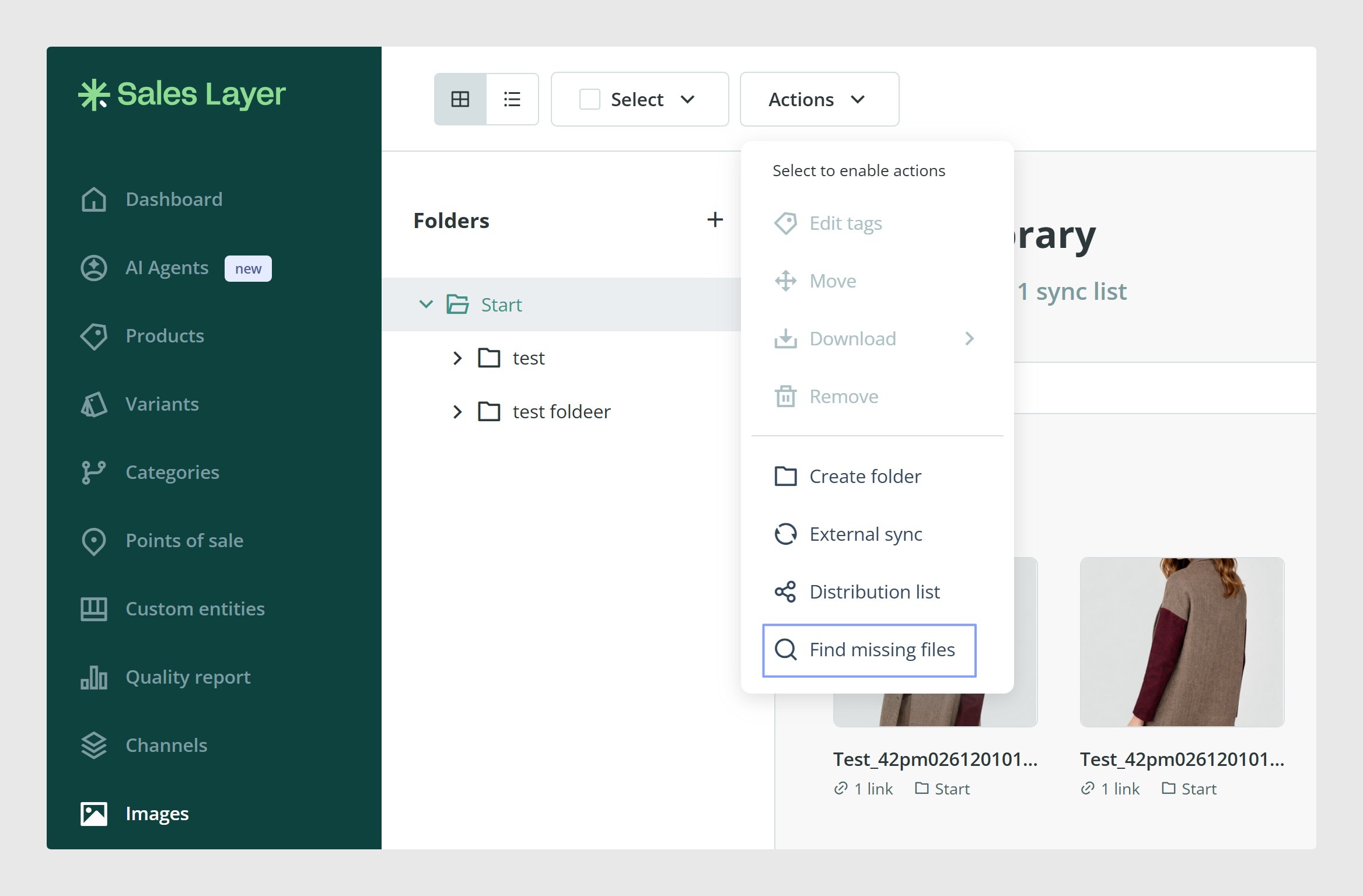
Sometimes an item may contain the name of an image, but the image has not actually been uploaded yet. In that case, the asset will not appear in the field.
To detect this, go to the Images section and use the Find missing files option.
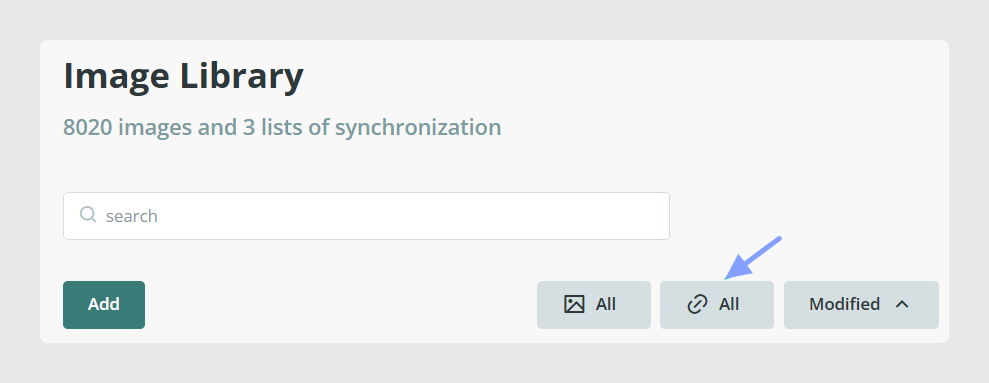
You can also filter the library to find images that are stored in Sales Layer but are not linked to any product or variant yet.
Download a list of your image or file library
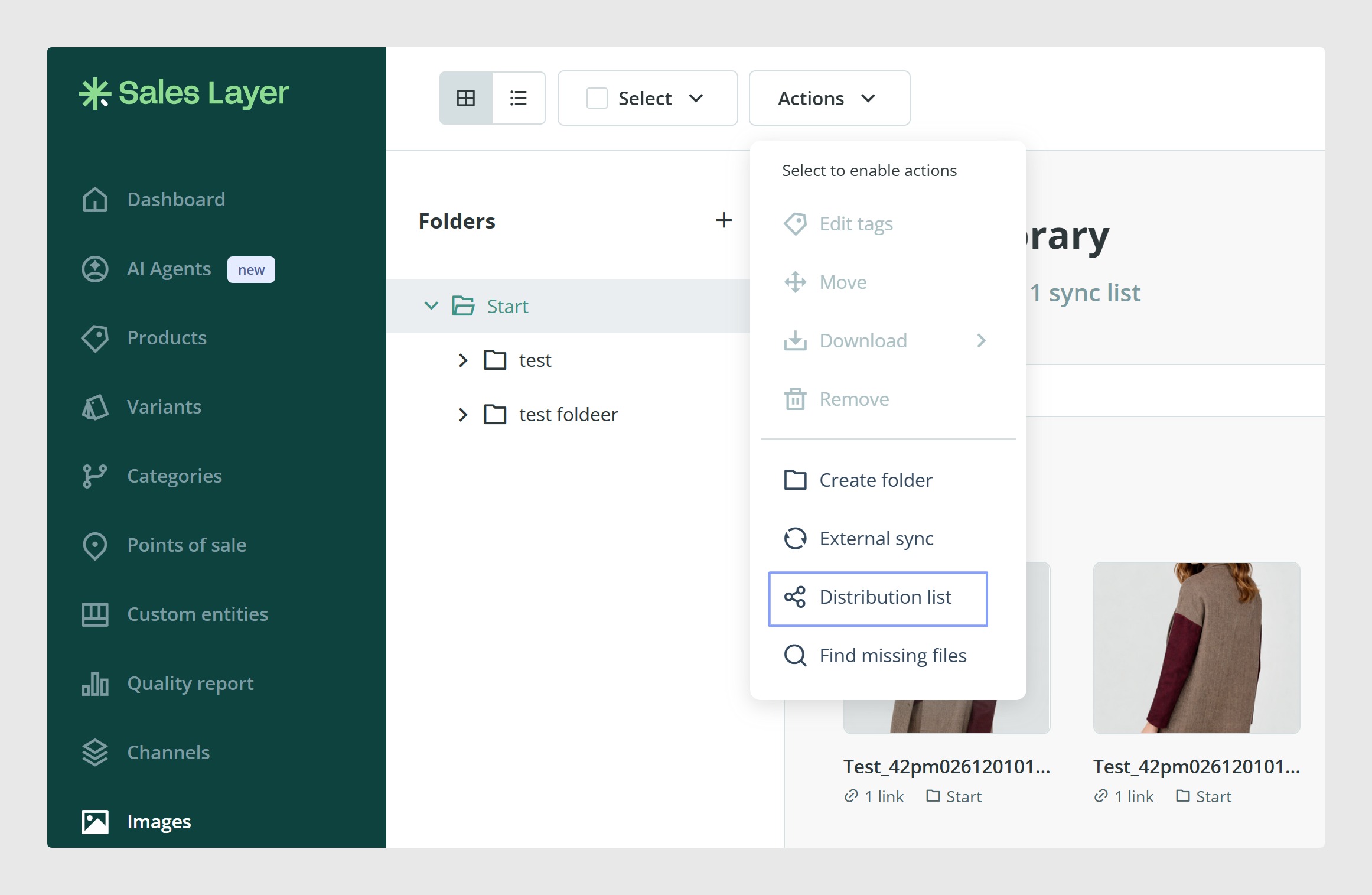
If you need an overview of everything stored in the library, go to Images or Files, open Actions, and click Distribution list.
This downloads a CSV with the information from the full image or file library.
You can use the distribution list when you need a complete export of all stored images or files, for example to audit your library, review linked and unlinked assets, or share the full list with another team.
Keep file URLs in mind
Sales Layer-generated image and file URLs are not static. They can change when you modify or update something related to those assets.
Because of this, it is better to treat those URLs as generated output rather than permanent fixed links.
Common Use Cases
Import product data and image URLs in the same spreadsheet.
Build the image or file library first, then link assets later.
Upload large batches of images through ZIP, FTP, HTTP, or Dropbox.
Append new images or files to existing records using the ++ operator.
Find missing assets or review unlinked library content.
Best practices
Keep image and file names clear and consistent, especially if you plan to link them through imports later. For smaller uploads, drag and drop is usually enough. For larger or recurring uploads, use external sync methods instead of manual repetition. Also, remember that uploading an asset to the library does not link it automatically, so always check that the file names in your item fields match the assets you have stored in Sales Layer.
Was this article helpful?
That’s Great!
Thank you for your feedback
Sorry! We couldn't be helpful
Thank you for your feedback
Feedback sent
We appreciate your effort and will try to fix the article