The Table field type is a versatile way to store multidimensional data inside a single field. It is designed for cases where you want to group related information together without creating links to other tables, for example, Custom Entities.
In some scenarios, using Variants or a Custom Entity table may still be the better choice. However, a Table field is often ideal when you need a simple way to store a structured list of values, such as:
Ingredients and their quantities
Technical specs that repeat in rows (feature + value)
Packaging breakdowns (unit type + dimensions + weight)
Example: You could create a table that contains both the ingredient name and the quantity used for each one, all within the same field.
Because Table fields store multiple values in one place, they can be more complex to work with when you need to:
Import and export data through channels
Perform bulk actions
Keep formatting consistent across many products
Create and configure the Table field
Open a product, or the item you want to edit, and go to its form.
Click Redesign form.
Choose one of the following:
Add a new field, or
Select an existing field to modify it.
Set the field type to Table.
Optional: enable multi-language if you want the table content to be different per language.
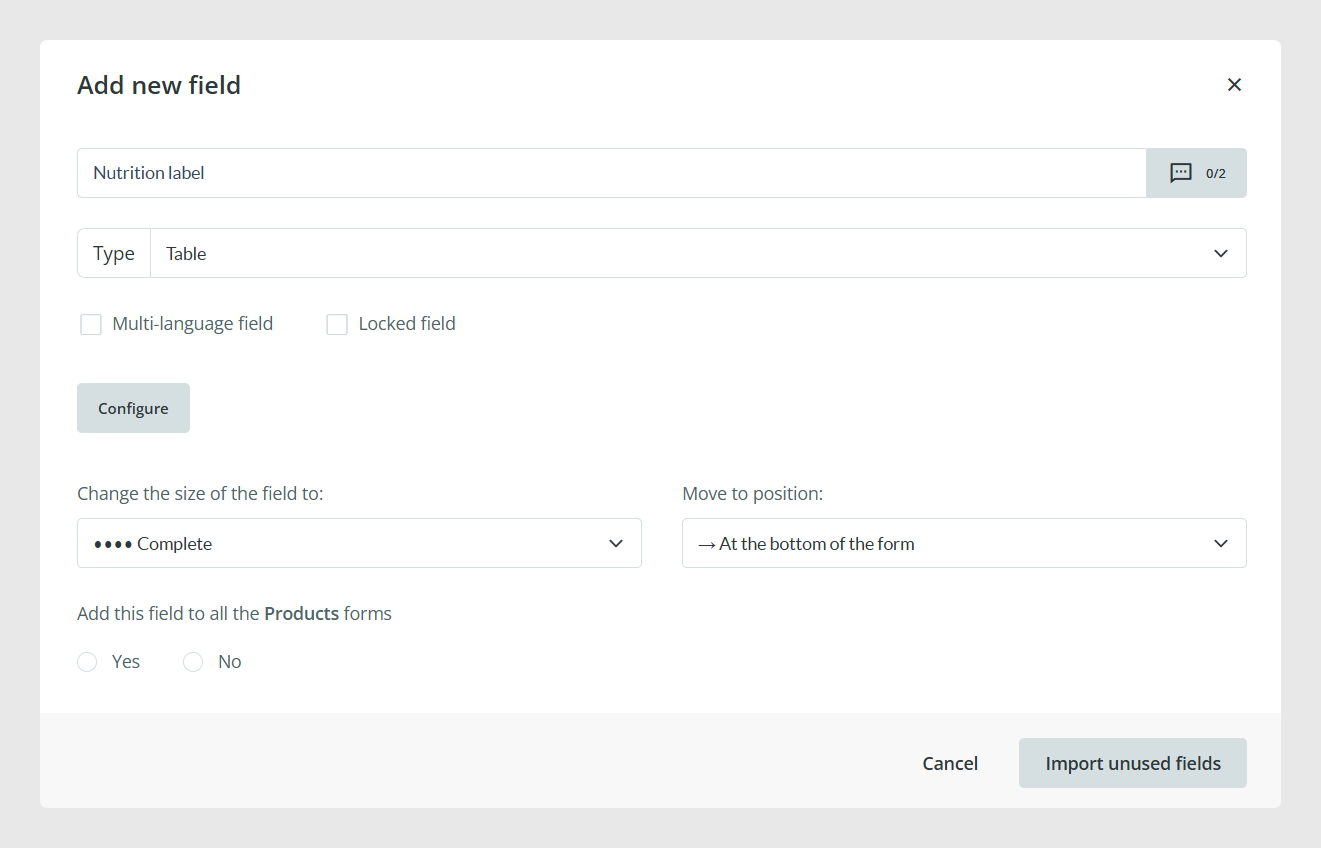
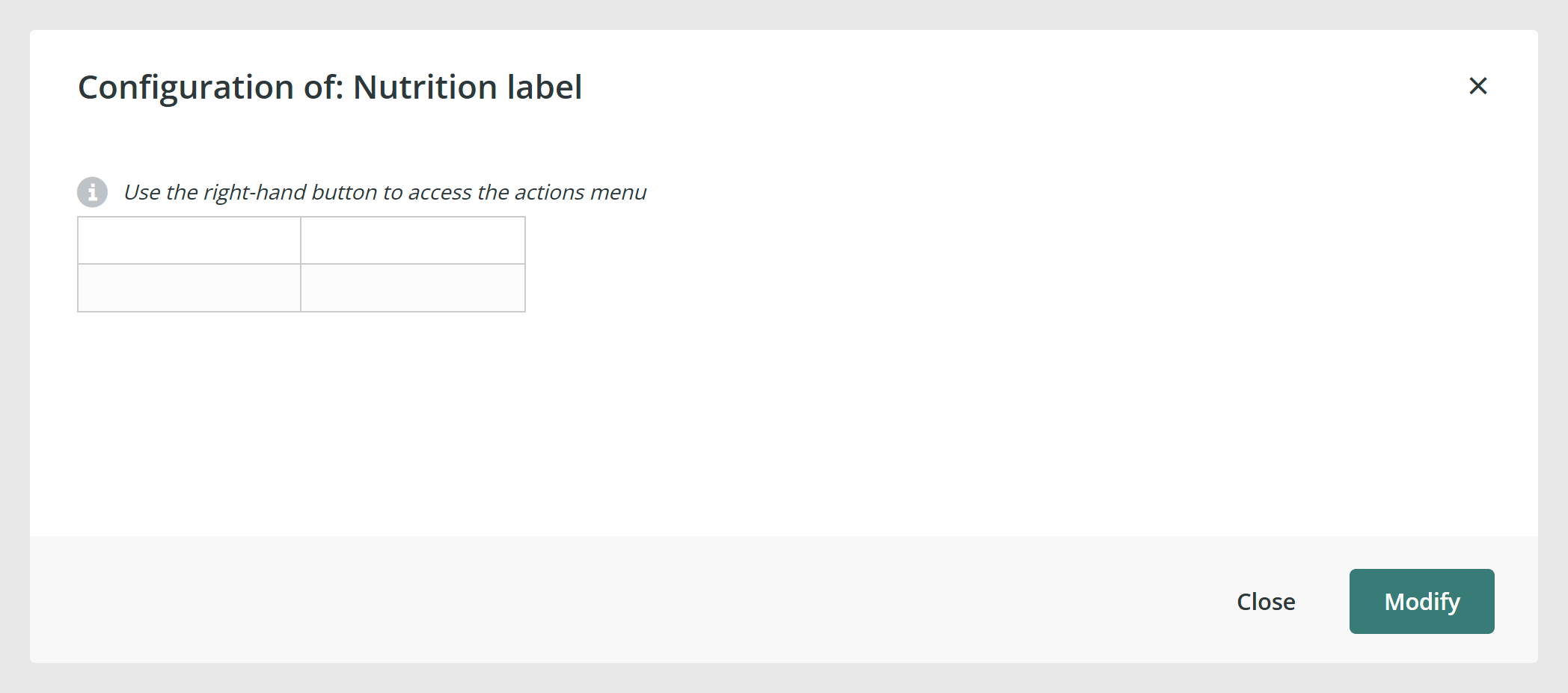
When you open the field configuration, you can optionally create a template for the Table field before closing the window.
A template lets you define:
A specific number of columns and rows
Optional sample data (pre-filled values)
This step is optional, but it can make things easier later. It ensures every product starts with the same basic structure in that field, which helps keep data consistent across your catalog.
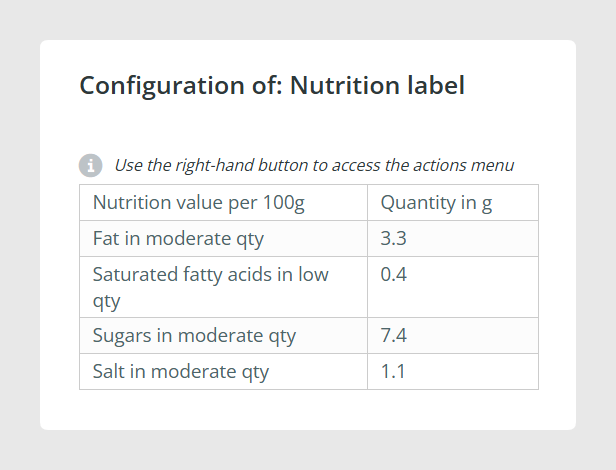
Fill in table content
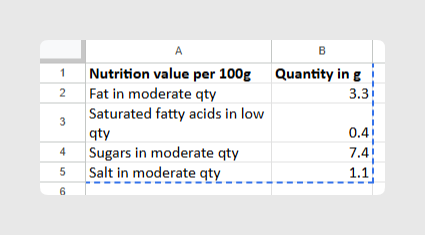
Whether you used a template or not, you can start adding content right away. You can also populate the table by copying and pasting content from Excel into the field. This is especially useful when you already have structured data prepared in a spreadsheet.
Best practices
Use a Table field when the data belongs together and is easiest to manage as a single structured block, for example, ingredients and quantities.
If you need the data to behave more like records that you will filter, reuse, or relate across many products, consider Variants or Custom Entities instead.
When possible, create a template so every product starts with the same columns and expected structure.
Related Links
See: How to Set Up Multidimensional Fields (Table Field Type)
Was this article helpful?
That’s Great!
Thank you for your feedback
Sorry! We couldn't be helpful
Thank you for your feedback
Feedback sent
We appreciate your effort and will try to fix the article