A Table field is useful when you want to store several related values inside a single field, instead of spreading that information across many separate fields. In Sales Layer, this field type is designed for multidimensional data, such as an ingredient list where each row can include both the ingredient name and the quantity.
This can be a simpler option than using variants or a Custom Entity table when the goal is to keep grouped information together in one place and make it easy to view inside the item form. At the same time, importing, exporting, and bulk updating Table field data can become more complex because the field stores multiple values.
When to use a Table field
Use a Table field when you need to store a small structured table inside a product or other item form.
A common example is a list of ingredients, where each row contains more than one related value, such as ingredient name and quantity.
A Table field can be a good fit when:
the data belongs directly to one item
you want users to edit it in the same form
you do not need to create links to a separate table
the information is easier to understand as rows and columns than as many independent fields
If the data needs to be reused across many items, or managed more independently, a Custom Entity table or variants may still be a better option.
Create a Table field
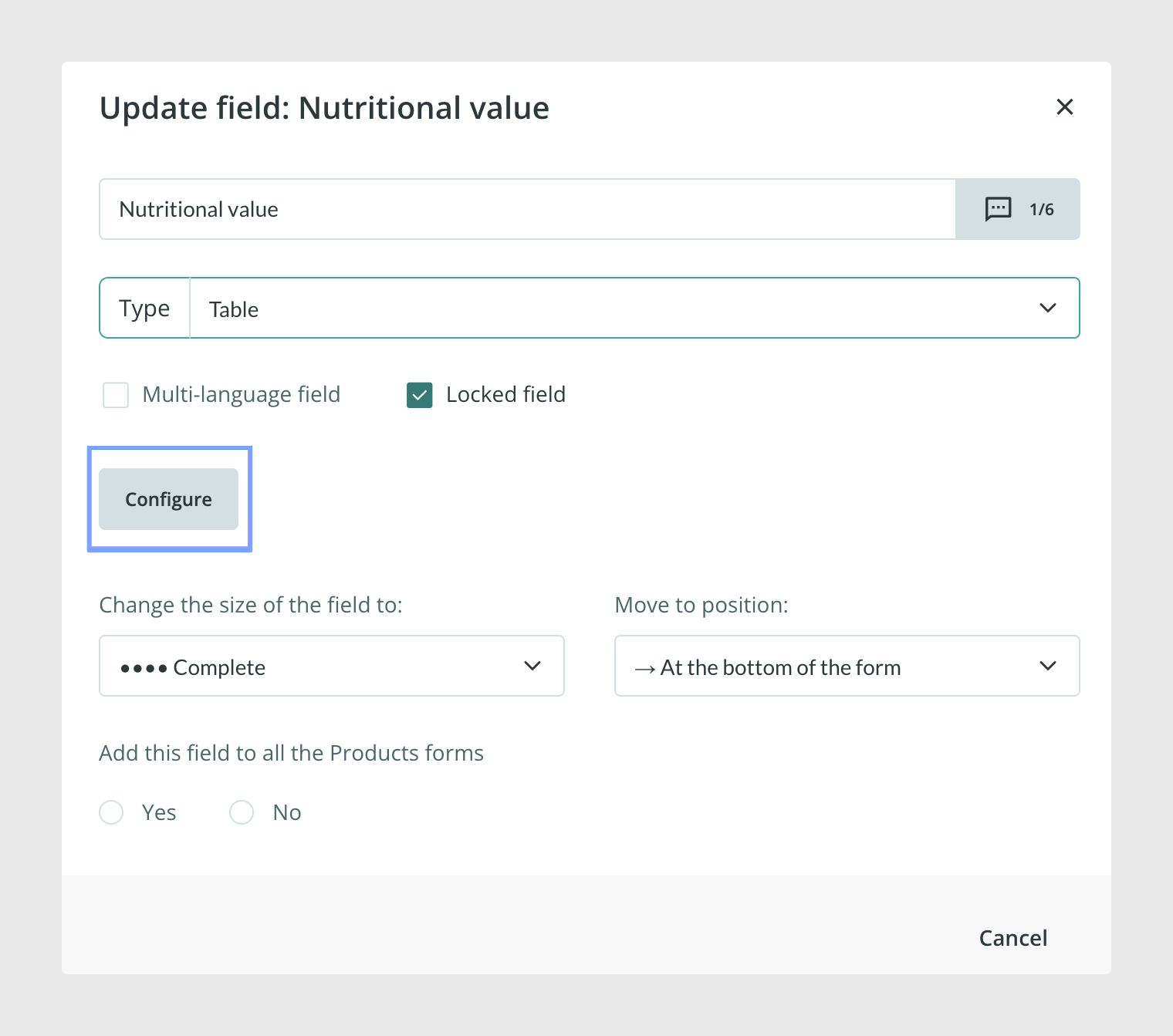
To create the field, open the form where you want to use it and go to Actions > Redesign form. From there, either add a new field or modify an existing one, and set its type to Table field.
Sales Layer also allows Table fields to be configured as multi-language if needed.
This is the basic setup step that turns the field into a structured table instead of a standard text, number, or list field.
Create a template for the field
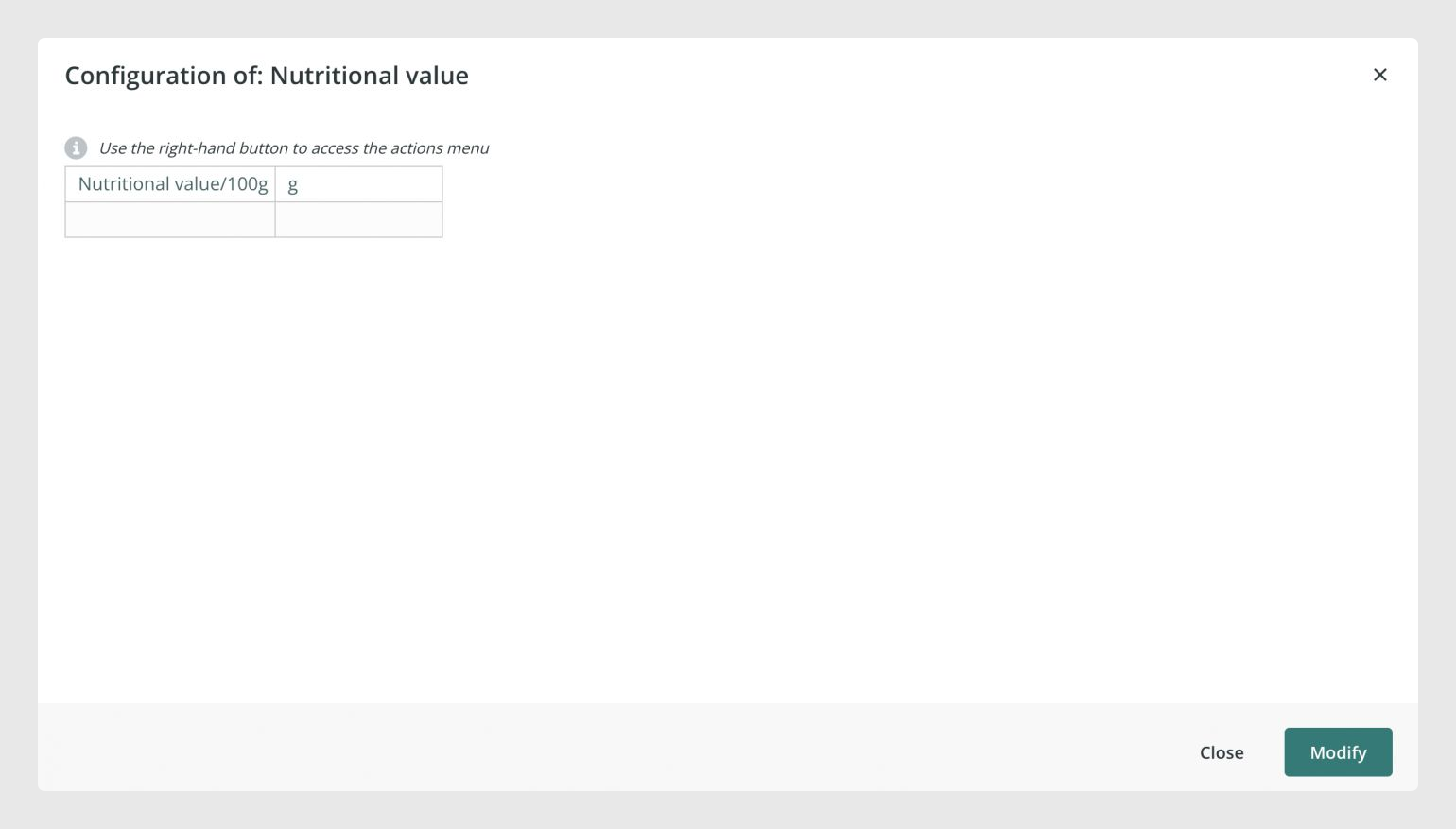
Before closing the configuration window, you can create a template for the Table field. This template can include:
a predefined number of rows
a predefined number of columns
sample or default data
This step is optional, but it can make the field much easier to use later because each item will start with the same basic structure already prepared.
Using a template is especially helpful when all items should follow the same table layout, such as nutritional data, technical specifications, or ingredient breakdowns.
Fill in the table data
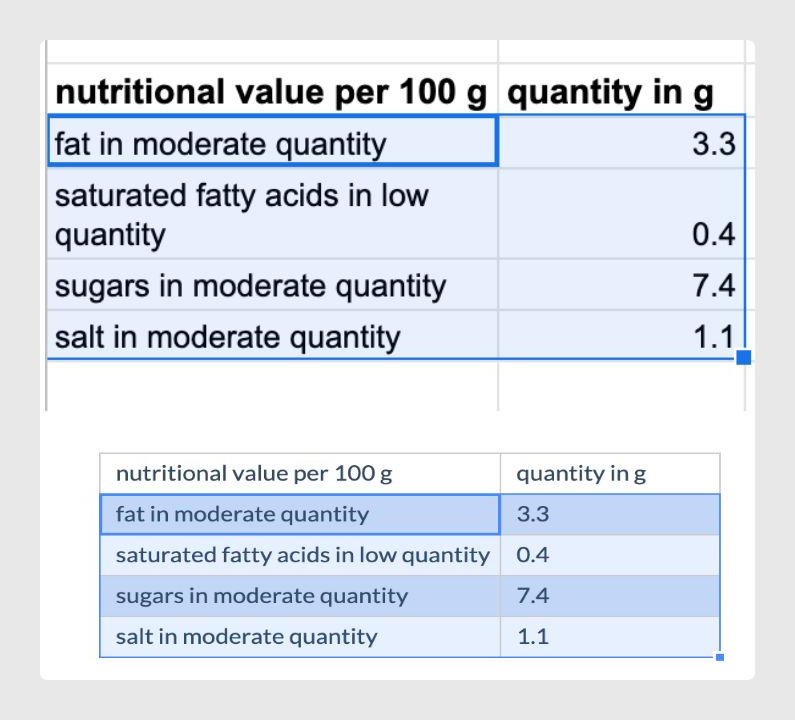
Once the field is configured, you can start adding data to it directly in the form. Sales Layer also supports copying and pasting content from Excel into the Table field, which can save time when you already have the data prepared in spreadsheet format.
This makes the Table field practical for users who want to paste structured information quickly without building every row manually.
Importing content into a table type field
You can also import the content of a table type field through a CSV or Excel import. To do this, prepare the file with one column for the product or variant reference, and another column for the table type field you want to update.
Inside the cell of the table type field, you must include the table values in JSON format. This content represents the rows and columns that will be loaded into the field.
The basic structure of the file would be:
one column with the product or variant reference
one column with the name of the table type field
inside that cell, the table values organized as rows and columns in JSON format
For example, in a CSV you could have a structure similar to this:

SKU;"Table test"
21CV33333334;"[[""Row 0 Cell 0"",""Row 1 Cell 0""],[""Row 1 Cell 0"",""Row 1 Cell 1""]]"
In this example, SKU identifies the product or variant that will be updated, and Table test corresponds to the table type field. The JSON content included inside the cell is what Sales Layer will use to fill in the rows and columns of the field.
This method is useful when you already have the information prepared outside Sales Layer and want to load it in bulk without editing each item manually.
Important note about searching and data handling
Table fields are powerful for managing structured information, but they also come with some limits in day-to-day handling. Because the field stores multiple values in one place, actions such as channel import and export and bulk updates can be more complex.
The current documentation also notes that internal search options for Table field content are planned for the future. For example, filtering products by a value stored inside the table is not presented here as a standard search workflow.
Common Use Cases
ingredient lists with quantities
repeated technical values that belong to the same item
structured reference data that should stay inside the form
compact multidimensional data that does not need a separate related table
Best practices
Use a Table field when the data should stay closely tied to one item and be easy to read in rows and columns. If the same information must be reused across many items, compare this option with Custom Entities before deciding. When possible, create a template so users always start with the same structure, which helps keep the data more consistent across the catalog.
Was this article helpful?
That’s Great!
Thank you for your feedback
Sorry! We couldn't be helpful
Thank you for your feedback
Feedback sent
We appreciate your effort and will try to fix the article