This article explains how to connect Claude Web to the Sales Layer MCP Server using a custom connector. Once connected, Claude can use MCP tools to query your Sales Layer catalog and help you analyze product information, review data quality, search catalog content, and answer questions based on your PIM data.
Note: This article is for Claude Web at claude.ai. Claude Desktop uses a different setup and should be configured separately.
Before you start
Before connecting Claude Web to the Sales Layer MCP Server, make sure you have:
- Access to Claude Web.
- An active Sales Layer account.
- A Sales Layer Catalog Token provided by Sales Layer Support or your Sales Layer account representative.
Step 1: Open Claude connector settings
- Open Claude Web.
- Go to Settings.
- In the left sidebar, open Connectors.
- Click Add custom connector.
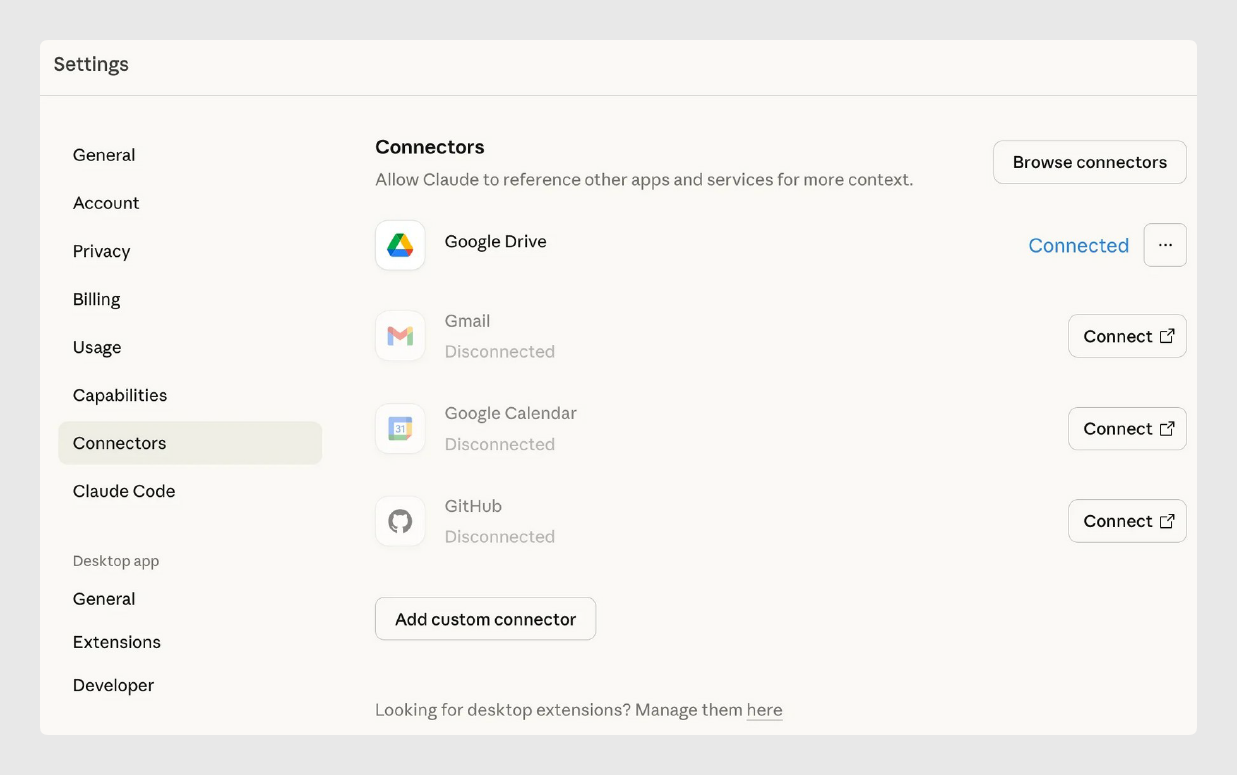
Step 2: Add the Sales Layer custom connector
In the Add custom connector window, enter the Sales Layer MCP Server details.
| Field | Value |
|---|---|
| Name | Sales Layer |
| URL | https://mcp.saleslayer.com |
- Review the connector details.
- Read Claude's security warning for custom connectors.
- Click Add to save the connector.
Step 3: Start the connection
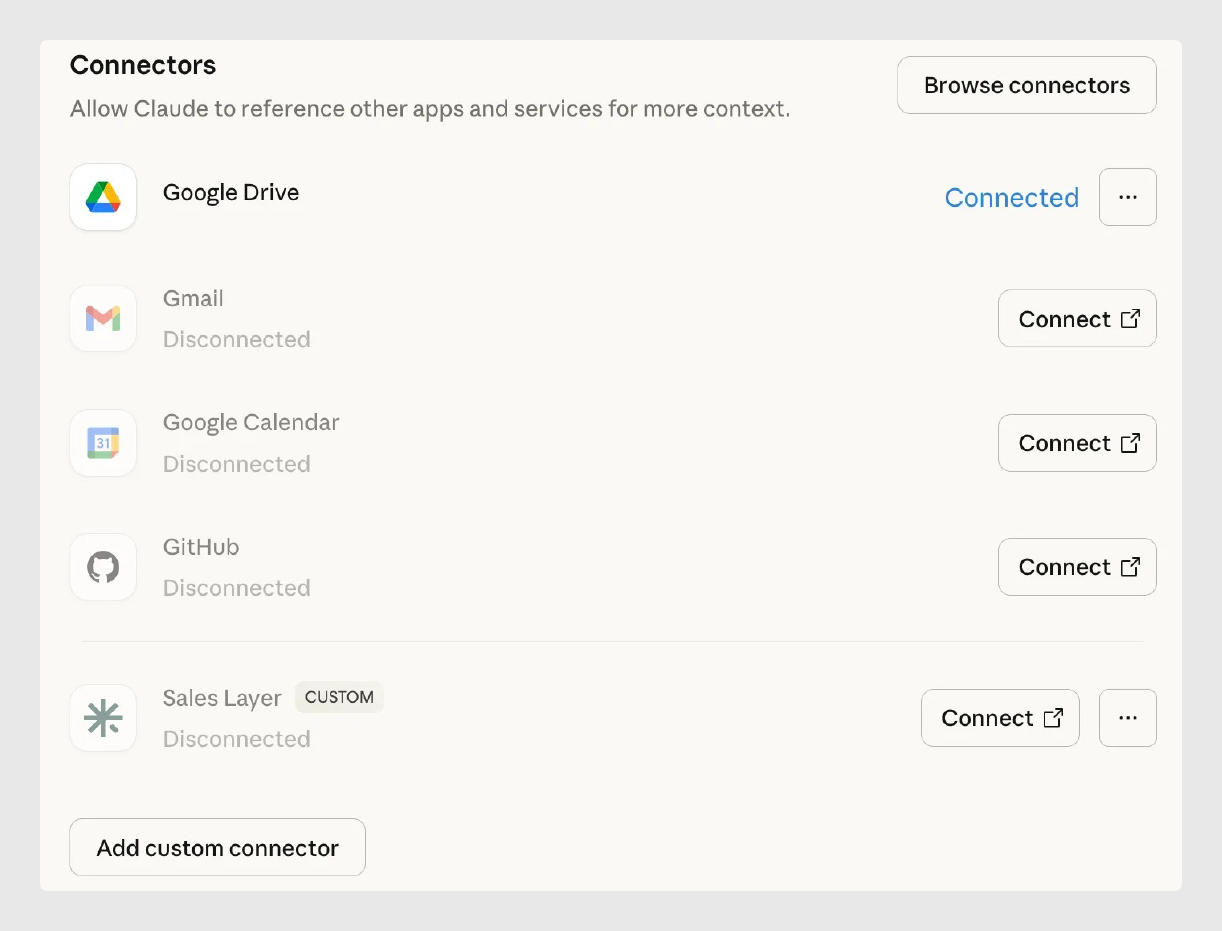
After adding the connector, it appears in Claude with a Disconnected status.
- Find the Sales Layer custom connector in the Connectors list.
- Click Connect.
- Claude opens the Sales Layer authorization page in your browser.
Step 4: Validate your Sales Layer credentials
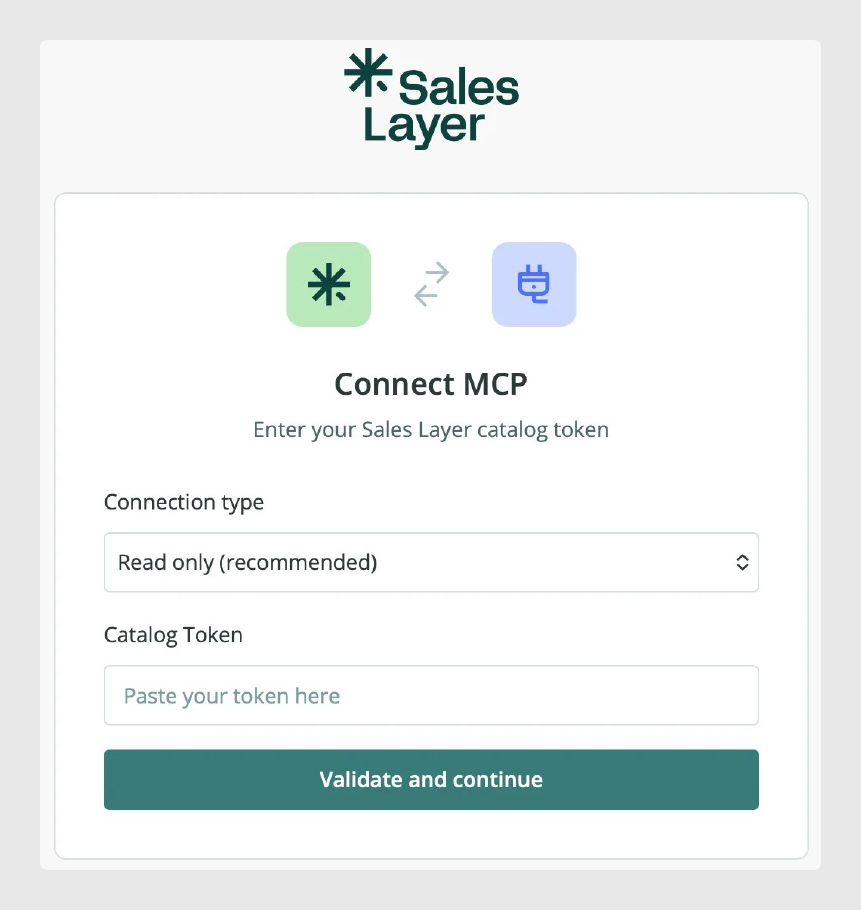
The Sales Layer Connect MCP screen asks for the connection type and the Catalog Token.
- In Connection type, select the access mode you want to use.
- For most first-time connections, select Read only (recommended).
- In Catalog Token, paste the token provided by Sales Layer Support or your account representative.
- Click Validate and continue.
| Connection type | Use it when |
|---|---|
| Read only | You want Claude to query and analyze catalog data without modifying the PIM. |
| Full access | You have been authorized to use tools that can create or update catalog data. |
Tip: Start with Read only unless you specifically need Claude to create or update data in Sales Layer.
Step 5: Confirm the connection
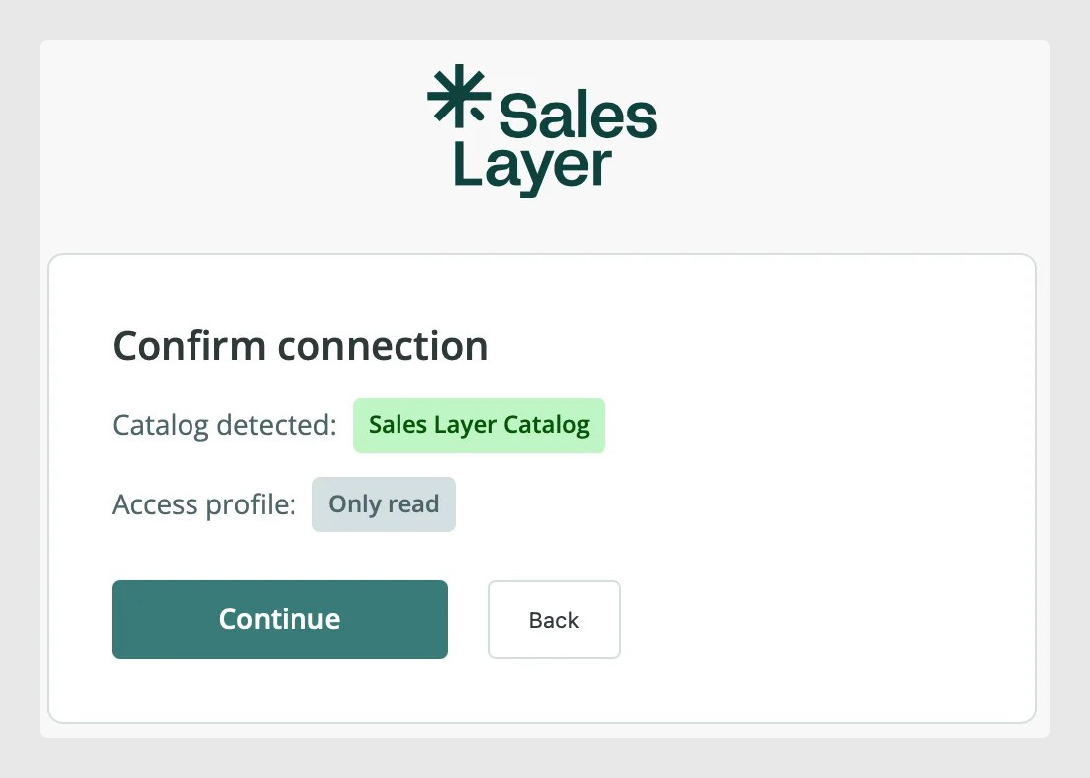
If the token is valid, Sales Layer shows a confirmation screen before completing the connection.
- Check the catalog detected by Sales Layer.
- Check the access profile, for example Only read.
- Click Continue to finish the authorization.
Step 6: Complete the setup in Claude
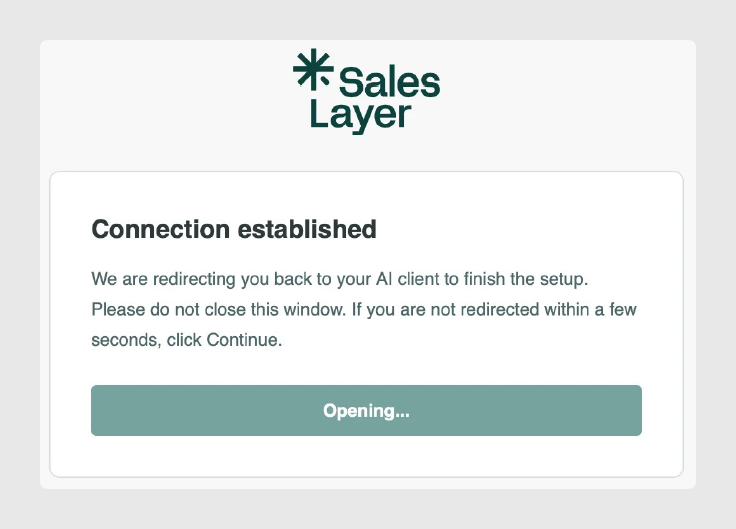
After you confirm the connection, Sales Layer redirects you back to Claude Web. Do not close the browser window until the redirect has finished.
Once back in Claude:
- Go to Settings > Connectors.
- Find the Sales Layer connector.
- Check that it appears as connected.
Test the connection
Open a new Claude conversation and ask a simple question about your catalog. For example:
- What Sales Layer tools do you have available?
- Show me products from a specific category.
- How many products are available in my catalog?
- Search for products that contain a specific term.
If Claude can access the Sales Layer MCP tools, the connection is ready to use.
Troubleshooting
| Issue | Possible cause | What to do |
|---|---|---|
| The token is rejected | The Catalog Token is incorrect, expired, or does not belong to the expected Sales Layer catalog. | Check the token with Sales Layer Support or your account representative. |
| Claude does not redirect back after authorization | The browser window was closed too early, or a popup/redirect was blocked. | Keep the authorization window open until the redirect finishes. Allow popups and redirects for Claude and Sales Layer. |
| The connector remains disconnected | The authorization flow did not complete. | Disconnect the connector if needed, then connect it again and complete the Sales Layer authorization screen. |
| Claude has no Sales Layer tools available | The connector is not connected, or Claude has not loaded the MCP tools yet. | Check the connector status in Settings > Connectors. Start a new conversation after connecting. |
| Actions are not allowed | The connection was created in Read only mode. | Use Read only for analysis. Use Full access only if your organization has approved write operations through MCP. |
Best practices
Start with the Read only connection type whenever possible. This lets Claude query and analyze your catalog without changing data in Sales Layer.
Keep your Catalog Token secure and only enter it in the Sales Layer authorization screen. Do not share it in prompts, emails, screenshots, or public documents.
After connecting Claude, test with simple catalog questions before using more advanced prompts. If you later need write access, confirm the required permissions and expected workflow with your Sales Layer administrator or account representative first.
Was this article helpful?
That’s Great!
Thank you for your feedback
Sorry! We couldn't be helpful
Thank you for your feedback
Feedback sent
We appreciate your effort and will try to fix the article