The Sales Layer MCP Server connects your Sales Layer product data with AI clients and automation tools that support the Model Context Protocol, also known as MCP.
It works as a secure bridge between your PIM catalog and external tools such as AI assistants, IDEs and workflow platforms. Instead of building a custom integration from scratch, compatible tools can use the MCP Server to access Sales Layer catalog data through a standard protocol.
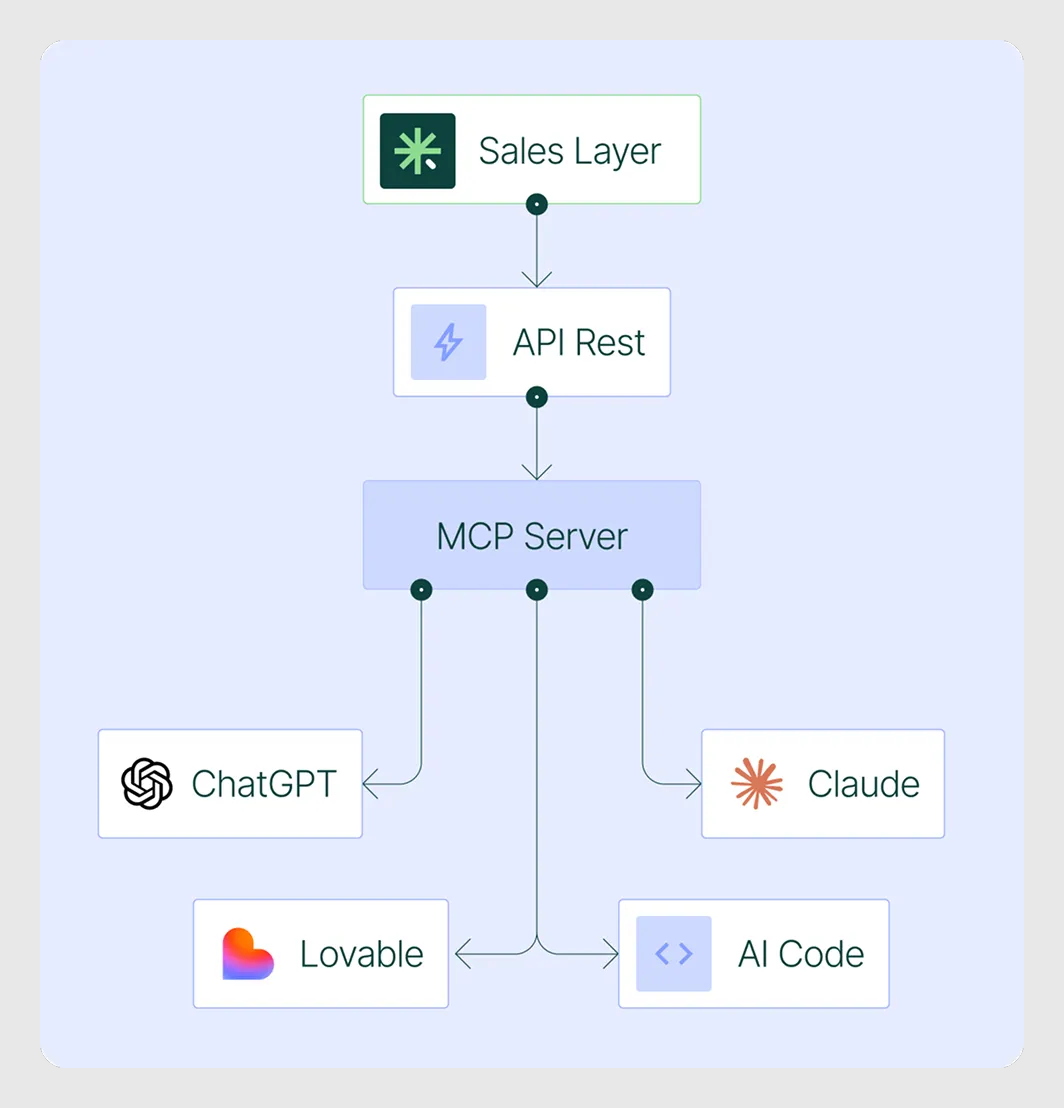
How it works
The MCP Server receives requests from a compatible AI client and connects them to your Sales Layer catalog data. This allows the AI client to query information from the PIM, analyze product data and help users work with catalog information using natural language.
For example, a user can ask an AI assistant to find products with missing attributes, review product descriptions, compare catalog data, prepare quality checks or help identify information that needs to be enriched.
Sales Layer remains the central source of product information. The MCP Server does not replace your PIM. It extends how your team can interact with PIM data from supported AI and automation tools.
Connection modes
The Sales Layer MCP Server can be used in different access modes depending on what the connected tool is allowed to do.
| Mode | What it allows | Recommended use |
|---|---|---|
| Read-only | The connected client can query and analyze catalog data, but it cannot modify the PIM. | Use this mode to start safely, run catalog audits, create reports and explore data with AI. |
| Full access | The connected client can read data and perform allowed write actions, depending on the available tools and permissions. | Use this mode only when you want AI-assisted workflows to create, update or enrich catalog data. |
Common Use Cases
The MCP Server can help different teams work faster with product information. Some common use cases are:
- Checking catalog completeness and finding missing attributes.
- Generating product data quality reports.
- Reviewing product descriptions and identifying content that needs enrichment.
- Searching product information using natural language.
- Finding inconsistencies across products, categories or Attribute Sets.
- Supporting AI-assisted translation, localization and content generation workflows.
- Preparing automation workflows that interact with catalog data.
Supported tools
The Sales Layer MCP Server is designed for MCP-compatible tools. Depending on the client and the version available in your account, it can be used with tools such as Claude, Microsoft Copilot Studio, ChatGPT, OpenAI-compatible tools, Google Gemini, Cursor, VS Code and other MCP-compatible clients.
Each client has its own setup flow. For that reason, the Sales Layer Support Center includes separate articles for each supported client.
What you need before connecting
Before connecting an AI client to the Sales Layer MCP Server, you need access to your Sales Layer Catalog Token or API Key.
To request it, contact Sales Layer Support or your Sales Layer account representative.
MCP Server and REST API are different
The Sales Layer MCP Server and the Sales Layer REST API are related, but they are not the same thing.
| Option | Use it when... |
|---|---|
| MCP Server | You want an AI client or automation tool to use Sales Layer tools through the Model Context Protocol. |
| REST API | You are building a direct technical integration and want to call Sales Layer API endpoints from your own application or workflow. |
For most AI assistant connections, use the MCP Server. For fully headless technical integrations that do not need MCP tools, use the Sales Layer REST API directly.
Security
The remote Sales Layer MCP Server uses OAuth authentication for MCP connections. During setup, the AI client opens a Sales Layer authorization screen where you enter your Catalog Token. After validation, the client receives the access it needs to connect to the MCP Server.
Your Catalog Token should be handled as sensitive information. Only enter it in the official Sales Layer authorization screen or in approved local installation flows.
Best practices
Start with read-only access when testing the MCP Server for the first time. Keep the Catalog Token secure and request it only through Sales Layer Support or your Sales Layer account representative. Use separate setup articles for each AI client, as the connection process can vary by tool. For automation workflows that do not need MCP tools, use the Sales Layer REST API directly instead of forcing an MCP setup.
Was this article helpful?
That’s Great!
Thank you for your feedback
Sorry! We couldn't be helpful
Thank you for your feedback
Feedback sent
We appreciate your effort and will try to fix the article