The Content Creation Agent generates content automatically in a selected field using information from other fields in the same item.
This is useful when you want to create new descriptions or other text content based on existing catalog data.
How to add a Content Creation Agent
To create this agent:
- Open Agents from the left-hand menu.
- Create a new agent.
- Go to the Actions tab.
- Click Add action.
- Choose Create content from the list of available actions.
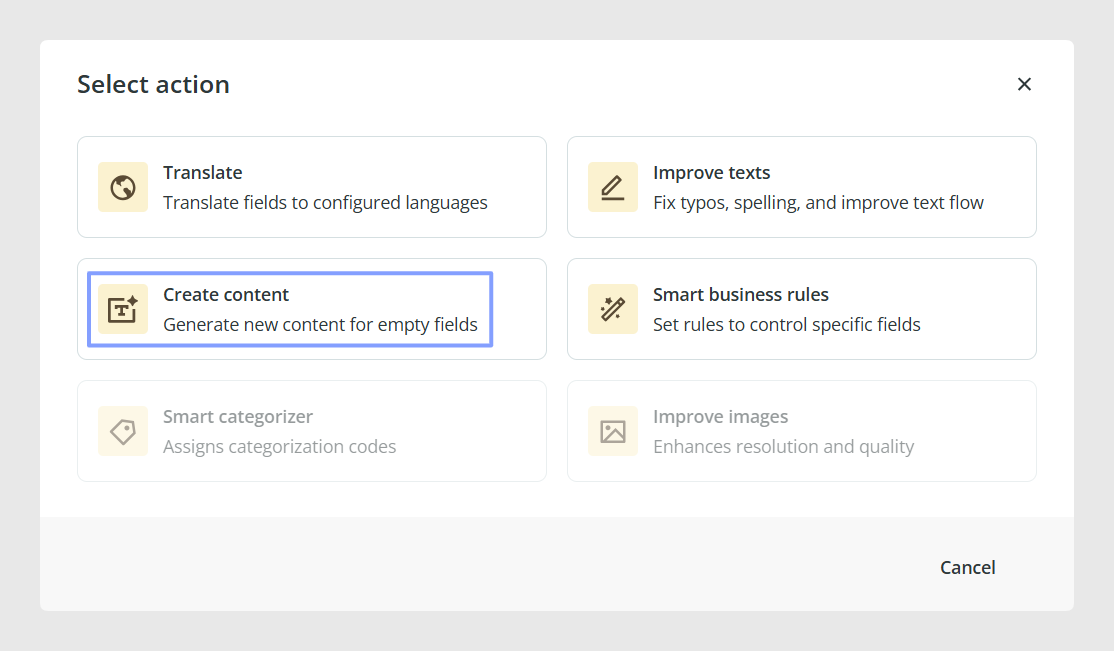
Once the action is selected, a configuration window will open so you can define how the agent should generate the content.
Configure the destination field
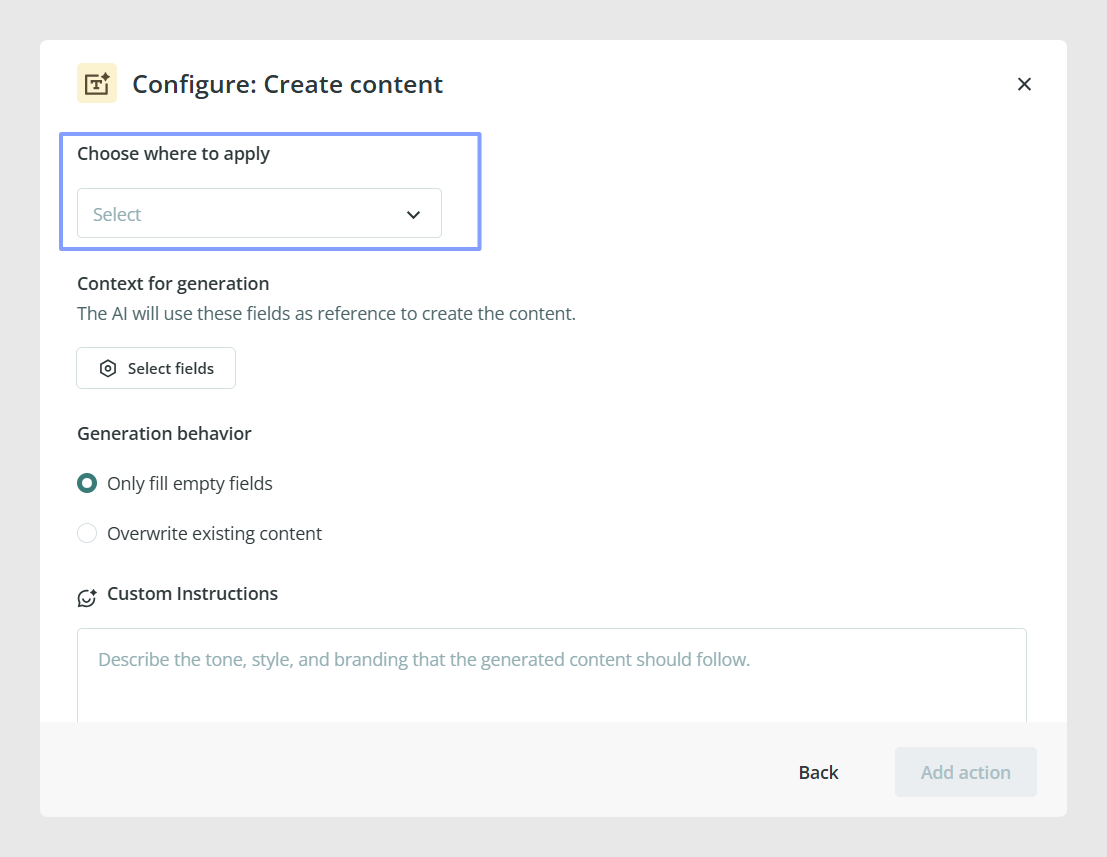
First, choose the field where the generated content will be saved in the Choose where to apply field.
This is the field the agent will fill with the newly generated text. Only text fields in the default language will be available for selection.
Choose the reference fields
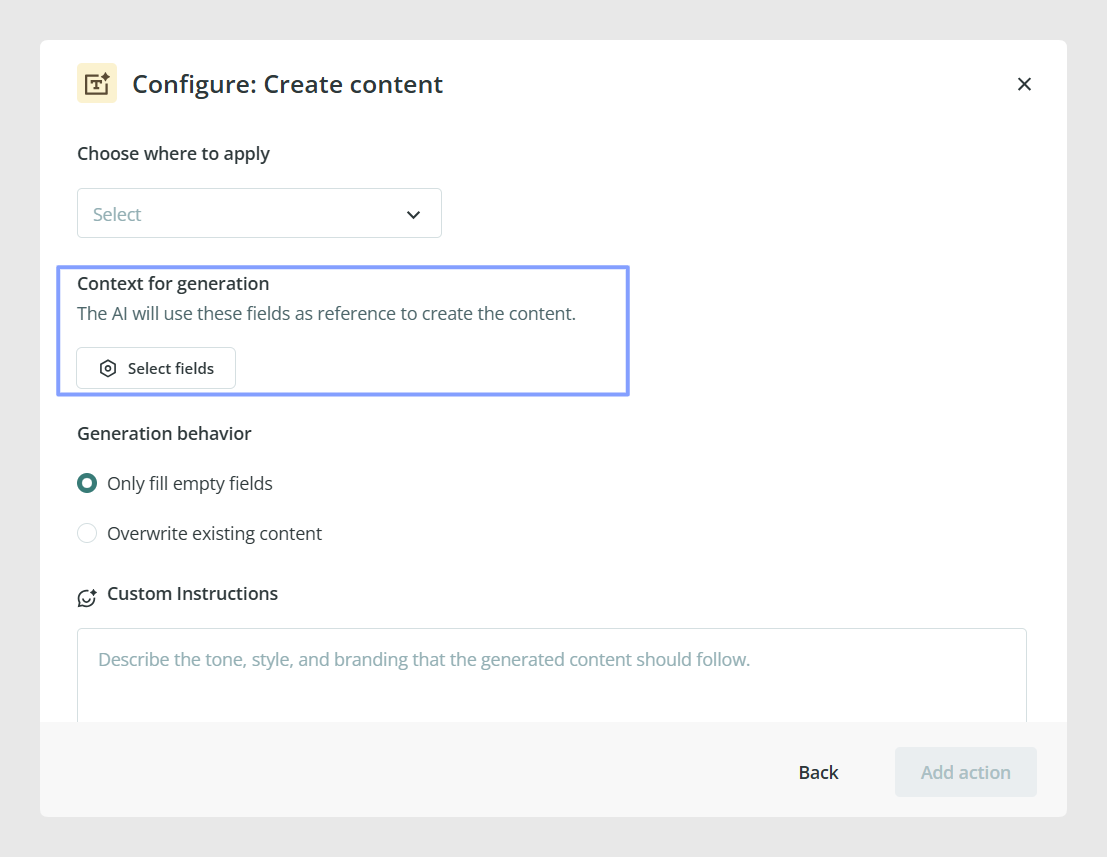
Next, choose the fields that will be used as context for the content generation.
You can select up to 25 text and number fields. These fields help the agent understand what information to use when generating the content.
You can also select the destination field itself as part of the context if it already contains information that should be considered.
Attributes from other related tables can also be used as context, including Products, Variants, and Categories.
Choose how existing content should be handled
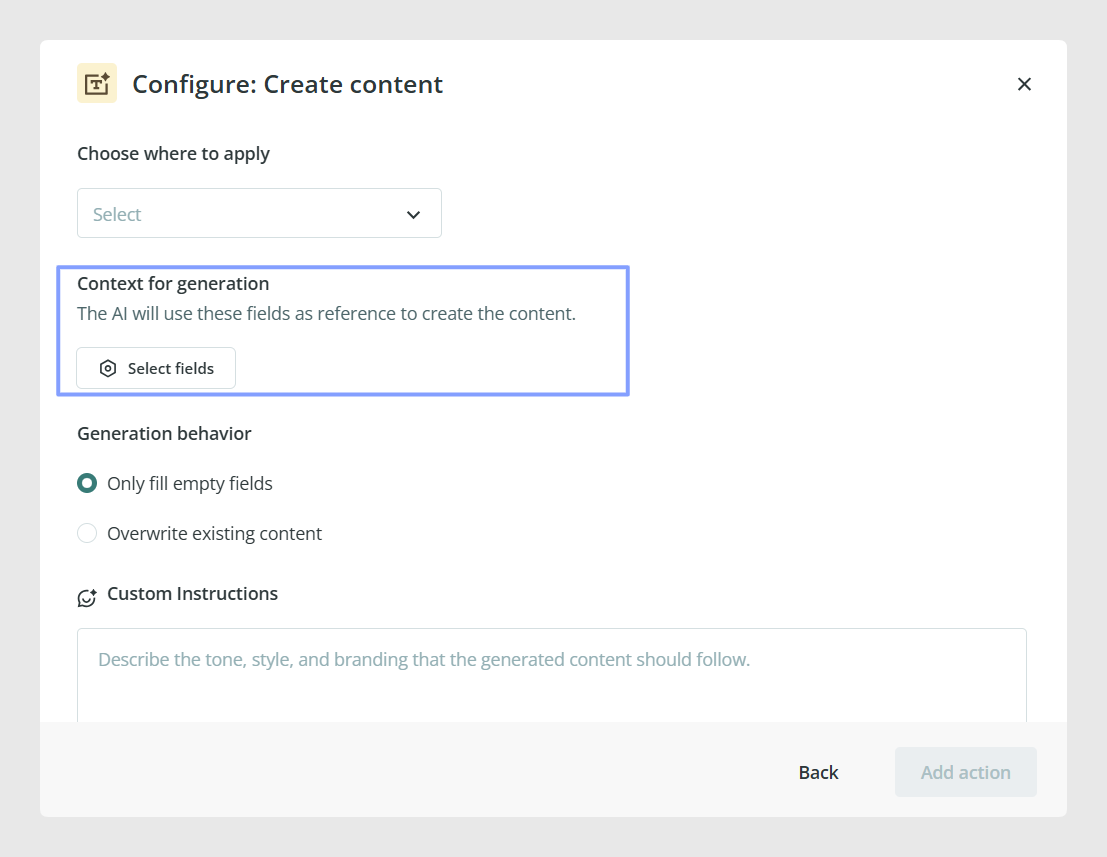
Then choose one of the two available options:
- Generate content only in empty fields
- Generate content in all fields, overwriting pre-existing content
This allows you to decide whether the agent should only complete missing content or replace content that is already there.
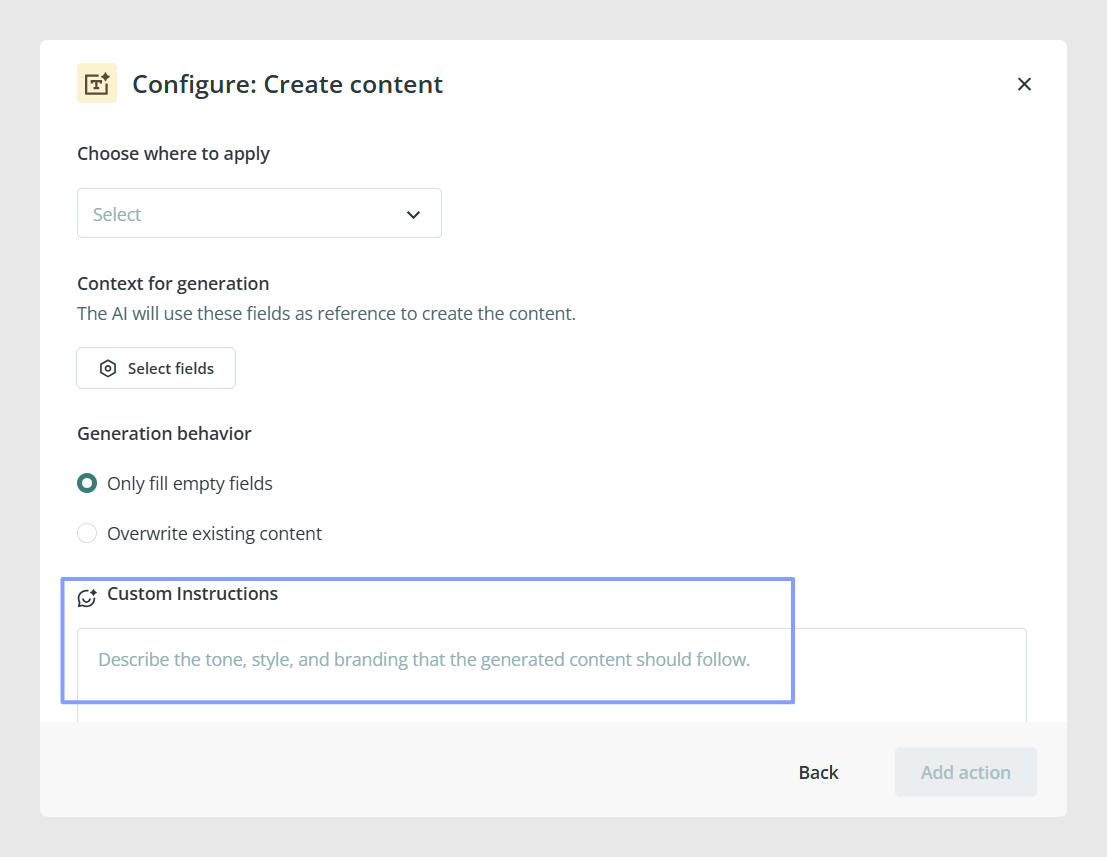
Add custom instructions
You can also add Custom instructions to the prompt to give your personal touch to the generation.
This can help define the style, tone, or format of the generated content.
For example, you may want the content to sound more technical, more commercial, or more concise.
Finish the setup
Once the action is configured:
- Click Add action.
- Click Next to continue creating the agent.
- Continue to the final setup step.
- Enter a name and description for the agent.
- Review the summary.
- Click Create Agent.
If review is enabled, you will be able to check the generated results before applying them. You can also apply only the changes you want, instead of applying all generated changes at once.
Common Use Cases
The Content Creation Agent is useful when you need to:
- Generate product descriptions from structured product data
- Create content automatically for empty fields
- Enrich catalog content using existing attributes
- Use related Products, Variants, or Categories as context for new content
- Create more consistent text across large groups of items
Best practices
Choose your reference fields carefully so the agent receives useful and relevant context. If the selected fields contain incomplete or inconsistent information, the generated content may also be less accurate. For your first tests, enable review and use clear custom instructions so you can confirm the output matches the style you need before applying changes in bulk.
Was this article helpful?
That’s Great!
Thank you for your feedback
Sorry! We couldn't be helpful
Thank you for your feedback
Feedback sent
We appreciate your effort and will try to fix the article