Once an Edition Team is configured, editors and supervisors will see and work with content differently depending on the rules set in that team. Those rules define which items they can access, which fields they can edit, which fields are read-only, and which fields stay hidden.
What editors can see
Editors only see the items allowed by the filters in their Edition Team. By default, they will mainly see items in draft status, plus visible items that have been edited again and are now under review. They can also switch to View All if they need to see the full list of items available to them.
When they open an item, fields they are allowed to see but not edit appear grayed out. Editors only need to update the fields they are allowed to work on and save their changes.
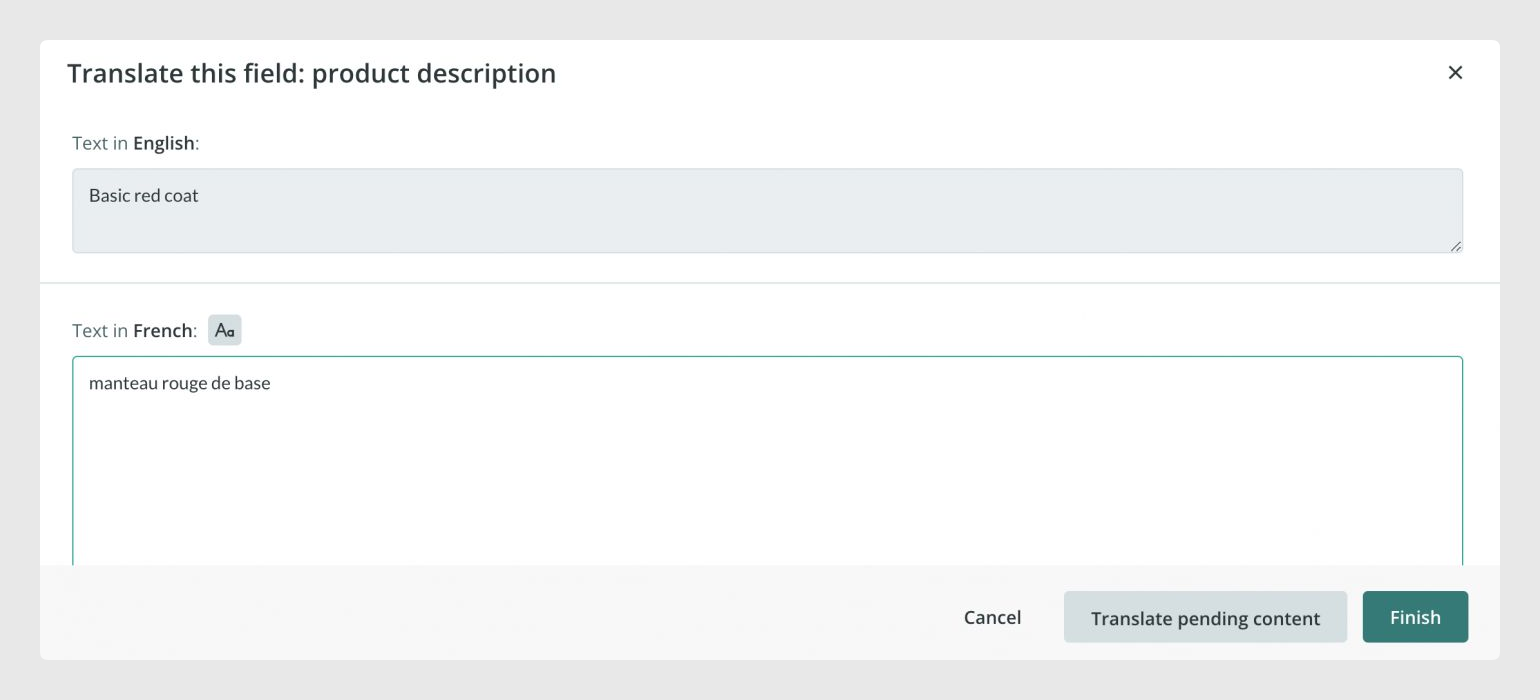
The same permission logic also applies when an editor imports data. If the import file contains fields or references outside the permissions of that editor’s Edition Team, Sales Layer only imports the data that is allowed by the team configuration.
How editing works
If an editor changes an item that is already visible or invisible, Sales Layer creates a copy of that item for review. If the team has a supervisor, that supervisor receives a notification so they can review the changes. If the team does not have a supervisor, the changes are validated automatically after the editor saves them.
Editors can only see the Custom Entity tables that belong to their assigned Edition Team. Other Custom Entity tables remain hidden. Editors also cannot create new items in the affected table unless one of their Edition Teams explicitly allows it. They cannot clone items or delete items, whether the team has a supervisor or not.
If an item belongs to several workflows and none of them has a supervisor, the item is approved automatically after the editor makes the change.
Rules for editors
Editors only see the items within the filters of the Edition Teams they belong to.
By default, they mainly see draft items and visible items that are back under review.
If they edit a visible or invisible item, Sales Layer creates a review copy.
If there is no supervisor in the team, the changes are approved automatically.
They can only see the Custom Entity tables that belong to their Edition Team.
They cannot create new items unless that permission is enabled in one of their teams.
They cannot clone items.
They cannot delete items.
What supervisors do
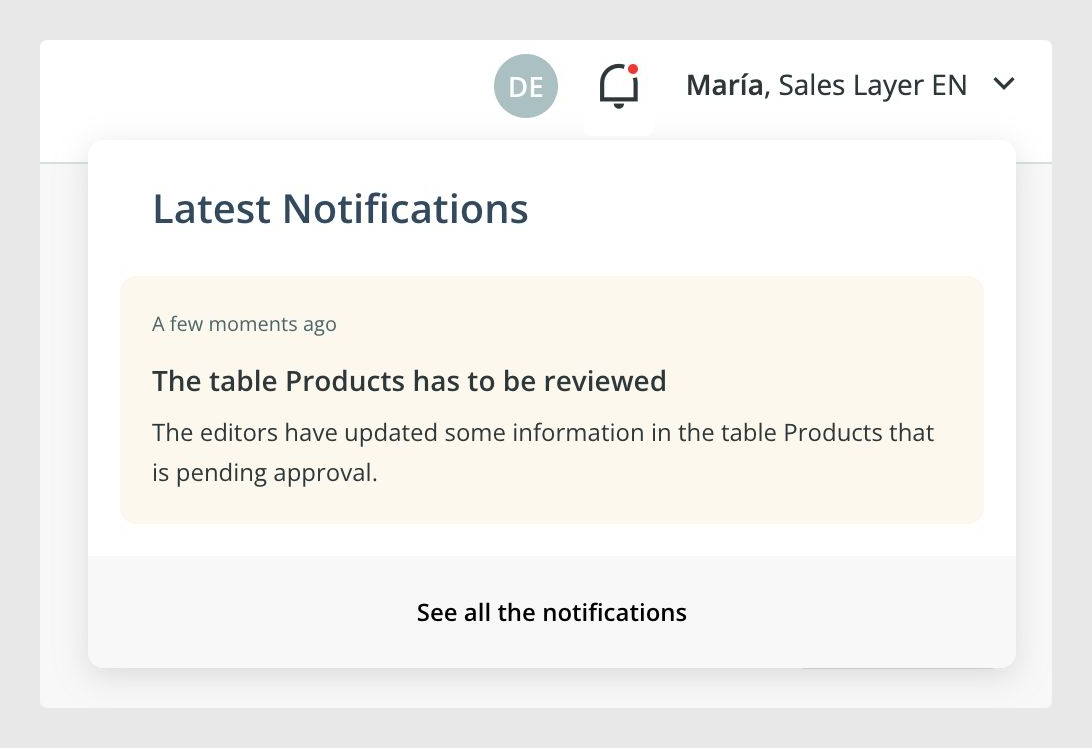
When an editor saves changes, the supervisor receives a notification. This can appear as a green bell icon in the top right corner of the platform, and it can also be sent by email depending on the user’s notification settings.
When the supervisor opens the item, they first see the Data History, which helps them review changes and recover earlier versions if needed. After reviewing the item, the supervisor can either approve the modification or mark it as Contains Errors and leave a message for the editor. This lets the editor know what needs to be corrected before the item can move forward.
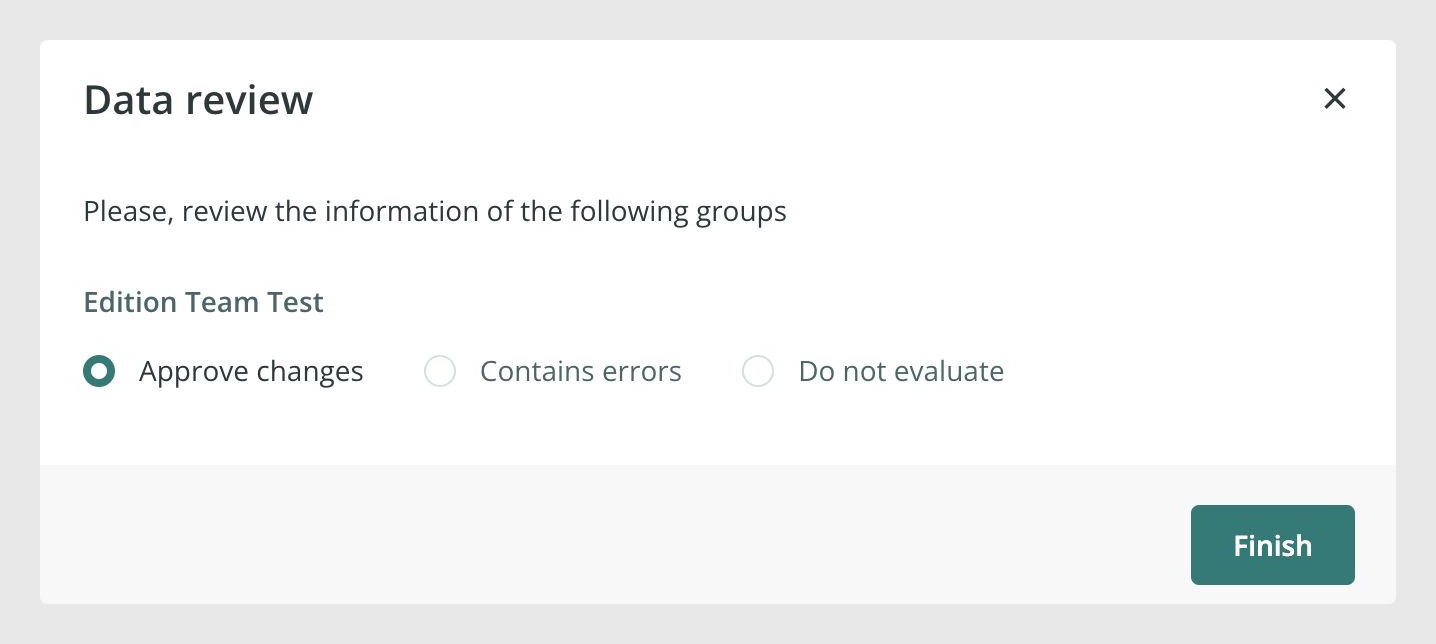
When one supervisor approves an item, other supervisors in the related editing groups also receive a notification.
Supervisors can also edit product information without approving their own changes immediately. This is done through Supervised Edition. Once this option is started, the supervisor’s changes are stored in the background until they decide to approve them. This is useful when a supervisor wants to prepare changes gradually instead of publishing them right away.
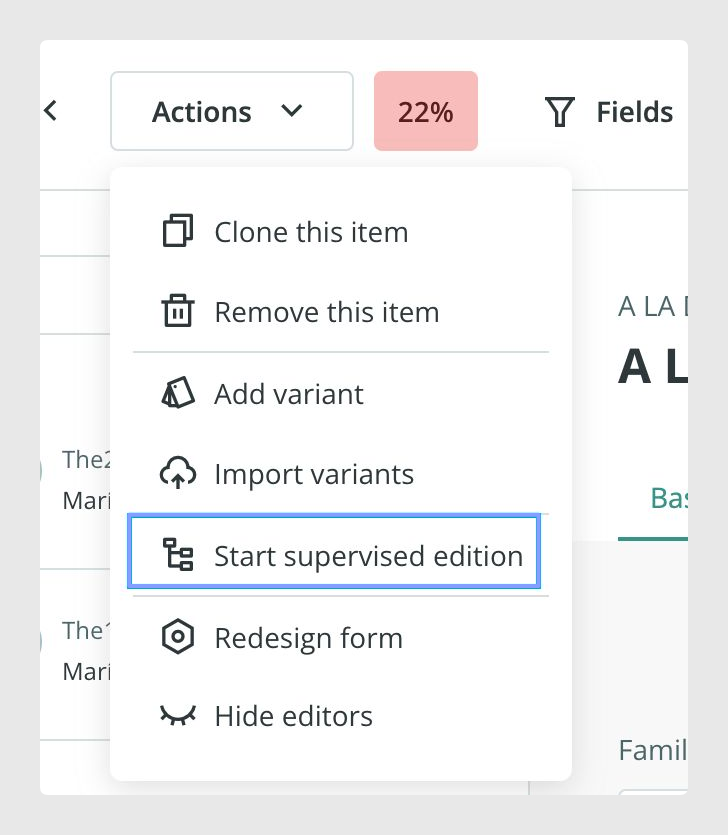
There are two important limits to keep in mind. First, Supervised Edition is only available for items that are not already in draft or pending review. Second, draft items are always exported with their latest modification, even if that change has not yet been approved. If the item is in visible or invisible status, only the approved supervised data is exported.
Rules for supervisors
Supervisors can see all items in a table, even if those items are outside the Edition Team filter.
They can restrict their own view in the group settings if they want to focus only on affected items.
They can supervise multiple groups, create new items, and activate items when needed.
They can leave notes when they mark an item as containing errors.
The final supervisor can only set an item to visible or invisible once all related groups are in the correct state.
They can use Review in bulk to activate several items at once when the filter is set to show items waiting for review.
If an item belongs to several workflows and at least one of them includes a supervisor, the item stays pending review until a supervisor approves it.
Using Edit mode
Edition Teams can also be used with Edit mode, also called Excel mode. This is helpful when editors need to update several records at the same time. Even in this view, the Edition Team permissions still apply.
For editors, there are a few specific rules in Edit mode. The workflow status icons are not shown there. Editors cannot create new items from Edit mode, even if their Edition Team allows item creation. That can only be done manually or through import.
In the column selector, editors can only choose fields that are visible to them. They also cannot modify the product reference or the status field from this view.
If you use sequential Edition Teams, Edit mode becomes more restrictive. A field that is non-editable in the first team but editable in the second team will not save changes if the second team depends on the first one. In that case, the field may appear marked in red or yellow. Editors also cannot see or select fields that are invisible in any of the linked groups. They can only edit fields that are visible and editable across the relevant groups at the same time.
For supervisors, the status icons are also hidden in Edit mode, but they can still view and modify all fields as usual. If an item is in draft status, Edit mode shows the content as Under Review. If the item is visible or invisible, the supervisor must open the item form to see the under-review version.
Reviews cannot be approved directly from Edit mode. They must be completed from the item form or in bulk from the Actions menu. In sequential Edition Teams, supervisors can still change item status from Edit mode even if the full chain of modifications across the linked groups has not yet been completed.
Common Use Cases
Edition Teams are especially useful when you want editors to work only on part of the catalog, only on specific fields, or only on content that must later be reviewed by a supervisor. They are also helpful when teams need to work in stages, such as enrichment first and validation afterwards, or when several users need to update data quickly in Edit mode while still respecting workflow permissions.
Best practices
Before giving users access to Edit mode with Edition Teams, test the workflow with a small set of items first. This helps confirm that field visibility, edit permissions, notifications, and review steps behave as expected. It is also a good idea to document which teams are allowed to edit, review, or activate content, especially when you use sequential workflows, because the rules can become harder to follow when several groups affect the same item.
Was this article helpful?
That’s Great!
Thank you for your feedback
Sorry! We couldn't be helpful
Thank you for your feedback
Feedback sent
We appreciate your effort and will try to fix the article