The template functionality provides the ability to store orders by assigning them a name so that they can be identified at a later date. In addition, it offers the possibility to make modifications at a later date, guaranteeing data security when generating orders.
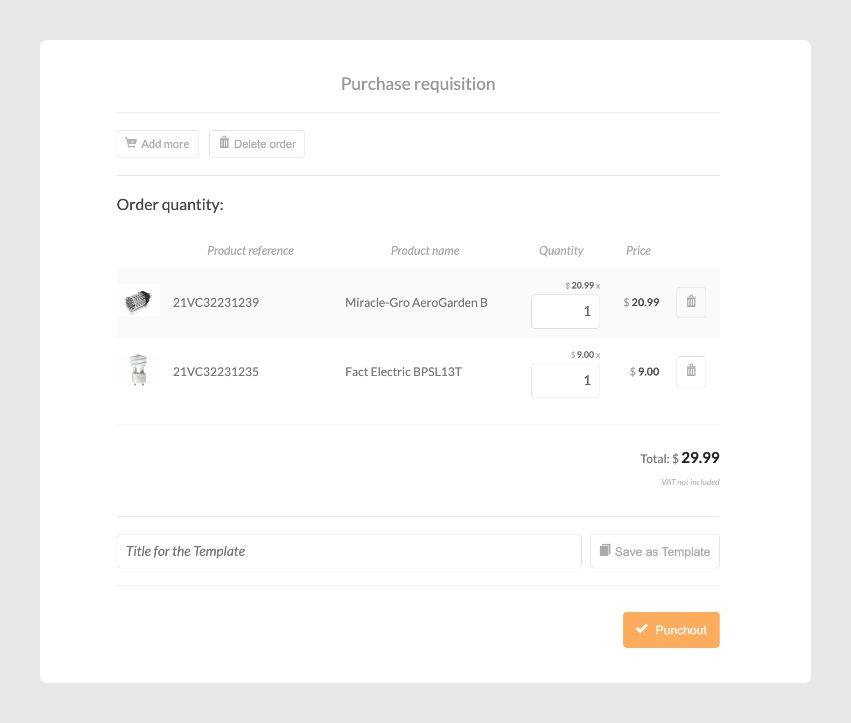
Editing and saving a template
The user can edit the template name by clicking on the bar. The template can be saved by clicking on Save template.
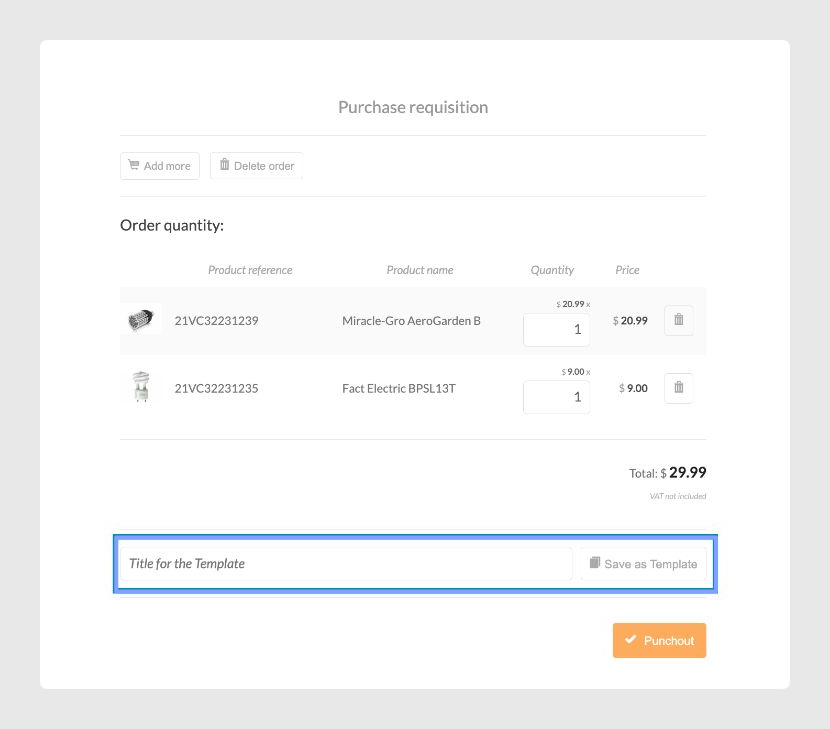
Updating a template
If the user makes changes to a template, modifying quantities or adding new products, the Update template button will appear, allowing the user to refresh the information that has been modified.
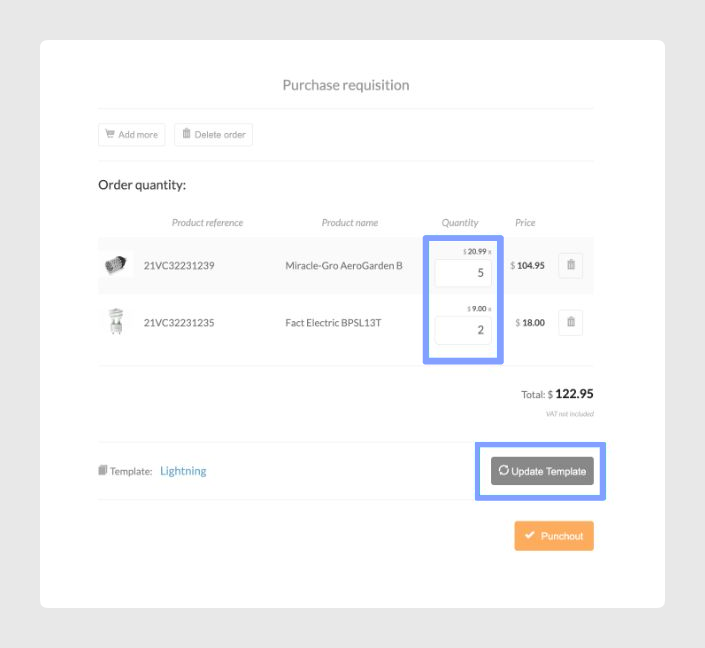
Accessing to created templates
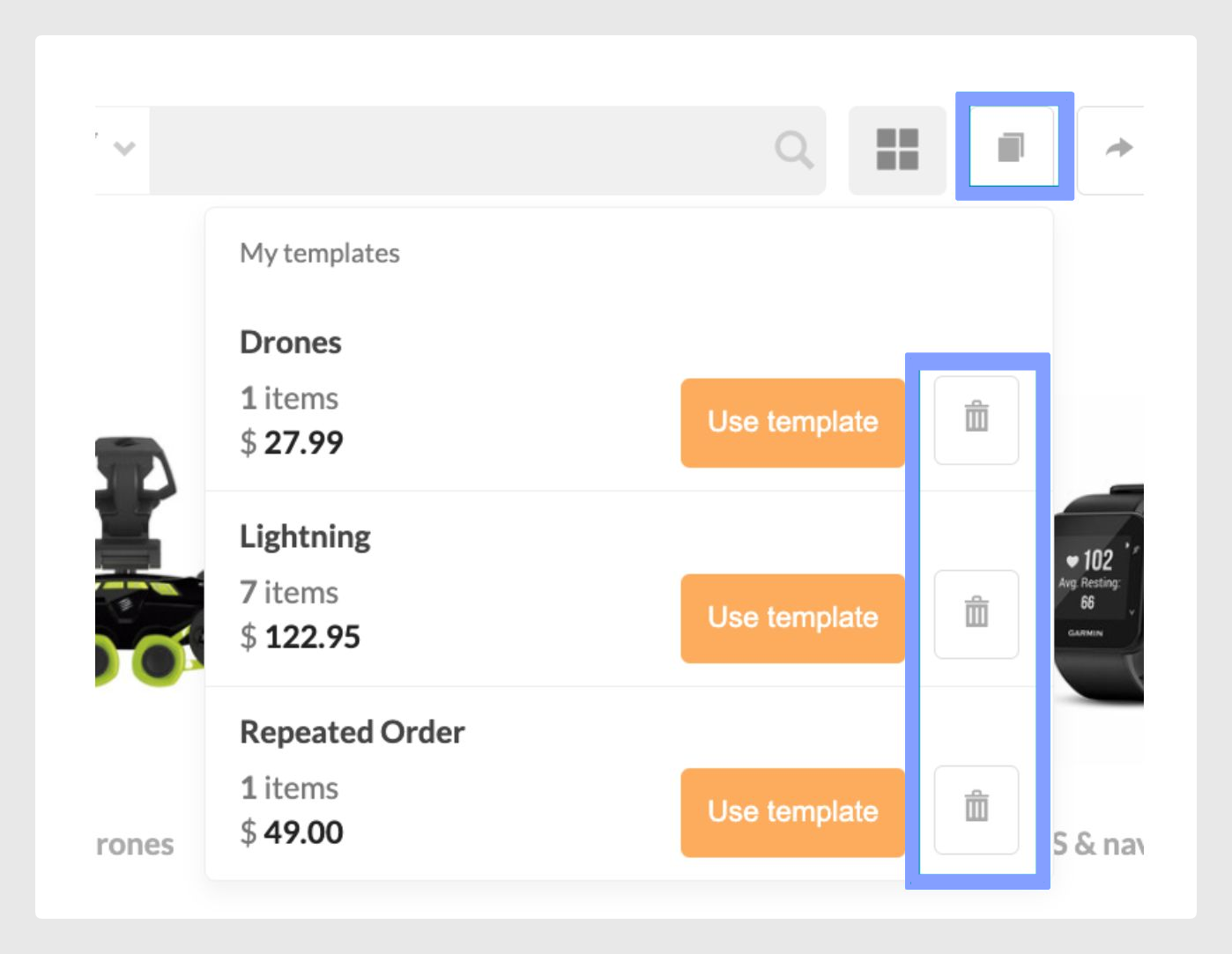
You can access the templates you have already created from the Templates button of the actions in the top bar. From here you can consult the orders that you have saved as templates.
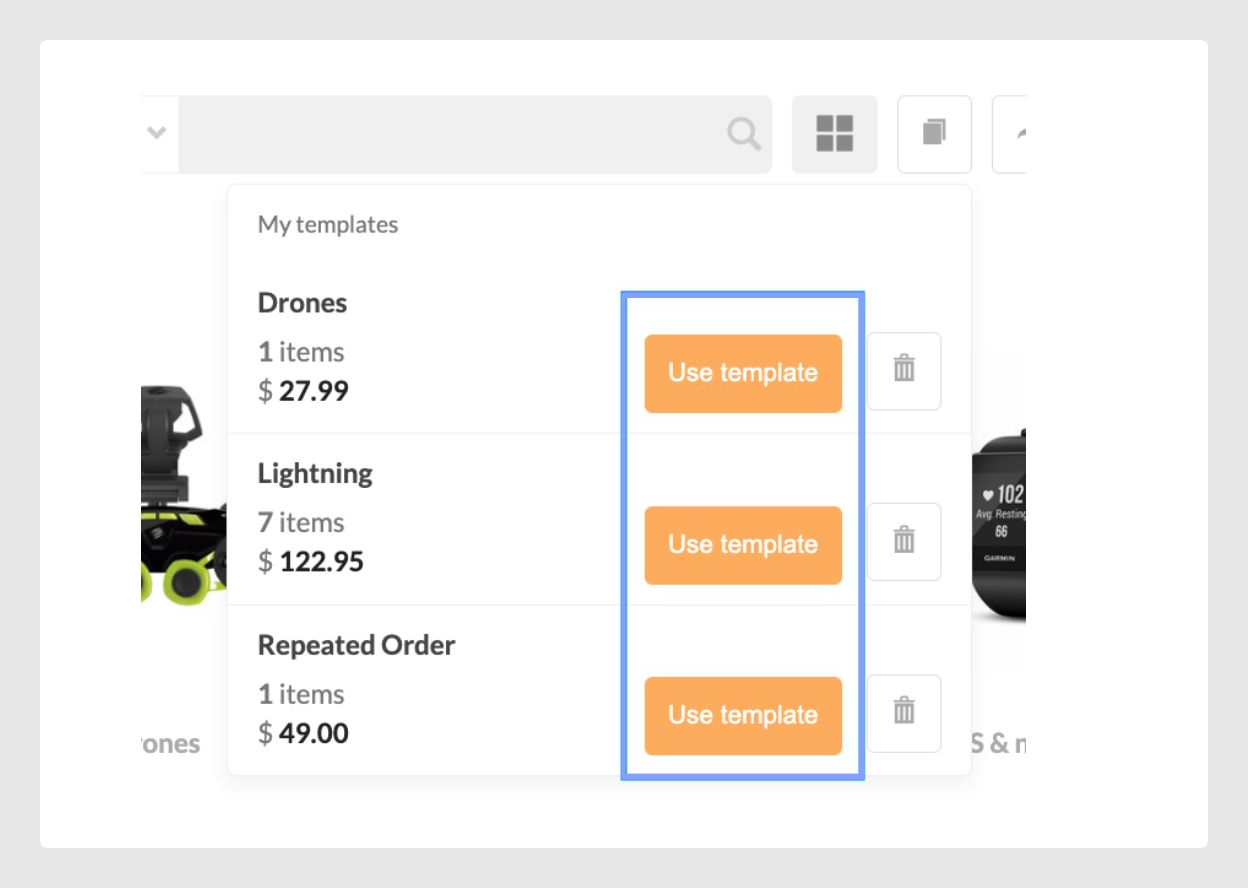
In addition, from here you will be able to view the information on each order and some options:
- Name
- Total number of items
- Total price
- Button Use a template, from which you can repeat an order.
- Delete button, from which you can delete a favorite order.
Deleting a template
The user can delete a template from the drop-down menu My Templates, by selecting the icon of the container shown in the following image:
Was this article helpful?
That’s Great!
Thank you for your feedback
Sorry! We couldn't be helpful
Thank you for your feedback
Feedback sent
We appreciate your effort and will try to fix the article