These formulas are used when you need to retrieve values from linked records, work with related tables, or extract, insert, update, and remove content from table-type fields.
In the formula syntax below, any parameter shown inside square brackets is optional.
How to read the syntax
Sales Layer formulas follow this structure:
FORMULA_NAME(PARAMETERS)
The formula name is the function you want to apply. The parameters are the fields, table names, coordinates, values, or nested functions used to return the final result.
Related-record formulas
Use these formulas when one field stores a reference to another table and you need to export a readable value instead of the raw reference.
REPLACE_FROM_TABLE({field}, "external table", {linked field}, {field output}[, "default value", CASE_SENSITIVE | UNCASE_SENSITIVE, "separator"])
GET_VARIANTS_VALUES({field}, "linked field", "field to concatenate"[, "separator", "dependent table", true|false, true|false])
TABLEGROUP("table | JSON | list", {subtable}, "Field name 1", {field 1}, "Field name 2", {field 2}, ...)
REPLACE_FROM_TABLE replaces the current value with another value from a linked external table.
The main parameters are:
{field}, which contains the link to the other table. You can also use {THIS} when the formula is being applied directly on the linked field.
"external table", which is the destination table where the value you want to retrieve is stored.
{linked field}, which is the field in the destination table that contains the referenced value.
{field output}, which is the field whose value you want to export.
The optional parameters let you define a default value, control case sensitivity, and separate multiple values correctly. When a field can contain several linked values, it is recommended to include the separator parameter.
GET_VARIANTS_VALUES retrieves values from a dependent table, such as Variants, and concatenates them into one field.
TABLEGROUP converts items from a related table into an HTML table, JSON, or a list.
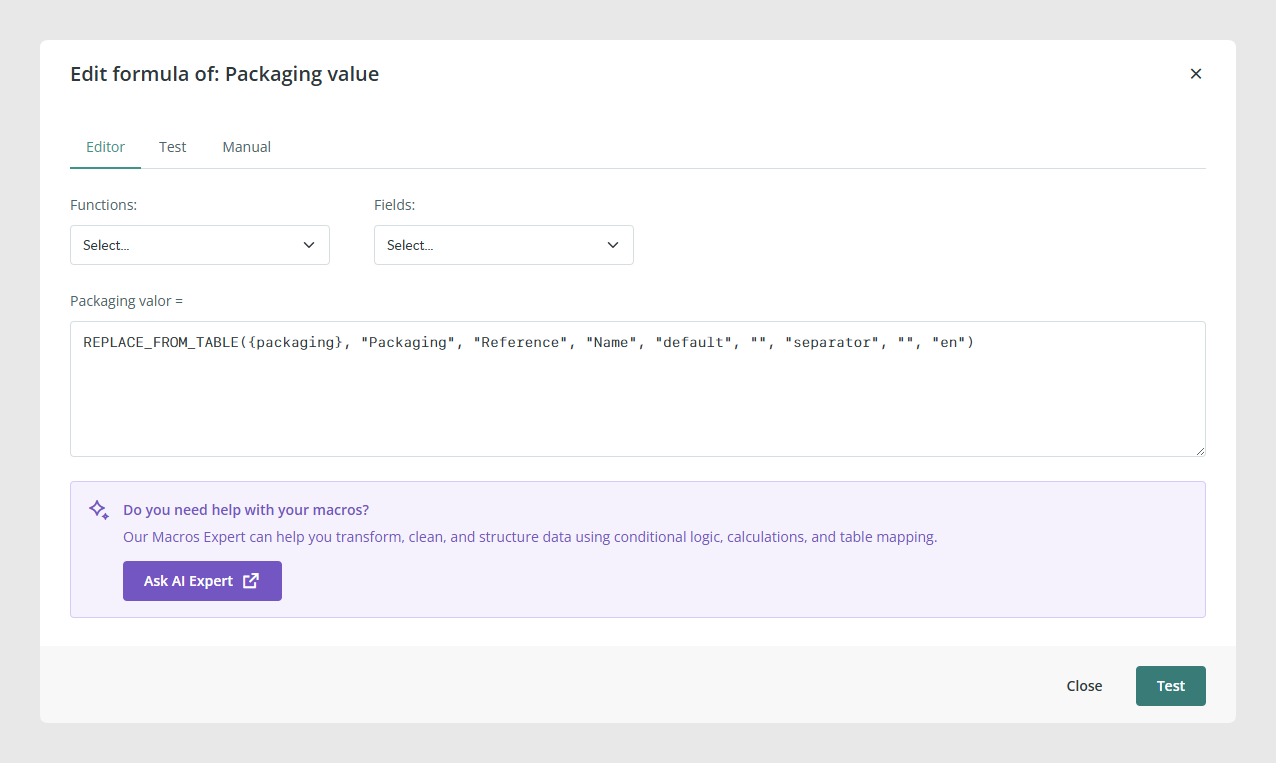
Table-type field extraction formulas
Use these formulas when you need to read information from a table-type field in an output connector.
GET_CELL_VALUE({table_field}, column, row, "language")
PRINT_TABLE_FIELD({field}, "format", [options], "lang")
GET_CELL_VALUE returns the value of a cell from a table-type field.
Its parameters are:
{table_field}, the table-type field you want to read.
column, the column whose value you want to extract.
row, the row whose value you want to extract.
"language", an optional parameter for multilingual table-type fields.
PRINT_TABLE_FIELD formats and prints the full contents of a table-type field.
The "format" parameter supports these values:
JSON
XML
HTML
The optional options parameter can be used mainly with JSON and XML. Documented values include:
FIRST_ROW_AS_COLUMN_TITLES
FIRST_COLUMN_AS_ROW_TITLES
REMOVE_COLUMS_WITH_EMPTY_COLUMN_TITLES
REMOVE_ROWS_WITH_EMPTY_ROW_TITLES
The optional "lang" parameter works like the language parameter in GET_CELL_VALUE and is mainly relevant for multilingual table-type fields.
Table-type field insertion and update formulas
Use these formulas when you need to insert, update, or fully replace table content through import connectors or bulk modifications.
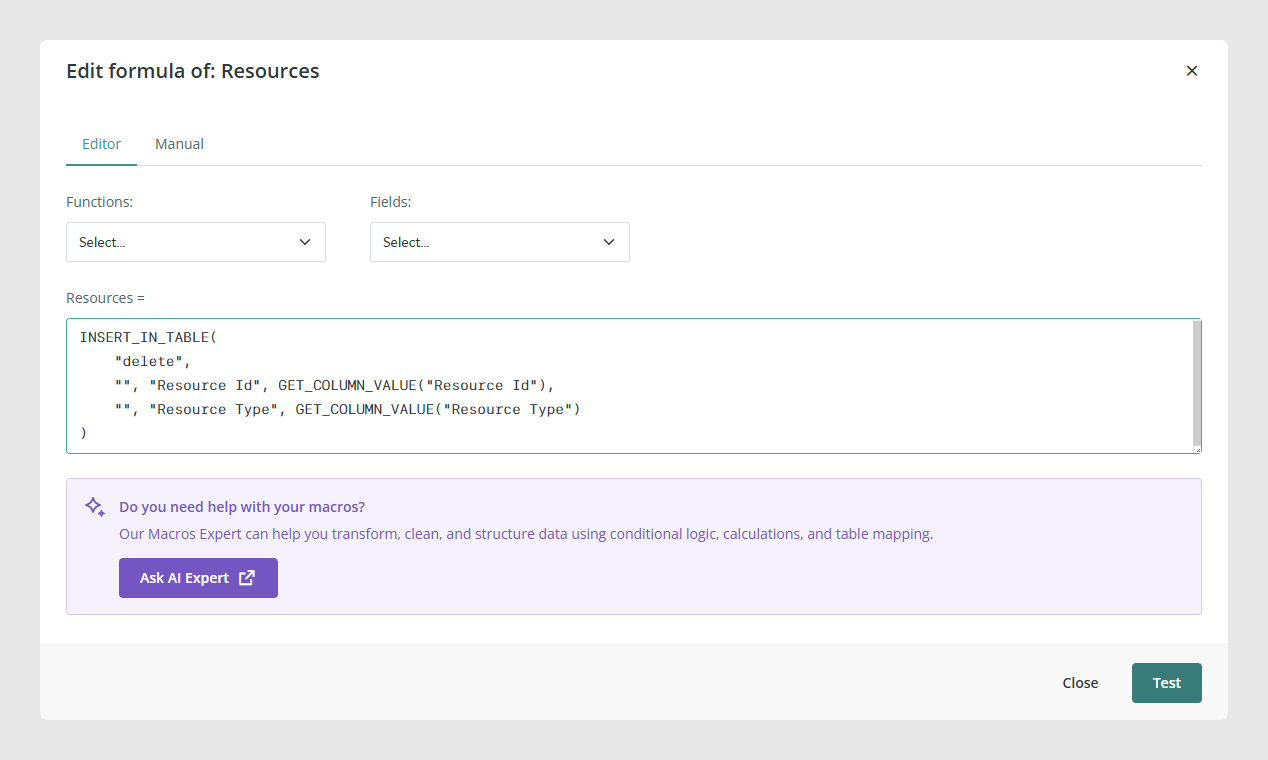
INSERT_IN_TABLE(mode, row 1, column 1, value 1, row 2, column 2, value 2, ...)
GET_COLUMN_VALUE("column" | {field})
INSERT_IN_TABLE always applies to the current field, so you do not need to include the field itself as a parameter.
It supports three mandatory modes:
insert
update
delete
The remaining parameters work in groups of three: row, column, and value. You can define as many groups as needed. If the total number of these parameters is not a multiple of three, the formula returns a syntax error.
In some cases, the row or column value can be left as empty quotation marks "" to create new rows or columns.
GET_COLUMN_VALUE is often used inside INSERT_IN_TABLE to take values from the input CSV and place them into the correct row and column of the table-type field.
Removing rows or columns
REMOVE_IN_TABLE("columns", ["column1", "column2"])REMOVE_IN_TABLE removes a list of rows or columns from a table-type field.
Use "columns" when removing columns by name. The documented article also treats the formula as the one used to eliminate rows or columns from table-type fields.
Multi-record import
Sales Layer also documents the use of INSERT_IN_TABLE for importing multiple source rows into the same table-type field when several lines in the CSV share the same item reference.
This is especially useful when one product, variant, category, or Custom Entity record needs to store several structured rows inside one table field.
When this pattern is used, repeated source rows are taken into account for the table-type field. If you also connect repeated CSV rows to fields that are not table-type fields, the final imported value will be the last one read. No accumulation is performed for those non-table fields.
Common Use Cases
Replace internal references with readable values from a linked Custom Entity table.
Export all variant values, such as sizes or colors, in a single product field.
Read one exact cell from a table-type field in an export connector.
Export a table-type field as JSON, XML, or HTML.
Populate a table-type field from repeated CSV rows in a generic import connector.
Remove obsolete rows or columns from a table-type field.
Best practices
When exporting linked data, confirm whether the source field contains one value or several. If it can contain multiple values, include the separator parameter in REPLACE_FROM_TABLE to avoid incorrect matching. For table-type fields, first decide whether your goal is extraction, insertion, update, or removal, then choose the formula accordingly. If you use INSERT_IN_TABLE with repeated CSV rows, test the import with a small sample first to confirm the final row and column structure before running a full synchronization.
Was this article helpful?
That’s Great!
Thank you for your feedback
Sorry! We couldn't be helpful
Thank you for your feedback
Feedback sent
We appreciate your effort and will try to fix the article