How formulas work in channels
Sales Layer formulas let you transform data when you import or export information through channels. They are useful when you need to adapt the same source data for different connectors, create calculated values, clean text, or build a result from more than one field.
You can use formulas in mapped connector fields and also in empty channel fields. An empty channel field behaves like a text field that exports the result of the formula it contains.

Basic formula structure
Sales Layer formulas follow a simple structure:
FORMULA_NAME(PARAMETERS)
The formula name is the function you want to use. The parameters are the fields, fixed values, or nested functions needed to return the result.
For example, you can nest functions to transform a value step by step. A common pattern is to clean a text first, then change its case, then apply another transformation.
Field keys
Field keys are how formulas identify the value they need to use.
{field} refers to a field from the current table.
{table.field} refers to a field from a linked table.
{THIS} refers to the field where the formula is currently being applied.
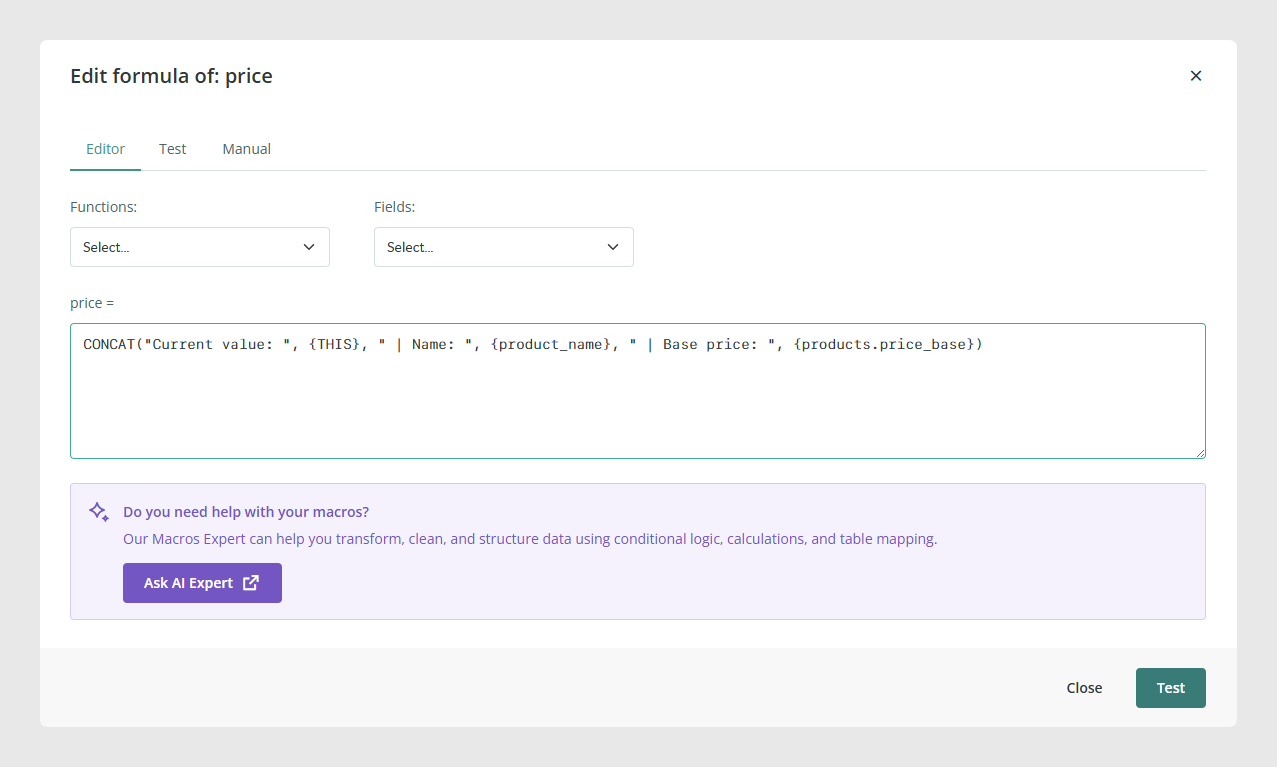
How to read formula syntax
When you read formula documentation, parameters shown in square brackets are optional. This means the formula can still work without them, unless the article says otherwise.
You can also combine formulas inside other formulas. This is useful when the final result needs more than one transformation.
Examples of common patterns:
Use a text formula inside another text formula to clean and format content.
Use a math formula inside a conditional formula when the result depends on a threshold or rule.
Use a related-table formula when the current field stores a reference but you need to export a readable value instead.
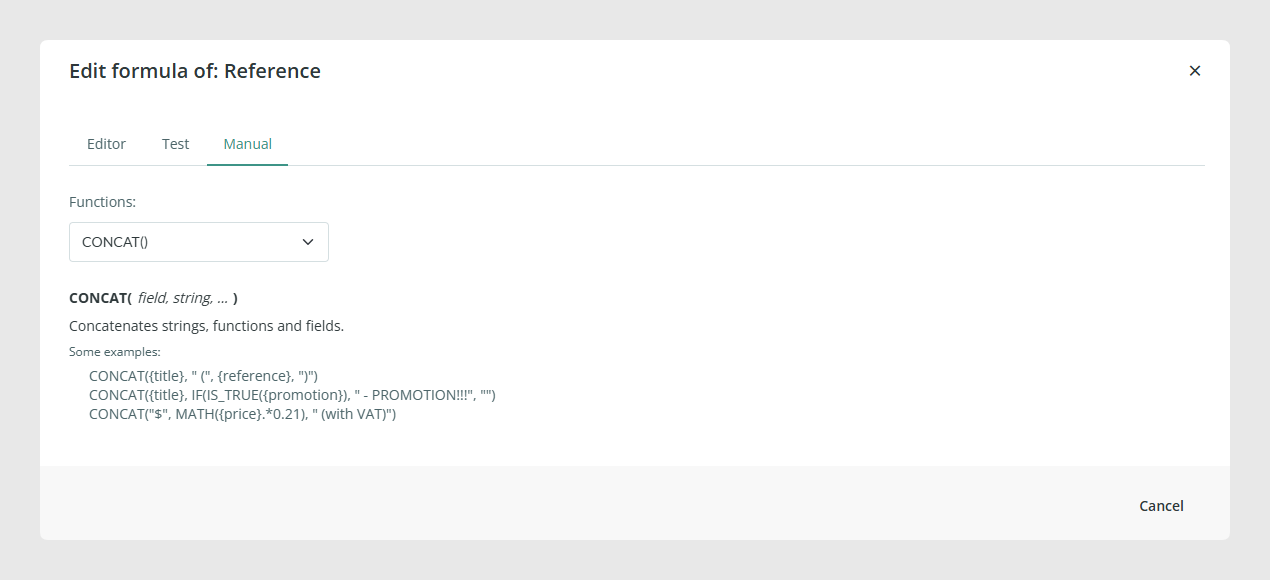
Referring to the manual
Use it to review examples and check the basic structure of the formula you want to write. This tab is useful when you need a quick reminder of how formulas are built or when you want to compare your formula with a working example.
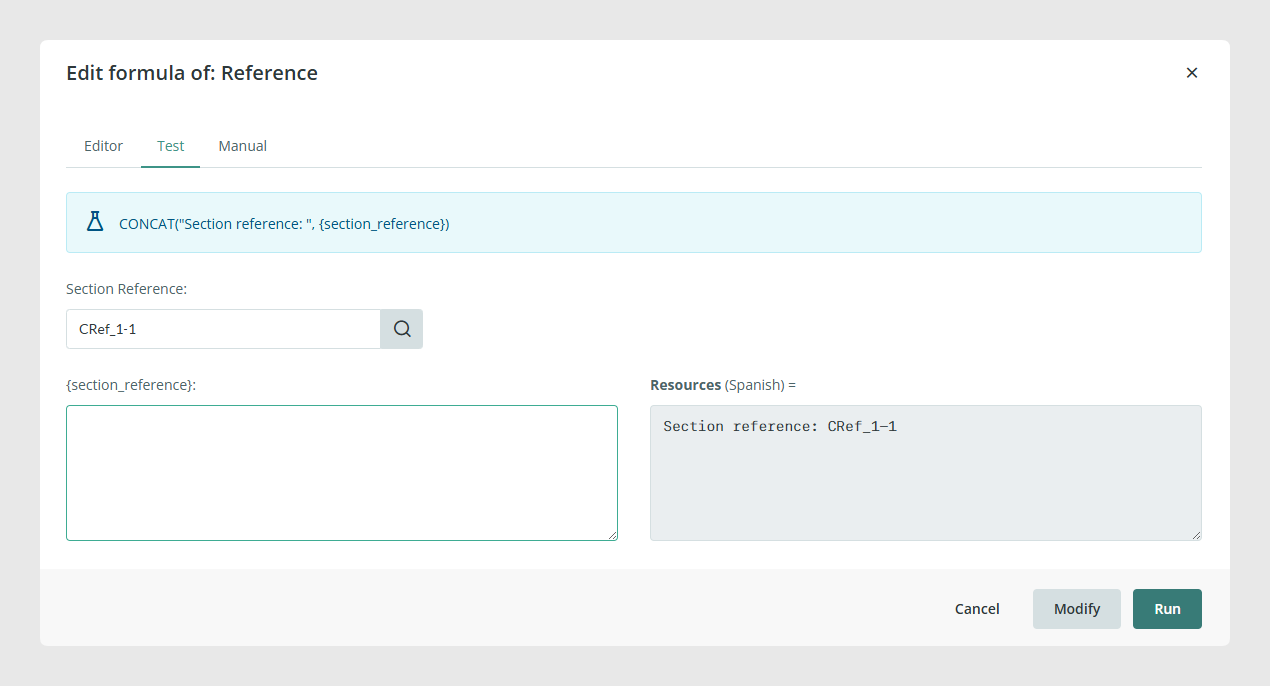
Testing the formula
Once you insert a formula, you can go to this tab and try the formula before applying it. Use it to verify whether the syntax is correct and whether the result returned is the one you expect. This is especially useful when you are combining several functions or working with conditional logic. Once you've tested the formula, the “Modify” button will appear so you can apply the formula to the field.
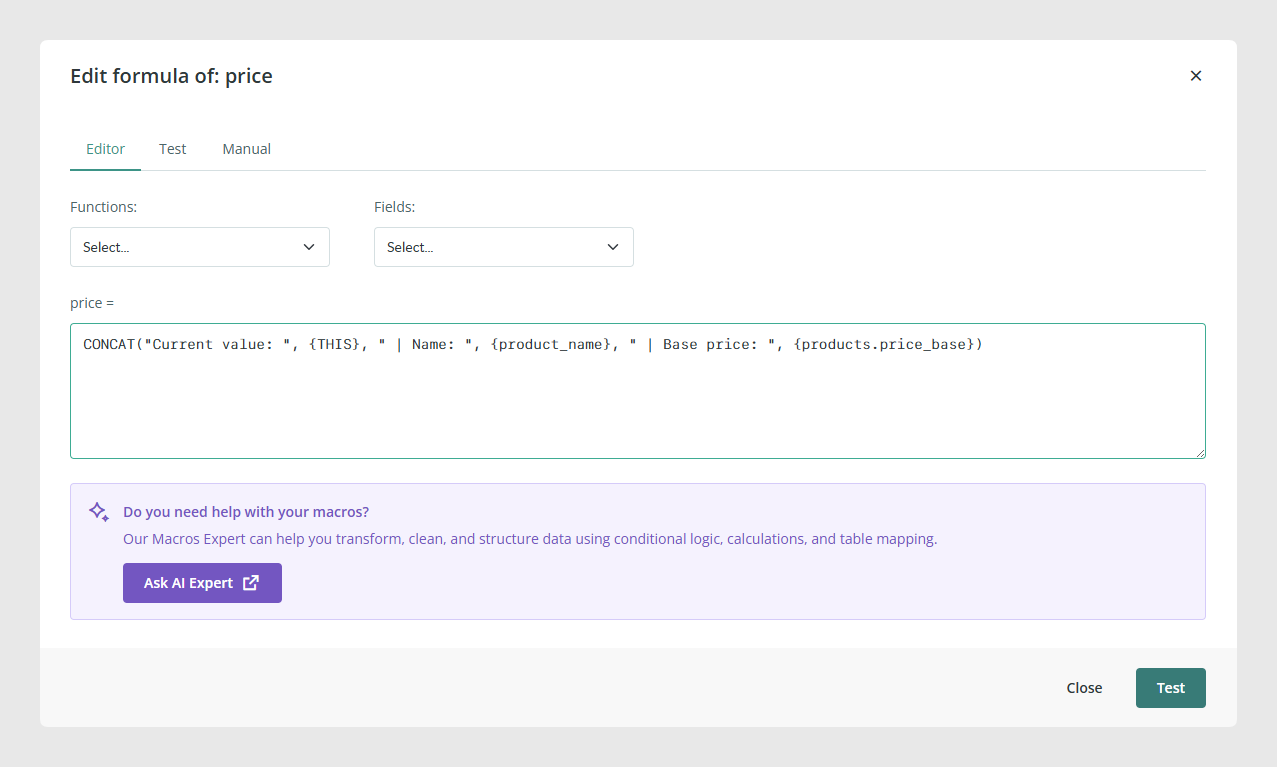
Using the AI Help Button
If you need help creating or reviewing a formula, you can use the Macros Expert inside Sales Layer. In channels, go to Channels, open the channel you want to edit, open the Output Data tab, scroll to Configure Fields, click + Formula, and then click Ask AI Expert.
You can access here: Ask AI Expert.
Common Use Cases
Prepare connector-specific output from one catalog structure.
Build a value from several fields without creating a new field in the PIM.
Create output columns that only exist in the connector.
Test transformations in smaller parts before building a more complex formula.
Best practices
Start with simple formulas and test them before nesting several functions together. If a formula becomes difficult to debug, split the logic into smaller steps. When you use values from other tables, check that the field key is written exactly as it appears in Sales Layer. For connector-only output, use empty channel fields so you can create extra export values without changing the catalog structure.
Was this article helpful?
That’s Great!
Thank you for your feedback
Sorry! We couldn't be helpful
Thank you for your feedback
Feedback sent
We appreciate your effort and will try to fix the article