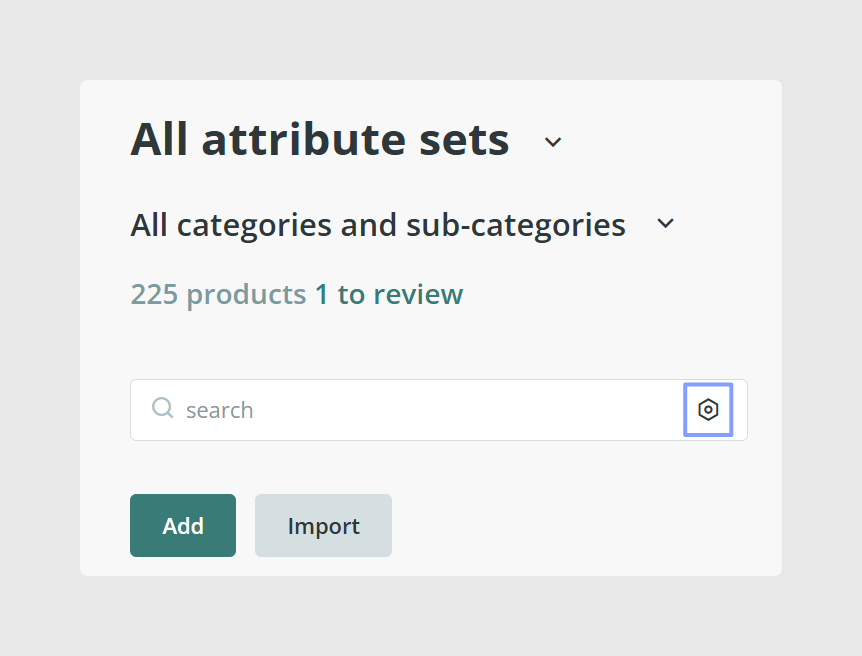
The Search Bar is one of the most useful tools in Sales Layer because it helps you find specific items quickly, even in large catalogs. It becomes visible when your account has at least 15 products.
You can search in two ways. You can use Advanced Search, which guides you through filters, or you can type search commands directly into the Search Bar for faster and more specific results.
Use Advanced Search
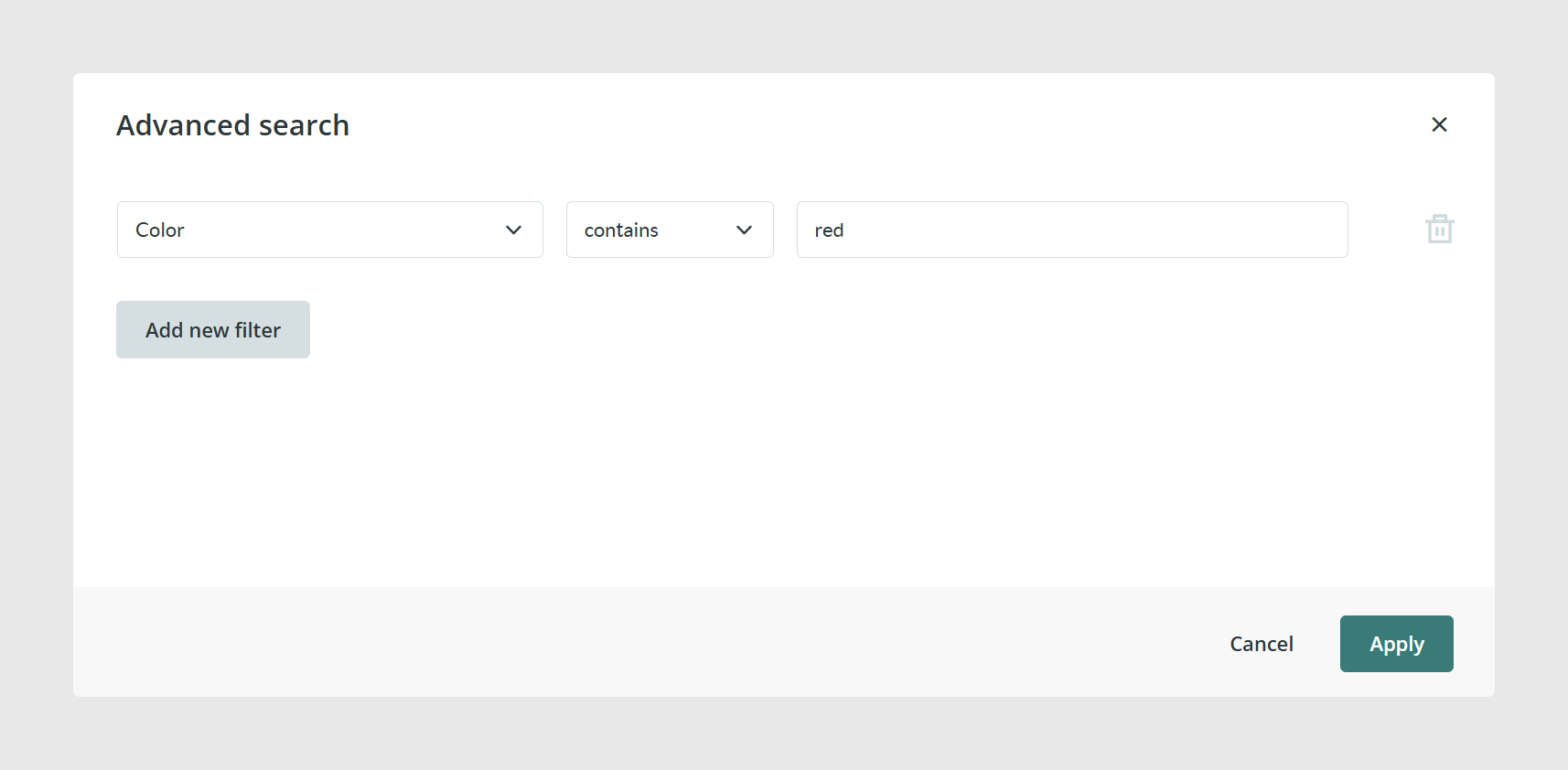
Advanced Search helps you build searches step by step. You can add as many filters as needed, choose the field you want to search in, select the type of condition, and combine several filters in the same search.
This is a good option if you want a more guided way to search without typing commands manually.
Save and reuse searches
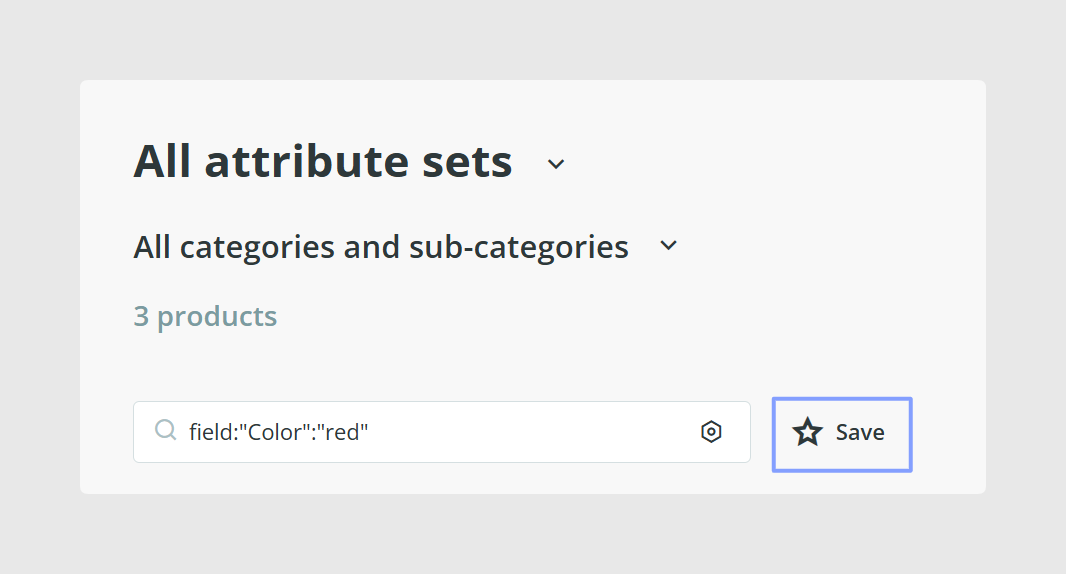
After entering a search, you can save it for later. Click the star icon on the right side of the Search Bar and then click Save. Sales Layer lets each user save up to 10 searches.
To view saved searches, click inside the Search Bar and you will see them listed below. To delete one, open the saved search and use the option next to the star icon to remove it.
Use direct search commands
You can also type commands directly into the Search Bar. This is useful when you already know the syntax you want to use.
Search in all fields
If you type a word such as red, Sales Layer searches for that word across all searchable fields in the current table.
red
Search in a specific field
To search in one field only, start with field:. Sales Layer will show the fields available in the current table. After the field name, type another colon and then the value you want to search for.
For example, this search finds products where the color field contains the word red:
field:color:red
If you want an exact match instead of a contains match, use an equals sign:
field:color=red
Combine multiple criteria
You can combine more than one search condition by separating them with spaces:
field:color:red field:name:shirt
You can also include or exclude criteria with + and -:
field:color:blue +field:color:red -field:name:contrasting
If needed, you can group conditions with parentheses:
(field:color=red -field:color=blue) +field:size=M
Search in multi-language fields
To search inside a multi-language field, add the language code in brackets after the field name. The code should follow the ISO 639-1 format.
field:"product title(en)":"big car"
Find empty or completed fields
You can search for items where a field is empty, has any value, or is empty while another condition is met.
field:"description(en)"=""
field:"description(en)"<>""
field:"title":car -field:"description"=""
Use special search commands
Sales Layer includes several built-in search commands that help you find common cases quickly.
General commands
select:empty fields
select:incomplete items
select:without images
select:with images
select:pending translations
select: quality<40
select: quality>40
These commands help you find items with empty fields, incomplete values, missing or existing primary images, pending translations, or a specific quality score range.
Only for the Categories table
select:without products
select:with products
Only for the Products table
select:without categories
select:with categories
select:without variants
select:with variants
Only for the Variants table
select:without products
select:with products
select:recent
select:recent shows recently created or modified items. In the Images and Files sections, it shows the most recently modified files.
Search by creation or modification date
You can search by date in date-type fields or by when an item was created or modified.
For date-type fields, use this format:
field:"START DATE":"2022-02-02 00:00"
Examples for modified dates:
select: modified yesterday
select: modified Tuesday
select: modified 2018-08-12
select: modified> -"5 months"
select: modified>"30 december 2017"
select:modified<"1 day"
select:modified="october 2018"
select:modified>"-60 days"
select:modified>"-60 days" +select:modified<"-30 days"
Examples for created dates:
select:created>"-1 day"
select:created="october 2018"
select:created>"-60 days"
If you change the reference of an item, Sales Layer treats it as a new item. Because of that, its creation date becomes the same as the modification date of that reference.
Important notes
The Search Bar only returns results from the current table. For example, if you are in the Variants table, you cannot use it to search for data from the Products table.
If you use Safari, the Advanced Search date picker will not appear when filtering by date. You will need to type the date manually in YYYY-MM-DD format. In Safari, it is also not possible to filter by hour.
If you search using more than one filter, the fields must belong to the same Attribute Set. If they belong to different Attribute Sets, Sales Layer returns results based on the first Attribute Set used in the search.
Simple search only checks the first 10 fields recorded in the database for performance reasons. If a field was not created in All Attribute Sets, simple search will not take it into account.
If you search with 2 characters or fewer, Sales Layer only checks values that start with those characters. For example, if you search for XI and you have products called Jacket XI and XI Shirt, only XI Shirt will appear. This does not affect searches with 3 or more characters.
Common Use Cases
Find products that match one or more exact field values.
Locate products with missing information, images, or translations.
Filter items by quality score, creation date, or modification date.
Reuse saved searches for repeated tasks.
Create workflows or channels based on specific search criteria.
Best practices
Use Advanced Search when you want a guided setup, and use direct commands when you need speed and precision. Save searches you use often, especially for recurring checks such as missing content or pending translations. When you combine filters, make sure the fields belong to the same Attribute Set so your results stay accurate.
Was this article helpful?
That’s Great!
Thank you for your feedback
Sorry! We couldn't be helpful
Thank you for your feedback
Feedback sent
We appreciate your effort and will try to fix the article