When you want to update products in Sales Layer, the key field is Product Reference. Sales Layer uses this value to identify which product should be updated.
If the product reference already exists, the import updates that product instead of creating a new one.
To update a product, you only need to import the Product Reference column together with the field or fields you want to change.
Updating content through import
To reimport product data, go to Products, click Import, and choose the import method you want to use.
The update process follows the same flow as a normal import. You prepare the file, paste or upload it, review the field mapping, and then confirm the import.
Obligatory fields
You do not need to reimport the full product row every time. In most cases, it is safer to include only:
- Product Reference
- the field or fields you want to update
This makes the update easier to control and reduces the risk of changing information you did not intend to modify.
Note: Product references should stay consistent across imports. Sales Layer treats text as case-sensitive, so changes in uppercase or lowercase can cause the system to treat the value as a different reference. It is also important to avoid duplicate references in the same file. If the same reference appears more than once in the same Excel file, Sales Layer imports the first occurrence and ignores the rest.
Using operators to update multi-value fields
If you want to update multi-value fields, such as category references, images, files, related items, tags, or list fields with multi-selection enabled, you can use the ++ and -- operators.
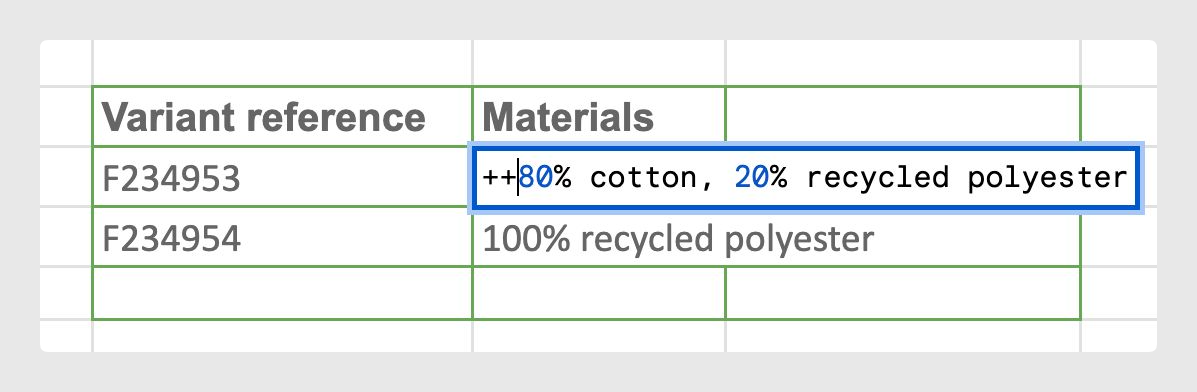
Use ++ to add values
Add ++ before the new value when you want to append information without deleting what is already stored in the field.
This is useful, for example, when a product already has images linked and you want to add one more image without replacing the existing ones.
Use -- to remove specific values
Add -- before a value when you want to remove that specific value from a supported multi-value field.
This lets you clean up selected values without replacing the whole field content.
These operators should only be used in fields that support this behavior.
Reimport options
When you reimport products, Sales Layer may show extra options at the bottom of the import window. These options help you control how the update is applied.
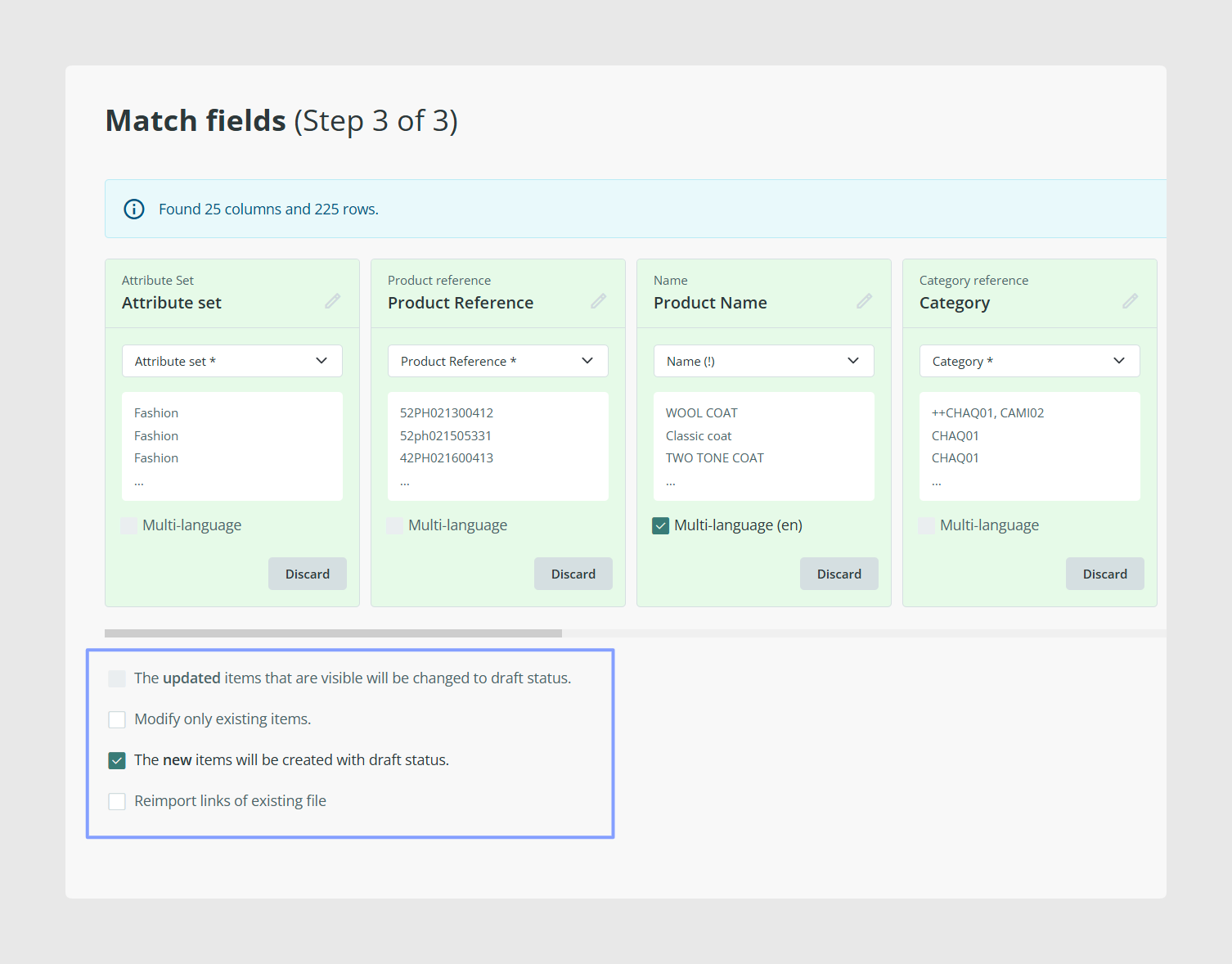
New items will be saved as draft
If your file includes product references that do not already exist, this option creates those new products in draft status instead of visible status.
Force import in locked fields
If some fields are locked, Sales Layer normally leaves them unchanged. If you enable this option, the import can also update those locked fields.
The updated items that are visible will be changed to draft status
If selected, products that are already visible and get updated by the import will move to draft status afterwards.
Modify only existing items
This is one of the safest options for product updates. If your file contains new references by mistake, Sales Layer ignores them and updates only products that already exist.
This helps prevent accidental creation of extra products caused by typos, wrong references, or rows that should not have been included in the file.
Reimport links from existing files
This option reprocesses the images included in the Excel or CSV as if they were new, while keeping the links to the products that were already connected to them.
Generate backup
If there is no recent backup, Sales Layer may offer the option to generate one before completing the import.
This gives you a safer recovery point before making a larger update.
Force import in locked fields
If some product fields are locked, a normal reimport usually leaves them untouched. They are only updated if you explicitly enable Force import in locked fields.
This is especially useful when some values are protected because they come from an ERP or another external source.
Automatic or recurring updates
If product data needs to be refreshed regularly from another system, Sales Layer also supports automatic updates through the import connector or through the API.
This is usually more useful once your references, field structure, and mapping are already stable.
Common use cases
- Update names, descriptions, or images for existing products
- Assign or change category links in bulk
- Refresh multilingual content
- Append or remove selected values in supported multi-value fields
- Run controlled updates without creating new products
Best practices
Before updating products, make sure your references are clean, unique, and written consistently. Import only the columns you really want to change, review the mapping before confirming, and use Modify only existing items when you want the safest possible update. For larger changes, generating a backup first is a good safety step.
Was this article helpful?
That’s Great!
Thank you for your feedback
Sorry! We couldn't be helpful
Thank you for your feedback
Feedback sent
We appreciate your effort and will try to fix the article