What an unused field in a form means
Sometimes a form contains fields that are not being used for a specific product. This can happen because that product does not need that information, or because the field will be completed later.
In Sales Layer, those fields can stay in the form, but you also have the option to mark them as not applicable for the completeness calculation.
Why unused fields matter
Unused fields can affect the Quality Score of a product, because Sales Layer counts empty fields as incomplete unless you tell the platform that the field does not apply.
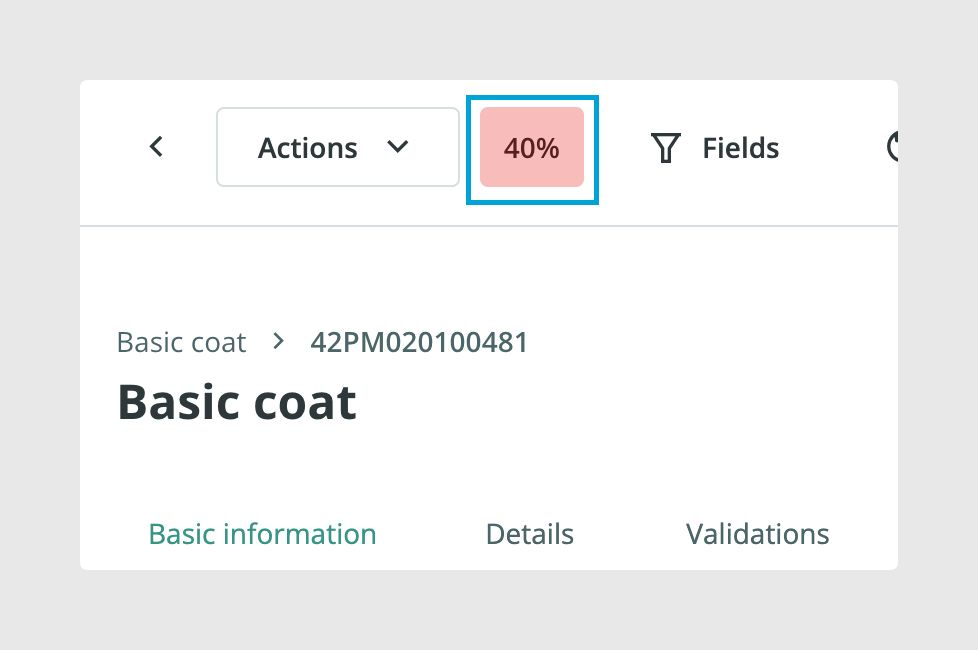
This is useful when a field exists in the form structure, but there is no reason to fill it in for that specific item.
Mark a field as not applicable
If a field is not going to be used for a product, you can mark it as not applicable directly from the form. To do this, click the icon shown next to the field name, as shown in the image below.
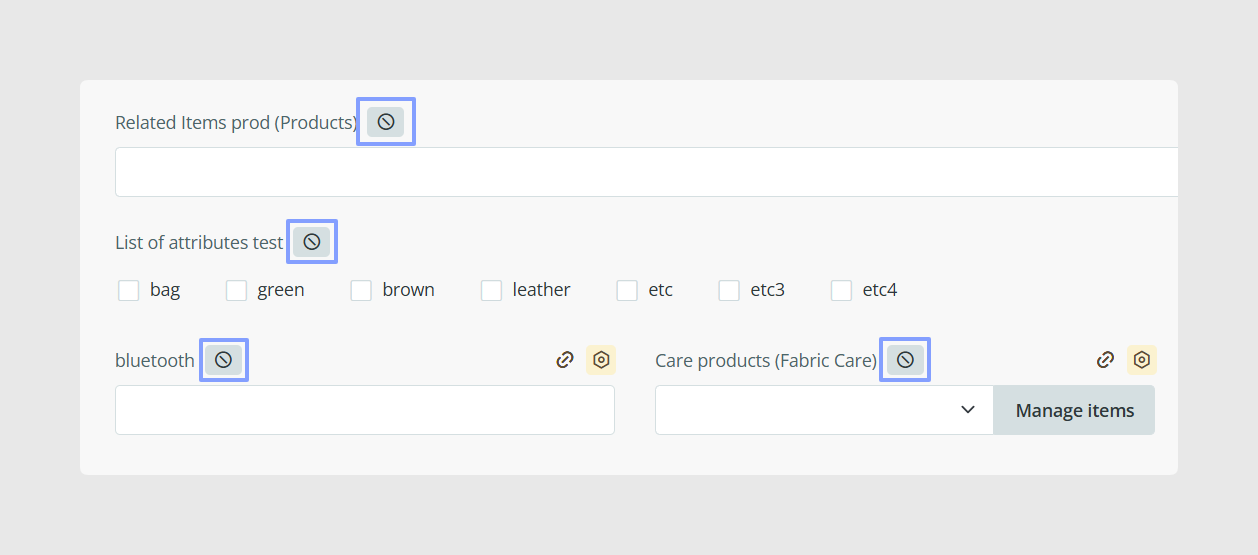
Once you do this, the field becomes a disregarded field. This means it is excluded from the completeness calculation for that product.
Understand how this affects the Quality Score
A disregarded field is not the same as a filled field. Instead, Sales Layer removes that field from the total number of fields considered for completeness.
For example, if a product has 10 fields and 8 are filled, the Quality Score would be 80%. If one of the 2 empty fields is marked as not applicable, the product would then be measured against 9 relevant fields instead of 10.
This helps make the Quality Score more realistic when some fields genuinely do not apply to certain products.
Activate the field again later
If you later want to use that field again, you do not need to recreate it. You only need to write a value into it or import a value into it again.
Once the field has content again, it becomes active in the form as normal.
Hide disregarded fields from the form
If you want a cleaner working view, you can hide the fields that are currently marked as disregarded.
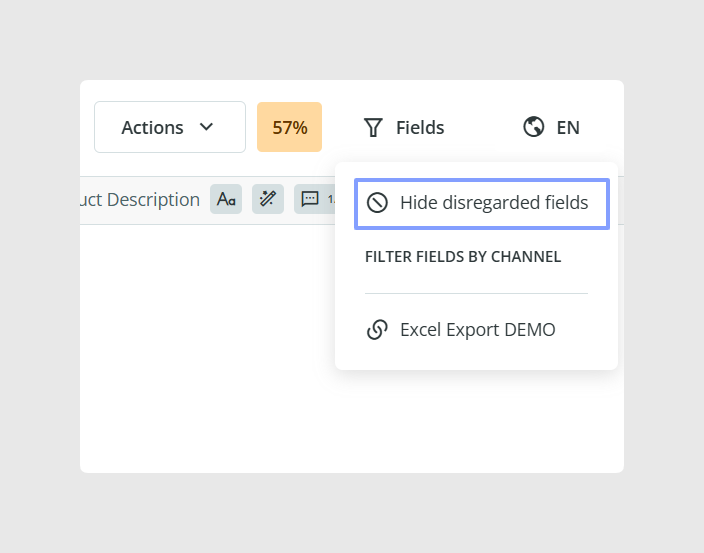
At the top of the form, click Fields and choose Hide disregarded fields. This hides all fields that are currently marked as not applicable, including any you mark the same way later.
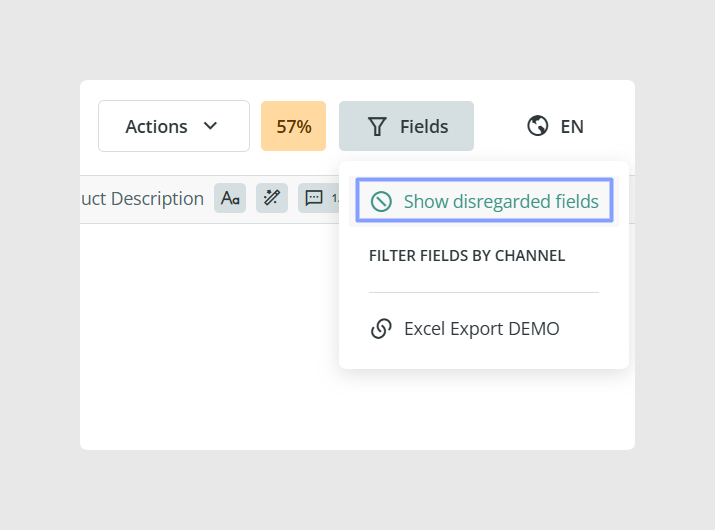
If you want to see them again, click Fields and choose Show disregarded fields.
Disregard empty fields in bulk
You can also manage unused fields in bulk instead of one by one. From the Products tab, select the items you want to work with, go to Actions, and use the option to disregard empty fields or activate disregarded fields.
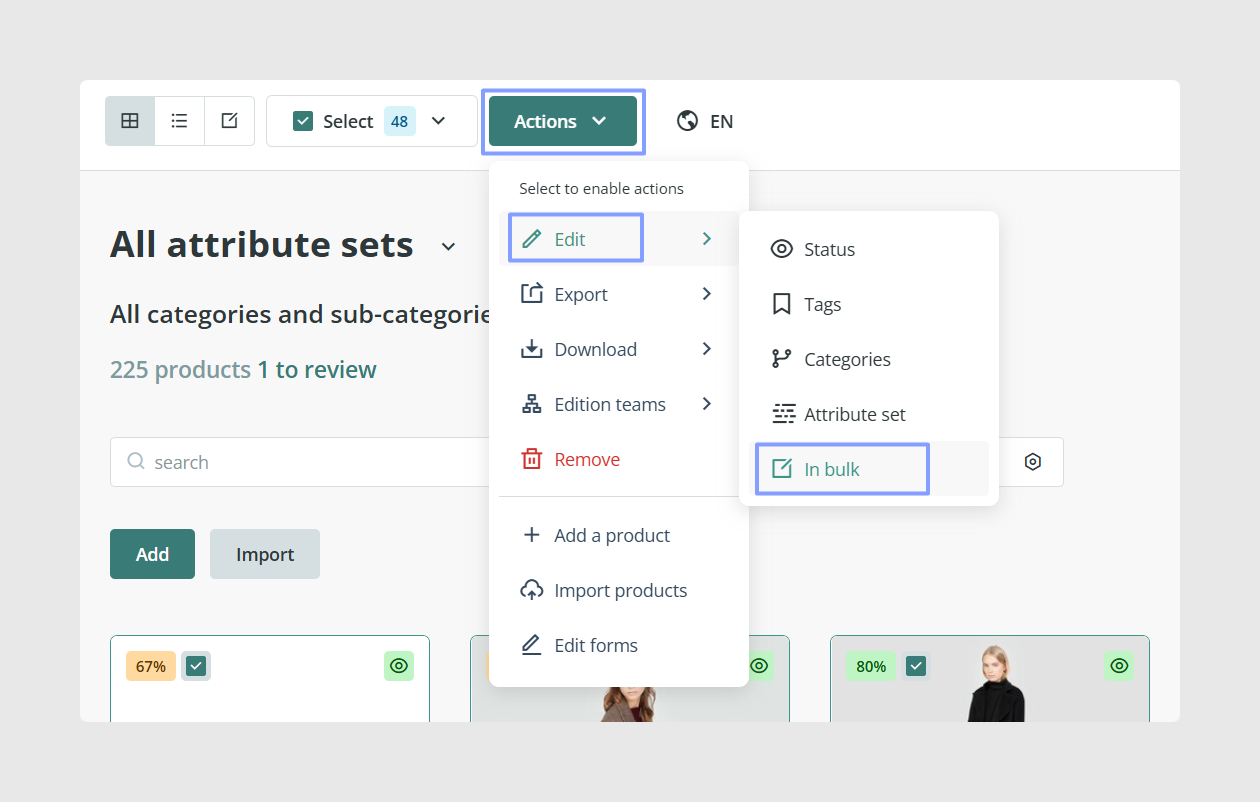
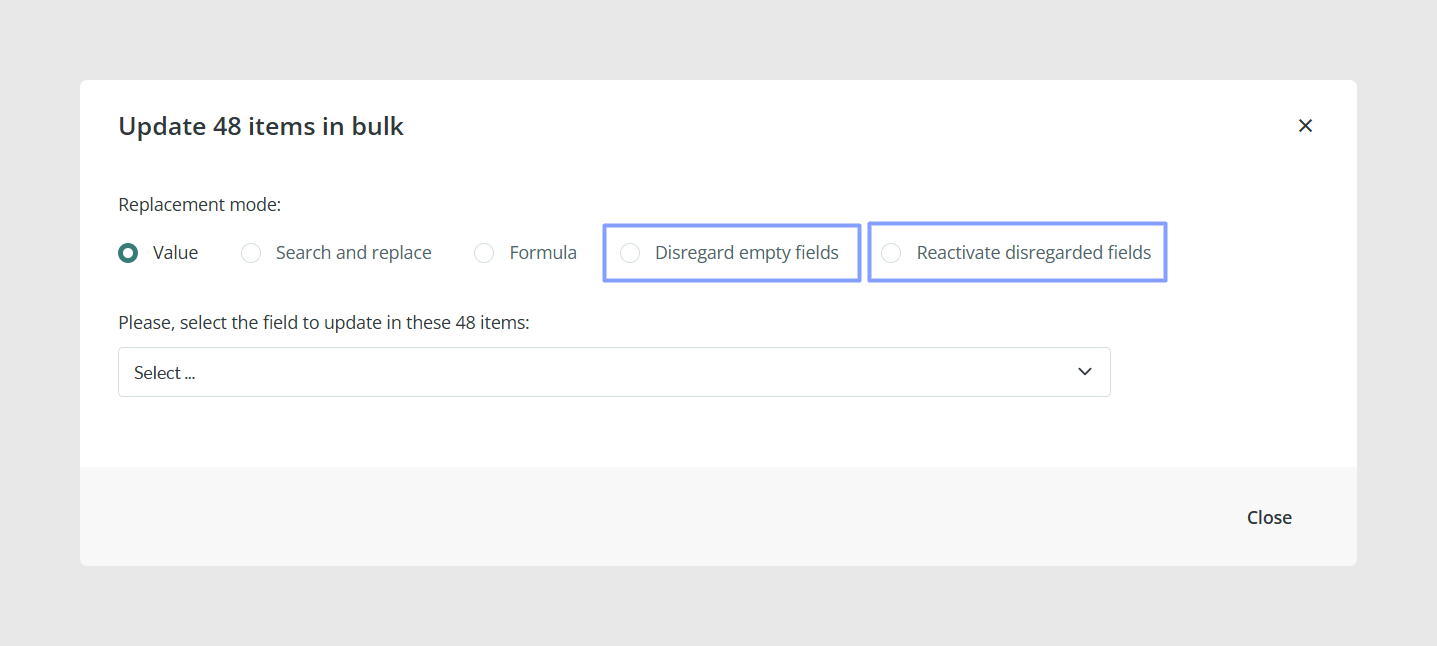
This is useful when many products share the same empty fields and you want to clean up the form view or adjust the completeness calculation more quickly.
Know which fields cannot be disregarded
Some basic fields cannot be excluded from the Quality Score calculation. These include:
- Attribute Set
- Name
- Reference
- Category Reference
- Image
- Description
- Tag
- Status
These fields are always treated as core parts of the item structure.
Common use cases
- Exclude fields that do not apply to a specific product type
- Improve the accuracy of Quality Score calculations
- Clean up the form view for editors
- Temporarily ignore fields that will be completed later
- Apply the same cleanup to many items at once with bulk actions
Best practices
Use the not applicable option only when a field genuinely does not belong to that product. Do not use it as a substitute for missing content that should still be completed later. If many products share the same irrelevant fields, review whether the form or Attribute Set structure should also be simplified, instead of relying only on disregarded fields.
Was this article helpful?
That’s Great!
Thank you for your feedback
Sorry! We couldn't be helpful
Thank you for your feedback
Feedback sent
We appreciate your effort and will try to fix the article