To edit fields in a form, open a product and then go to Actions and click Redesign form. This opens the form editor, where you can change the layout of the form and adjust how fields behave.
This is the main place to manage the structure of the form that users see when working with product information.
What you can edit in a form
From the form editor, Sales Layer lets you make several kinds of changes to existing fields. For example, you can:
- move fields between tabs
- resize how much space a field uses
- change the field title
- change the field type
- set multilingual options where supported
- remove a field from the form
This makes it possible to adapt the form as your catalog structure becomes more detailed or as different teams need a clearer layout.
Move fields to a better place in the form
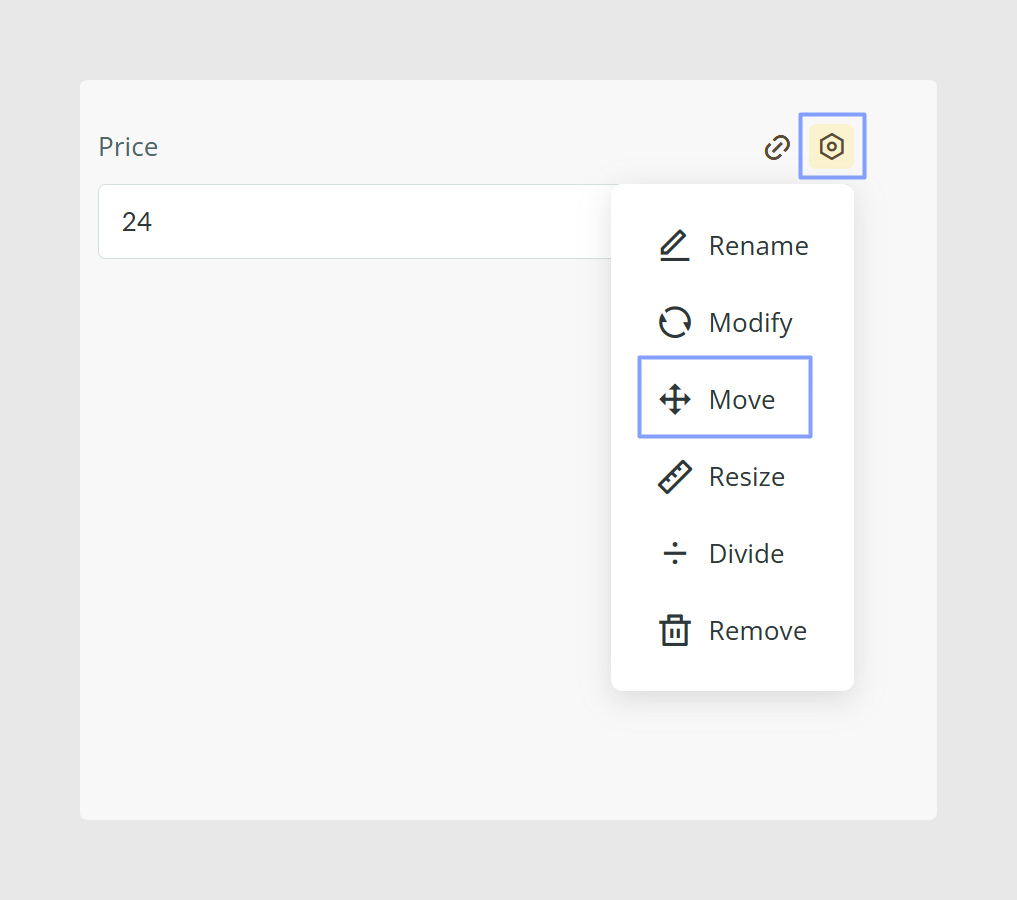
If the current layout feels messy or hard to use, you can move fields between tabs while you are in Redesign form mode. Select the field and use the Move option to place it where it makes more sense.
This is useful when you want to group related information together, for example SEO fields in one tab and ERP fields in another.
Keep the basic fields in the first tab
There is one important layout rule in Sales Layer. Basic fields must stay in the first tab, Basic Information.
These basic fields include:
- Attribute Set
- Product Name
- Product Reference
- Category Reference
- Product Image
- Description
If you try to reorganize the form, keep these fields in mind because they cannot be moved to another tab.
Resize fields to improve the layout
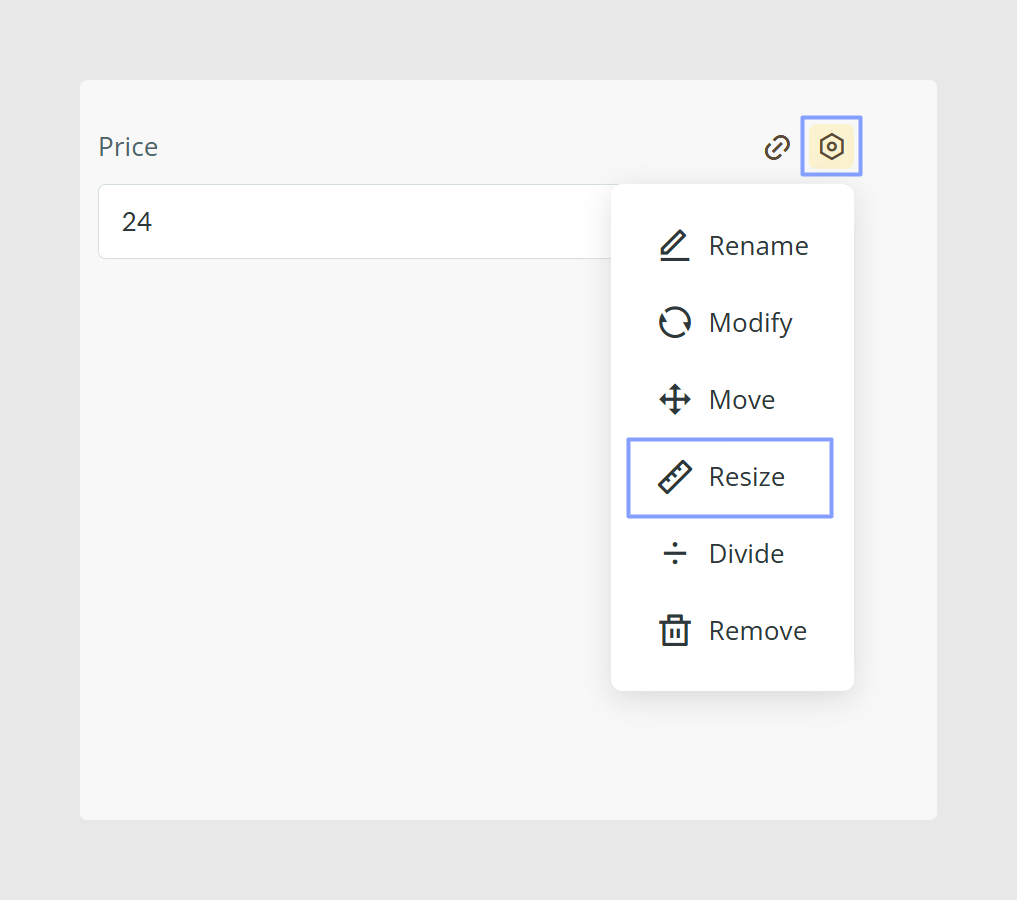
You can also change how much space a field takes up in the form by using the Resize option.
This is helpful when some fields need more visual space, such as long descriptions, while others can stay smaller, such as short technical values.
A cleaner layout usually makes the form easier to complete and quicker to review.
Create sections to group related fields
Inside each tab, you can create sections to separate fields into smaller groups. Each section can also have its own name.
This is useful when one tab contains several types of information and you want to make the structure easier to read, for example separating dimensions, logistics, and commercial information.
Rename a field clearly
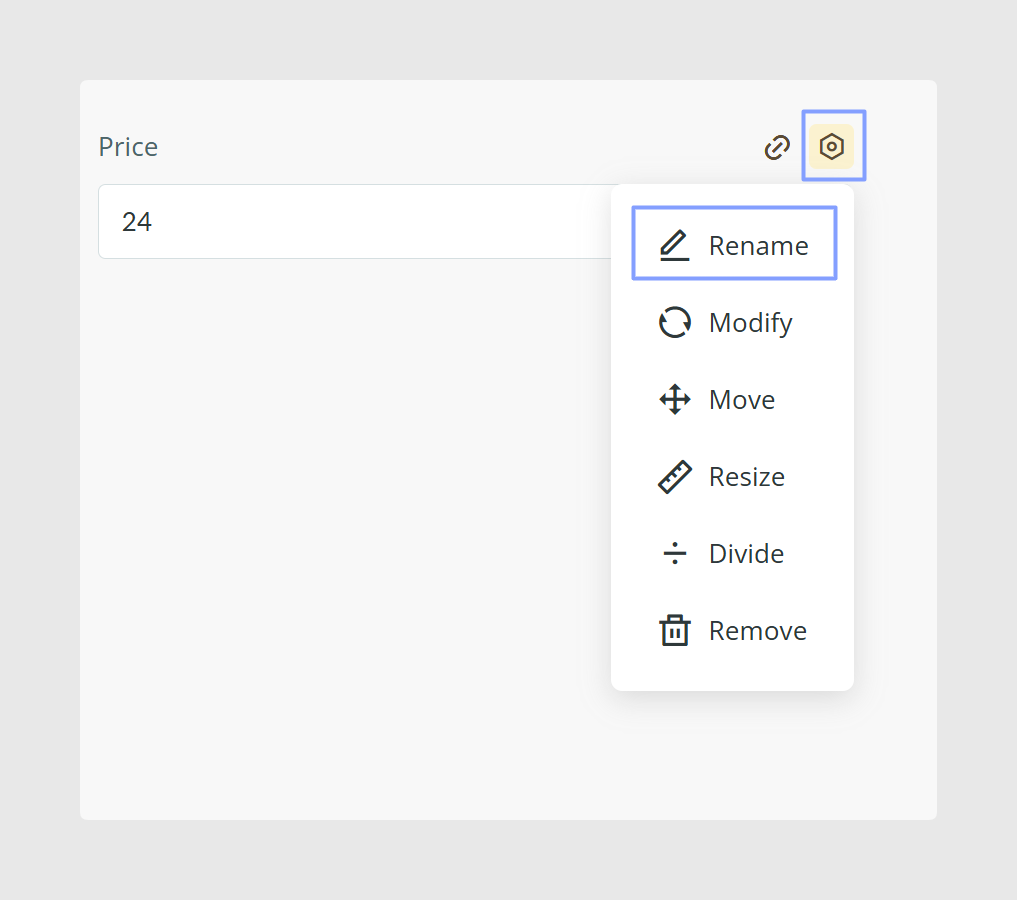
If a field title is unclear or no longer fits the way the team works, you can edit the field title from the form editor.
When renaming a field, use a title that is easy to understand and consistent with the rest of the form. This helps users know exactly what information should go into the field.
Change the field type when needed
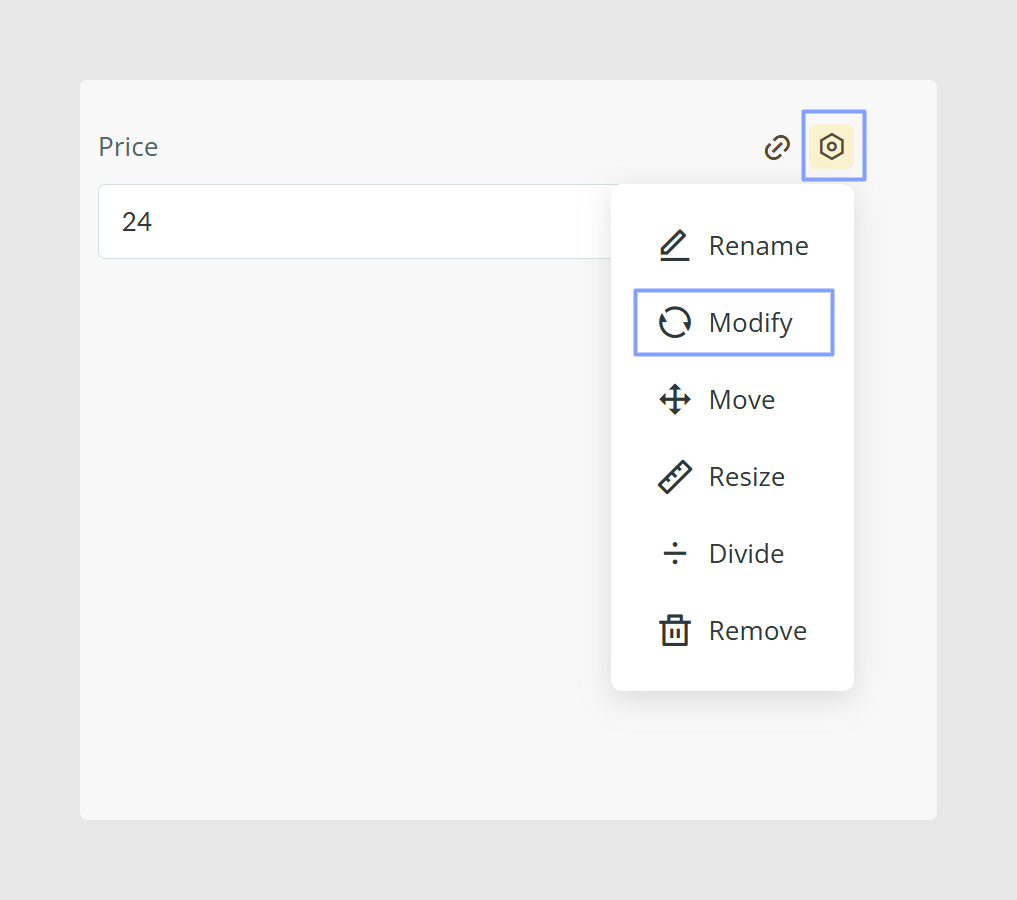
Sales Layer also lets you modify the field type from the form editor. This is useful when a field was originally created with a format that no longer fits the content you need to store.
For example, a field may work better as:
- short text
- long text
- number
- image
- file
- list of attributes
- date
- web link
- related items
Before changing the field type, review the purpose of the field carefully so the structure stays consistent.
Turn a field into a multilingual field
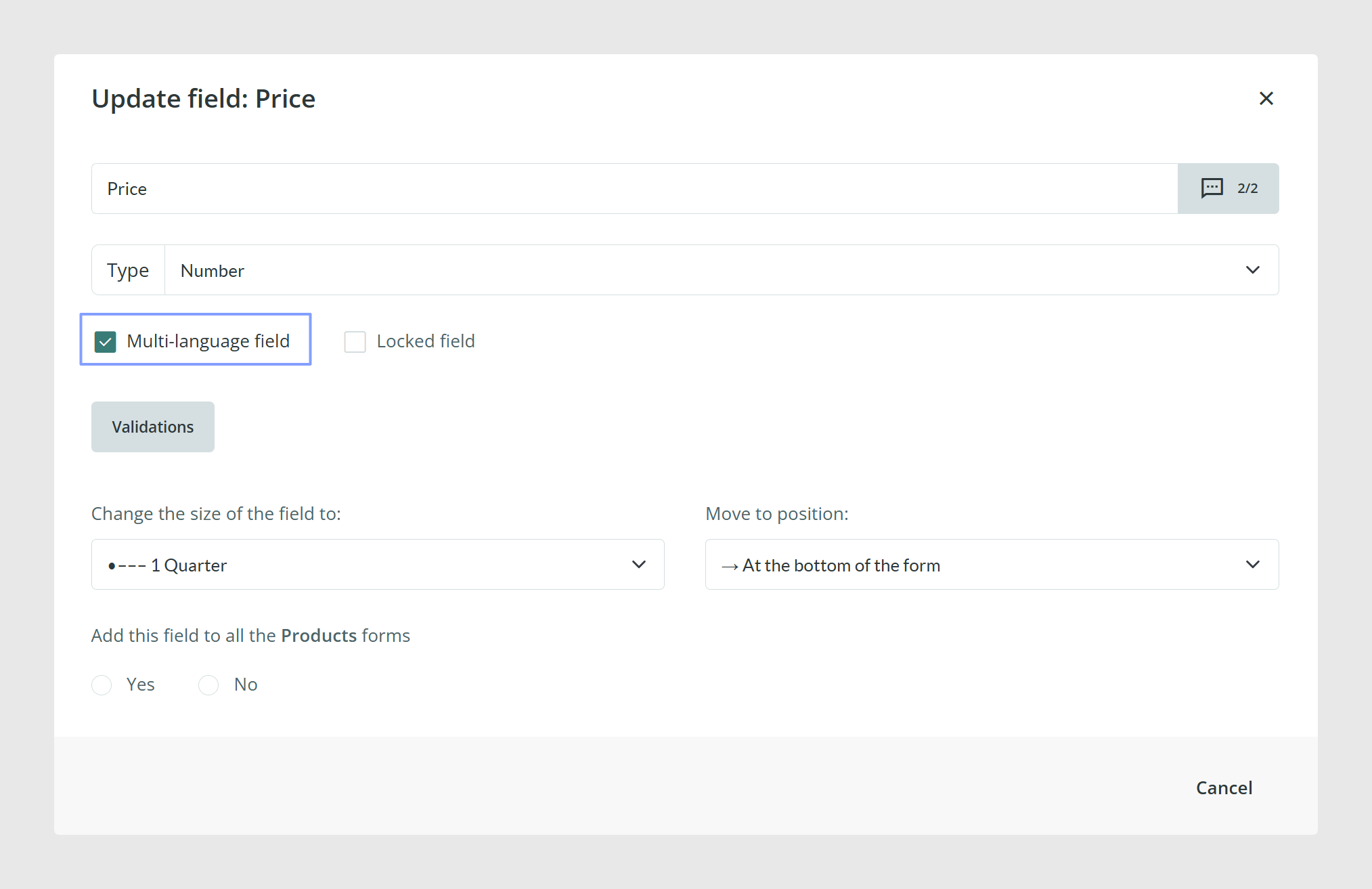
If the field type supports it, you can turn a field into a multilingual field from Redesign form by modifying the field and enabling the multilingual option.
Once enabled, the languages configured in the account become available for that field.
This is useful for fields such as names, descriptions, and other content that needs to be maintained in several languages.
Edit multilingual content in the form
When working with a multilingual field in the item form, click the multilingual icon, shown as a speech bubble, to edit the values for the different languages.
This lets you keep all language versions inside the same field instead of creating separate fields for each language manually.
Translate field labels into different languages
Sales Layer also lets you configure the field names themselves in multiple languages. To do this, open the field in Redesign form and click the grey icon next to the field name.
This is especially useful when different users work in different languages, because each user can see the field labels in the language chosen for the form.
Use rich text editing where available
Some text fields allow richer formatting. From the field itself, you can use Edit mode to work with formatted text and add images inside the field content when supported.
This is helpful for fields such as long descriptions that need more than plain text.
Keep Attribute Set scope in mind
When you edit a field inside an Attribute Set structure, Sales Layer can apply that change only to the current Attribute Set or replicate it across all of them, depending on the green checkbox setting.
Review that option carefully before saving. A change applied to all Attribute Sets can affect more forms than you expected.
Remove fields carefully
If you remove a field from a form, it is not always deleted from Sales Layer completely. In many cases, it becomes an unused field that can be recovered later, as long as it still exists in another Attribute Set or form.
This is useful when you want to simplify one form without losing the field entirely.
If the field is removed everywhere, it can be deleted permanently instead.
Common use cases
- Reorganize a form so related fields are easier to find
- Rename unclear fields to make the form easier for editors to use
- Change a field type to better match the data being stored
- Create multilingual fields for international catalogs
- Improve long text fields with richer formatting
- Simplify the form by removing fields that are no longer needed there
Best practices
Before editing fields in a form, think about both usability and structure. Group related fields together, keep titles consistent, and avoid changing field types without checking how the field is already being used. When a field may still be useful later, remove it from the form rather than deleting it completely. This keeps the catalog cleaner without creating unnecessary duplicates later.
Was this article helpful?
That’s Great!
Thank you for your feedback
Sorry! We couldn't be helpful
Thank you for your feedback
Feedback sent
We appreciate your effort and will try to fix the article