If you need to update an Attribute Set, Sales Layer gives you two main ways to access the form editor.
If you are already working inside a product, open the product and click Actions > Redesign form. If you want to manage forms more directly from the table, go to the relevant table and click Actions > Edit Forms.
Both routes let you work on the structure that controls which fields are available in that Attribute Set.
Open the Attribute Set editor
You can start from either of these entry points:
- From a product form: go to Products, open a product, then click Actions > Redesign form.
- From the table: go to the table you want to work with and click Actions > Edit Forms.
Use whichever route is more convenient for the task you are doing. If you are already inside a product, the product form route is usually the quickest. If you want to manage the structure more directly at table level, use Edit Forms.
What you can update in an Attribute Set
When editing an Attribute Set, you can:
- move fields between tabs
- add a new field
- reuse an existing field
- recover an unused field
- rename a field
- change a field type
- remove a field from that Attribute Set
- create new tabs
- create sections inside a tab
- clean up empty pages and unused fields
These updates change the form structure used by the products assigned to that Attribute Set.
Move field position
There are three ways in which you can move a field inside the form editor:
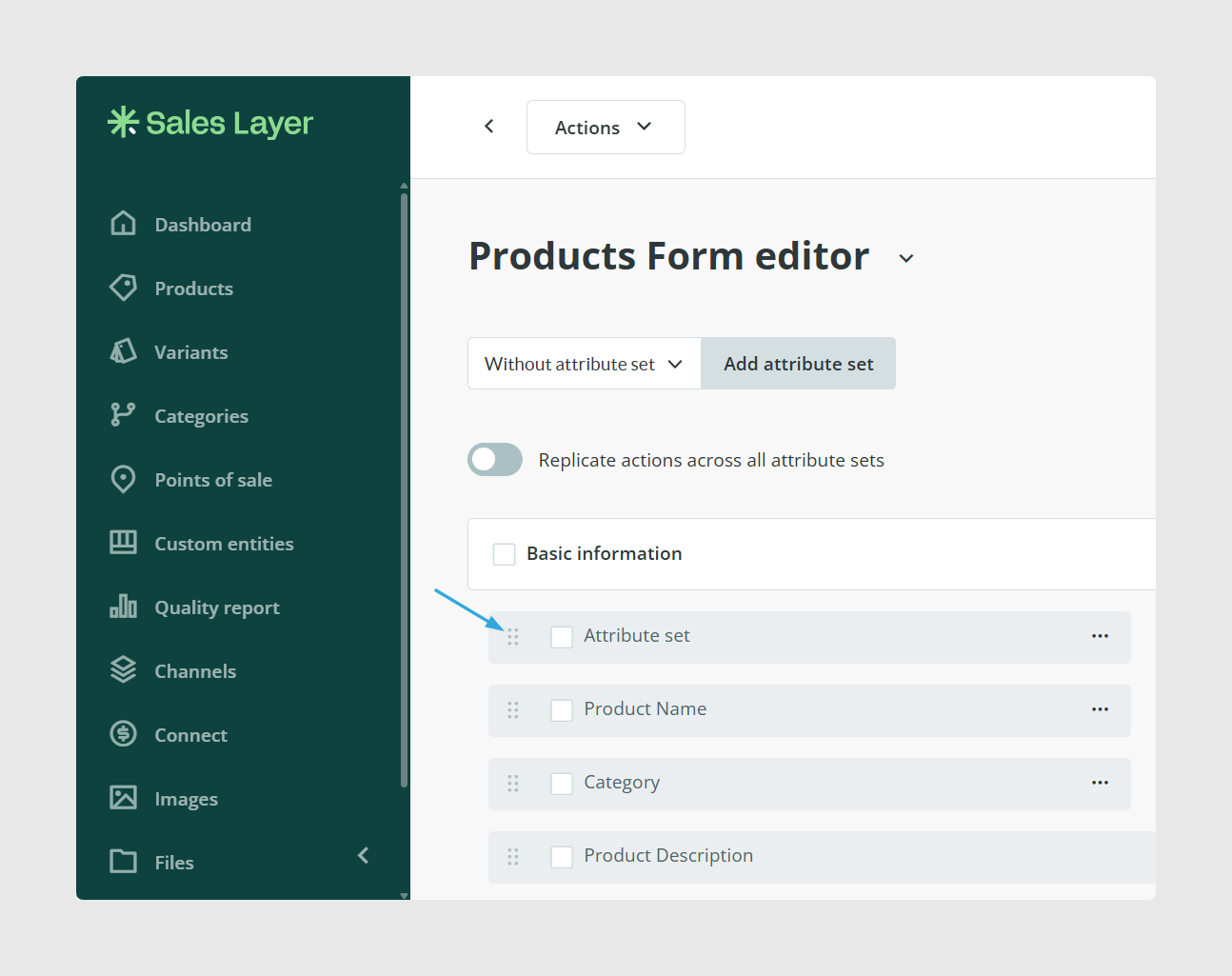
1. Move the desired field by simply clicking and dragging the 6 dots on the left of each field as shown below.
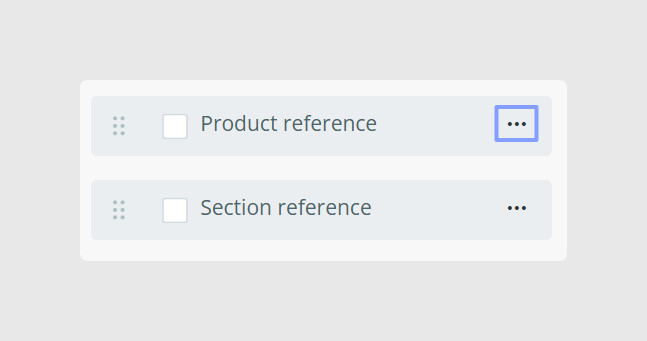
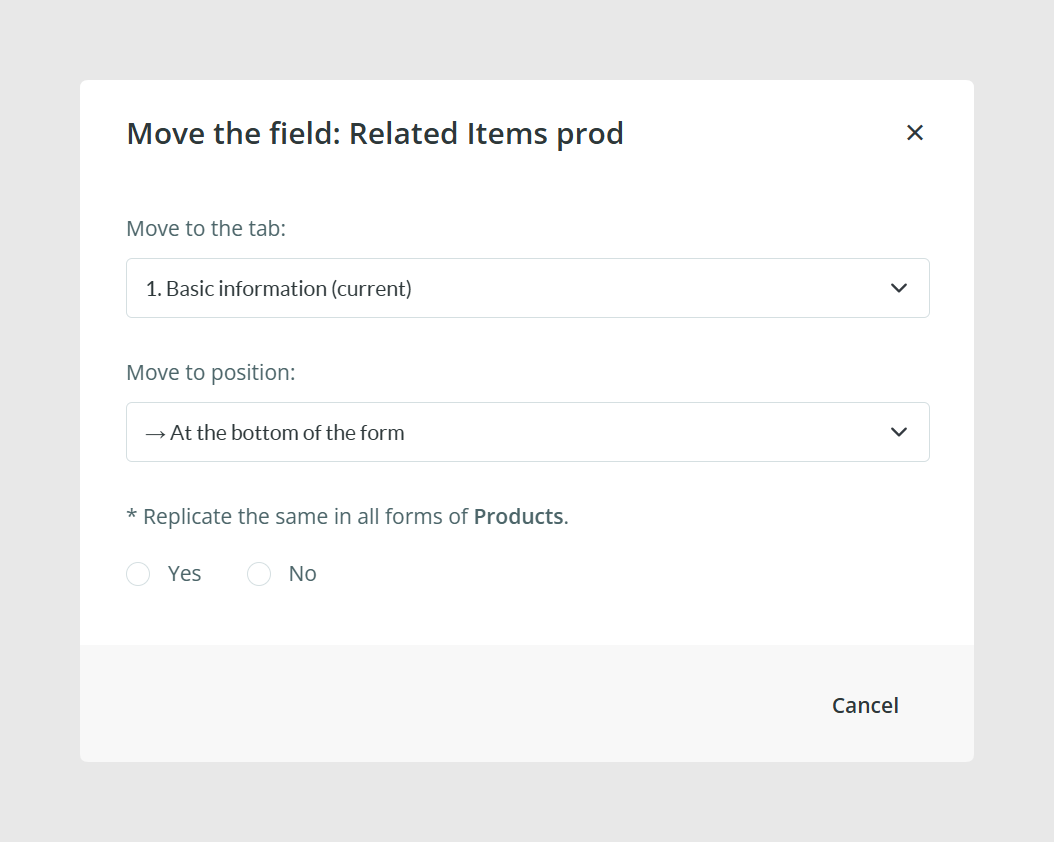
2. Click on the 3 dots to the right of the field you wish to move and select Move.
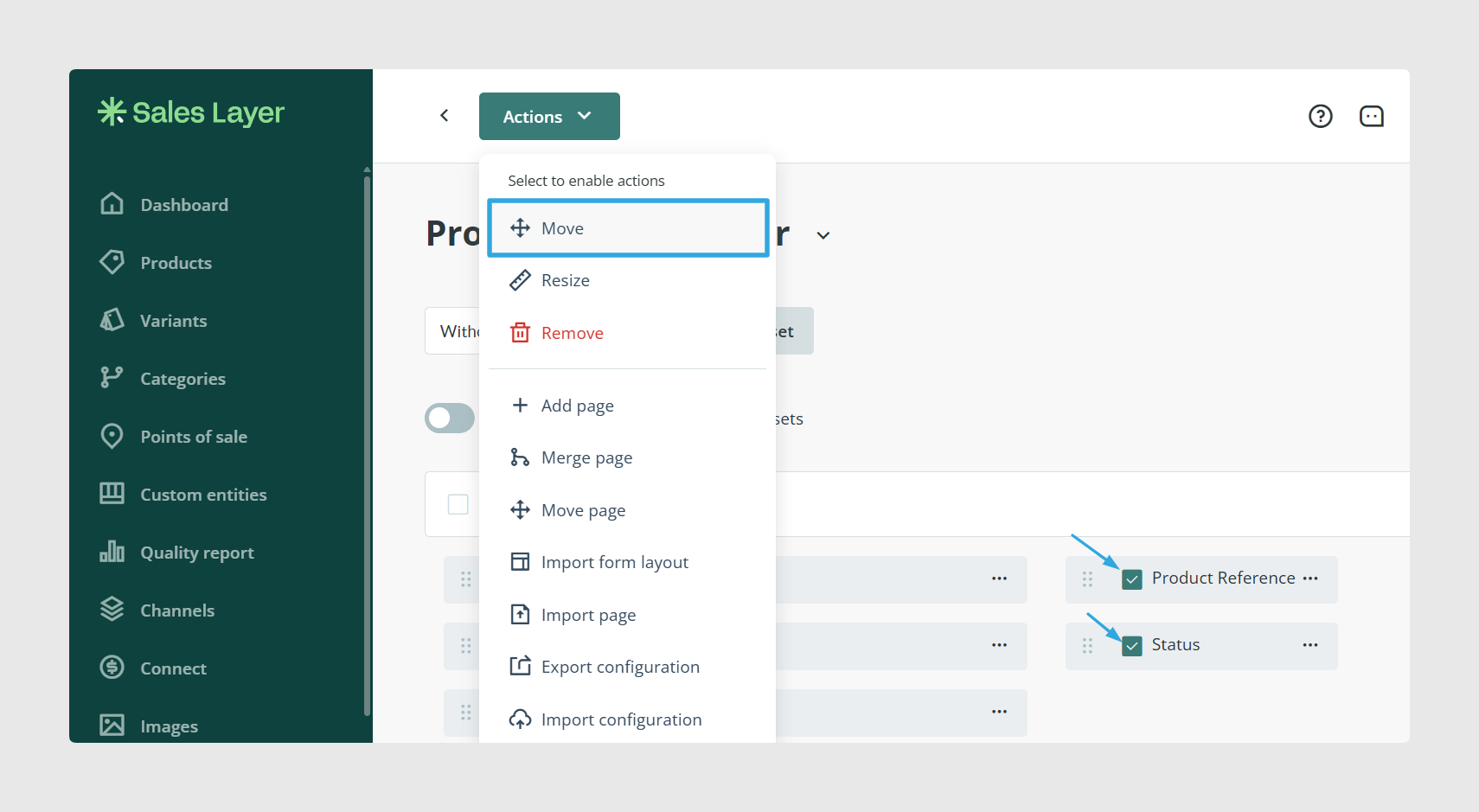
3. You can also move multiple fields at once by selecting them using the checkbox and going to Actions > Move.
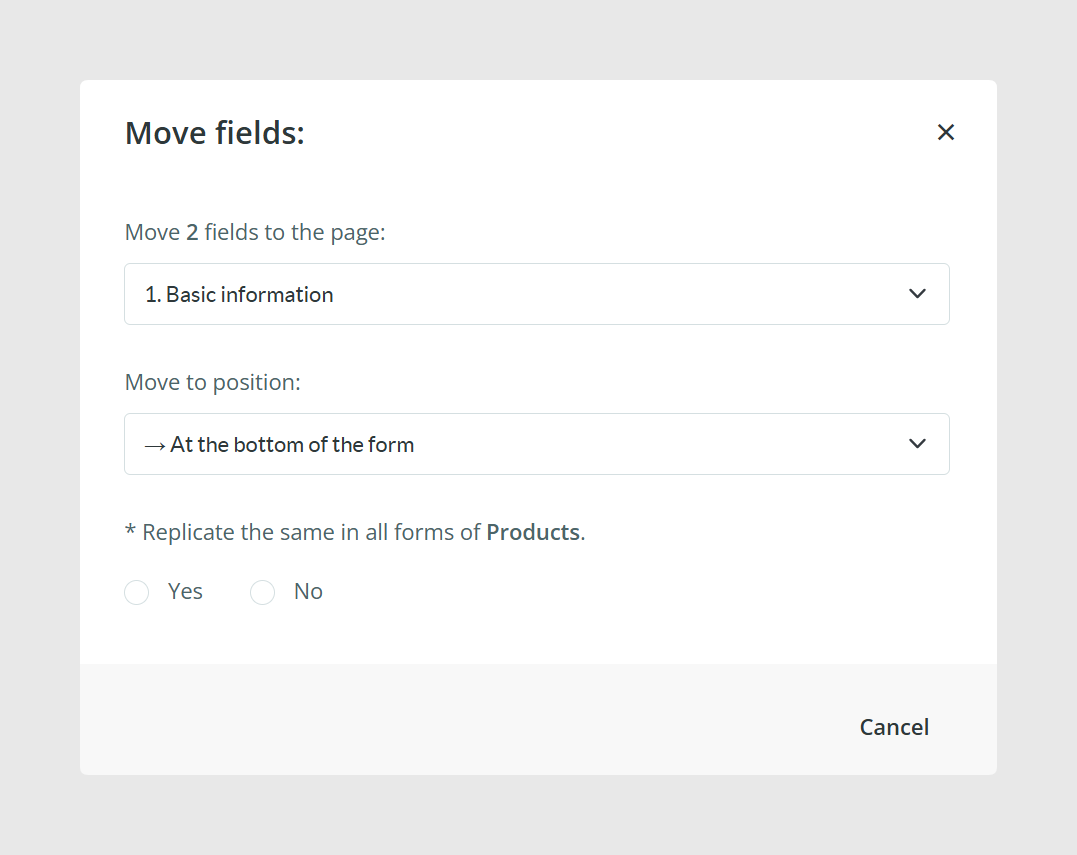
Keep in mind that some basic fields must stay in the first tab, Basic Information. These include the Attribute Set field, product name, product reference, category reference, product image, and description.
Add a new field or reuse an existing one
If you need to expand the form, use Add new field inside the form editor.
From there, you can either create a completely new field or select one that already exists in another Attribute Set. Reusing an existing field is often the better option when the same information is used across different structures.
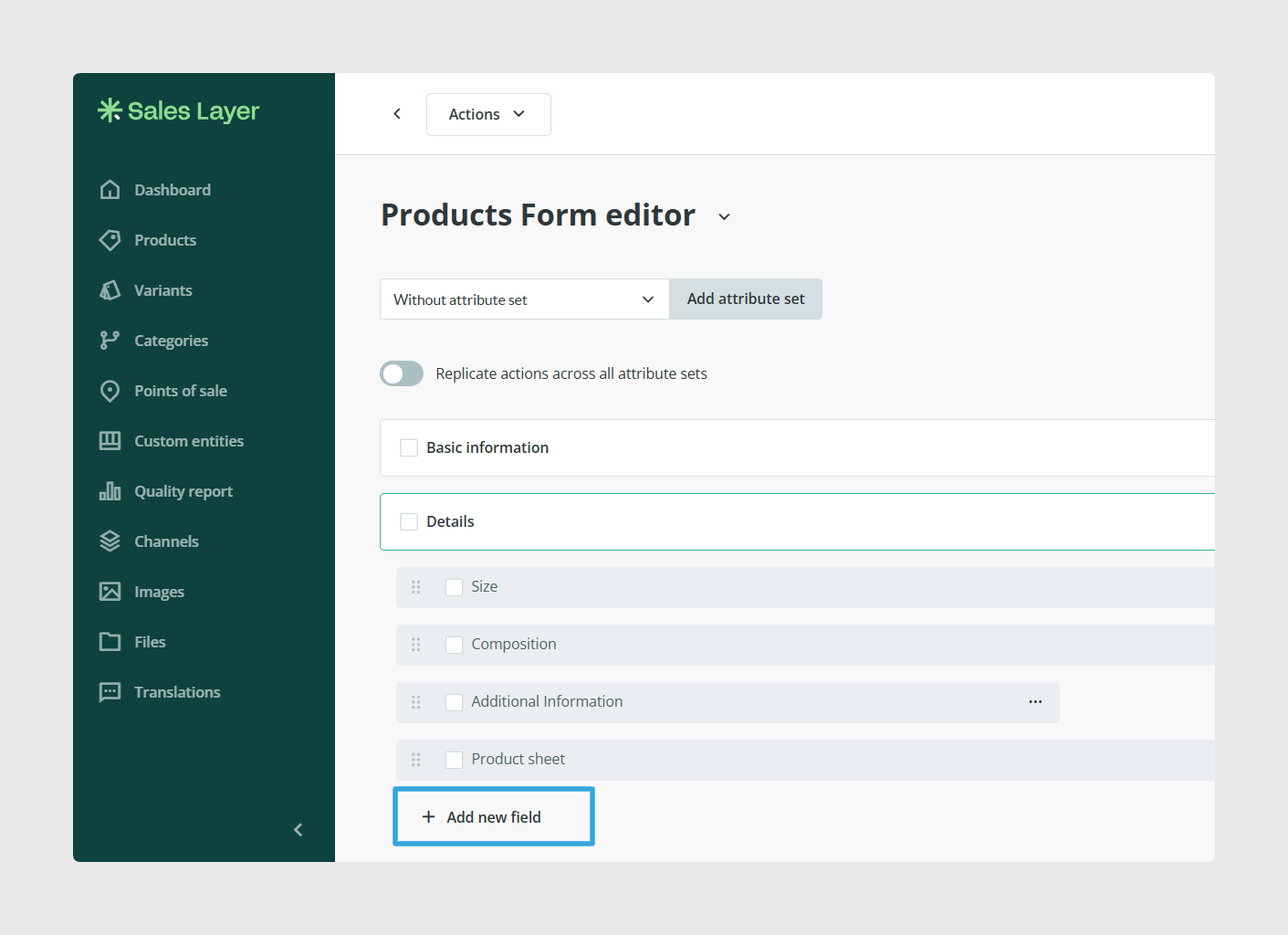
Recover unused fields instead of creating duplicates
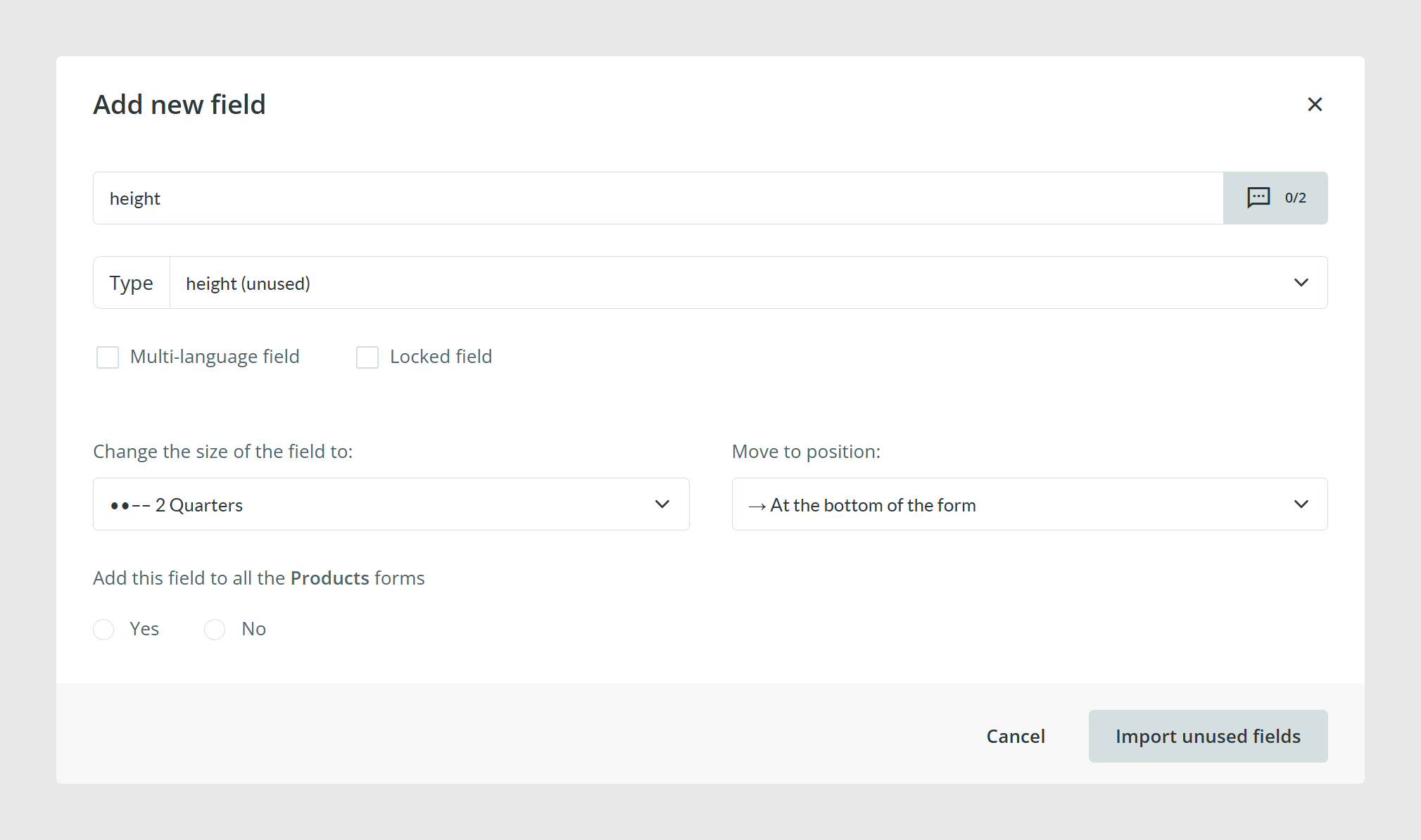
Some fields may already exist in the platform but remain outside the current form. This can happen when a field was created during import without any item having a value for it.
To recover one of these fields:
- Open the form editor.
- Click Add new field.
- Choose the existing unused field instead of creating a new one.
If there is more than one unused field available, you may also see an Import unused fields option so you can recover several at once.
This is important because creating a new field instead of matching the one that already exists can duplicate the field in the platform.
Create a new tab or section
If the form is difficult to navigate, you can reorganize it by adding tabs or sections.
To add a new tab from the form editor:
- Open a product form and go to Actions > Redesign form or go to Edit Forms.
- If you chose Redesign form, click on the yellow button on the right as shown below:
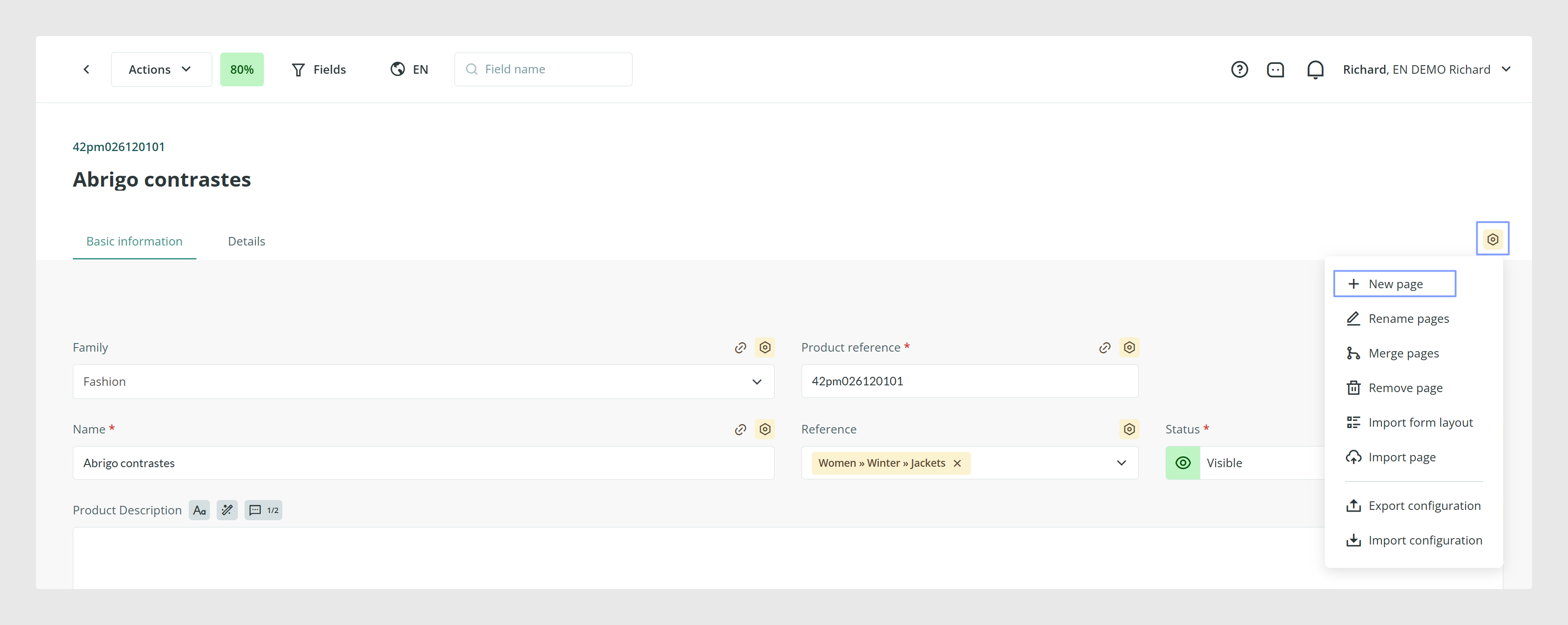
- If you chose Edit forms: go to Actions and click Add page
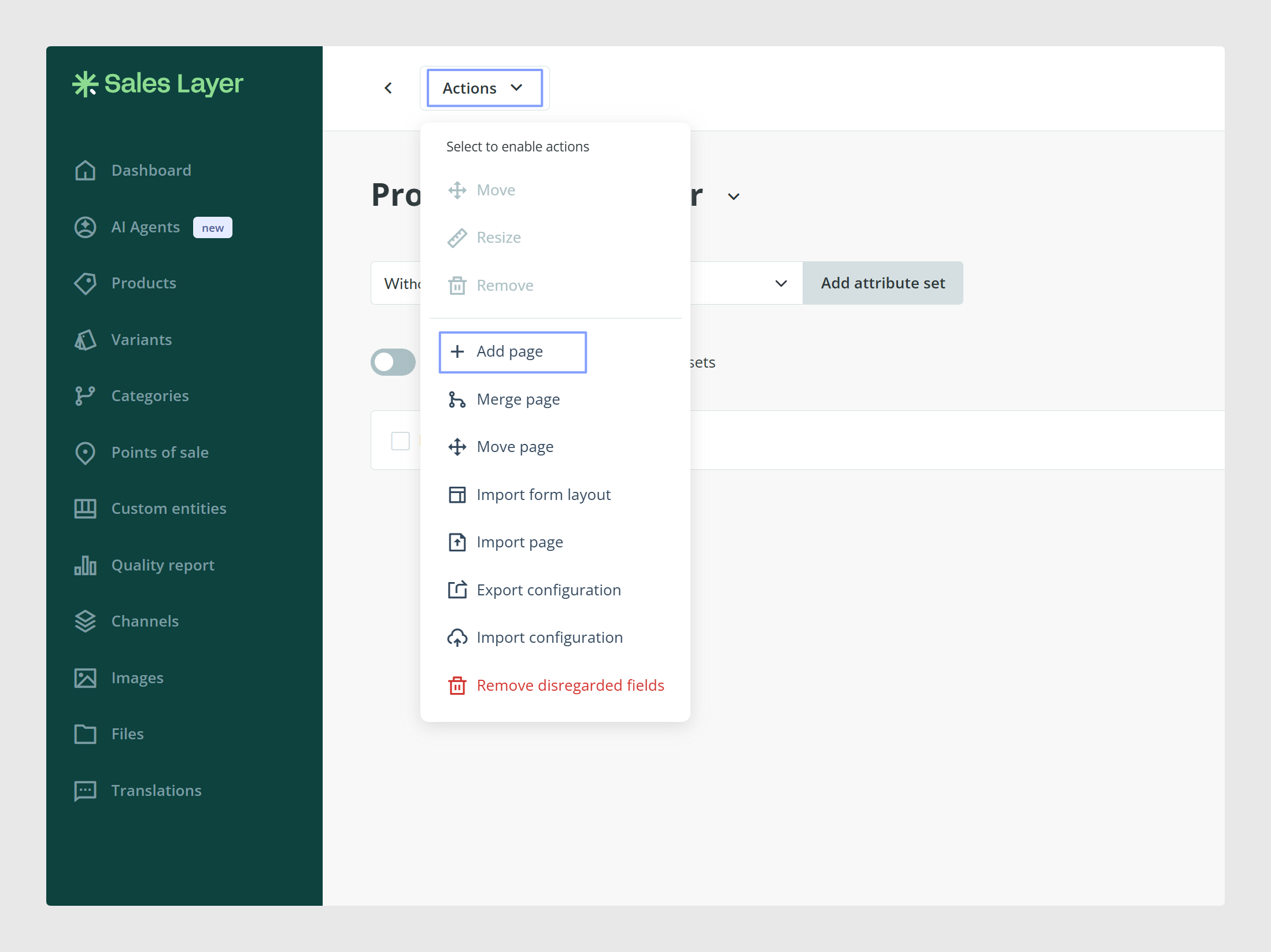
You can also create sections inside a tab to group related fields more clearly.
Tabs help separate broader groups of information, while sections help organize fields inside the same tab.
Rename a field
To rename a field, open the form editor, find the field, and click Modify. Then update the label and save the change.
This is useful when the current field name is unclear or no longer reflects the information users should enter.
Change a field type
You can also change the type of an existing field from the Modify option in the form editor.
This can help when a field was originally created with a type that no longer fits the data being managed.
Use the scope checkbox carefully
When you make changes to an Attribute Set, Sales Layer shows a green checkbox that controls the scope of the change.
This option determines whether the change applies only to the Attribute Set you are editing or is replicated across all Attribute Sets.
Review this carefully before saving so you do not update more forms than intended.
Remove a field from an Attribute Set
If a field no longer belongs in that Attribute Set, open the form editor, locate the field, and use the field options to delete it from the form.
In most cases, removing a field from one Attribute Set does not delete it from the platform. It only disconnects the field from that specific form.
If the field still exists in another Attribute Set, it remains available as an unused field and can be recovered later.
Understand when a field is permanently deleted
A field is only permanently deleted when it is removed from all Attribute Sets.
If you choose the option to do the same on all product forms, there will be no option to recover that field later.
If you remove it only from one form, it can still remain in the platform as an unused field as long as it exists somewhere else.
Clean up empty pages and unused fields
If the structure has become messy over time, you can clean it up from the Actions menu in the form editor.
This is useful for removing empty pages and clearing unused fields that are no longer needed.
How updates affect variants
Attribute Sets apply to products and their variants, but not to categories.
This means variants inherit the Attribute Set of their parent product, so structural changes to the form can also affect the variants that use that same setup.
Before making larger changes, it is a good idea to consider how the updated structure will work for both products and variants.
Common Use Cases
- Reorganize fields in an existing Attribute Set
- Add a missing field to an existing form
- Reuse an existing field instead of creating a duplicate
- Recover an unused field that already exists in the platform
- Remove a field from one Attribute Set without deleting it everywhere
- Clean up old tabs or unused fields after several changes
Best practices
Before updating an Attribute Set, decide whether the change should affect only that one structure or all of them. Reuse existing fields whenever possible, especially if the field already exists as unused. Before deleting a field, make sure you understand whether you are removing it only from one form or deleting it from all product forms. Keeping this clear will help you avoid duplicates, accidental deletions, and extra cleanup later.
Was this article helpful?
That’s Great!
Thank you for your feedback
Sorry! We couldn't be helpful
Thank you for your feedback
Feedback sent
We appreciate your effort and will try to fix the article