When you create a field in Sales Layer, you choose a field type (text, number, list, image, etc.). The field type defines what kind of data the field can store and how it will behave in forms, imports, exports, and connectors. Choosing the right type helps keep your data consistent and makes it easier to validate, filter, and export correctly.
Available field types
Short text
For short values such as names, SKUs, brand names, and short labels.
Up to 250 characters.
Long text
For longer content such as descriptions, marketing copy, or technical notes.
Supports rich text editing for formatted content.
Numbers
For numeric values such as weight, dimensions, price, stock, or any value you need to sort or calculate.
Boolean (0/1)
A true or false type field.
Accepts 0, 1, or empty (null).
Import recognition: Sales Layer can interpret many common true or false values during import, including:
0 | 1y | nyes | notrue | falseverdadero | falsooui | nonsí | no
…and other equivalents.
Export tip: If you need your output to show TRUE/FALSE instead of 0/1, you can customize the output using formulas in your export connector.
Image
For product images stored as file names or URLs.
You can add multiple images by separating values with commas.
From the field options in the form, you can use Edit → Add a new image to upload multiple images at once, up to 18 at a time.
File
For documents such as manuals, certificates, datasheets, or other attachments.
You can add multiple files by separating values with commas.
From the field options in the form, you can upload multiple files at once, up to 18 at a time.
List of attributes
A list-type field lets you define a set of selectable options (for example: Size, Color, Material).
Important: The values in List of attributes fields are separated by commas. For this reason, commas are not accepted as a valid character within a list value, as Sales Layer will interpret them as a separator between values.
You can configure it in two ways:
Multi-selection ON
Users can select multiple values in the same field.
Maximum: 1,000 values in the list.
Display behavior:
If the list has fewer than 100 values, it appears as checkboxes.
If the list has more than 100 values, it appears as a drop-down.
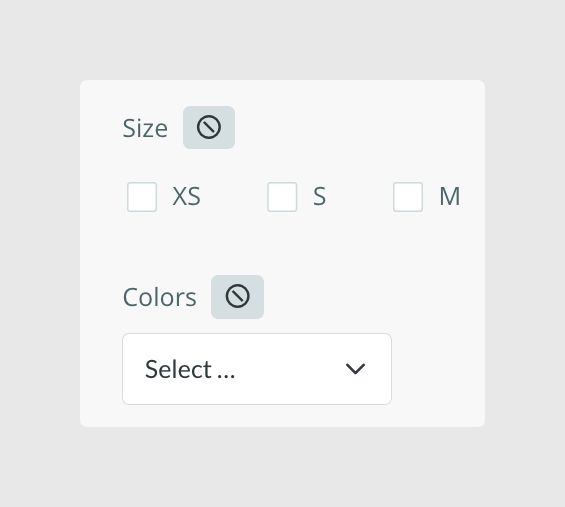
Multi-selection OFF
Users can select only one value.
Maximum: 1,000 values in the list.
It always displays as a drop-down, no matter how many values exist.
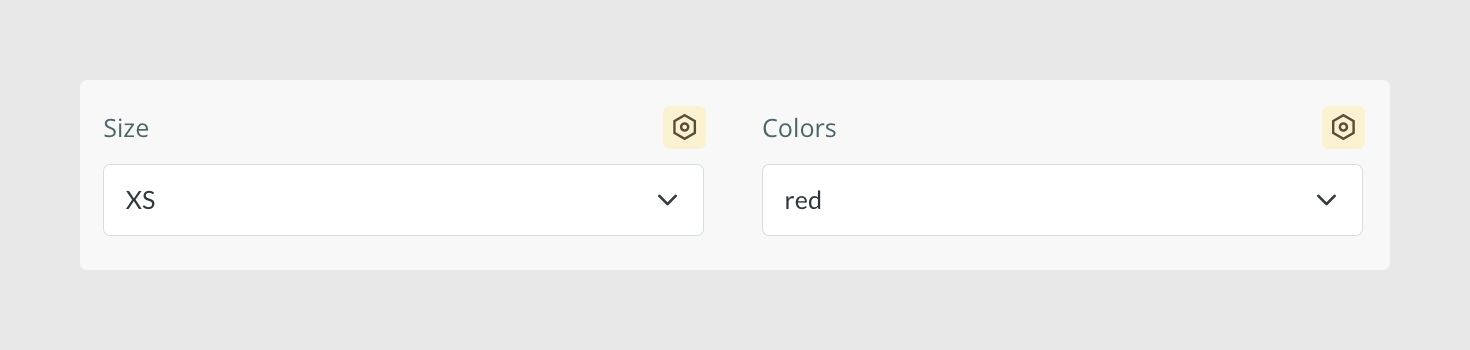
Sorting values: You can reorder list options by dragging and dropping them into the order you want.
Excel view tip: In Excel view, you will not see the full drop-down list of available options. To add a defined value, click the cell and type it exactly as it appears in the list, using the same spelling, accents, spaces, and capital letters. If you add multiple values when multi-selection is ON, separate them with a comma and a space.
Configure and translate:
The Configure option lets you edit existing list values and translate them into the languages in your account.
If a value is not translated, Sales Layer shows the original value.
List fields can support multiple languages, but not in multi-language mode. Each language stores an independent list.
Important note about maintenance:
Keep the same format when importing or updating list values, including uppercase and lowercase. This avoids duplicates that look similar but are treated as different values.
If you delete an option from Configure, it disappears from the selectable list, but it remains selected in products that already had it. This prevents accidental data loss. If you import the option again using the same format, it becomes selectable again.
Date
For dates and times.
Useful for launch dates, availability windows, deadlines, last updated fields, and similar cases.
Can be formatted or transformed using formulas in output connectors.
Web link
Stores a URL and shows it as a clickable link in the form.
Useful for videos, for example a YouTube link, product pages, or external documentation.
Table
Stores multi-dimensional values, meaning structured data inside a field.
Useful when one field needs multiple columns or repeatable rows of information.
Because of its flexibility, it is usually configured carefully depending on the use case.
Related items
Creates a relationship between an item and other references, either in the same table or in other tables (products, variants, categories, points of sale, Custom Entities, etc.).
Useful for cross-sells, accessories, replacements, bundles, or linking products to categories or other entities.
Common Use Cases
Use Short text for identifiers and short labels, such as SKU, brand, or model name.
Use Long text for descriptions that need formatting or longer copy.
Use Numbers for values you will filter, compare, or calculate.
Use Boolean when you need a clear true or false flag, for example “Discontinued”, “Is new”, or “Online only”.
Use List of attributes for controlled options, so users do not type inconsistent values.
Use Related items to connect products to other products, variants, or entities.
Best practices
Choose the simplest field type that matches your data. It keeps imports, filtering, and exports cleaner.
Prefer list fields over free text when the value should come from a controlled set, such as color, size, or material.
For list fields, define a naming convention for capitalization, accents, and spacing, and stick to it across imports to avoid duplicates.
Use Numbers, not text, for values that must be sorted or used in calculations.
When adding multiple images or files, separate values consistently with commas so imports and exports stay predictable.
Was this article helpful?
That’s Great!
Thank you for your feedback
Sorry! We couldn't be helpful
Thank you for your feedback
Feedback sent
We appreciate your effort and will try to fix the article