Depending on the credentials provided by BigCommerce and configured in the connector, it will be possible to establish either a single relationship to a single storefront or multiple relationships with storefronts and categories.
Creating relations between BigCommerce storefronts and Sales Layer categories
The steps below explain how to make and manage relations between the storefronts available in BigCommerce and specific Category Roots in Sales Layer.
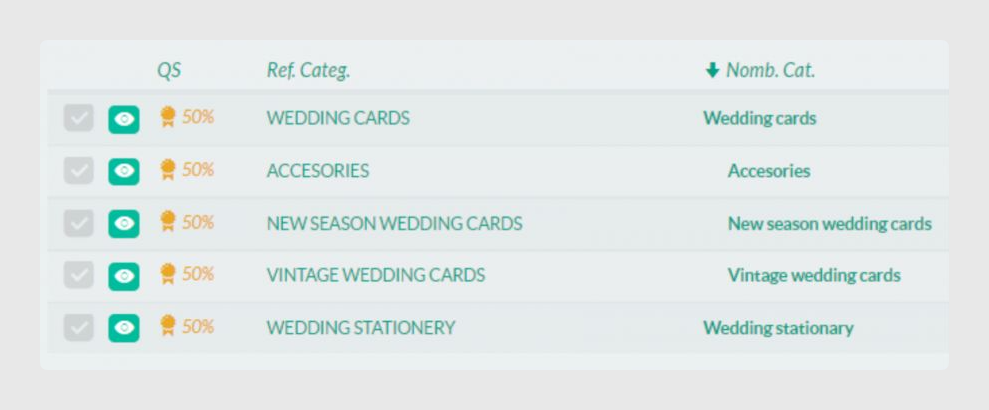
- Step 1: This is the subset of categories in Sales Layer that will be used in the example. Categories are accessible through the main menu of the application.
- Step 2: Click “Link a new storefront” and select a storefront and the category tree of Sales Layer that you want to associate.
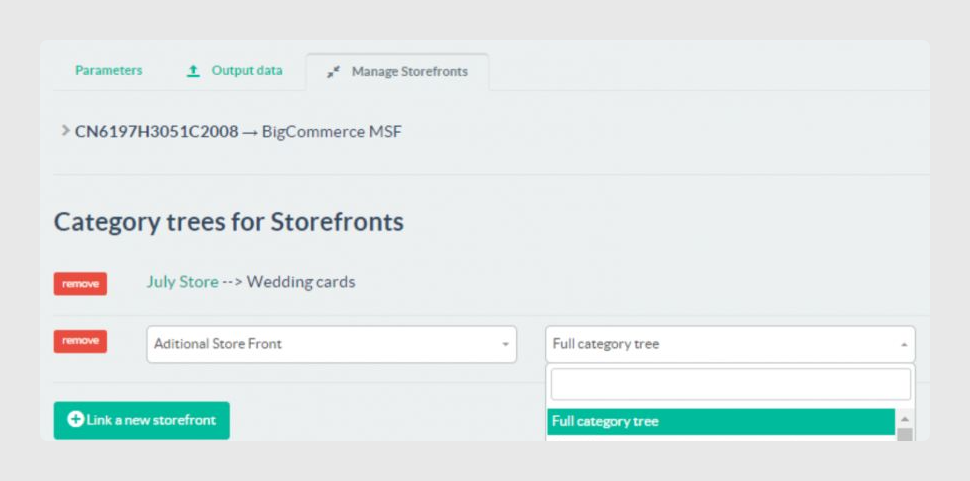
- Step 3: The new relation will be added to the list.
Rules applied to relationship management
- Rule 1:Establishing a relation between a BigCommerce Storefront and a Sales Layer Category will generate a Category Tree in BigCommerce equivalent or similar to the structure of categories in Sales Layer. The item status filter value applied in the Parameters tab will filter the categories.
- Visible categories will be added to the category tree in BigCommerce.
- Draft and Invisible categories will have their status modified to disabled in the category tree of BigCommerce only if they already exist. If they do not exist, they will not be created.
Category Root: Wedding Cards. Category Tree created in BigCommerce during synchronization.
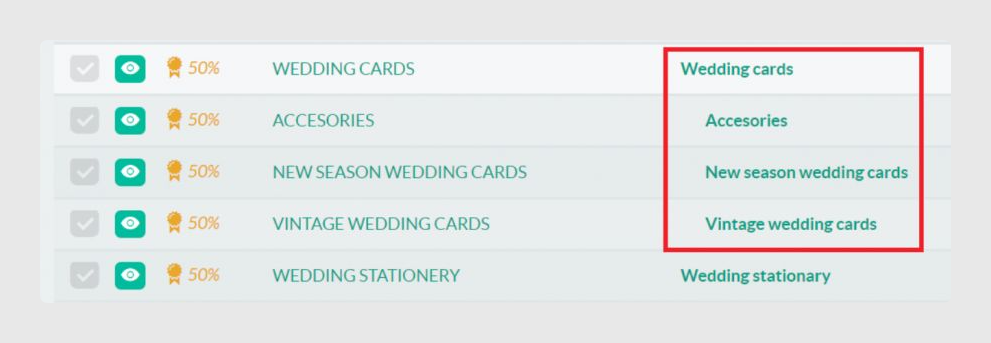
- Wedding cards
- Accessories
- New season wedding cards
- Vintage wedding cards
- Rule 2: There is no possibility to connect the same storefront to different category roots. This prevents mapping inconsistencies.
- Rule 3: Clients can establish as many relations between BigCommerce storefronts and Sales Layer categories as the number of available storefronts in BigCommerce.
- Rule 4: If clients want to establish a relationship with one Storefront that already has an association with a Category Tree, it will overwrite the previous relationship created for that Storefront.
Storefront visibility for categories and products
By default, each storefront indicated will include all items that match the item status filter from the Parameters tab, label filters, and the category tree of Sales Layer specified in the relations between Sales Layer category trees and BigCommerce.
Clients also have the option of specifying in what storefronts any particular item will be included. Follow these steps:
Step 1. Create a new field of type List of attributes in the category form and/or the product form. Check that this field has its “Allow multi-selection” option active.
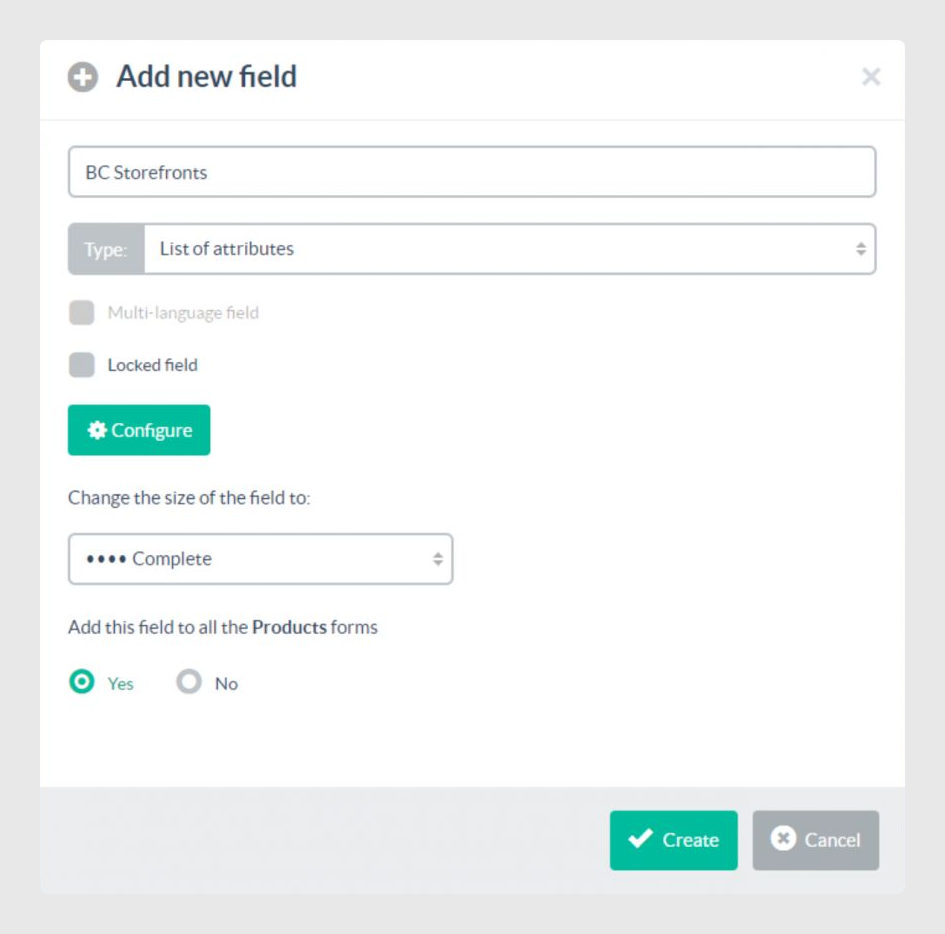
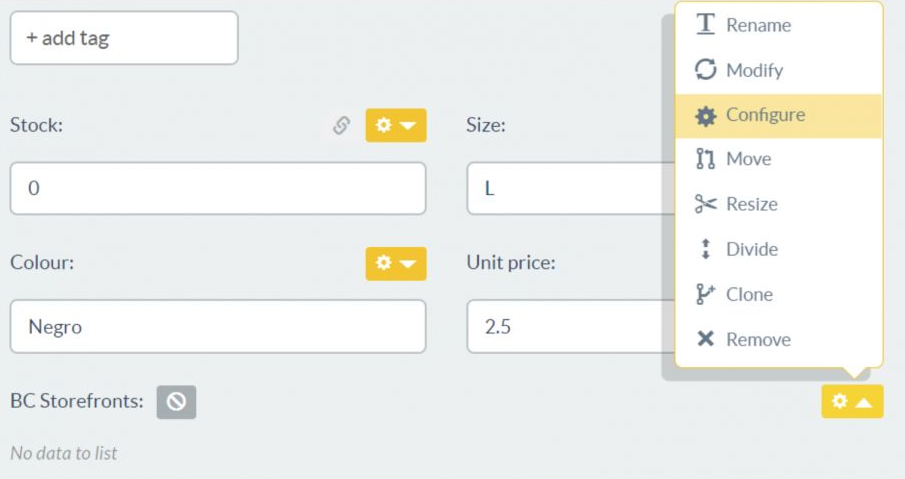
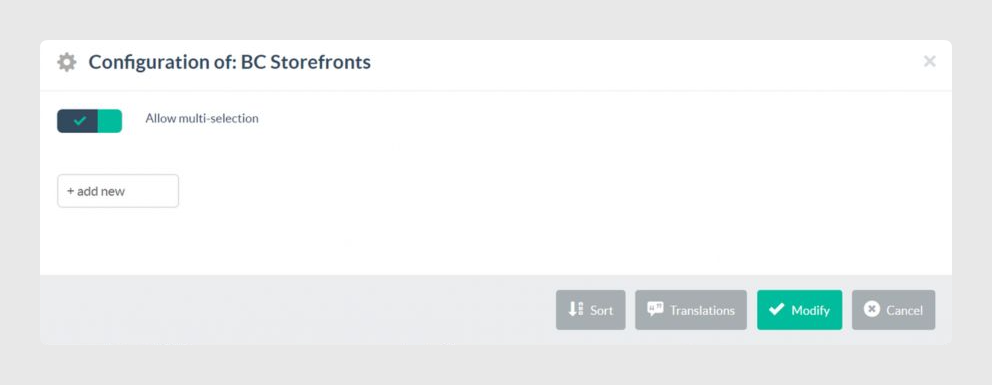
Step 2. Select the new category and/or product field and click the “Synchronize storefronts” button.
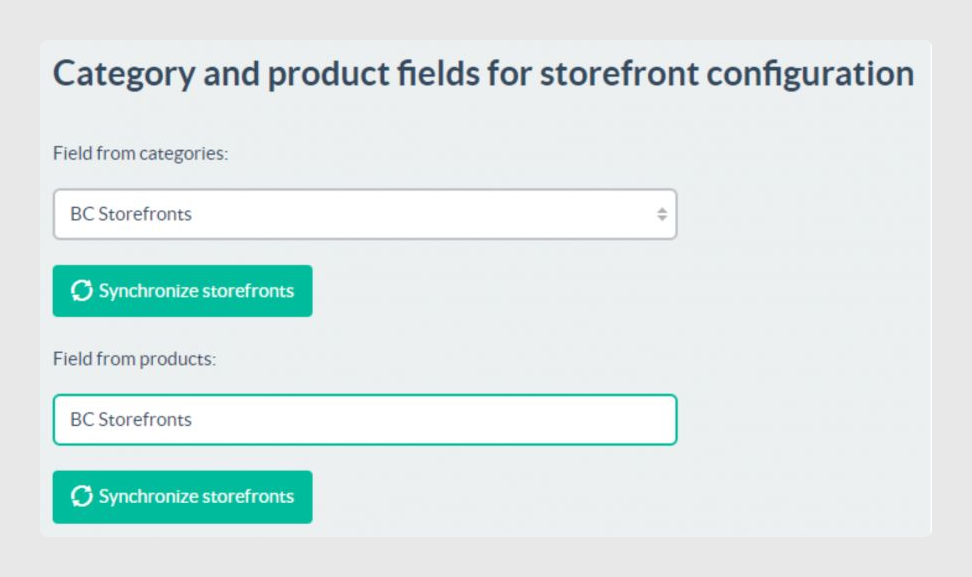
The effects of clicking “Synchronize storefronts” are the following:
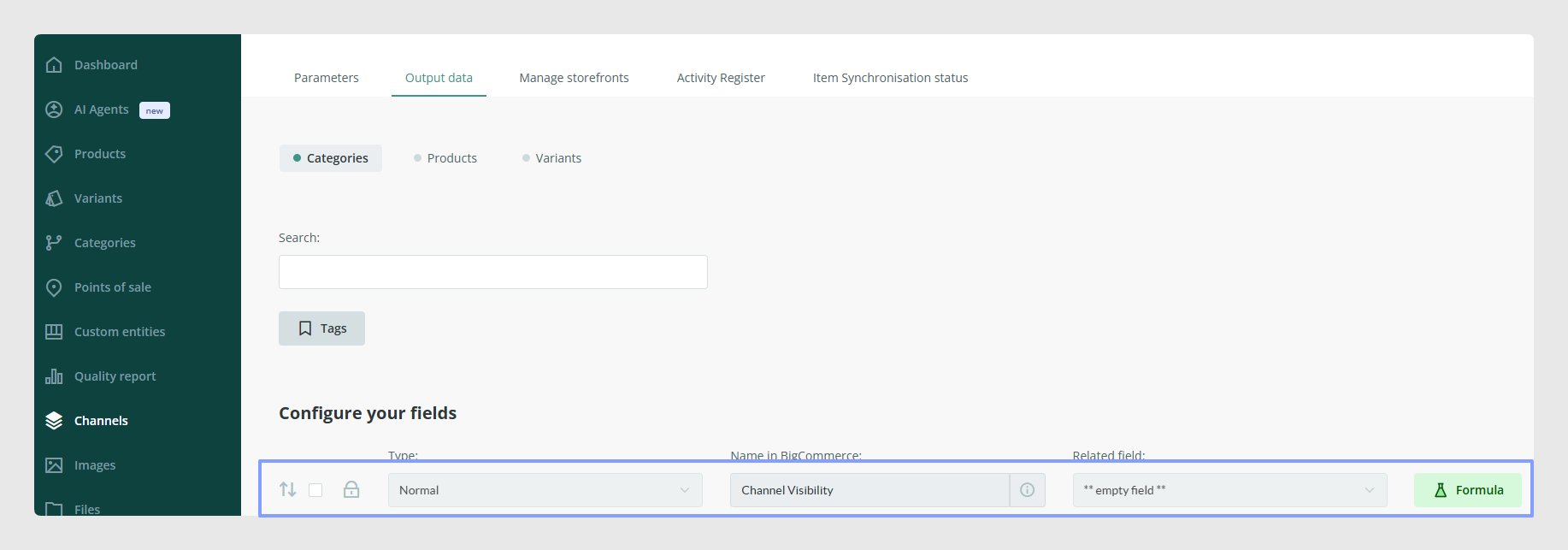
- It will map the field “Channel Visibility” inside the tabs Output data > Categories and/or Output data > Product. These fields are always present in the connector configuration but cannot be modified manually by the user. They are mapped automatically after clicking the Synchronize storefronts buttons.
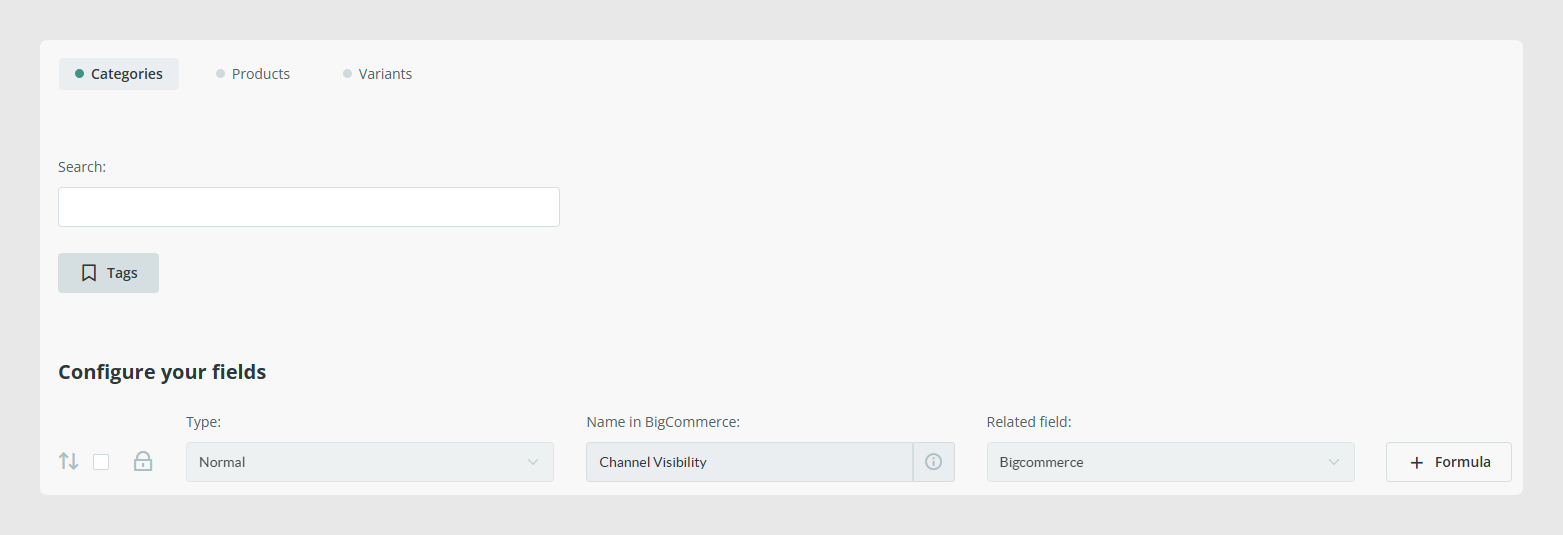
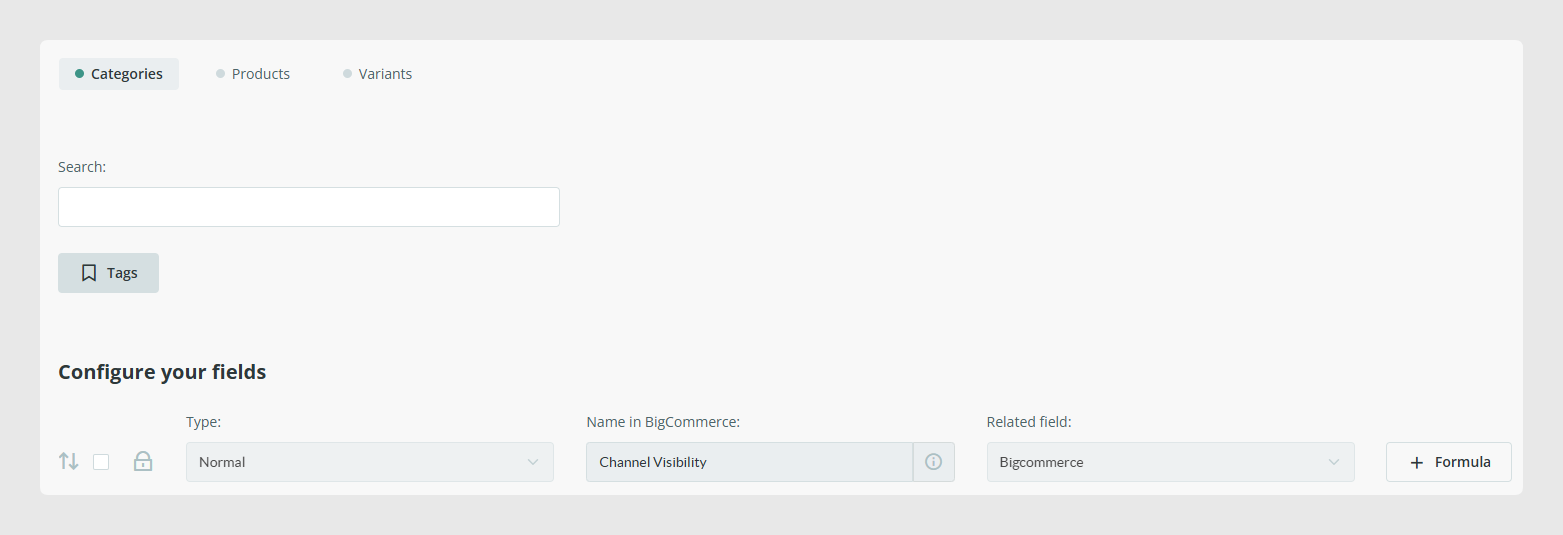
- The Synchronize storefronts operation will add the available storefronts in these fields.
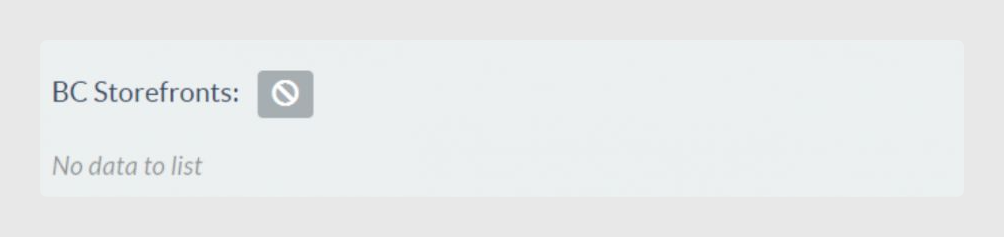
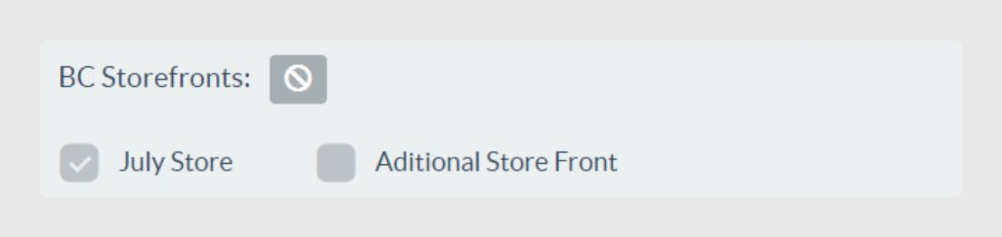
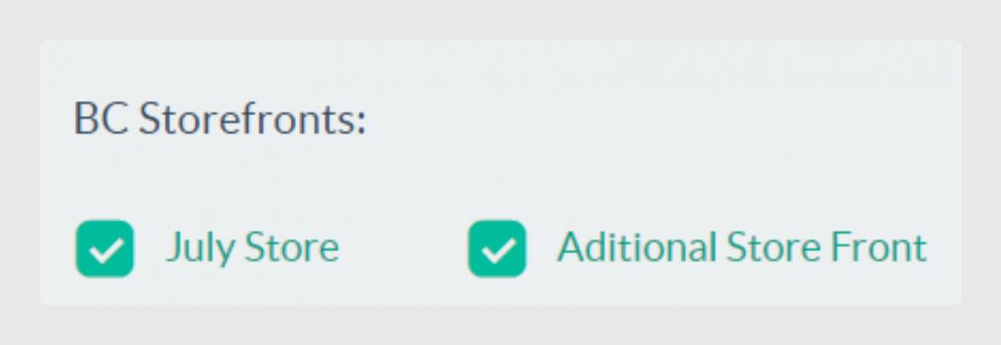
Step 3. Modify each category or product to select the storefronts in which each item will be included.
General rules
- Establishing fields to manage the visibility in specific storefronts inside products or categories is optional.
- Formulas can be used to assign values to the fields Channel Visibility inside the tabs Output data > Categories and/or Output data > Product. Formulas should always return an array that contains the internal storefront IDs represented with string values for synchronization with BigCommerce storefronts. For example: PRINT(“1,15467,345678”).
- When an item that has been previously synchronized with BigCommerce changes its status to one that is not allowed by the connector visibility filter, this item will be disabled in BigCommerce.
Categories
- Categories without visible products are not sent to BigCommerce.
- If there is no relationship created between a BigCommerce storefront and a category root in Sales Layer, the connector will synchronize the items to the default storefront in BigCommerce. Any additional storefront will not receive any item.
- When a category that has subcategories has its status changed in Sales Layer from visible to draft or invisible, the category will be disabled. The subcategories will not be deleted or disabled, but they will move up one level into the hierarchy of categories in BigCommerce.
- When a new subcategory is created in Sales Layer and belongs to a category that already exists in BigCommerce, the subcategory is added under the category in BigCommerce.
- If no category root is selected in the category filter inside the Manage Storefronts tab, the full category tree of Sales Layer will be associated with this storefront.
Products
- If a storefront is configured with a connector, but the product has no storefront selected in its storefront list of attributes field, the item will be synchronized but without storefronts selected in BigCommerce.
- When a product does not have valid categories because they have been filtered by storefronts, the product will also be sent without associated categories.
- Products without categories will still not be sent by the Sales Layer API because it filters this information. To achieve this, you can assign a fictitious category that meets the output filters, but without linked storefronts. This way, products will be sent without categories.
- If a product has assigned categories, the connector will check that the categories are in the modified API data. If they are not sent by the Sales Layer API, it will check whether they have been previously synchronized in the connector external cache.
Variants
- If a parent product is not valid, its variants will not be synchronized either, since variants in BigCommerce cannot be orphans.
Considerations
- If you do not need to use multiple storefronts, you only need to establish one relationship between your single storefront and the category root in Sales Layer. You can also skip this part of the connector. In this case, all categories and products selected in Output Data will be sent to your only store.
- If a Sales Layer Category linked to a storefront has been deleted, once the connector starts a new synchronization, a notification will be sent to the user as well as an error message in the activity report. The connector will be disabled so the client can fix it and avoid possible category tree structure errors while synchronizing.
- Starting from the June 2025 version, the connector will support BigCommerce Catalyst. Once activated, it will be managed as an additional storefront from the Manage Storefronts tab within the connector. If you are interested in this feature, contact the support team.
Was this article helpful?
That’s Great!
Thank you for your feedback
Sorry! We couldn't be helpful
Thank you for your feedback
Feedback sent
We appreciate your effort and will try to fix the article