Tags are a useful way to organize your product data in Sales Layer. They work alongside the Search Bar and help you group products so they are easier to find, review, and reuse later.
You can create tags from a filtered product list, combine several tags to narrow down the results, and use tags together with the Search Bar for more precise filtering.
Create a tag from a filtered product list
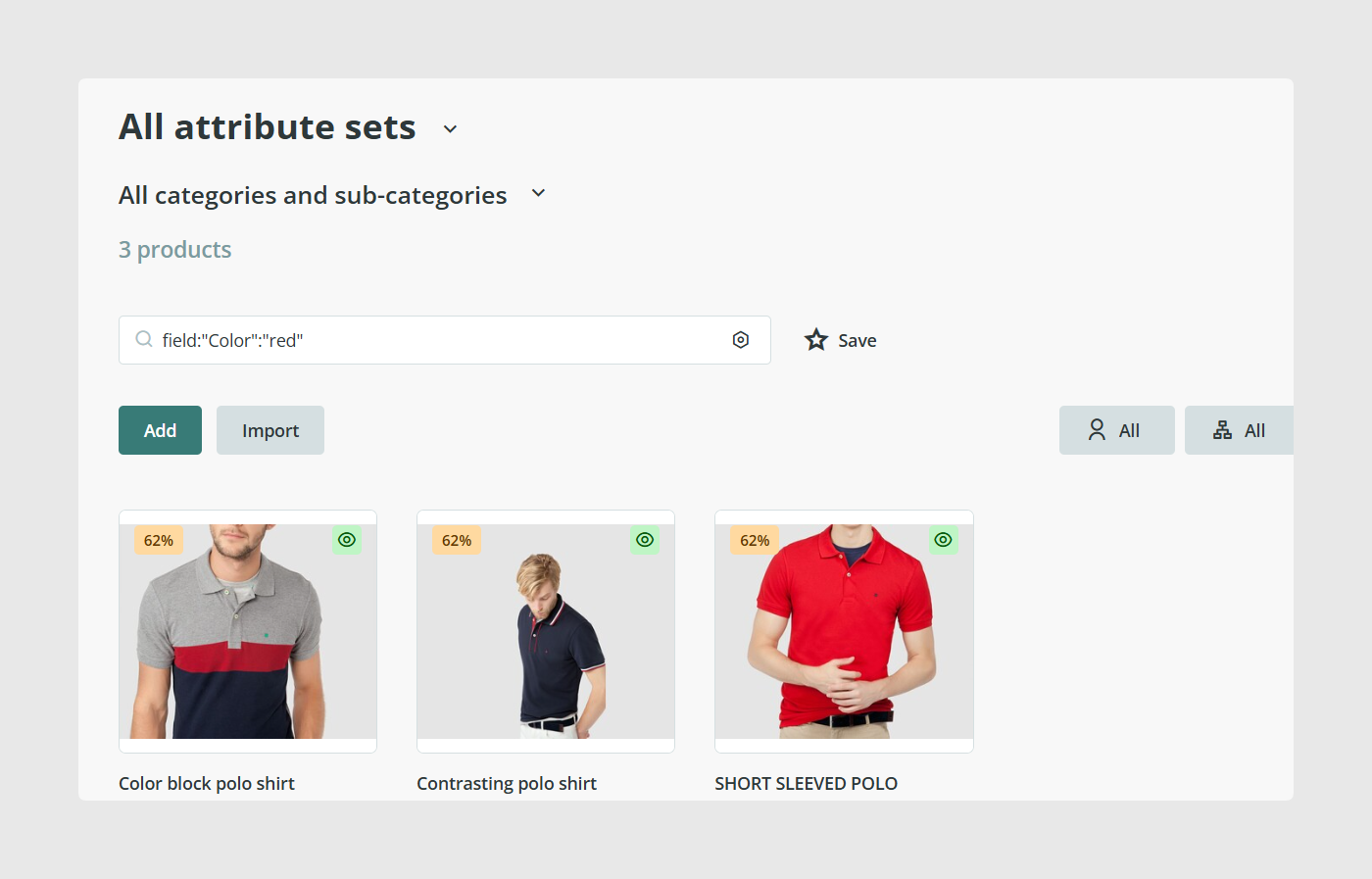
To create a tag, first filter your products with the Search Bar. For example, if you want to tag products whose color field contains the word red, enter this search:
field:color:red
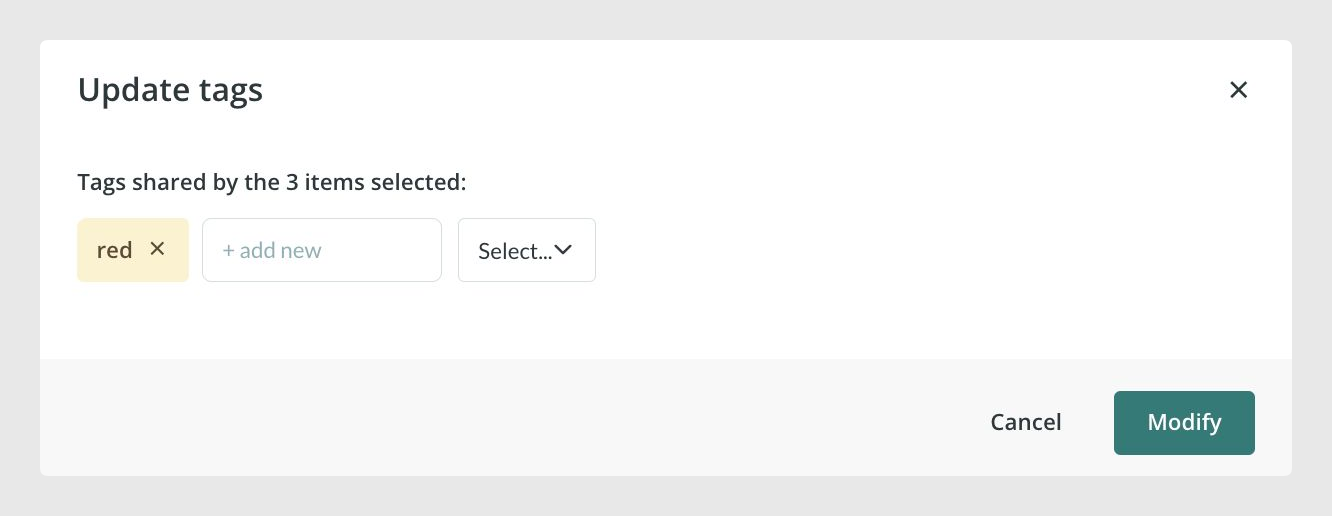
Once the filtered results are shown, go to Actions > Update tags and create a new tag, such as Red.
Filter products with one or more tags
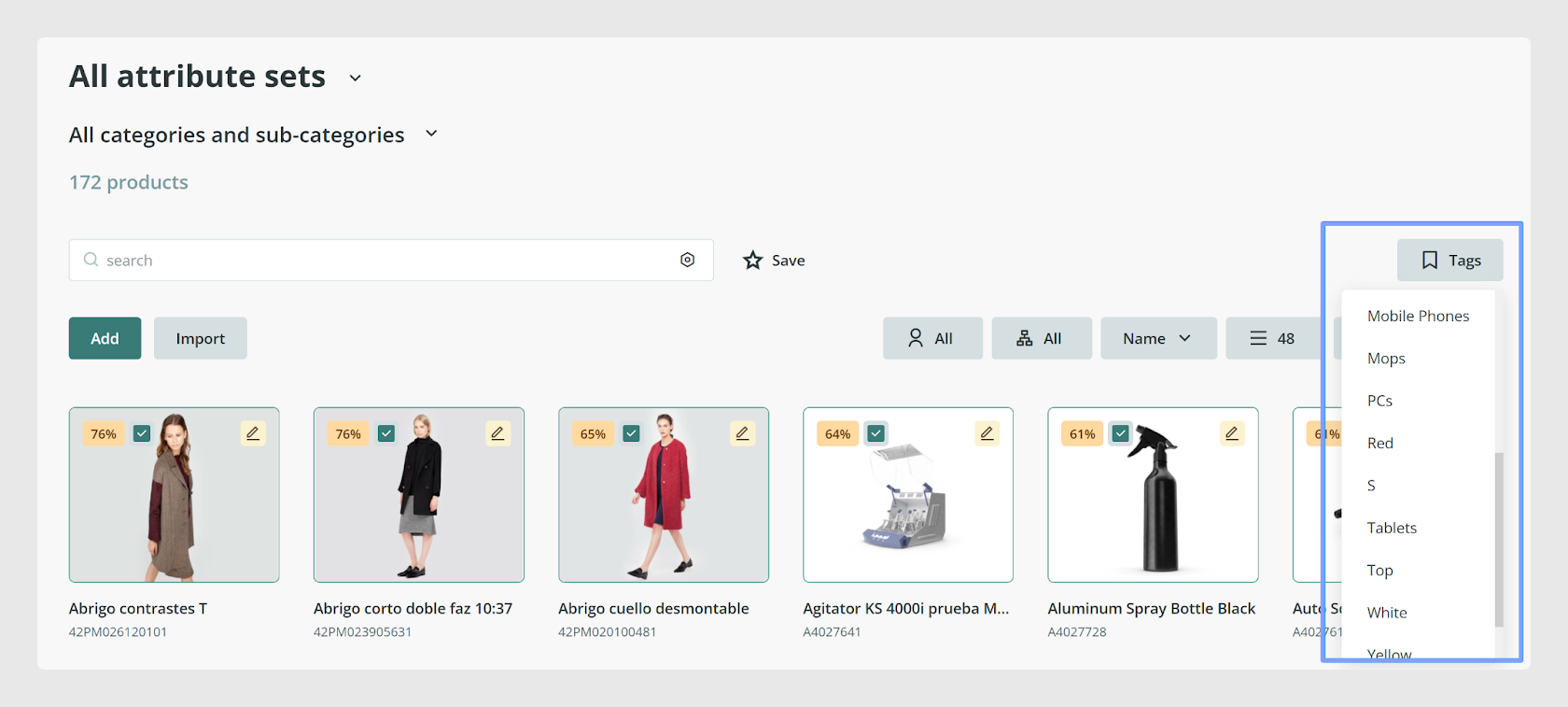
After you create a tag, a tag icon appears on the right side of the table. From there, you can select one or more tags to filter the products shown in the current list.
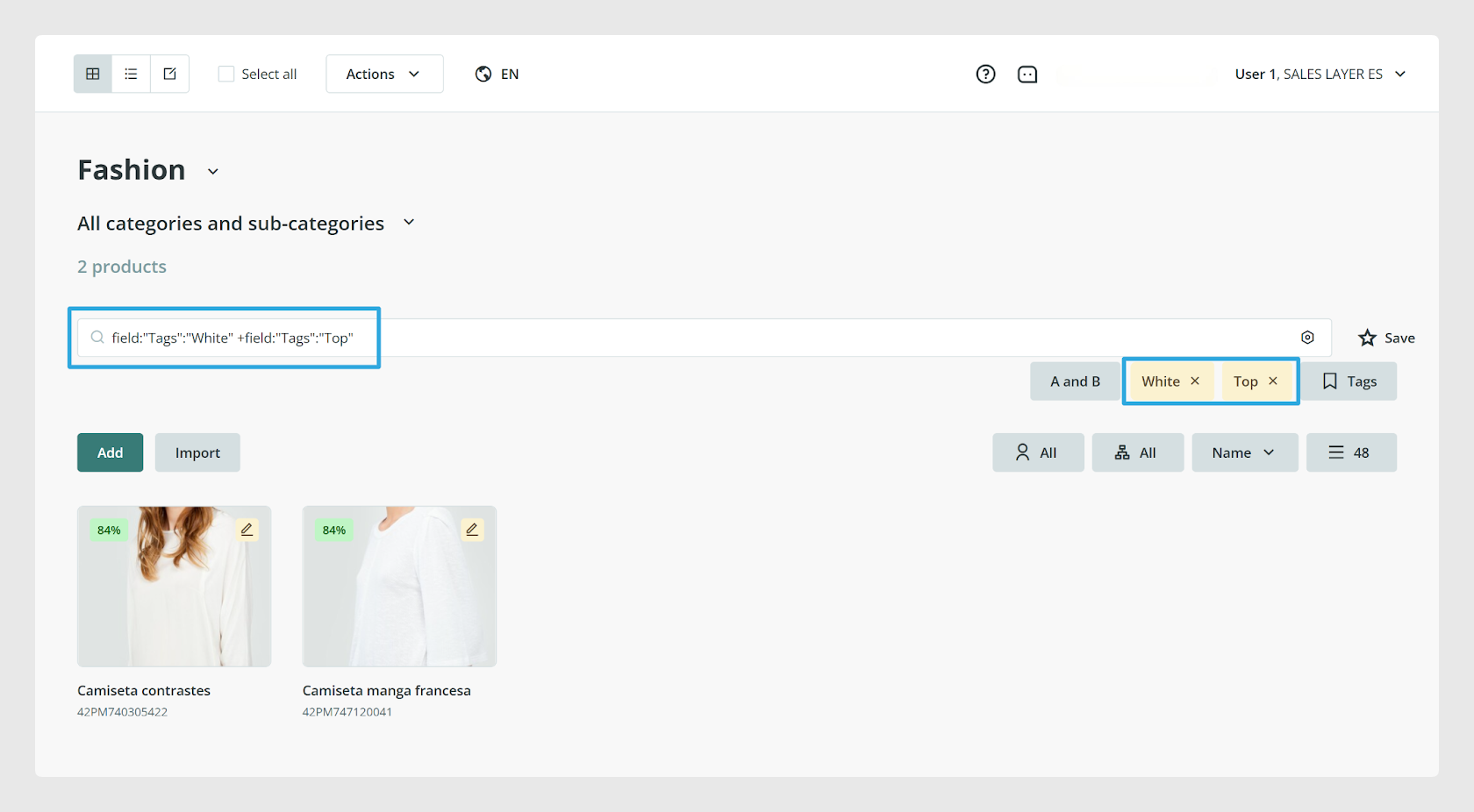
If you have more than one tag, such as Red and White, you can choose whether to show:
products that have both tags applied, using A and B
products that have either tag applied, using A or B
Combine tags with the Search Bar
You can refine your results even more by using tags together with the Search Bar. For example, if you already filtered by the Red and White tags, you can add another condition such as:
field:name:shirt
This shows only the products that match the selected tags and also contain shirt in the name field.
[Screenshot placeholder: Products table filtered by two tags and the Search Bar at the same time, showing a search such as field:name:shirt.]
Remove a tag from products
If you want to remove a tag, open Actions > Update tags. Hover over the tag and click the x button when the tag turns yellow.
If a tag is no longer associated with any products, it is removed from Sales Layer. If you need it again later, you will have to create it again.
Use tags in channels and workflows
Tags are not only useful for filtering products inside the catalog. You can also use them when creating Channels so that only products with a specific tag are exported.
They can also be used in Workflows, which helps limit an editor’s work to a specific group of tagged products.
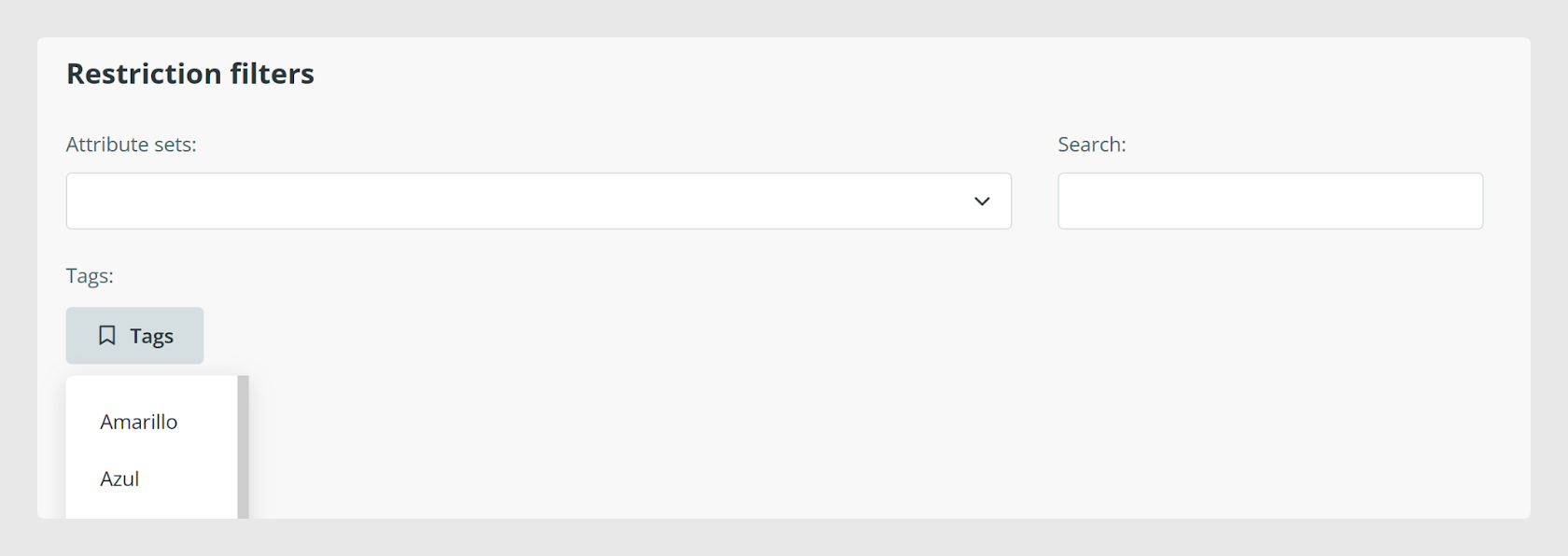
Common Use Cases
Group products that share a color, category, campaign, or internal review status.
Create temporary product groups for content checks or updates.
Filter product lists more quickly without building the same search every time.
Export only tagged products through a Channel.
Assign specific tagged products to editors in a Workflow.
Best practices
Use clear and consistent tag names so your team can understand them at a glance. Before creating a new tag, check whether a similar one already exists. When possible, combine tags with the Search Bar instead of creating too many overlapping tags, so your filtering stays simple and easy to maintain.
Was this article helpful?
That’s Great!
Thank you for your feedback
Sorry! We couldn't be helpful
Thank you for your feedback
Feedback sent
We appreciate your effort and will try to fix the article