Once a custom entity table has been created, you can use it to manage reusable information that may be linked to products, variants, categories, points of sale, or other custom entities.
This article focuses on what happens after the table already exists. It explains how to update custom entity records, how to link them with other tables, and how to export the information correctly.
Update records manually
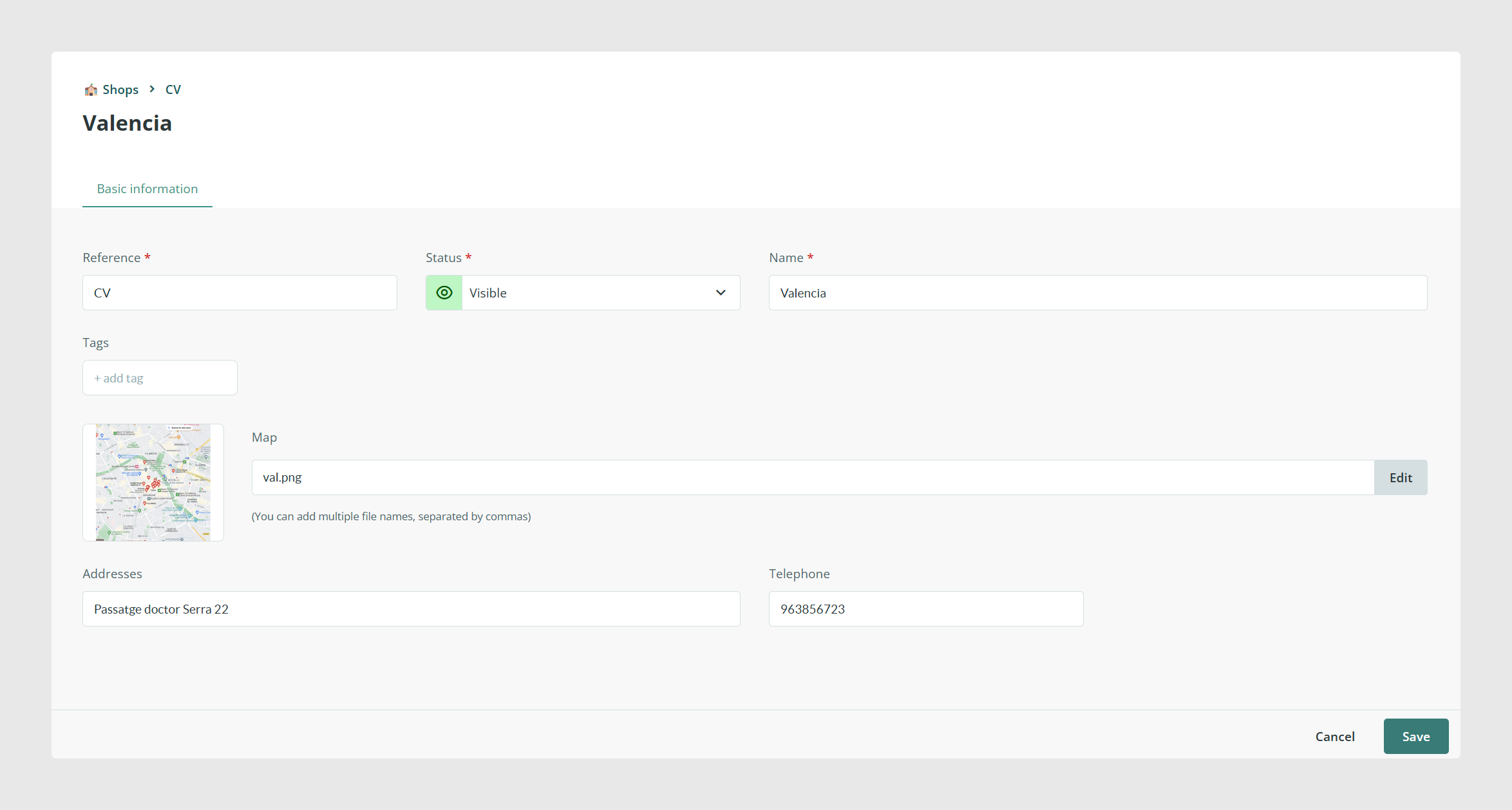
If you only need to change a few custom entity records, open the table and edit each item directly. This is useful for small corrections, file replacements, title changes, or adding new values one by one.
Update records by import
If you need to update many records at once, use the import option. Similar to all other tables, to update existing records, include the Custom Entities' reference column together with the columns you want to change, then import the file into the custom entity table.
The reference is what allows Sales Layer to identify which record should be updated. During the import review, check the field mapping carefully. At that stage, you can still match columns to existing fields, create new fields if needed, change field titles or field types, or discard columns that should not be imported.
Link custom entities with other tables
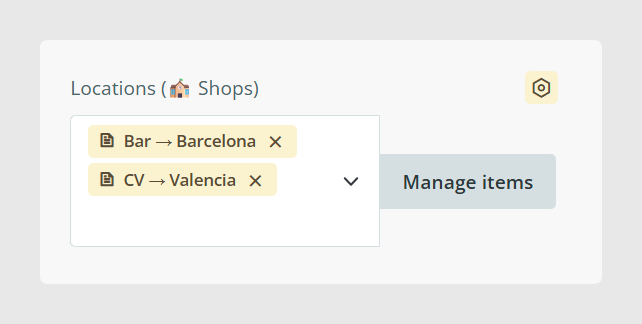
To use the information stored in custom entities from another table, create a Related Item field in the destination table and configure it to point to the custom entity table.
Related Item fields let you connect records across the same table or across different tables, including products, variants, categories, points of sale, and custom entities. This is the standard way to link custom entity records with the rest of your PIM structure.
This is especially useful when you want to connect reusable information such as certificates, manuals, campaigns, or spare parts to several products without repeating the same content in each form.
Choose how linked items are shown
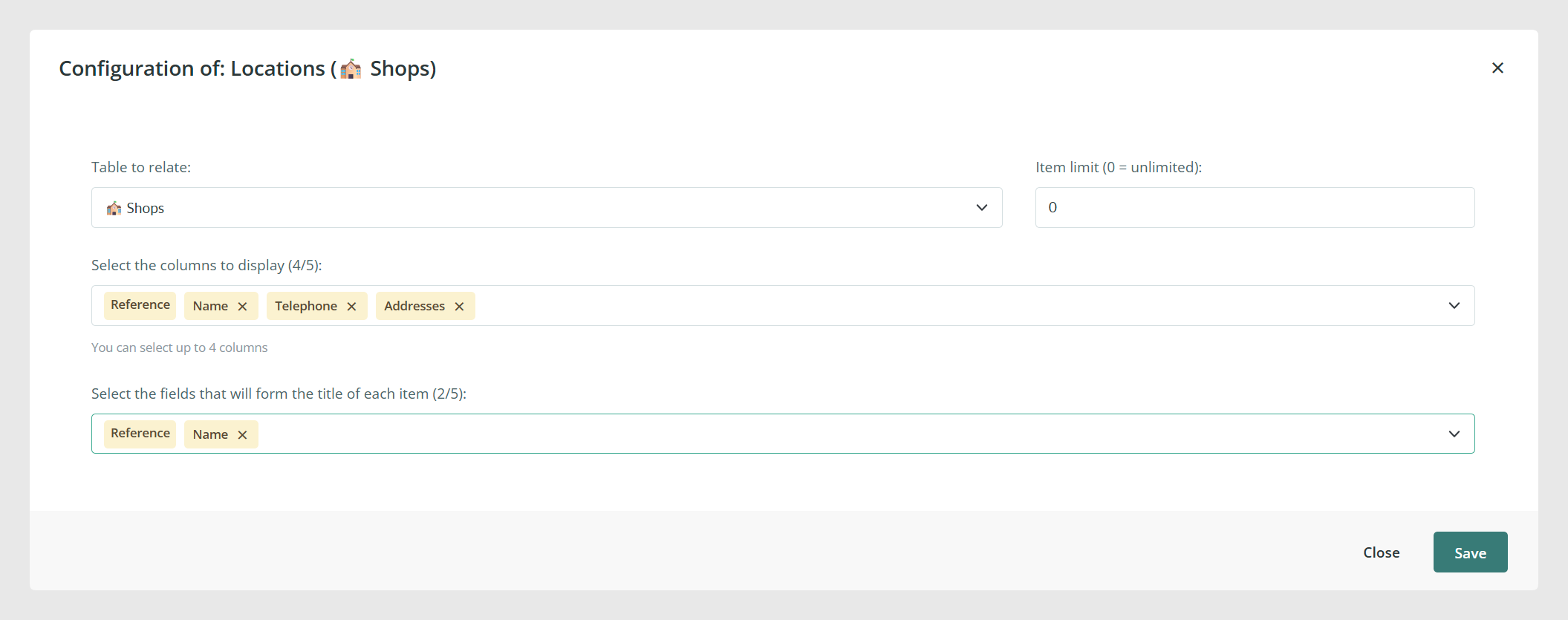
When you configure a Related Item field, Sales Layer lets you choose up to four fields to display for each linked record. This helps users identify the correct linked item more easily when they manage relationships from the form.
You can also use the item selector to search, preview, and sort linked records before choosing them.
What happens when a linked custom entity is updated
One of the main advantages of custom entities is that the information is stored once and reused through relationships. When the content of a custom entity record is updated, all items that use that record through a Related Item field reflect the updated information automatically.
This saves time because you can maintain one source record instead of editing the same supporting content across many products or variants.
Export custom entity tables
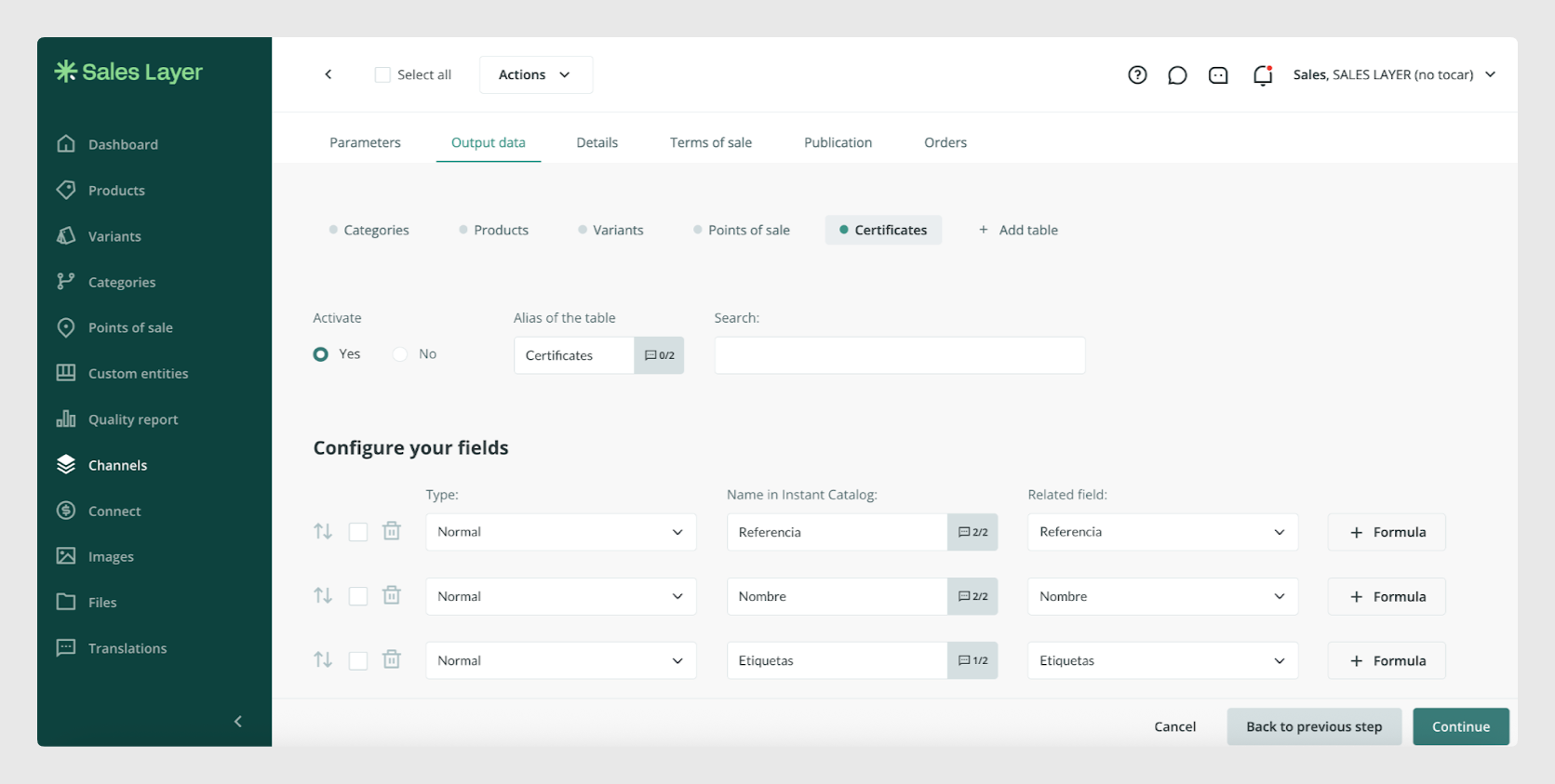
All information stored in custom entities can be exported through connectors that support additional tables. To do that, activate the custom entity table in the connector and choose the fields you want to export.
By adding and activating the table in the connector, you can export all the selected fields from that custom entity table.
Default export behavior of Related Item fields
When you export a Related Item field from another table, such as Products, the default output is the internal reference that links the item to the related custom entity record.
This means the connector exports the relationship itself, not automatically the readable content stored inside the custom entity.
This is important because many users expect the export to return the linked name, file, or another descriptive field. By default, it returns the reference.
Export a field value instead of the reference
If you want the export to return a different field from the related custom entity, such as its name, file, image, or another attribute, use the Replace From Table formula.
This formula retrieves specific data from the related record instead of exporting only the linked reference.
For example, if a product is linked to a manuals custom entity through a Related Item field, Replace From Table can return the manual name or file field instead of the linked reference.
REPLACE_FROM_TABLE
Common Use Cases
- Update one custom entity record and reuse that change across many linked products or variants.
- Link manuals, certificates, campaigns, spare parts, or other supporting information through Related Item fields.
- Export custom entity tables as separate connector outputs.
- Export a field from the related custom entity instead of the internal reference by using the Replace From Table formula.
Best practices
Use custom entities for information that should be maintained once and reused in many places. Link them through Related Item fields instead of copying the same values into multiple product or variant forms. When exporting, always check whether you need the raw linked reference or the actual field value from the related table. If the export should show the readable content, use the Replace From Table formula. For bulk maintenance, update records by import using stable references so Sales Layer can identify the correct items consistently.
Was this article helpful?
That’s Great!
Thank you for your feedback
Sorry! We couldn't be helpful
Thank you for your feedback
Feedback sent
We appreciate your effort and will try to fix the article