In Sales Layer, you can create products in two main ways. You can add them manually one by one, or you can import them in bulk from a file.
Manual creation is useful when you only need a few products. Importing is usually the faster option when you already have product data in a spreadsheet or another system.
Create products manually
If you want to add one product at a time, go to Products and click Add. This opens the product form so you can enter the information directly in Sales Layer.
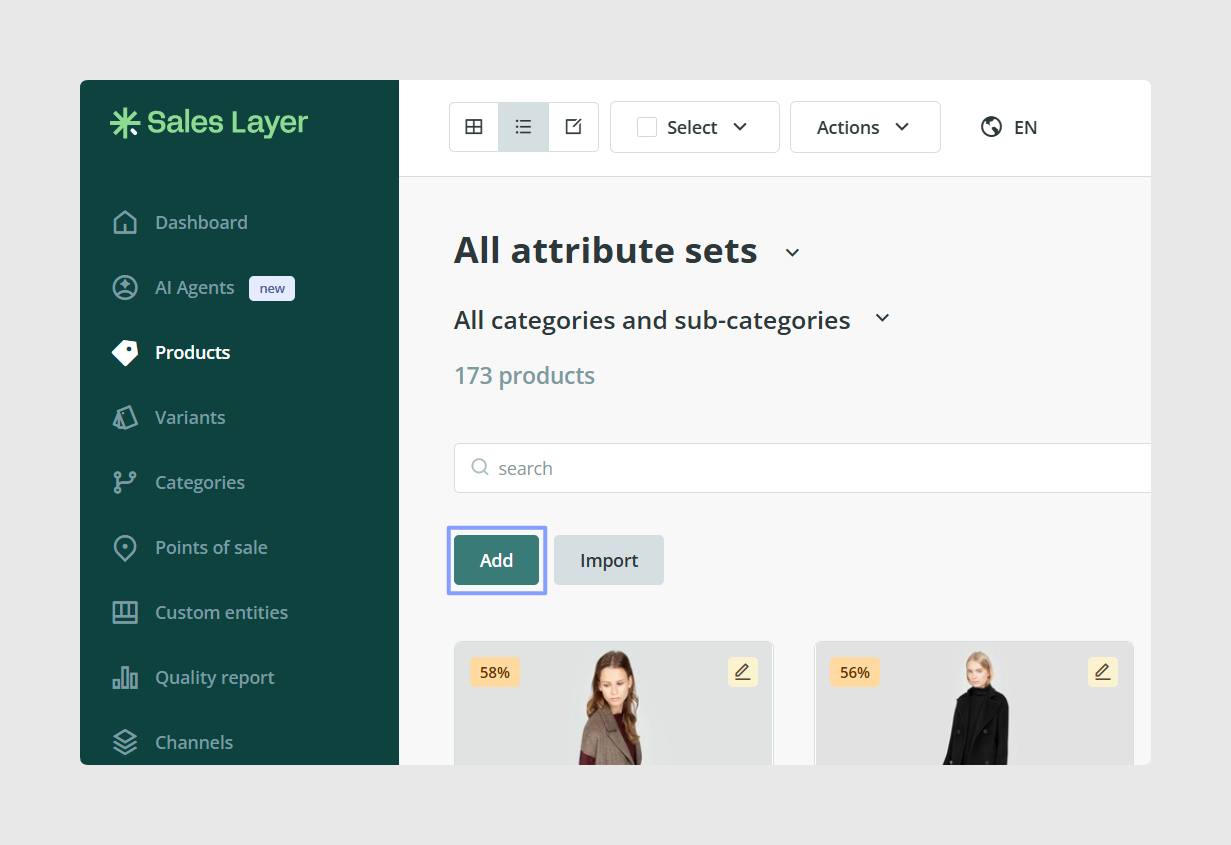
This option is useful when:
- you only need to create a few products
- you are testing the structure before a larger import
- you want to complete missing products after the main catalog is already loaded
If your account already uses Attribute Sets, you will need to select the correct one before editing the full product form.
Create products by import
If you already have product information in a spreadsheet, importing is one of the fastest ways to create products in bulk.
To start, go to Products, click Import, and choose the import method you want to use. For Excel imports, copy the rows from your spreadsheet and paste them directly into the import window.
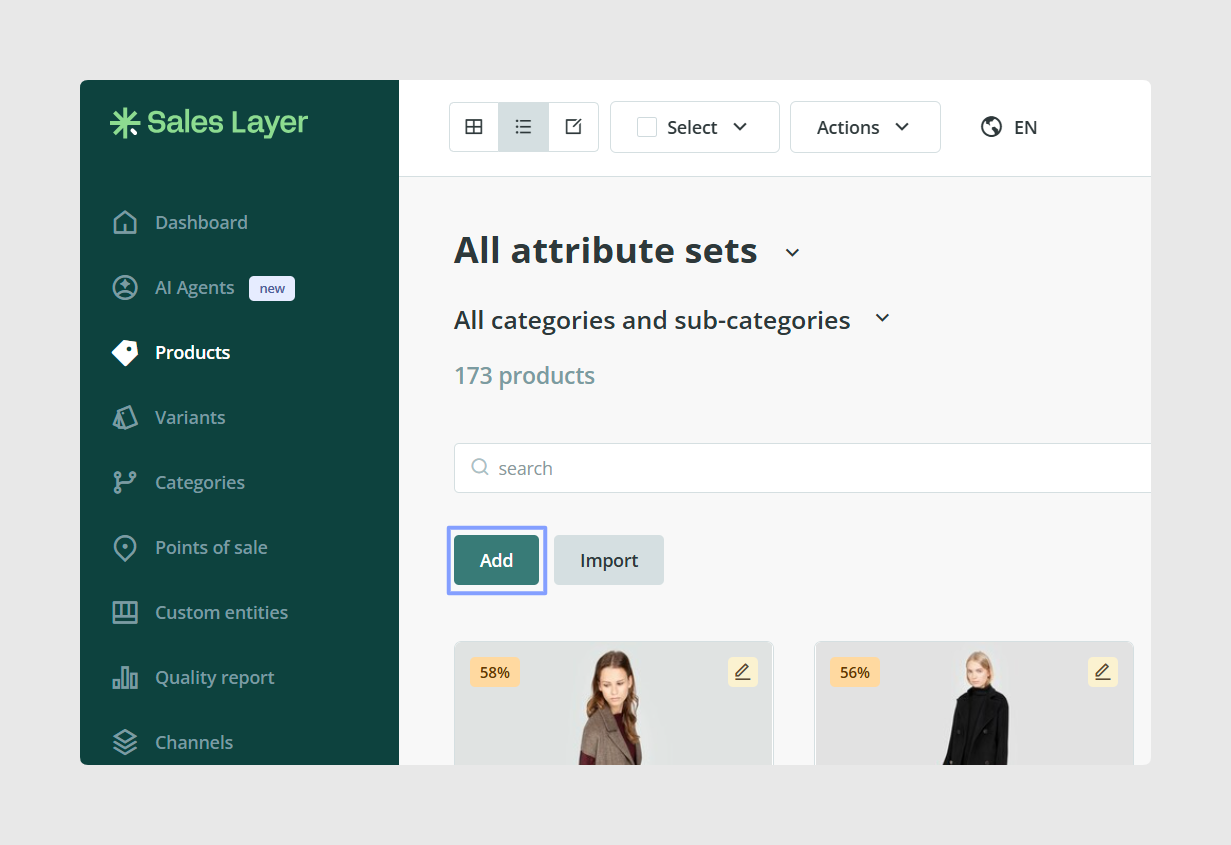
This is useful when:
- you already have product data prepared
- you want to create many products at once
- you want to create fields as part of the first import
Preparing the key product fields
When creating products by import, there are several basic fields to keep in mind. The main ones are:
- Product Reference
- Section Reference
- Attribute Set
- Product Name
- Product Description
- Product Image
The most important fields when creating products are Product Reference and Product Name. These should always be included in your file.
The Section Reference field is used to link products to categories, and the Attribute Set field is used to assign the product to the right form structure.
Importance of Product References
Sales Layer uses the product reference to identify each product. This means every product should have its own unique reference.
It is also important to keep references consistent in uppercase and lowercase, because Sales Layer treats text as case-sensitive.
If the same reference appears several times in the same Excel file, Sales Layer imports the first one and ignores the rest.
Using the Attribute Set field
If your account uses Attribute Sets, the import can also assign each product to one. To do this, include the Attribute Set value in the corresponding column of your file.
If the Attribute Set name does not exist yet, Sales Layer can create it during the import. If the field is left empty, the product is created without an Attribute Set.
Using multilingual fields
If your catalog works in more than one language, you can prepare multilingual fields directly in the import file. To do this, use the same field name with language suffixes such as :es or :en.
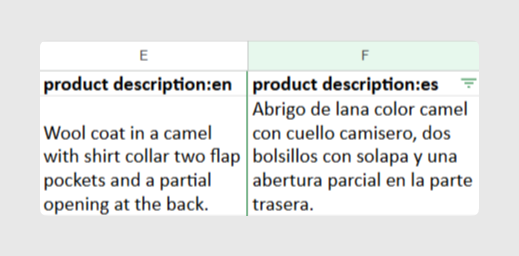
For example, this is commonly used with fields such as product name or description. Sales Layer can identify these columns as part of the same multilingual field during import.
Field mapping
After you paste or upload the file, Sales Layer shows the detected columns so you can review how each one will be imported.
Recognized fields appear with a green background, while new fields appear with a white background.
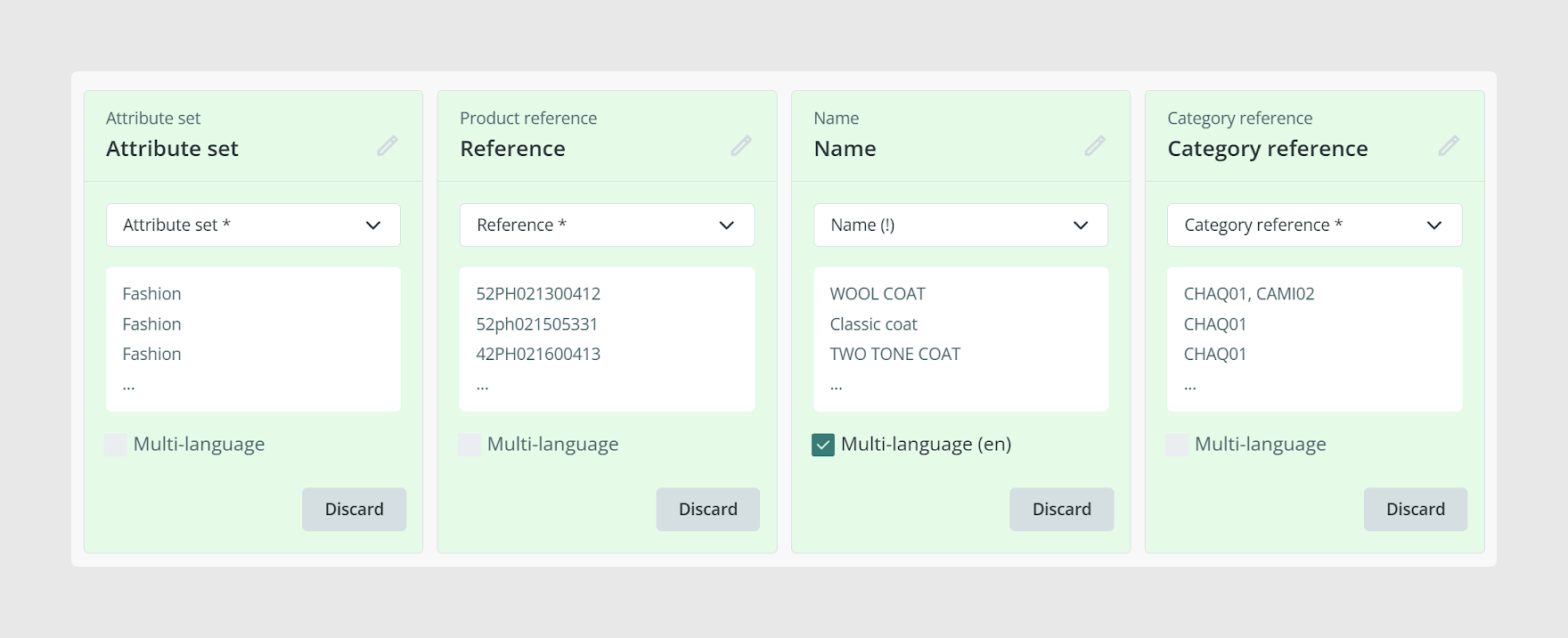
At this stage, you can still:
- match a column to an existing field
- create a new field
- change the field title
- change the field type
- discard a column you do not want to import
If a column is empty, it may appear disabled at first. You can still enable it if you want to create that field in the structure.
New columns
When Sales Layer detects a new field, make sure the selected field type matches the content you are importing.
For example, an image column should use an image field type, a document column should use a file field type, and numeric values should use a number field when appropriate.
Taking a moment to review field types on the first import makes the product structure much easier to maintain later.
Excel import limitations
Excel import allows you to create up to 25,000 products at a time.
You can also import up to 750 columns in a single Excel or CSV import.
These limits are worth keeping in mind when preparing larger catalogs.
Automating import
If product data needs to arrive regularly from another system, Sales Layer also supports automatic imports through the import connector or through the API.
This is usually more useful once your field structure and references are already defined and stable.
Recommendations
- Use manual creation when you only need a few products
- Use import when you already have product data prepared in bulk
- Use automatic imports when product data needs to sync regularly from another system
Common use cases
- Create a first product catalog from an existing spreadsheet
- Add a few products manually after the main import
- Assign products to categories and Attribute Sets during import
- Build multilingual product fields from the start
- Create the product structure and fields at the same time as the first load
Best practices
Before creating products in bulk, make sure your references are unique, your column names are clear, and your Attribute Set and category values are already planned. For the first import, review the mapping and field types carefully instead of rushing through it. That first setup usually saves a lot of cleanup work later.
Was this article helpful?
That’s Great!
Thank you for your feedback
Sorry! We couldn't be helpful
Thank you for your feedback
Feedback sent
We appreciate your effort and will try to fix the article